Android has matured by leaps and bounds, but it’s still a work in progress. Over time, Google has added and removed many popular features to Android. In some cases, functionality may be removed entirely. However, it often ends up in a settings page or is buried in another hidden location within Android. That’s why we created this article where we unearth 15 hidden features of Android that are very interesting and useful. Now, let’s take a look at some unique Android features available on Android devices.
Android hidden features
Here, we have discussed various hidden Android features such as privacy, security, and ease of use. We’ve also added some lesser-known Android features that were recently released but may have gone under the radar. With that said, here are some hidden features of Android that you should know about and use often.
1. Block spam calls
One of the features you should always turn on when setting up a new Android device is the spam call filter. This protects me from unwanted calls from telemarketers, scammers, and spammers. If you have a standard Android device, Google’s Phone app should be installed as your default dialer. To enable spam call blocking, open the Phone app and tap the three-dot menu in the top-right corner to open Settings. Then open “Caller ID and Spam” and enable both toggles . Now, when you receive a call from a spammer, your screen won’t light up or make any sound. Similar to DND with Total Silence turned on.

If you’re worried about missing an important call, don’t worry. I have been using this feature for a long time and I can assure you that it works without any problems . There are other apps with similar functionality like Truecaller, but you should be careful about handing over your data to third-party apps, especially given its questionable past track record.
2. Autofill verification code
Many of us grant SMS permissions to multiple apps for seamless OTP verification. However, this can lead to serious compromises, as the app can read all your text messages and build your credit profile without your consent. To crack down on this behavior, Google has introduced a new API called SMS Retriever. This allows apps to capture one-time codes without asking for SMS permission . If your app developer hasn’t implemented this API, Google will act as a bridge and provide you with a verification code. Isn’t that amazing? To enable this feature, go to Settings -> Google -> Autofill verification code and enable the toggle. Make sure Google’s autofill service is also enabled.
3. Force dark mode on all apps
Although dark mode is slowly becoming the norm, there are still apps like Facebook and WhatsApp that have yet to embrace the dark side. If you want to force dark mode on various apps, there’s a hidden Android setting that lets you do it. However, you must be using the latest Android 10 build. To enable dark mode for all apps, go to Settings -> About phone and tap the build number seven times in a row. A toast notification will appear that says “Developer options are enabled.” Then go back and search for “Override Force-dark” on the settings page. Tap the first result to enable the toggle. As a precaution, restart your device and check if dark mode is working for all apps.

4. Focus mode
With the release of Android 10, Google introduced a new feature in Digital Wellbeing called Focus Mode. While Digital Wellbeing is great at limiting screen time for different apps, Focus Mode lets you block certain apps completely so you can focus on who you really are. I’m doing it. To set focus mode, go to Settings -> Digital Wellbeing -> Focus Mode. Here you can select distracting apps and enable focus mode directly from the quick settings panel.
5. Share WiFi with QR code
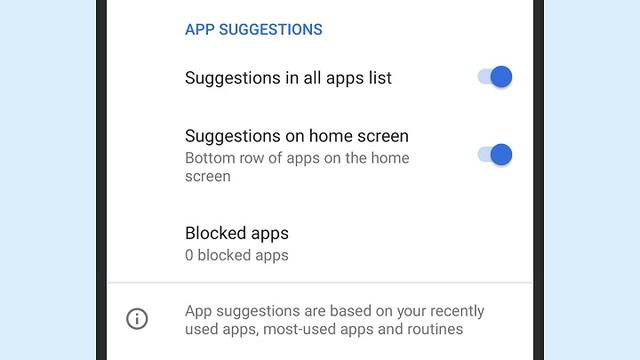
We know how it feels when someone asks you for their WiFi password and you can’t remember it. Strong passwords with multiple hashes and characters make typing them more tedious. In these cases, QR codes allow you to seamlessly connect to your WiFi network. Thankfully, Android 10 doesn’t have this feature hidden in the WiFi settings page. Once you open it, you’ll see a QR code scanner next to the “Add network” section. Scan the QR code and you’ll be connected instantly.
6. Randomize your MAC address
A MAC address is a unique identifier assigned to a WiFi-enabled device, such as a smartphone. Most devices come with a static MAC that can be exploited and used to track a user’s movements. Therefore , using a random MAC address reduces your chances of being tracked and increases your privacy . If you’re running Android 10, you can randomize your MAC address from your WiFi settings page. Tap the connected WiFi and open “Privacy”. Now make sure that “Use randomized MAC” is the default selection.
7. Force app resizing in split mode
Android has some unique features that are completely different from iOS, such as split mode. You can run two apps at the same time, making it easy to multitask between apps. However, not all apps support split mode, which is where this hidden Android feature comes into play. This feature allows you to force app resizing in split mode , regardless of app compatibility. To enable this feature, open Settings and search for “Resizable”. Open the first result and enable “Force activity resizing”. Restart your device and you can enjoy any app in split mode.
8. Default USB configuration
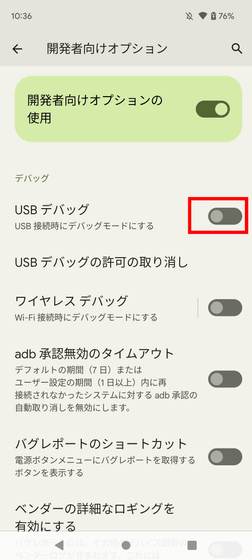
If you’re someone who regularly connects your Android device to your PC, this sneaky feature will come in very handy. Android 10 now lets you choose a default USB configuration. If you want to transfer files regularly, just select the settings you want and you’re good to go. To configure the USB, open Settings, search for “Default USB” and tap the first result. Here, select “File Transfer” or other settings according to your preference.

9. Private DNS
Private DNS was introduced with Android Pie, but it remains one of Android’s less talked about features. This allows you to encrypt your DNS queries so that no one, not even your internet service provider, can read them . The Private DNS feature is located on the Network & Internet settings page. From here, you can open “Private DNS” and select Automatic as Google’s DNS, or you can also select another DNS provider. We recommend using Cloudflare’s DNS .
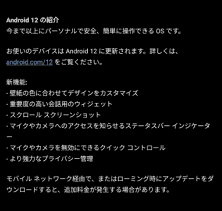
10. Device Theme
Device themes are finally here on Android, but they’re still hidden under developer options. You can change the accent color, font, and icon shape from several options . To find the settings page you want, open Settings and search for “Theme.” Tap the top result to customize your Android device to your liking.
11. Show taps while recording screen
With the release of Android Oreo, Google removed the ability to display taps during screen recording for security reasons. However, the settings to configure Tap will still be available and will not appear under Developer Options. Just open your settings page and search for “tap.” Open the first result and enable the toggle. You can now record your screen with just a tap, which is very convenient.
12. Capitalize words quickly
If you want to capitalize words right away, this nifty feature in Gboard is super useful and I love it. Simply select a word and tap the Shift button twice to capitalize part of the word at once. Similarly, you can also change to lowercase by double-tapping the shift button. If you want to keep your initials in uppercase, tap the Shift button once. That’s great, isn’t it? Gboard lets you type without any hassle.

13. Uninstall multiple apps
One of Android’s best hidden features is the ability to uninstall multiple apps at once. It also works on older versions of Android, which is great. Just open the Google Play Store, tap the hamburger menu, and select My apps and games. Now, switch to the Installed section and tap on Storage . After that, just select the app you want to uninstall and press the “Release” button. Voila, multiple apps were uninstalled with just one tap.

14. Clear your site’s storage using Chrome
Chrome is notorious for accumulating large amounts of data in the background, which slows down performance and takes up valuable storage space. If you want to see which websites are taking up your memory space, Chrome’s hidden settings can help. Open Chrome on your Android device and go to the Settings page. Now, go to Site Settings and open Storage . Here you will see all your websites and their storage space. Open any website and tap on the “Delete” icon to finally free the unnecessary cached data from your internal storage.
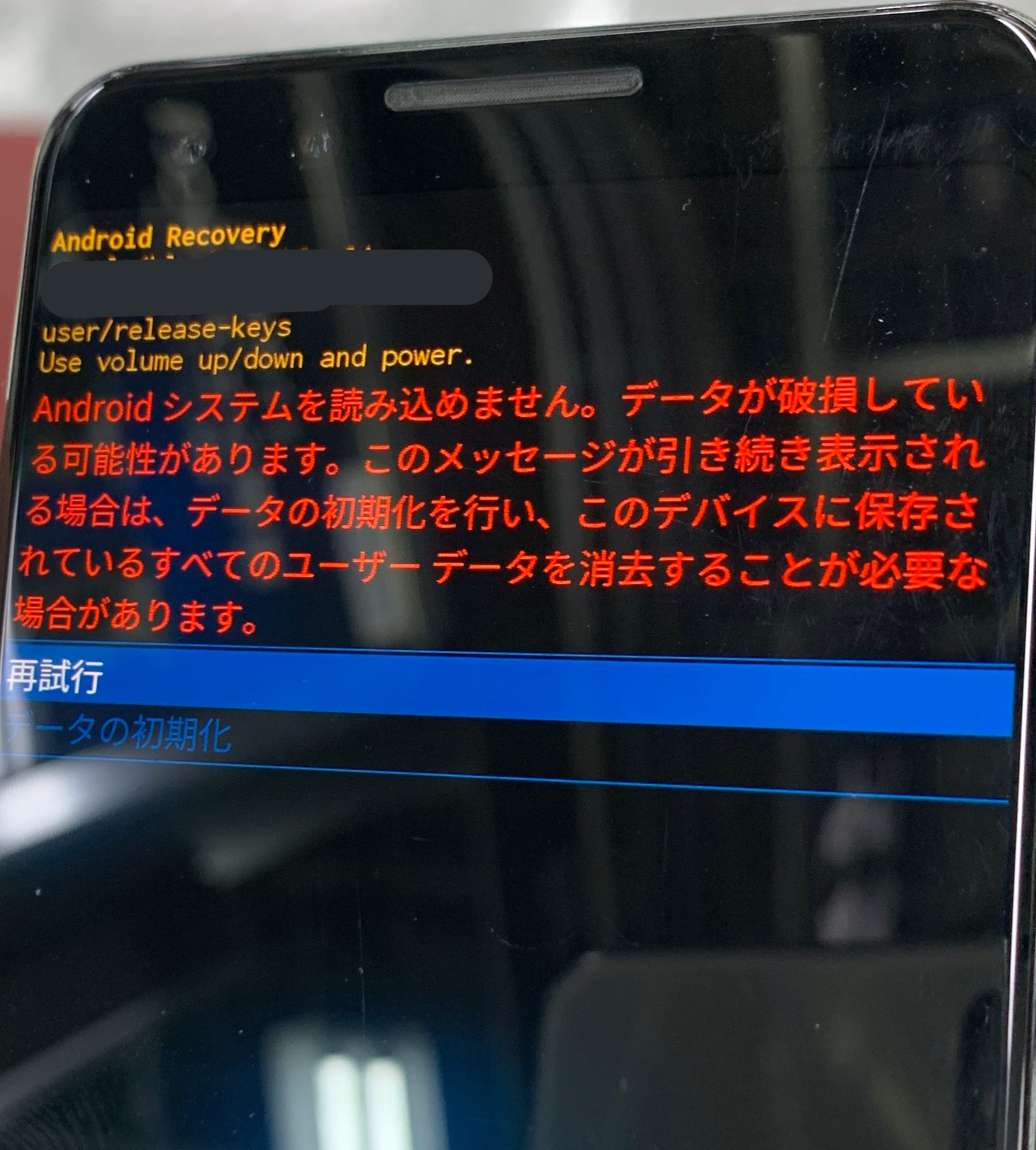
15. Google Maps Street View layer
Street View is an immersive way to explore places around the world and discover new landmarks, hotels, and restaurants. The Street View layer is now added to Google Maps and works great. To see if Street View is available in your area, open Google Maps and tap the Layers icon in the top-right corner. Now, tap on the “Street View” icon and zoom out to find the blue line on the map . Finally, tap on the blue line to see a street view of that location. That’s cool, right? Check out Street View to discover hidden gems around the world.
Note: A blue line will appear where Street View is available.
See also: 10 tips to improve iOS 13 security and privacy
Discover hidden Android features
These are our picks for 15 hidden Android features that are really interesting and will improve your overall smartphone experience. It has many different types of features built in, from privacy to small utilities that can be really useful. We also plan to add more hidden gems as we discover new features along the way. Anyway, that’s all from us. If you liked this article, let us know in the comments section below.


![How to set up a Raspberry Pi web server in 2021 [Guide]](https://i0.wp.com/pcmanabu.com/wp-content/uploads/2019/10/web-server-02-309x198.png?w=1200&resize=1200,0&ssl=1)


