There’s no denying that Android is the world’s most popular mobile operating system. Its popularity is due to its ease of use and flexibility in customization. In addition to stepping into the comprehensive customization stream, you can use tons of cool Android shortcuts to speed up your work , improve your productivity (or even get quick access to entertainment) . If you’ve landed here, there’s a good chance you’re an Android user, and this article will show you some easy and seamless shortcuts to get the most out of your smartphone experience. Here are 20 cool Android shortcuts that every Android user should know in 2020.
Cool Android shortcuts you need to know in 2020
1. Create a quick shortcut
If you want to master Android, you need to know how to create simple shortcuts from your apps. Just tap and hold on any app to provide tons of quick action shortcuts. You can then drag a particular shortcut to your home screen and it becomes a standalone shortcut by itself. In wards, you can now go directly to a dedicated page by simply tapping a shortcut. I use this feature in many apps, including Google Keep, and create a “New Text Note” shortcut on my home screen for faster access.

2. Create a PWA shortcut
Many websites have been moving to the PWA (Progressive Web App) standard for some time now, some notable ones include Spotify, Twitter, and Netflix. In the new standard, websites behave more like apps than websites. It also offers many features such as notifications, performance improvements, offline access, and best of all, easy shortcuts to access websites as standalone apps. So, if you want to create a shortcut for a web app, open the website in Chrome and tap the three-dot menu. If you tap “Add to Home Screen” here, a shortcut will be created on your home screen immediately . You can now use a web app directly instead of a full-featured website.
3. Advanced restart menu
If you like tweaking your Android device through Fastboot, Bootloader, and Recovery, you must know this shortcut. It makes a huge difference in the way you operate your device. This shortcut eliminates the need to push commands through ADB or press a complex set of hardware buttons to boot into advanced restart mode. To enable it, go to Settings and open About Phone. Then tap on Build Number seven times to enable developer options. Then open Developer Options on the System or About Device page. Now enable the “Advanced Reboot” toggle. Now, every time you press and hold the power button, you will see the option to boot directly to bootloader, recovery, or fastboot.
Note: This feature is mainly found on devices with stock Android interface, but you can also try looking for the menu on MIUI or Realme UI devices.

4. Find your phone quickly
Have you ever lost track of where you stored your Android smartphone? Besides, is your phone on silent mode? A quick Google search will help you find your phone. If you have your laptop/desktop nearby , just search for “Find my phone” and Google will quickly find your device. It also provides an option to override vibrate/silent mode and make the device ring. Of course, you’ll need to sign in with your Google account on your secondary device. You can also search for “Find My Phone” on another phone, but you’ll still need to be signed in with your Google Account.

5. Block notifications instantly
Android notifications are bogus compared to how iOS apps behave when alerting users. Android apps abuse notification permissions to bombard users with relentless notifications. And I noticed that users were ignoring these prompts one by one with amazing patience. However, this is not how the Android experience should be, so you can quickly revert this behavior. When you receive a spam email from an app, just long-press on the notification and you’ll see an option to disable it immediately. Turn off the toggle and you’re done.

6. Quick settings tile
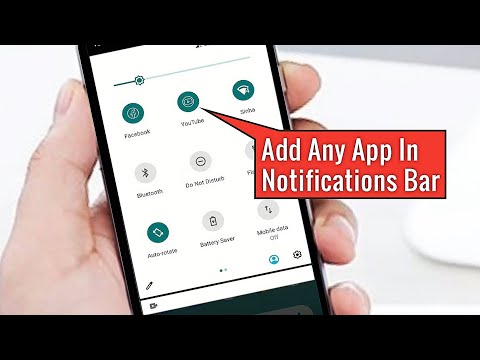
As the name suggests, the quick settings panel is the easiest way to access system settings and enable or disable features. However, the quick settings panel comes with predefined tiles and you cannot add your own custom settings. For example, if you want to turn off custom DNS or move from gestures to button navigation, you can’t do that. However, there is an app called Quick Settings ( free , with in-app purchases) that allows you to create custom tiles , and it works very well. You can select any feature from the Settings page and create a tile in the Quick Settings panel. In fact, you can add any app you like to the quick settings panel, such as a calculator or timer. How wonderful is that?

7. Wireless ADB
Sometimes you want to run an ADB command, but you can’t find the cable, or you just don’t want to move around looking for it. In that case, you can connect your smartphone and ADB wirelessly without using a cable. Yes, it works and it works very well. Just open the WiFi page on your smartphone and find the IP address. Then open a command line on your computer and run adb connect Your_IP_Address:5555 and BAM you should be connected. How fast is it?
Note: For this to work, both your Android device and computer must be connected to the same WiFi network.
8. System UI Tuner
This is for Android users who are still stuck on Oreos, Nougat, and Marshmallows. However, using an older version of Android comes with its own perks. Access the hidden system UI tuner with a single shortcut. For those who don’t know, System UI Tuner allows you to customize your status bar, quick settings panel, and access many hidden Android settings. Close the quick settings panel and tap and hold the gear icon. Within a few seconds, you’ll receive a toast notification that says “System UI Tuner has been enabled.” Next, open the settings page and you will see a “System UI Tuner” menu at the bottom of the page.
9. Check your notification history
Have you ever accidentally ignored an important notification? Well, we’ve all been there. Thankfully, you can see all your previous notifications with one tap. To do this, tap and hold on the home screen and tap Widgets . Scroll to the bottom of the widget page and add the ” Settings ” shortcut.

Next, tap Notification Log in the list of available settings shortcuts to create a Notification Log shortcut on your home screen. Now you can see all your notifications with just a tap on the shortcut . Cool, right?

Note: If your phone is running a custom Android skin, you may not be able to find the ” Settings widget ” among all the widgets. For example, on Samsung smartphones running Samsung Experience or the new One UI, the Settings widget is embedded in the Shortcuts tab. For more information, see How to check and recover your notification history. Additionally, some skins, including Huawei’s EMUI, may not show the option to access the notification log, but you can do so by downloading an app called Notification History Log ( free ).
10. Create shortcuts for various actions
Did you know that you can create shortcuts for almost any native Android action, even for third-party apps? Yes, you can do this through an app called “Activity Launcher.” This app lists all the activities available on Android. Just long press on an activity to create a shortcut to it on your home screen. Ideas include creating shortcuts to advanced settings pages, jumping directly to the Gmail compose screen or a specific Gmail label, or launching a Google Easter egg game. Editing activities gives you the possibility to create cool personalized shortcuts for yourself.
Also, if you have a third-party launcher app like Nova or Apex , you can use them to create activity shortcuts natively.

11. Use Google Assistant
Google Assistant, as its name suggests, is designed to help you accomplish tasks very easily, making your Android experience even more convenient. Google Assistant, which evolved from Google Now, a voice-based search and action application, is also centered around voice interactions and uses machine learning to improve its service delivery every time it gets a chance. Google Assistant can set alarms and reminders for you, perform chores like tell you the weather or read the news, and even help you play games.
Google Assistant’s capabilities extend beyond just shortcuts, making it useful when you’re traveling internationally or interacting with people from different backgrounds. While your assistant can understand many languages, including different accents, you can use your assistant to translate conversations in real time , so no interpreter is needed. And you can learn even more in our list of 15 Cool Google Assistant Tricks to Try.
12. Reply to messages from Notification Center
In Android Nougat, Google added support for a quick reply feature that lets you reply to new messages and chats directly from the notification panel. Although Nougat is now history, this feature has evolved considerably, with variations from app to app. For example, chat apps like WhatsApp, Google Allo, and Telegram let you reply directly from the status bar , while other apps like Gmail use the reply button to take you directly to the compose window where you can type your reply. . Email received.

In addition to replying, each app puts its own spin on this feature . As you can see in the screenshot above, you can also archive emails in Gmail , mark messages as read in WhatsApp and Telegram , and use smart replies in Allo . If you want to set up automatic replies to specific messages, a free app called AutoNotification can help you save time and have more meaningful conversations while ignoring unnecessary notifications.
13. Take a quick screenshot

All versions of Android support the universal gesture of pressing the power button and volume down button at the same time to take a screenshot . But with the release of Android Pie, Google has made it easier, allowing you to simply press and hold the power button and tap the Screenshot option (although the old shortcut still works). If you want to take a screenshot without using your hands , you can tell Google to take a screenshot of your current screen by saying ” OK, Google ” or ” Hey, Google ” followed by ” Take a screenshot .” You can ask an assistant .

Some skin versions of Android , such as Xiaomi’s MIUI and OnePlus’ Oxygen OS, also support swipe gestures for screenshots . To take a screenshot on either of the two, swipe three fingers down from the top of the screen .
14. Use Assistive Touch on Android
Compared to hardware buttons, software buttons are very convenient as they can be repositioned and moved as per your convenience. It also reduces dependence on hardware button malfunctions (if any). iOS has Assistive Touch built in, but stock Android doesn’t have such an option. To get around this, you can download a free app called Assistive Touch – Quick Ball ( free ) that allows you to choose a custom layout for your buttons . In addition to customizing buttons, you can customize Assistive Touch’s default icons and set tap gestures to trigger actions, such as opening the Recents menu.
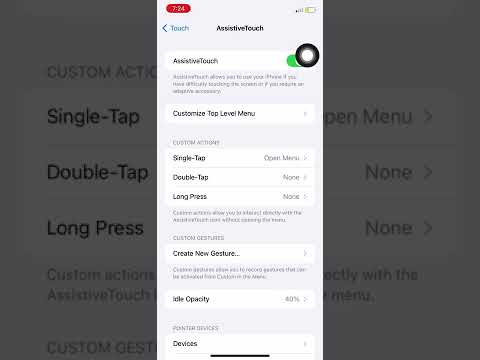
Or, if you want simpler controls, download Navigation Bar – Anywhere ( free ), which provides a floating navigation bar that can be used in portrait or landscape orientation . You can also assign an action to a long press on any of the three buttons. Alternatively, the navigation bar can also be useful for Pixel 3 users who may be locked out of the new Android Pie navigation system with sliding navigation.
15.Gboard shortcuts
Google’s official keyboard, Gboard, has a few tricks up its sleeve, including quick shortcuts to help Android users type faster. Let’s take a look at some cool Gboard shortcuts you can use.
Capitalize individual letters
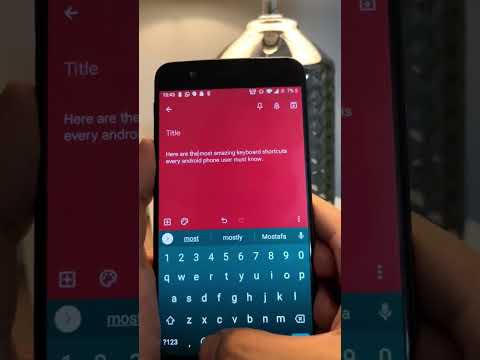
In general, if I need to type a character in uppercase, I tend to press Caps-Lock, type the character, and then press Caps-Lock again to turn it off. Well, Gboard has a much better solution for this. Just swipe your keyboard from the CapsLock button to the letter you want to capitalize . Similar to iOS, you can also hold down the Caps button and tap on specific characters .
Enter fractions quickly
Have you ever wanted to enter fractions from your Android smartphone but couldn’t find a way? It’s easy. As you hold down the number keys , you should see each fraction that you can enter.
Quickly access numbers and symbols
If you’re typing fast, tapping the ?123 key to enter numbers and symbols isn’t very convenient, but the good news is that there’s a cool Google keyboard that lets you quickly enter numbers and symbols. There are shortcuts. Simply hold down the symbol or ?123 key and drag it to the letter that corresponds to the number or symbol in the Numbers and Symbols page.
Swipe the spacebar to move the cursor

Gboard also has a nifty feature that makes it easier to move your input cursor more precisely. Simply drag your finger on Gboard’s spacebar to move the cursor in the corresponding direction . Additionally, if you want to enjoy the traditional method of cursor movement, Android Pie adds an iOS-style magnifier to help you drag your cursor more effectively.
16. Open the Clock app using the status bar
Whether you want to know the time in another location or just set or change an alarm, simply expand the notification shade and tap the current time to launch the Clock app . You can also tap the date to launch the calendar. This is a simple trick to save yourself the unnecessary effort of opening the app drawer to open the Clock app.
17. Use the status bar to open battery settings
Just like starting your watch, you can also access battery settings by pulling down the notification shade and tapping Battery Percentage . This is useful for quickly accessing your phone’s battery settings and checking your phone’s battery usage.
18. Use the three-dot menu without tapping

Most Android apps come with a three-dot button that opens a new menu with additional options. The three-dot menu is the primary means of accessing these additional settings, but you do not need to tap the menu to access the options within the menu. In contrast, you simply hold down the button, drag your finger down, and release your finger when you reach the option you want. This may take some getting used to, but you’ll save a lot of time by using an app you’re familiar with.
19. Snooze notification

If you’re busy (like in a meeting) and want to save certain notifications for later without skipping or ignoring them, you can easily snooze notifications in Android Oreo and later . Gently drag the notification to the side (swiping too quickly can make it disappear) and tap the clock-shaped icon. Then select the time you want to receive the notification again. This feature helps you avoid forgetting important notifications after ignoring them, and also helps you get rid of annoying persistent notifications, at least temporarily .
20. Mute immediately
The option to toggle your phone’s ringtone and do not disturb is available in the Quick Settings shortcuts on Android smartphones, but Google introduced a faster way to put your device into Do Not Disturb mode in Android Pie. You can toggle the ringtone on and off mode by pressing the power button and volume up button at the same time .
Additionally, while most modern smartphones allow calls to be silenced by flipping the phone over, Google has introduced a new feature called “Flip to Shh” that silences calls when the phone is facing down. did. However, it is currently limited to Pixel 3 and 3XL. . If you also want this feature on other smartphones, you can use the unofficial app Flip to Shh ( free ) to emulate the effect and assign an action when the smartphone is facing up or down.
Boost your speed with these cool Android shortcuts
These Android shortcuts speed up your Android device experience and enrich your overall Android experience. Once you get used to these shortcuts, you can also share them with your friends and family to get the most out of your Android phone. Do you use any other Android shortcuts to improve your utility and productivity? Let us know in the comments below.


![How to set up a Raspberry Pi web server in 2021 [Guide]](https://i0.wp.com/pcmanabu.com/wp-content/uploads/2019/10/web-server-02-309x198.png?w=1200&resize=1200,0&ssl=1)


