The GIT Command Cheat Sheet is a useful reference for developers and includes the most commonly used commands in Git projects.
What is GIT?
GIT is an open source repository where users can place files containing code, zips, text, or entire projects.
GIT has several features such as collaboration, version control, and process management. GIT stores files more efficiently and provides better consistency than other version control systems. Git is a command line tool.
What is GitHub?
GitHub, the hub for developers, has a clean user interface that makes it the most widely used version control system and is accessible to anyone, anywhere.
Git workflow
Git has a variety of workflows, and every project requires one based on its requirements. Git workflow is nothing but a lightweight branch-based workflow that helps teams deploy projects on a regular basis.
For example, forking a Git workflow creates a local copy of your repository. Therefore, each developer has a local workspace and a central repository. This type of workflow is suitable when multiple developers are involved, allowing them to collaborate on the forked copy before making changes to the main repository.
Why do I need Git?
Git is a version control system, so developers are constantly working to save their changes, make them visible to other users, and merge their changes with others.
When making changes to a Git repository, developers need to know the appropriate commands for the appropriate actions. Below is a list of important and commonly used Git commands.
Common Git commands

git add
To add specified files to staging
 git add <file> -- add a specific file
git add * -- add all the files 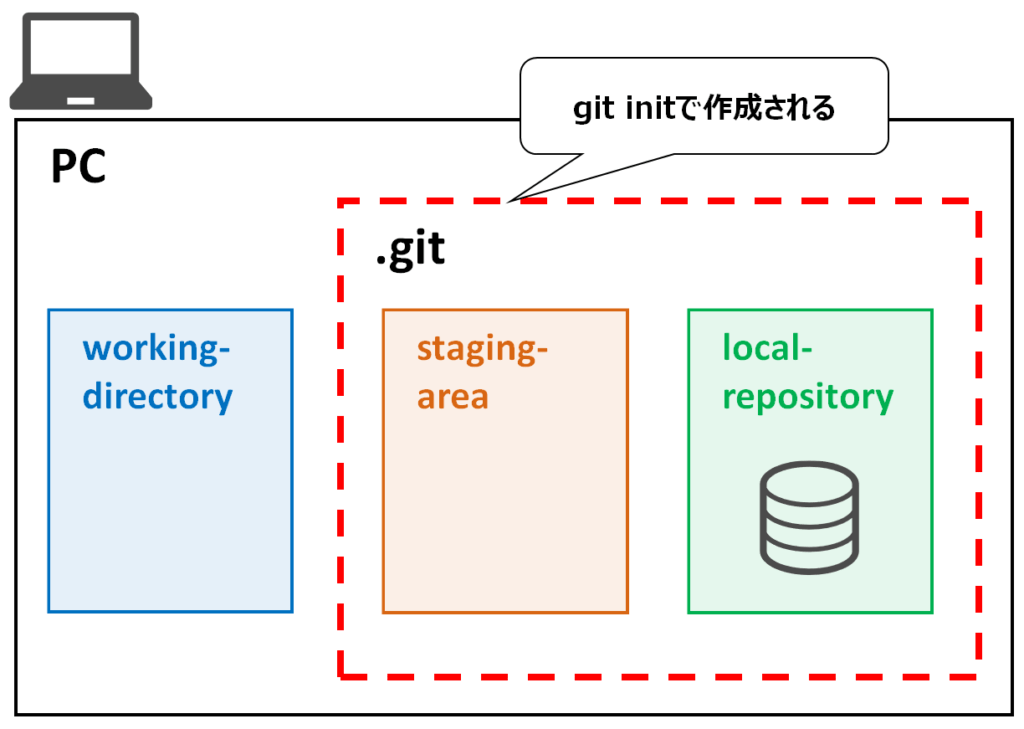
git archive
Create archives of commits, branches, trees, and combine multiple files into one. You can unzip the file and retrieve the contents if needed
git archive HEAD — create an archive from a repository’s HEAD ref
git archive output = '.tar' — save archived files to the specified location
git archive --format=tar.gz — Specifies the format of the archive file, such as tar, zip, or tar.gz.
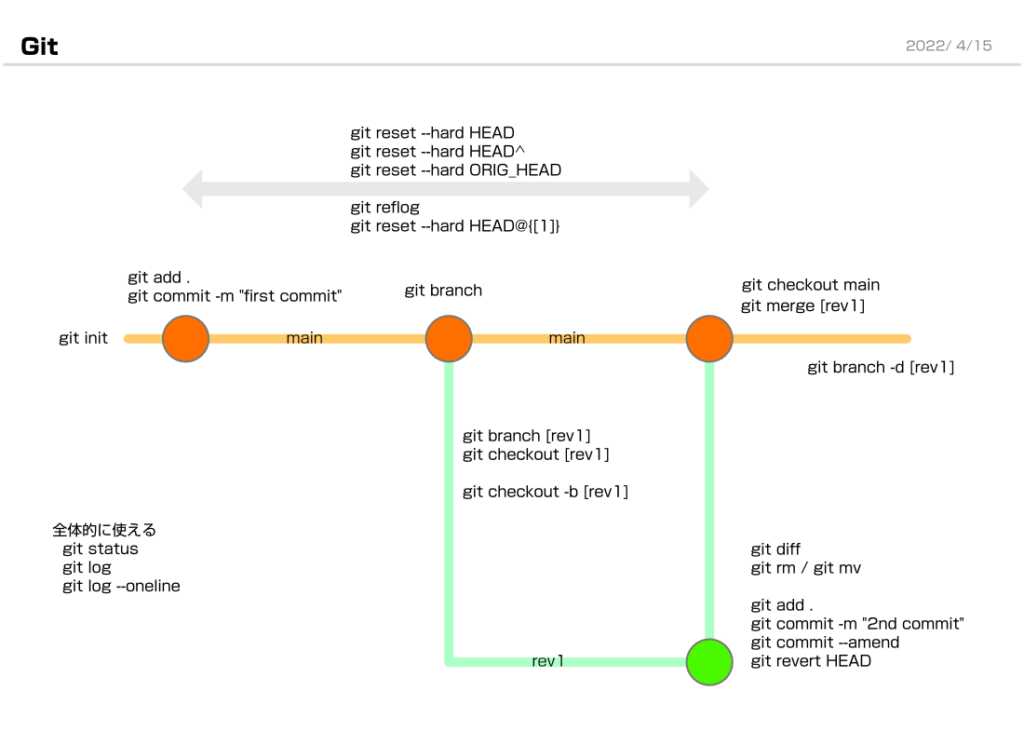
git branch
List all branches in a repository. Specifying a branch creates a new branch with that name. To delete a branch, use the -d option with the branch name. Use -m to rename the current branch.
git branch — List all branches.
<a href="https://.com/how-to-create-a-new-git-branch/">git branch</a> <branch_name> -- creates a new branch named 'branch_name' but doesn't check out the new branch.<br><br><code>git branch -d <branch_name> — Delete the branch and prevent deletion if there are unmerged changes.
git branch -D <branch_name> — Forces deletion of a branch even if there are unmerged changes
git branch -m <branch2> — rename the current branch

git cat file
View content or size/type information for repository objects
git cat-file <object> — Display the contents of an object
git cat-file -t <object> — Displays the type of object
git cat-file -s <object> — Displays the size of an object
git cat-file -p <object> — Prints the type of object in an easy-to-understand way.
git cat-file -e <object> — Displays an error on stderr if the object has an invalid format or does not exist.
git cat-file <type> <object> — Displays the raw contents of an object
git checkout
Use with caution when switching between different branches of a repository, as you cannot “undo”.
git checkout <branch_name> — Check out the specified branch
git checkout -b <branch_name> — create a new branch and switch to this branch
for example:
 C:\Users\>git checkout -b development_branch
Switched to a new branch 'development_branch'
git clean
Clean up the working director. Committed files are not deleted
git clean -n — List files to be removed.
git clean -f — remove files
git clone
Create a copy of an existing repository in a new directory. Helps you get a development copy of a central repository.
git clone <central_repo> <new_dir> — Create a copy of the central repo in a new directory
for example:
 C:\Users\geek>git clone  master
Cloning into 'master'…
done.
git clone -branch <branch> <repo> — clones a branch from the mentioned repository
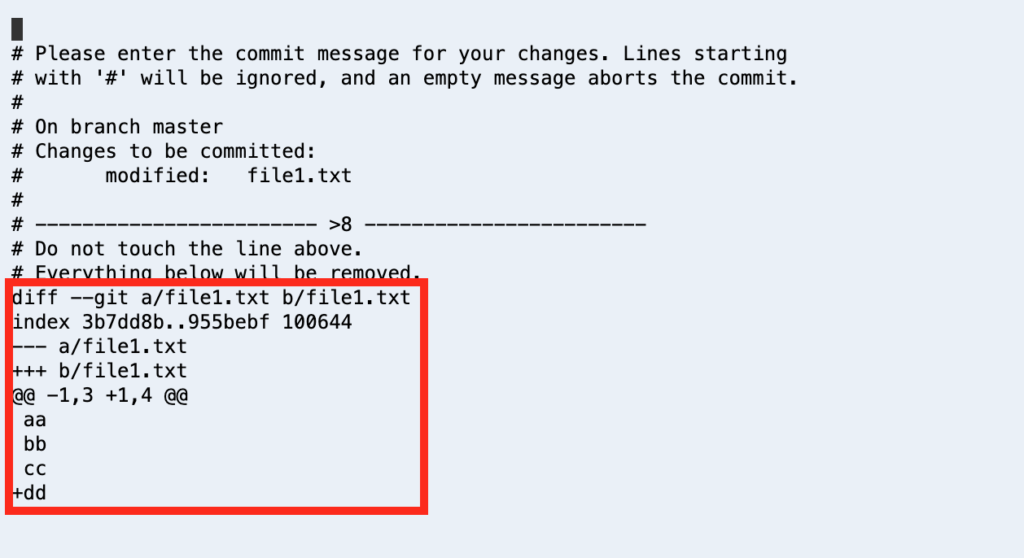
git commit
Save your changes to a staging environment so others can review them.
git commit — commit changes to staging
git commit -m <useful_msg> — Displays a message on commit highlighting the changes made.
git commit -a — commit changes directly without staging.
For example, suppose you add a file named samplefile.txt to your working directory and want to commit the file. Running the above command will give you the following output:
 Please enter the commit message for your changes. Lines starting
with '#' will be ignored, and an empty message aborts the commit.
On branch master
Initial commit
Changes to be committed:
new file: samplefile.txt
Your changes will be committed when you send the message.
 C:\Users\>git commit -m 'samplemsg'
[integration_branch (root-commit) ed52dd0] 'samplemsg'
1 files changed, 24 insertions(+)
create mode 100644 samplefile.txt
git configuration
Specifies the configuration level at which to write property values. The “local” level is the default (if nothing is specified).
git config –local — Save configuration in the repository’s .git directory.
git config –global — saves configuration to user’s home directory
git config –system — Contains all user and repository settings, located in the root git config file.
git diff
Compare changes in git repositories. This can be done before staging, during staging, and after staging (commit).
git diff — Track changes in a repository that are not yet staged
git diff --staged — Track changes in staged (uncommitted) files.
git diff HEAD — Track file changes after a commit
git diff <commit1_id> <commit2_id> — Track changes between two commits. You can check the commit_id using ” git log -p --follow --filename “.
git fetch
Get an entire branch or remote repository
git fetch <remote-url> — Fetch the entire repository from a remote repository URL
git fetch <branch_url> <branchname> — fetch a specific branch
git fetch -all — Fetch all branches of a remote repository
git fetch origin — Update your local repository and sync it with new changes from a remote repository.
git fsck
The File System Check K command checks the validity and connectivity of database objects. Checks the SHA-1ID of the object and the connections it establishes. Fsck helps you recover lost commits and files.
git fsck –full
git gc
Run garbage collection on the current repository to clean up unused files.
git gc
git grep
Search for specific content in a repository. Git provides many options for searching in different ways
git grep -i 'search_term' — search ignoring case [human and human will be the same]
git grep -f <file_name> — Show matching patterns for a specific file
git grep -e 'search-term' — use -e for pattern matching
git grep -E 'regexp|multiple_exp' Search for regular expression. You can search for multiples using the pipe (OR) operator.
git grep -n 'expr' — prefix line number of matching lines
git grep -c 'expr' — displays the number of matched lines instead of each line
git ls-tree
Lists the contents of a tree object from the current directory.
git ls -tree -d <path> — Show only the specified tree entry, not its children
git ls -tree -r — recursion into subtrees
git ls -tree -l — Display the size of file (BLOB) objects
git ls -tree --name-only — Show only filenames, no long output
git ls -tree --full-name — Displays the full pathname, not just the path relative to the current directory
example:
 C:\Users\geek>git ls-tree --full-tree -r HEAD
100644 blob e883e60087e84f1660a9673ccb86eb0adc4f004d samplefile.txt
100644 blob 1426dc6fbff0677a484b248983a8740ff30fbb80 sample_jsindex.js
git initialization
Create a new empty repository. This is the first command you run to create a git project.
git init — Creates a .git repository in your working directory.
For example, to create a new repository called “”, run the following command:
 $ git init
Initialized empty Git repository in C:/Users/geek//.git/
git instaweb
User interface for browsing git repositories through a browser. This uses the CGI script GitWeb.
git instaweb --httpd=webrick — Starts the server (httpd) and opens a web browser on the page.
To stop the server, use the above command with the -stop option.
git log
Records all activity within a git repository.
git log — show the latest few commits
git log --oneline — Displays output as the first 7 characters of the SHA and commit messages with one commit per line.
git log stat — Displays detailed information about modified files, including number of lines added/removed, summary of total records changed, and lines added/removed.
git log --patch (or -p) — Shows changed files, specific changes, and their locations.
git log --graph — Display log results in graph format
git log -<n> — Shows the latest ‘n’ commits
git log --after=<date/x days/yesterday> — Show all commits since the specified date. --before allows you to view commits before the specified date
git log --author=<author_name> — Show commits for a specific author (user).
git log --grep=<commit message> — Filter commits based on commit message.
git merge
Consolidate all development files into one branch, combine two branches, and merge multiple commits into one history. If there are conflicts, the merge will stop and git will display the conflicting files. Once the conflicts are resolved, the merge will continue.
git checkout -b — First checkout the branch you want to merge
git add <file>
git commit — add files and commit
git checkout master
git merge — merge a branch with master
git prune
Remove (prune) files that are unreachable from the current branch. A cleaning process that removes unused files from branches.
git prune -n — does not prune, just shows what can be pruned
git prune -v — Displays the output of actions performed by prune
git prune --progress — Show prune progress
git fetch --prune — prune all old branches
git pull
Receive data from a remote server to your work repository. Update your local (working) branch with all the latest files from the remote repository.
git pull — pulls a remote repository
git pull <repo URL> — pull a specific remote branch
git push
Push all local changes to the remote repository. This is the exact opposite of the upload process to the pull and fetch commands.
git checkout master — Check out the branch with the latest changes
git push origin master — Push changes to a remote repository
example:
 C:\Users\geek>git checkout development_branch
Switched to branch 'development_branch'
C:\Users\geek>git push master development_branch
Enumerating objects: 4, done.
Counting objects: 100% (4/4), done.
Delta compression using up to 4 threads
Compressing objects: 100% (3/3), done.
Writing objects: 100% (4/4), 612 bytes | 204.00 KiB/s, done.
Total 4 (delta 0), reused 0 (delta 0), pack-reused 0
To master
[development_branch] development_branch -> development_branch
You can also use push to delete a remote branch using the command git push --delete <branch> .
for example:
 C:\Users\geek>git push master --delete development_branch
To master
[deleted] development_branch
git rebase
Combine multiple commits from different branches to create a new final base commit. Useful for committing changes from different branches one by one (linearly) before merging all changes.
git rebase <branch name> — combine commits into one final base
If there are any conflicts, resolve them and proceed with the rebase.
git rebase --continue
To skip changes:
git rebase --skip
git remote
Check the configuration of the remote server and allow connection access between remote and local.
git remote — By default, returns the default name “origin” for the remote server specified by Git.
git remote -v — Lists the short names and URLs of all available remote connections.
git remote add <short name> <remote url> — Explicitly add a remote server to available connections. You can use short names in git commands instead of specifying the entire URL.
git remote remove <remote url/short name> — Removes a remote server from a repository
git reset
Return to previous commit and discard changes made since that commit
git reset <hash of the commit> — Restores the repository to the specified commit. Git maintains a commit history, so you can perform another reset with another commit (hash) and undo the reset.
gitrm
Delete specific files from git. The effects of rm can be undone using the reset or checkout commands
git rm <file_ name> — remove a specific file
To remove a file from git and keep it local (staging), use:
git rm --cached
git show
Specify SHA1 to display objects such as blobs, trees, commits, and tags.
git show — If <object> is not specified, displays details of the last commit on the branch.
git show <SHA1_id> — Displays the contents of an object specified by its SHA1 ID, including blob ID and tree ID. To check the type of an object, use the command git cat-file -t .
git show –pretty — Display output in pretty format.
Custom formats can be provided.
git show --pretty = 'format:Name: <format>' Or you can also use one of the short, complete, one-line, medium, or more complete formats:
git show --pretty= 'medium' — This will show the author, date, title, and full commit message
git show --abbrev-commit — Omit SHA1
git stash
To switch branches without committing on the current branch, safely save uncommitted data
git stash — save work and index state
git stash save <message> — Display message while saving
git stash list — Display a list of hidden content
git stash apply — Commit hidden changes. To apply specific stash changes, use the stash index ID with apply.
git stash show — Show contents of hidden files
git stash drop — removes the latest stash from the queue
git status
Displays the status of the repository and staging, i.e. before the commit stage. This command can be used after other git commands, such as adding, updating, or deleting files.
git status — Shows changes that are committed or untracked (not staged).
For example, if you want to add a file named samplefile.txt to your working directory and check if it has been added, you can run the above command. The result is an output similar to the following:
 On branch master
No commits yet
Changes to be committed:
(use "git rm --cached …" to unstage)
new file: samplefile.txt
git tag
Friendly references are used to indicate milestones or reference points within your code.
git tag <tag_name> — creates a tag with the specified name
git tag — list all available tags
git tag show <tag_name> — Display details for the specified tag
git tag -l “.*” — Display tags that match the specified pattern or characters
chrysanthemum
Launches the git user interface, which displays contents, commits, full diffs, and other details in a window.
gitk — Open a git repository in a window for visualization
git version
Check the version of git you are using using the git version command.
 C:\Users\>git version
git version 2.38.0.windows.1
last word
In this post, we have listed the most commonly used git commands and their options.
Next, you can check out the GitHub Credential Scanner.


![How to set up a Raspberry Pi web server in 2021 [Guide]](https://i0.wp.com/pcmanabu.com/wp-content/uploads/2019/10/web-server-02-309x198.png?w=1200&resize=1200,0&ssl=1)


