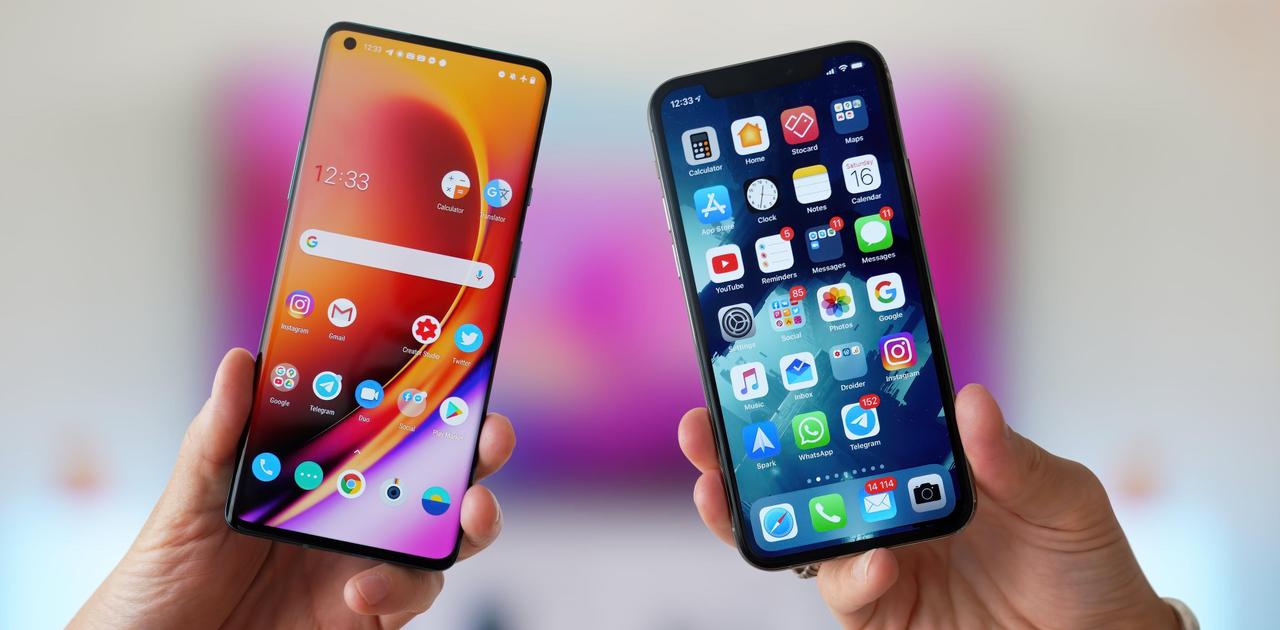
Although Android is the most widely used mobile operating system around the world, there is actually no major alternative aside from Apple’s iOS. Android has a beautiful interface that doesn’t get saturated easily thanks to its flexibility and customization options, but there comes a time when you want to try something new. In such cases, you might want to try iOS, but the iPhone is an expensive device, so not everyone can easily switch to it. Thankfully, Android’s flexibility allows you to use iOS (well, sort of!) on your Android device.
There are many launchers on the Google Play Store that claim to provide an iOS experience. Unfortunately, most of them are not worth your time. While some iPhone launchers deliver what they claim, there’s only one app that brings a feature-rich iOS experience on Android, and that’s One Launcher.
Best iPhone Launcher for Android – One Launcher
One Launcher is definitely the launcher of choice if your iOS interface is packed with cool customization features. In addition to looking like an iPhone, it’s also the most feature-rich of its competitors. When you install One Launcher and open the app, an introduction screen will be displayed with a button that says “Experience”. When you press the “Experience” button, the app will take you directly to the iOS-like home screen. The first thing you’ll notice is that it manages to look almost identical to iOS 9. The icons look pretty much the same as what you’d see on an iPhone, although they’re a little different.
Just like on iOS, you can long-press an app or icon to move it or create folders. Touch and hold an empty area on the home screen to see shortcuts to effects, wallpapers, themes, preferences, gesture settings, and more. This launcher also includes apps like OneSearch, Memory Cleaner, and an “All Apps” icon. The All Apps icon displays all the apps you’ve installed, arranged alphabetically in a horizontal list. The launcher also has built-in search functionality similar to Spotlight search in iOS 8 and iOS 9.

The far left page of the home screen has a folder named “One Tools” that contains launcher settings, SingleHandMode, themes, battery saver, and one wallpaper. Preferences include settings for the launcher. The Preferences page has an option to set One Launcher as your default launcher. This can also be done by going to Settings -> Home. This launcher also has a “Notification Toggle” which, as the name suggests, adds a row of toggles to your notification shade. You can select toggle or “Quick Search”.
The app also has a “lock screen settings” feature that takes you to the Play Store page for One Locker , the app that provides the iOS lock screen. You can set different gestures in the launcher to perform specific tasks. Select gestures to hide apps, show the notification bar, or activate SingleHandMode. The launcher also shows an animated clock with a second hand like iOS 9, but this takes up a little extra battery power. There are also options to enable/disable entry animations and app label shadows.
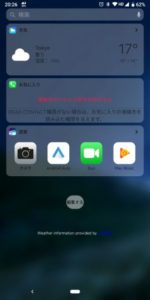
In one launcher, you can choose from a variety of transition effects for your home screen page turns, including rotate, push, windmill, cube, expand, flip, cross-flip, fade, snake, card stack, domino, cylinder, and more. There are also some effects for moving icons on the home screen, such as Breath and Twinkle. This launcher also lets you try out different themes from the recently launched Theme Store. The themes are “Featured”, “Featured”, and “Local”. There are also options to change the size of icons, the color of app labels on the home screen, and try live wallpapers. Similar to iOS’s “Reachability,” One Launcher features SingleHandMode that lowers the icons on the screen, making it easier to use the interface with one hand.

In addition to the features we just mentioned, One Launcher also ensures a lag-free experience. The app consumes less CPU resources and battery, and provides smoother performance overall. While we tested the app, One Launcher always worked as expected without any hiccups. In summary, if you want a full-fledged iOS launcher app on Android, One Launcher is your best bet. There are other iPhone launchers for Android, but none of them come close to what One Launcher offers. What’s more, One Launcher is available for free on the Google Play Store, and the good news is that its interface doesn’t even use ads.
Installation: ( Free)
Compatibility: Android 2.3.3 and above
Other alternatives to get the iOS experience on Android
One Launcher is undoubtedly the best iPhone launcher available, but there are many others available on the Play Store. These apps also deliver an iOS experience, but if you’re expecting anything more, you’ll be disappointed. We highly recommend One Launcher, but if you’re not comfortable with it, you can try the following iPhone launchers or other apps that offer similar functionality to iOS.
i Launcher OS & Launcher 8 Pretty
i Launcher OS and Launcher 8 Pretty are virtually identical apps. They have the same interface and some of the same settings. It doesn’t have a lot of features, but at least you can get an iOS home screen on your Android phone without any hassle. Clicking on the app will take you to an iOS-like home screen. There aren’t many customization options here. You can change the background wallpaper, move between apps, create folders, and more. The good thing is that both i Launcher OS and Launcher 8 Pretty do not cause any issues with your phone’s performance. It runs smoothly, no stutters or lags.

The only issue we’ve found is that if you’re using a smartphone with on-screen navigation buttons (which we have), the buttons overlap on the launcher. There are full-page ads that only appear on the “Launcher Settings” screen, but they can still be annoying.
i Install Launcher OS: (Free), Install Launcher 8 Pretty (Free)
Compatibility: Android 4.0.3 and above.
i launcher
Another iOS launcher that doesn’t look much different from an iOS-like home screen. iLauncher matches the iOS home screen very well, and we also appreciate the fact that it supports icon packs. Other than that, this app leaves a lot to be desired as it results in a slow and clunky experience.
Installation: (Paid, $2.56)
Compatibility: Android 2.3 and above.
Control Panel – Smart Toggle
Control Center is a very useful feature introduced in iOS 7. This allows toggling shortcuts to various tasks such as WiFi, flashlight, Airdrop, and allows users to control music, increase or decrease brightness, and more. If you’ve always wanted a control center for Android, Control Panel – Smart Toggle is just what you need. This app has many toggle features such as data, WiFi, do not disturb, screen timeout, Bluetooth, GPS, etc. It’s certainly not an iOS launcher, but it gives you a slice of the iOS experience, and unlike most iPhone launchers, it works fine, so you should definitely give it a try.
Installation: ( Free )
Compatibility: Android 2.2 and above.
fluid icon pack
If you want the best icon pack that not only provides iOS icons but also improves them, you should choose Flui Icon Pack. Flui Icon Pack includes over 800 icons inspired by iOS design, some even better than the iOS implementation. Additionally, Flui Icon Pack is available for most launchers, including popular launchers like Nova, ADW, Themer, Aviate, Go, Next, and more. 
Installation: (Paid $1.48)
Compatibility: Android 4.0.3 and above.
See also: 10 customizable keyboard apps for Android
There are many other launchers that display the iOS home screen, such as i6 Plus Launcher, 6 Plus Launcher, etc., but they can display ads on the home screen or include fake apps, which can ruin the experience. . So, according to us, these are the best iPhone launchers for Android, and they also include apps that replicate iOS features to Android. Give it a try and let us know how it worked for you in the comments section below.


![How to set up a Raspberry Pi web server in 2021 [Guide]](https://i0.wp.com/pcmanabu.com/wp-content/uploads/2019/10/web-server-02-309x198.png?w=1200&resize=1200,0&ssl=1)


