Samsung’s latest smartphones, the Galaxy S10, S10 Plus, and S10e, are here. If you’re reading this article, you’ve either pre-ordered one for yourself or already have it set up and ready to use. Well, I’ve been using the S10+ for the past few days, and I’ve been digging into it to find some helpful tips and tricks. Here are five helpful tips and tricks you should know about the Galaxy S10, S10 Plus, and S10e.
Note: Many of these tricks are based on One UI, so some of these may work on older Galaxy smartphones like the S9, S8, and even Note 9. Feel free to try it out and let me know if it worked for you.
1. Save screenshots outside of camera roll
One of the biggest problems with Samsung phones is that screenshots are saved inside the camera folder. Not only is this annoying from an organizational standpoint, but if you use Google Photos, it means your screenshots are also backed up to the cloud. , wasting storage space and cluttering your cloud albums. There’s no built-in way to fix this, but it’s easy to do using the Tasker profile, which automatically moves screenshots from your camera roll to another folder you specify. We have a dedicated article on how to save screenshots outside of your Samsung phone’s camera roll, so be sure to check it out.
2. Configuring interaction controls
Have you ever found yourself in a situation where you need to show someone something on your phone, but they start looking at everything else too? Yes, it’s common courtesy not to do that, but not everyone understands that. That’s why many mobile phones include features like iPhone Guided Access. Well, on the Galaxy S10, this is called Interaction Control. Here’s how to set it up:
- First, you need to enable interaction controls. To do this, go to Settings and tap Accessibility. Now move on to “Interaction and Dexterity.’ ‘

- Now go to Interaction Controls and turn on the toggle. Also, turn on the toggle “Lock on deactivation” for added security.
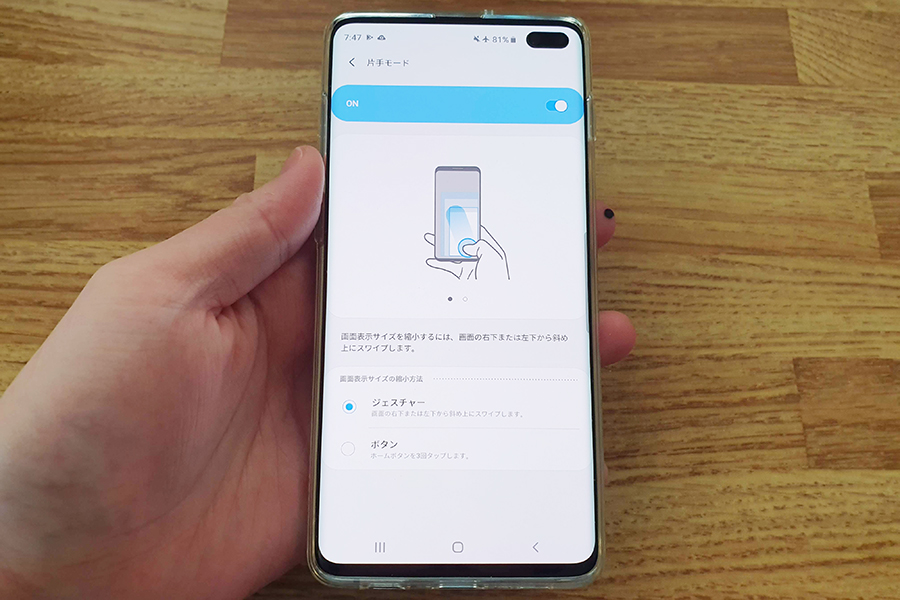
Now you can manually select areas to disable taps and swipes, or block the entire screen by simply holding down the power and volume up buttons on the screen you want to lock.
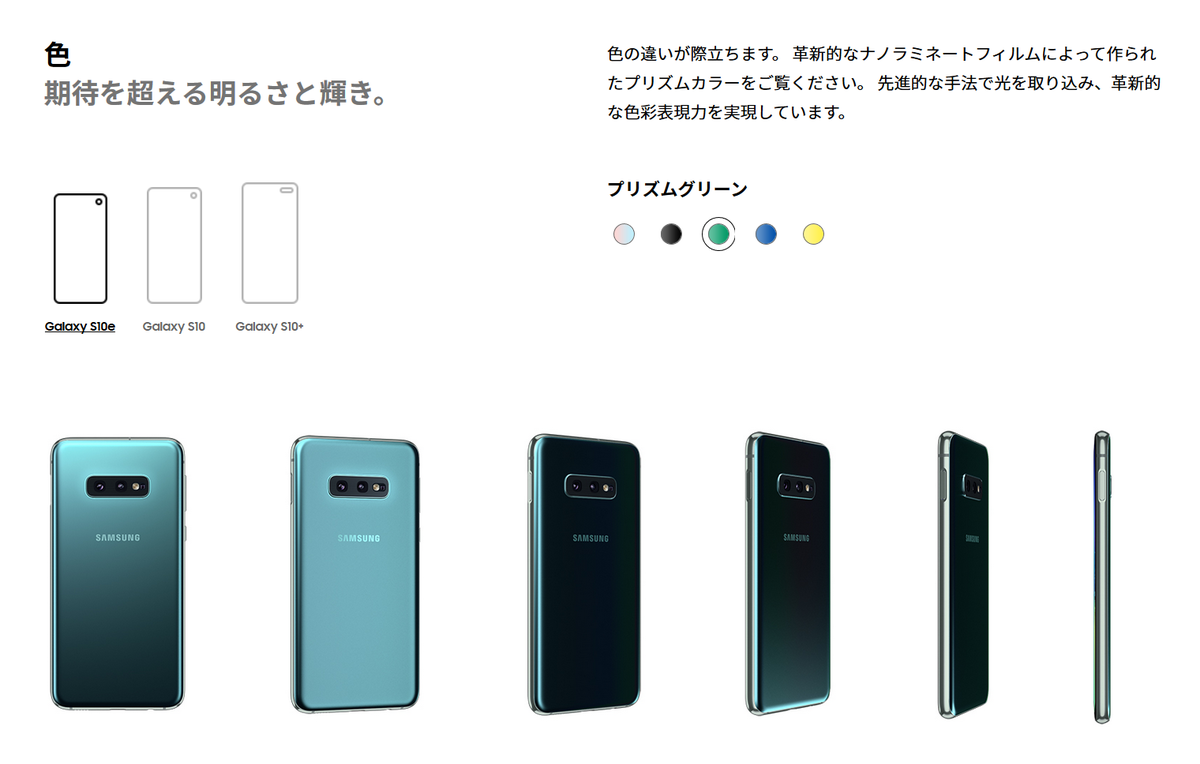
To turn off interaction controls, press and hold the power and volume up buttons again. If the Lock on Deactivation setting is turned on, your phone automatically locks when interaction controls are turned off.
This is a very useful feature, so give it a try the next time you want to show someone a photo in your gallery or a WhatsApp chat thread.
3. Lockdown
With biometric authentication available on almost every smartphone out there, there are reports of people being forced to unlock their phones using Face ID, iris scans, or fingerprints, especially at airports and other high-security locations. There are many. Plus, if you have friends like Rupesh, they might use your fingerprint to unlock your phone while you’re sleeping. That’s where lockdowns come in handy.
Lockdown essentially disables biometric authentication until you unlock your phone with a PIN, pattern, or password, making it a useful feature to use in certain situations. Now, here’s how to turn it on:
- Go to Settings and go to Lock screen . From here, tap “Secure Lock Settings” and enter your PIN, pattern, or password to continue.

- Now turn on the toggle next to ‘ Show lockdown options ‘. You can long-press the power button and select the lockdown option to turn off smart locks, biometric locks, and even notifications on the lock screen, so all your data is safe.
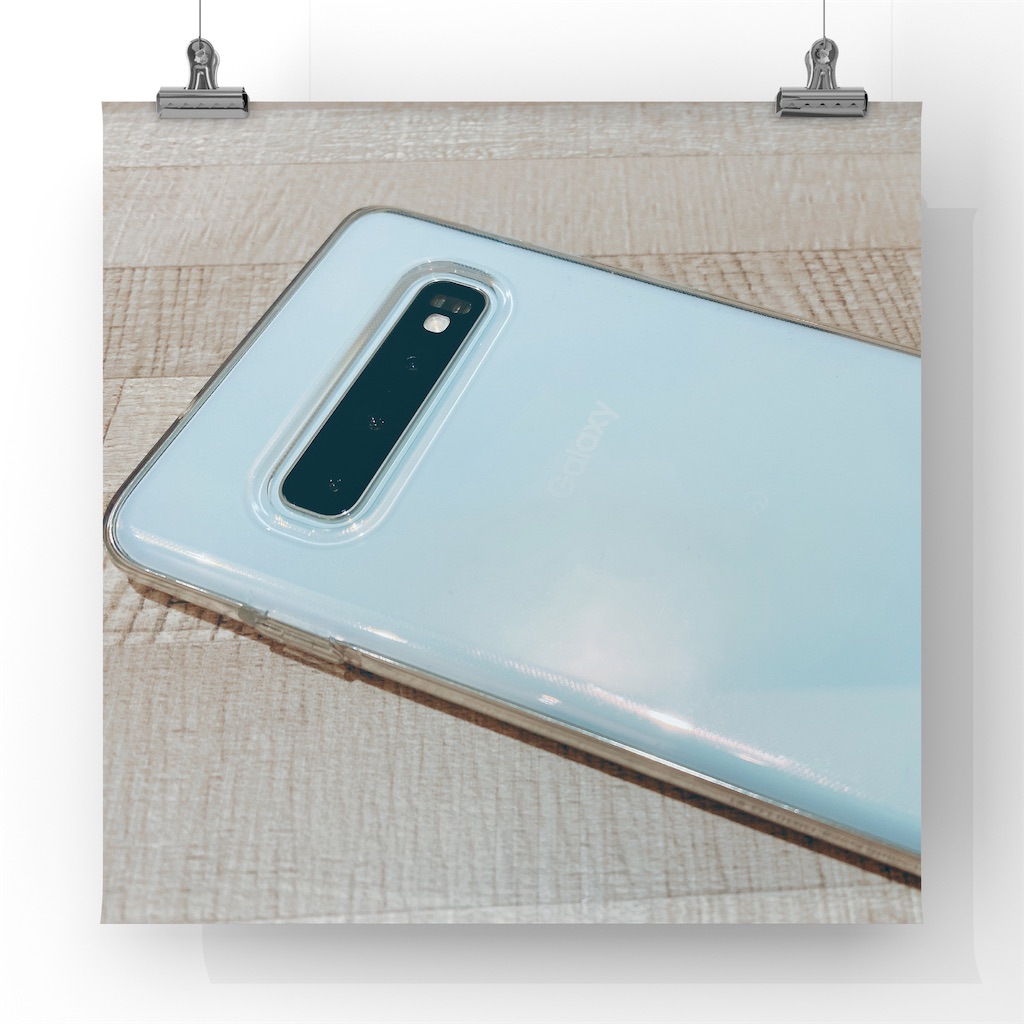
4. Turn off gesture hints
With One UI, Samsung has also introduced gesture navigation to the phone. This gesture is pretty decent, but I personally don’t like the fact that One UI shows weird handles at the bottom of the screen to show you where it is. There is a gesture button. If you run into the same issue, you can actually turn off these gesture hints. Here’s how:
- In Settings, go to Display. Scroll down and tap Navigation Bar .
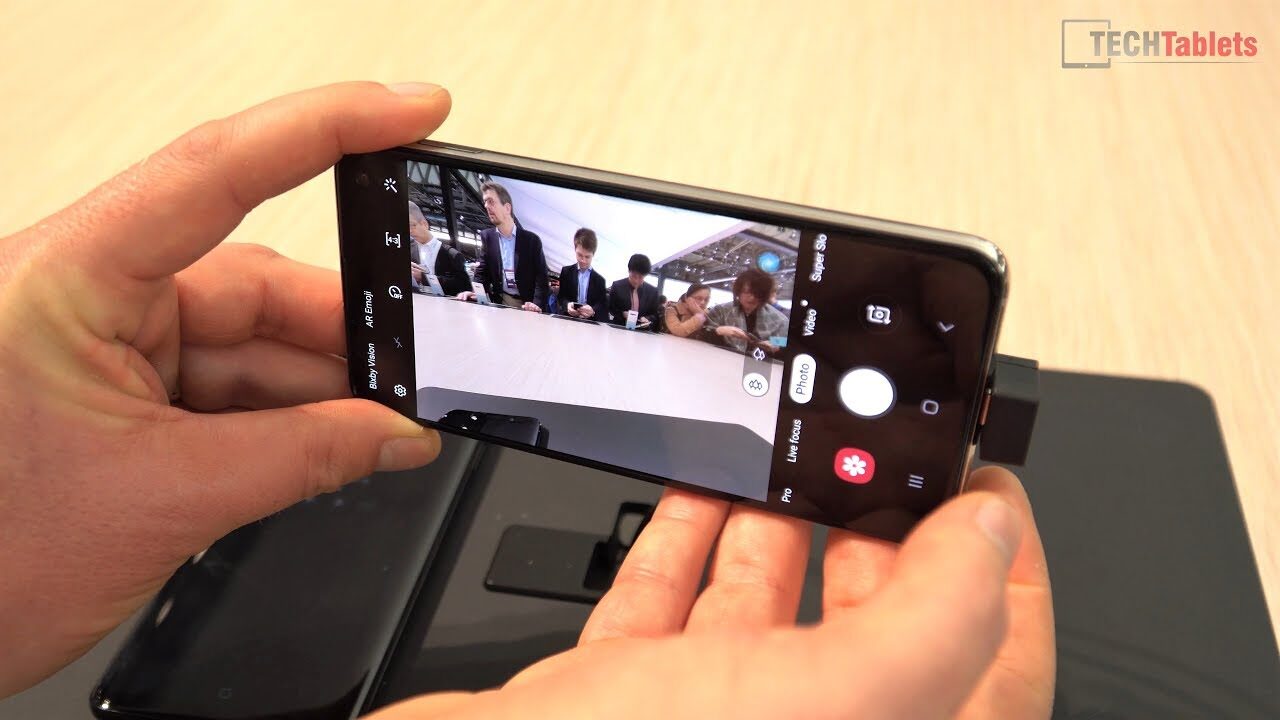
- Select Full Screen Gestures to switch to One UI gesture navigation, and disable the toggle called Gesture Hints.
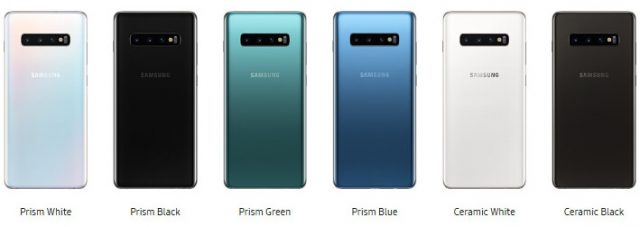
That’s basically it. You can now use gestures on your phone without having to look at the gesture handles at the bottom of the display.
5. Use separate app sounds
Have you ever been in a situation when you are playing music on your Bluetooth speaker and all the apps start playing sound from the speaker instead of your phone? This can be very annoying if you are trying to play . Samsung offers an elegant solution to this. It’s called “Separate App Sound.” Here’s how to use it:
- In Settings, go to Sounds & vibrations . Now tap ” Advanced sound settings “.
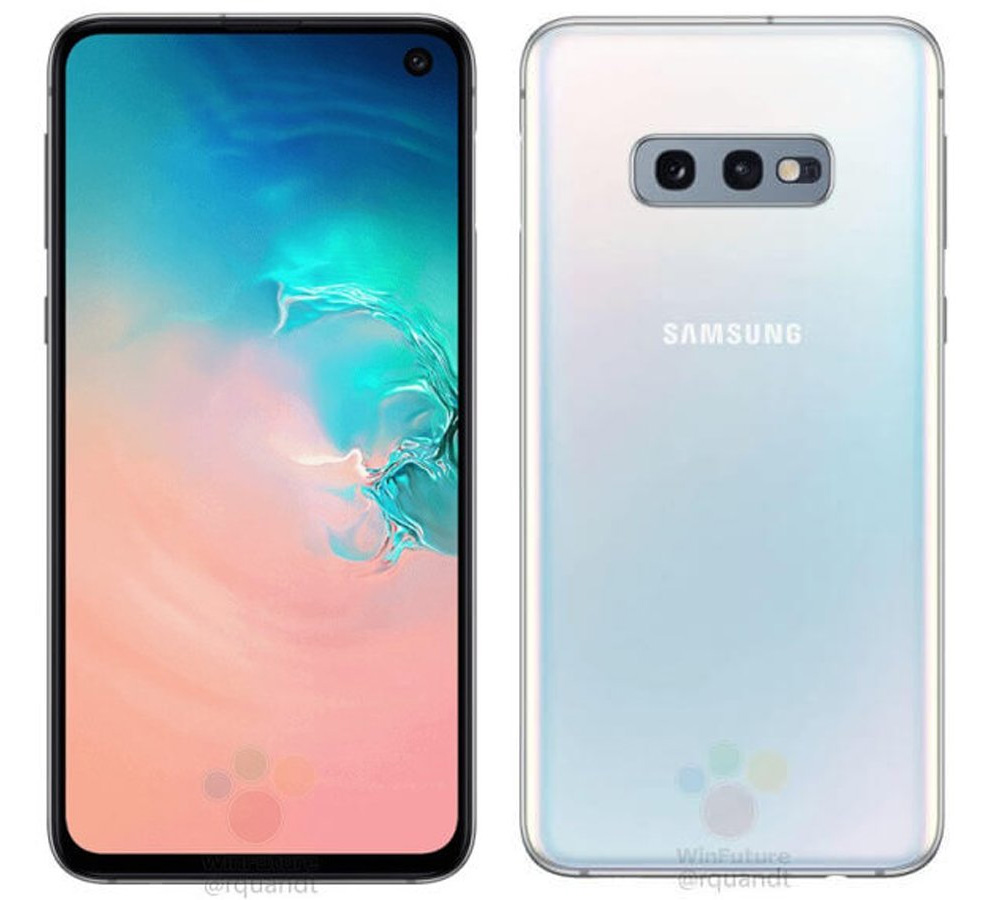
- Go to ” Set app sounds individually ” and select the apps you want to play sounds on another device. Once that’s done, select the device you want to play the sound on.
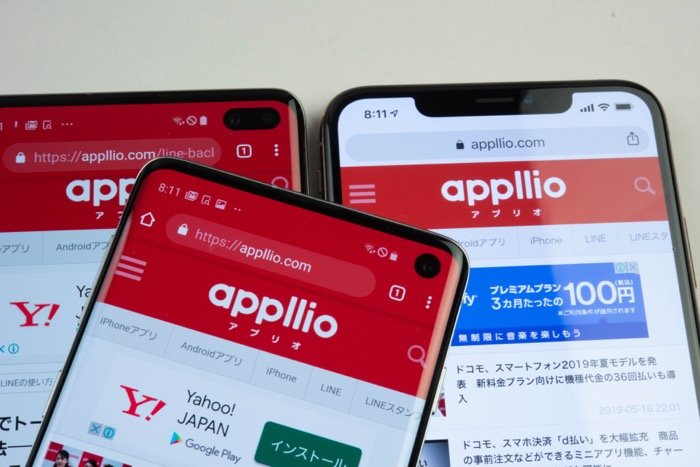
The sound from the selected app will now play on the selected audio output, and the rest of the sound will play on your phone.
See also: How to schedule One UI night mode on older Galaxy smartphones
Get the most out of your Galaxy S10 with these tips
I’ve only had the Galaxy S10+ for a few days, but here’s what I discovered on the phone. However, we will continue to look for more helpful tips and update this article accordingly, so you can get more tips on how to use your Galaxy S10 (or another Galaxy smartphone running One UI) more effectively. Please be sure to check.


![How to set up a Raspberry Pi web server in 2021 [Guide]](https://i0.wp.com/pcmanabu.com/wp-content/uploads/2019/10/web-server-02-309x198.png?w=1200&resize=1200,0&ssl=1)


