With the release of Counter-Strike 2, many players are experiencing issues such as slow performance (FPS), lag issues, and in-game stuttering. This guide will show you how to fix low FPS and stuttering issues in CS2. We also covered some fixes for high ping and latency in CS2. So without further ado, here are some solutions to fix low FPS, lag, stuttering, and optimize your Counter-Strike 2 experience on Windows. 
1. Use proper graphics settings
First, you need to locate the CS2.exe file. You can easily find it by going to your Steam Library, right-clicking on Counter-Strike 2, and going to Properties. Now go to Installed Files and click Browse . You will be directed to the CS2 installation folder, so make a note of where that folder is.
In our case, the CS2.exe executable was installed in the following location: “C:\Program Files (x86)\Steam\steamapps\common\Counter-Strike Global Offensive\game\bin\win64”. Before proceeding, make sure you know where CS2.exe is located.
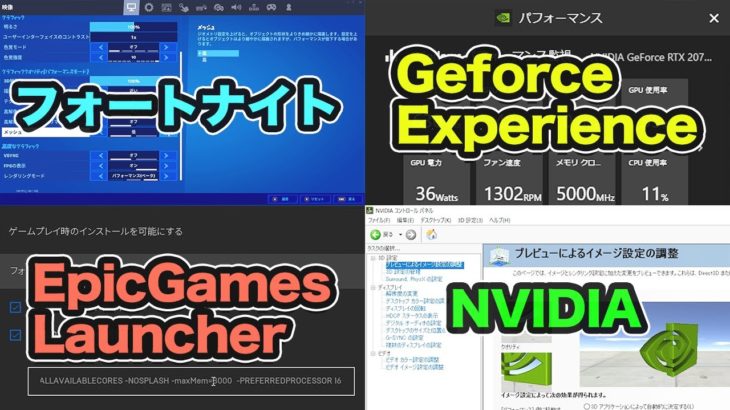
- Next, click the Windows Start menu. Next, search for ” Display Settings ” and open the suggested result when it appears.
Alternatively, press the Windows keyboard shortcut Win + I to open the Settings app. After that, you can go to “Display Settings”.
- Inside Display Settings, scroll down to find the Graphics section and click on it.
- Here you can select the GPU you want to use for Counter-Strike 2. Under App Custom Options, click the Browse button to add the CS2 executable.
- Now you need to select CS2.exe. Navigate to the Counter-Strike 2 installation directory shown in the first step.
- If you have a CS2 game file open, now navigate to game\bin\win64 . Under this folder you will find CS2.exe, click on it and click Add .
- Counter-Strike 2 will now be listed under Windows 11 graphics settings. Click Options next to CS2.exe and set your GPU (graphics card) to High Performance . Setting this will ensure that only the dedicated GPU is used for CS2. Don’t forget to click Save when you’re done.
2. Set CS2.exe to high priority in Task Manager.
- Launch Counter-Strike 2 from Steam. Once CS2.exe is running, go to your desktop.
- Then right-click on the taskbar and click on “Task Manager” to open it. Or press “Ctrl + Shift + Esc” at the same time.
- Next, go to the Details tab and look for CS2.exe in the list.
- Once you find CS2.exe, right-click the app. Then click Priority to set CS2.exe to High Priority .
3. Set maximum matchmaking ping value
Setting matchmaking ping to maximum in Counter-Strike 2 should resolve high ping or lag issues in CS2. Here’s how to change this setting:
- Launch the game and click the gear icon in the top left to open CS2 settings .
- Next, go to Game Settings and adjust the ” Maximum Allowable Matchmaking Ping ” slider to 100 . This will set a filter for maximum ping while searching for CS2 games. If no CS2 matches are found under 100 pings, adjust the slider in increments of 50.
Note : I noticed some stuttering and lag while playing on high ping servers in CS2. So, optimizing this particular setting should resolve the CS2 high ping issue.
- Also, be sure to set the ” Maximum Allowed Game Traffic Bandwidth ” setting to “Unlimited” . This allows CS2 to use the full network speed.
Additionally, make sure you’re playing on a good network and consider wired internet if you’re still experiencing ping spikes in Counter-Strike 2.
4. Close background apps and minimize startup apps
Open Task Manager and go to Startup Apps . Now disable anything you don’t need while playing CS2. Once done, restart your PC and the number of background apps will be minimized.
We also recommend that you close any unnecessary processes or apps in Task Manager that may interfere with your game. You can also follow our dedicated guide on optimizing Windows 11.
5. Turn off Nvidia Reflex in CS2
Nvidia Reflex is a great technology that reduces input lag. This is available in CS2’s graphics settings and many people will benefit from using it. However, many people are reported to have issues using Nvidia Reflex, so to extract more FPS, try disabling Nvidia Reflex in your CS2 graphics settings. If you are not experiencing FPS issues using this setting, it is safe to leave it on.
6.Turn on AMD FSR in CS2
AMD FidelityFX (FSR) Super Resolution allows you to increase FPS and improve performance in Counter-Strike 2. You can read about how this technology works in the linked article.
In Counter-Strike 2, go to your video settings and set this “FidelityFX Super Resolution” to Ultra Quality. To further improve your FPS, try using other presets such as Performance or Balance. If you have a laptop without dedicated Nvidia or AMD graphics, the integrated Intel GPU gave you 60-100FPS in CS2 when using performance settings.
7. Use optimal CS2 graphics settings
It is important to use the appropriate Counter Strike 2 graphics settings to get maximum FPS in-game. So, follow our best Counter-Strike 2 configuration guide to optimize it. We have provided the best presets (for mid-range PCs) . You can use it to adjust CS2 graphics settings for optimal competitive gameplay. There is a second CS2 graphics preset for lower-end PCs , which I tested on an Intel 12th generation laptop with integrated graphics. The low-end presets gave me around 60-100FPS.
8. Use custom Nvidia Control Panel settings
If you have an Nvidia graphics card, follow the steps in this section. The best custom settings for CS2 are:
- First, right-click on your desktop and click “Show more options”. Then select “Nvidia Control Panel”.
- Go to Manage 3D Settings. Then click “Program Settings”.
- Then click Add and click Browse. Next, go to CS2.exe and add it to the Nvidia Control Panel as shown previously.
- You may be able to get higher frames using the Nvidia Control Panel settings for Counter-Strike 2 suggested below. The automatic settings are still fine, but some people may need to set them manually to optimize FPS in CS2.
9. Check CPU/GPU temperature and correct if necessary
Download HWInfo from the link here and open the app. Open Counter-Strike 2 and play the game for at least 15 minutes. Press Alt+Tab to switch to the desktop and check HWInfo for CPU and GPU temperature information . If this is around 90-95 degrees Celsius, you may be experiencing throttling .
In that case, you should consider cleaning the inside of your PC (cooling fan) and replacing the thermal paste if necessary. Once temperatures return to normal, your CPU and GPU will be able to perform to their potential again. Counter-Strike 2 has less stutter and higher FPS.
10. Check your gaming laptop’s MUX switch
Many gaming laptops come with a MUX switch that allows you to switch the laptop’s display to run on integrated graphics (such as Intel Iris) or dedicated GPU (Nvidia/AMD). can. Therefore, you should consider using the MUX switch feature to run in discrete graphics mode .
If you have a MUX switch feature, you can find it in your gaming laptop’s control panel settings (like Asus Armory Crate or MSI Dragon Center). Make sure you’re running on dedicated graphics when playing CS2 for the best FPS.
These are some of the fixes that may help improve your Counter-Strike 2 gameplay experience. If you have any other suggestions to reduce stutter and increase FPS, please let us know in the comments below.


![How to set up a Raspberry Pi web server in 2021 [Guide]](https://i0.wp.com/pcmanabu.com/wp-content/uploads/2019/10/web-server-02-309x198.png?w=1200&resize=1200,0&ssl=1)


