When it comes to Instagram, short content is definitely king in 2023. This includes not only Reels but also Instagram Stories. Instagram Stories in particular are a great tool to take your engagement to the next level. For that, knowing how to add music to Instagram Stories is a must. However, if you are new to this platform, you may not know how to do it. To make your work easier, here is a comprehensive guide on how to add music to Instagram Stories. So, without further ado, let’s get started! 
How to add music to Instagram Stories
Ever since Instagram introduced the ability to add music to Stories in 2018, the feature has been a huge hit. Nowadays, you rarely see stories that don’t use music. The steps to add music to Instagram Stories are the same on both Android and iOS. This tutorial uses an Android device. Here are the steps:
1. Open the Instagram app on your Android or iOS device.
2. From the Instagram homepage, swipe left or tap the plus icon at the bottom. Then select the “Story” option.
3. Here you can capture an image or video or select media from your gallery.
4. Once you have selected your image or video, tap the sticker icon at the top.
5. Tap the Music sticker icon in the pop-up menu that appears.
Alternatively, you can tap the new Music icon in the top menu bar. This music shortcut is currently being rolled out and is available for both Android and iOS devices.
6. Next, manually search for a specific track or select a track from the trend list.
7. When you find the music track you want, tap it to add it to your Instagram Story.
8. Next, you will see multiple customization options to add music to your Instagram Stories. You can enable or disable music track thumbnails, view lyrics, and more.
9. When finished, tap the Done button in the top right corner.
10. You can then move the track thumbnail or lyrics (if enabled) anywhere in the story view.
11. Then tap on the share button in the bottom right corner.
12. Then, if you want to share it with all your followers, select ” Your Story ” and tap the share button. If you only want your story to be visible to selected followers, you can select the Close Friends option.
That’s it. If you follow all the steps strictly, you can successfully post Instagram Stories with music. You can also save Instagram stories with music and post them to other channels like Facebook, WhatsApp, etc. 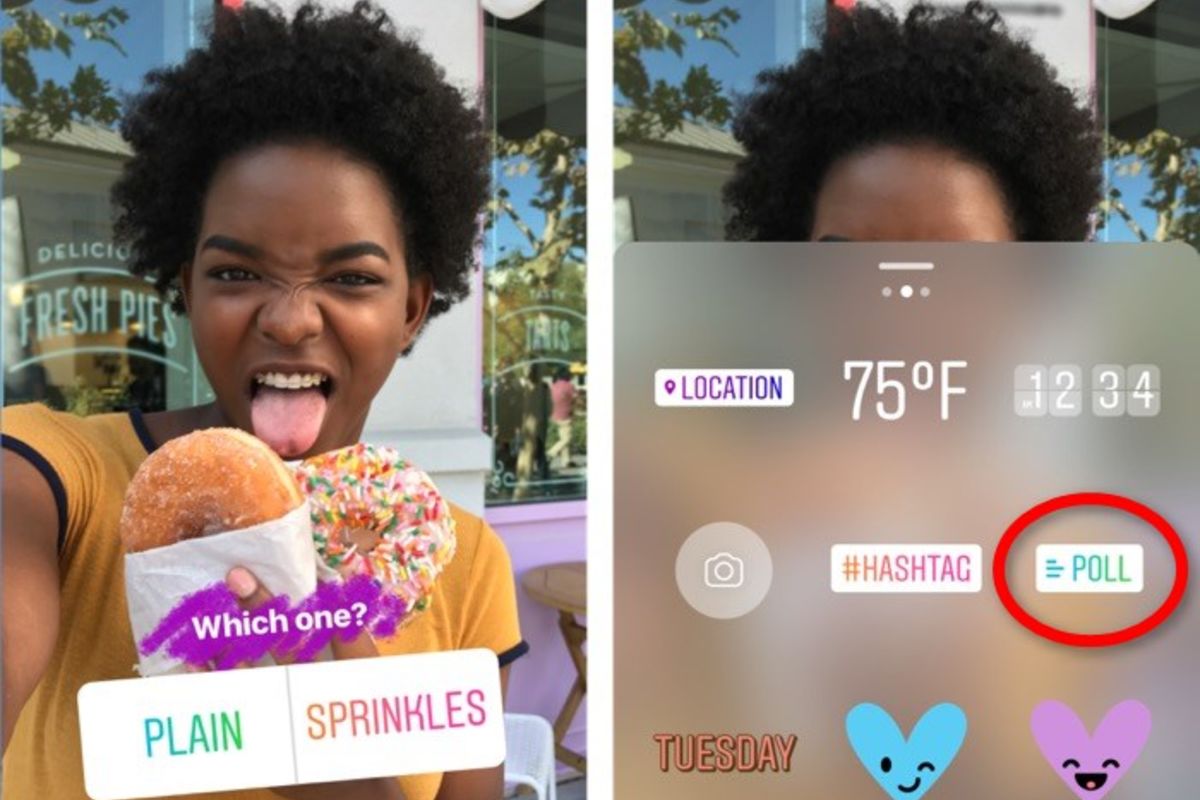
Why can’t I add music to my Instagram Stories?
If you can’t add music to your Instagram Stories, don’t panic. The reason why the music sticker icon is not appearing in the Instagram app could be due to a simple glitch. Also, previously you couldn’t add music to your Instagram Stories if you used a brand partnership tag in your Stories. However, we checked and Instagram allows it.
If you still can’t add music to your Instagram Stories, try these common solutions. 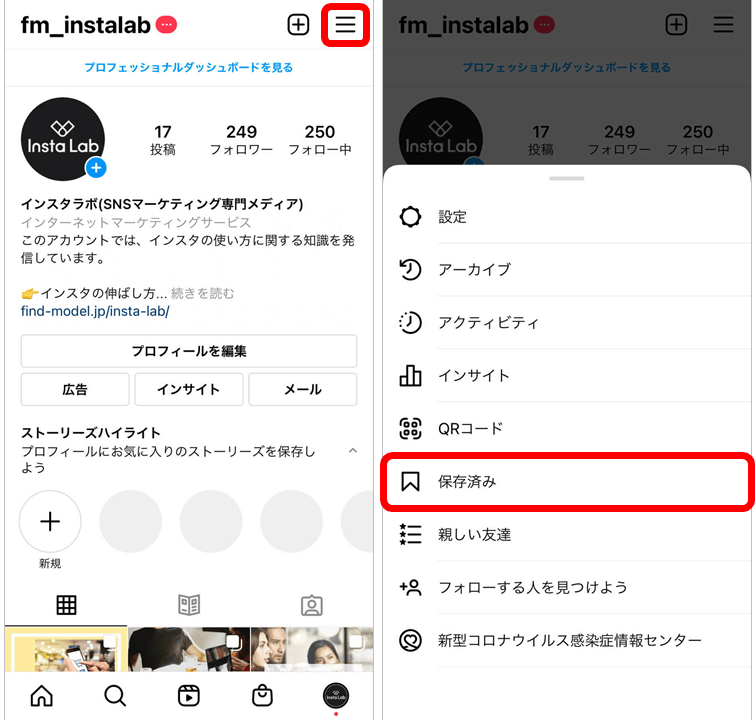
1. Update the Instagram app
Check the Google Play Store or App Store for updates. If so, please update your Instagram app immediately. You will often miss updates, especially if automatic updates are turned off. In some cases, a quick update is the quickest and easiest way to fix a glitch. 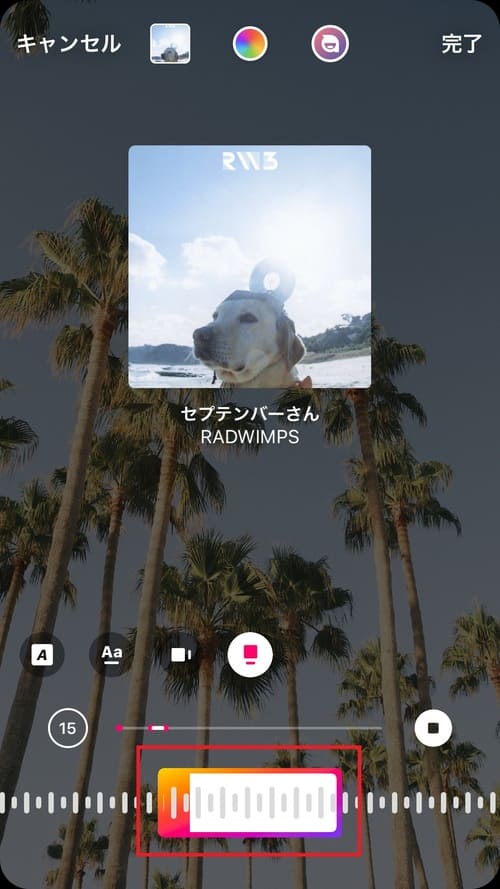
2. Restart the Instagram app
If you find yourself feeling sleepy looking at your smartphone’s list of recent apps, it’s likely that you haven’t cleared it in a while. So, please clear your app list or remove Instagram from the list. Then launch Instagram again. This may fix the problem.
3. Reinstall the Instagram app
If the issue persists, uninstall the Instagram app and install it again. So, this can be one of the go-to fixes for almost every app error you encounter on your smartphone.
4. Clear app cache
You can also try clearing the Instagram app’s cache. There is no direct way to clear the cache on iOS. On Android, you can go to Settings -> Apps -> App management -> Instagram -> Storage usage -> Clear cache .
5. Switch from your Instagram business account
If you use an Instagram Business account, you can’t add music to your Stories. Therefore, you need to switch to a creator account or a personal account. Here are the steps to switch from a business account to a creator account on Instagram.
1. Open Instagram and go to your profile.
2. Next, tap the hamburger icon in the top right corner and select the Settings & Privacy option.
3. Then tap on the Business tools and controls option .
4. On the next page, tap on the “Switch Account Type ” option at the bottom of the list.
5. Next, select Switch to personal account or Switch to creator account, depending on your requirements.


![How to set up a Raspberry Pi web server in 2021 [Guide]](https://i0.wp.com/pcmanabu.com/wp-content/uploads/2019/10/web-server-02-309x198.png?w=1200&resize=1200,0&ssl=1)


