Of the countless files (and other data) we store on our PCs, a significant number contribute to our digital music collections. True, with music streaming services becoming more and more popular, not many users download music for offline listening, but creating your own library of hard-to-find songs, pirated recordings, music, etc. There are still a lot of people who like it (including this author). And so on.
But while that’s great, most people don’t really care about properly organizing their music collection. How many times have you tried to find your favorite track stored on your PC, only to be presented with a list of 100 files with names like “Track 001_”? ?I’m making a lot of guesses.
Good news. It doesn’t necessarily have to be that way. It’s actually very easy to organize your music library by simply adding “tags” to the tracks in your collection. And there’s more than one way to do it. Before that, let’s read a little more about these tags.
What are music tags?
Most simply, music tags (commonly known as ID3 tags) are a means of embedding additional identifying information into digital music files (such as MP3 tracks) . As a standard, ID3 tags were primarily intended only for MP3 format files, but are now used in many other audio file types, such as AIFF and WAV.
Music tags allow you to add many details to your digital music files, such as album name, artist name, genre, year, rating, album art, and more . Tagging your music not only makes it easier to search for specific music tracks, but also makes your music collection more organized and manageable. ID3 tags have undergone significant updates, with recent versions being able to handle large amounts of additional information. For more information about the ID3 music tagging standard, see Wikipedia .
How can I tag my music library to better organize it?
Broadly speaking, there are two ways to add identifying tags to tracks in your music library . Both of these and examples of their use are briefly described below.
1. Automatic method
The “automatic” method of adding ID3 tags scans the music file for any existing identifying information (such as artist name) that may be present and references it in online CD information databases (such as Discogs , Gracenote , MusicBrainz, etc. ) using a special software program. ) For missing details (album name, genre, etc.), once a match is found, the software will automatically add tag information to the music file. We recommend using this method if you have a large music collection (several thousand songs) consisting of music from famous artists.
1.1 Automatic method diagram: MusicBrainz Picard
There are many applications that allow you to search online databases for track identification information and add it to your music files, but MusicBrainz Picard is probably the best. This free, open-source application can not only retrieve metadata using a song’s existing tag information, but also from its acoustic fingerprint . MusicBrainz Picard therefore works even on tracks that have no existing metadata at all . To obtain tag information, we connect to MusicBrainz’s open content music database, which catalogs information on 1 million artists and 15 million recordings.
1.2 How can I automatically tag music files using MusicBrainz Picard?
Step 1: Add your music files (or folders containing them) and connect the software to the MusicBrainz database using the “Search CDs” button on the toolbar. You can also use the Scan button to search for information using a song’s acoustic fingerprint.
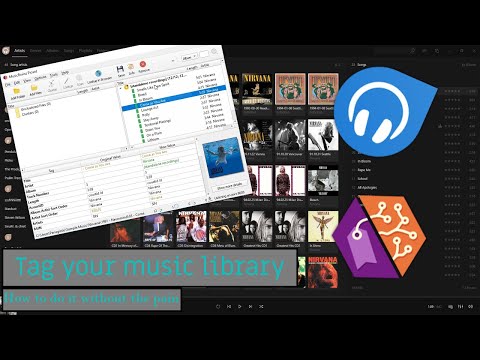
Step 2: The metadata information found on the database that matches the currently entered song/album will be displayed in the right pane. You can preview tag information in the bottom horizontal pane. Once confirmed, simply right-click the song/album and click Save to add the tag information to the album. Check the screenshot below.
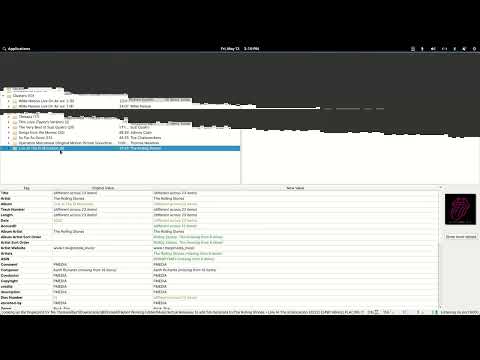
The steps above only outline the basic workings of MusicBrainz Picard. However, this is a powerful application that can do much more. It can also be extended using a variety of plugins , adding features such as the ability to use Last.fm genre tags and pull cover art from numerous online sources.
2. Manual approach
As the name suggests, the “manual” approach involves searching the Internet for information about individual songs and manually adding that information to the song using one of the many tag editor applications available on the same service. Must be . Needless to say, this is a very time-consuming method, so you should only use it if you only have a few hundred songs in your music library. However, this is useful for tagging music by lesser-known artists , as online databases (mentioned above) typically do not contain information about an artist’s albums or works.
2.1 Diagram of manual approach: MP3tag
Mp3tag is one of the best music tag editor applications that you can use to manually add ID3 tags to your music files. It supports numerous audio file formats (MPC, OGG, AAC, etc.) . Other features include batch editing of tags, automatic playlist creation, and more. You can also search for music metadata in sources like Discogs and the aforementioned MusicBrainz.
2.2 How do I manually tag music files using Mp3tag?
Step 1: Add music files/folders to the program using the File option. Clicking on a file in the list opens an editable tag field (for example, Album) in the left pane.
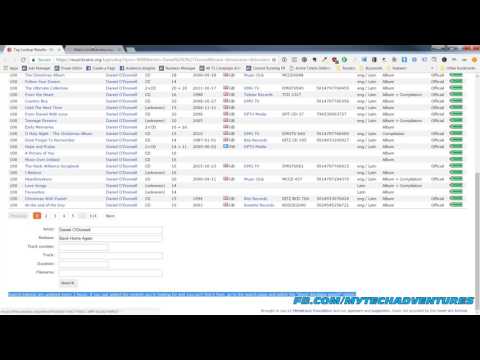
Step 2: Find your track’s metadata information on the web. It’s as easy as typing a song name into Google and it will show you everything from artist name to genre. Alternatively, you can also visit online CD information databases (e.g. MusicBrainz ) or Wikipedia. To get album artwork, you can use Google image search or websites like AllCDCovers . Once you find information about a song, just add it via Mp3tag and press the Save button. Here is the screenshot:
If you are looking for similar tag editor applications, you can use Tag&Rename and TagScanner . Additionally, you can use Windows Explorer to perform basic tag editing. Right-click the audio file to open the Properties dialog box, then click the Details tab to edit tag information.
See also: 7 best music player software for Windows
Organize your music library
It’s great to have a favorite music collection that you’ve built up over the years. However, it can be very frustrating if you can’t find a song when you want to listen to it. The song will get lost among hundreds of confusingly named Track001s in your music collection. In these cases, tagging your music using the methods described above can help you understand your music collection, no matter how large or small it is. Give it a try and let us know what you think in the comments section below.


![How to set up a Raspberry Pi web server in 2021 [Guide]](https://i0.wp.com/pcmanabu.com/wp-content/uploads/2019/10/web-server-02-309x198.png?w=1200&resize=1200,0&ssl=1)


