If you use an external monitor regularly, you know that you may want to quickly change its brightness. However, Windows doesn’t support this natively, so you’re limited to the hardware buttons on the unit. However, Windows 11 and 10 have a handy app that lets you adjust the brightness of your external monitor. You can also assign a shortcut to quickly change the brightness of your monitor on your PC. On that note, use the guide below to learn how. 
Change monitor brightness in Windows 11/10 using Twinkle Tray
To adjust the brightness of an external monitor on Windows, use a software called Twinkle Tray . This is a completely free app and supports a large number of features. This includes multiple monitor support, hotkey customization, custom brightness, contrast, and volume adjustments based on time of day, and more. Communicate with the monitor using the DDC/CI protocol. Here’s how to use it:
1. Install Twinkle Tray ( free ) from Microsoft Store. Twinkle Tray can also be downloaded from the official website ( here ) .
2. Then open it and it will be located under the system tray in the bottom right corner.
3. Just open it and drag the slider to change the brightness of your external monitor. How cool is that?
4. For further customization, click the “gear” icon to open the settings page.
5. Now go to the Hotkeys and Shortcuts section.
6. You can assign shortcut keys for ” Increase brightness ” and ” Decrease brightness “. For example, I set it up to be able to increase or decrease brightness using the “Alt + Up” and “Down” keys.
7. You can also customize other settings, such as contrast adjustment, time-based settings, etc. 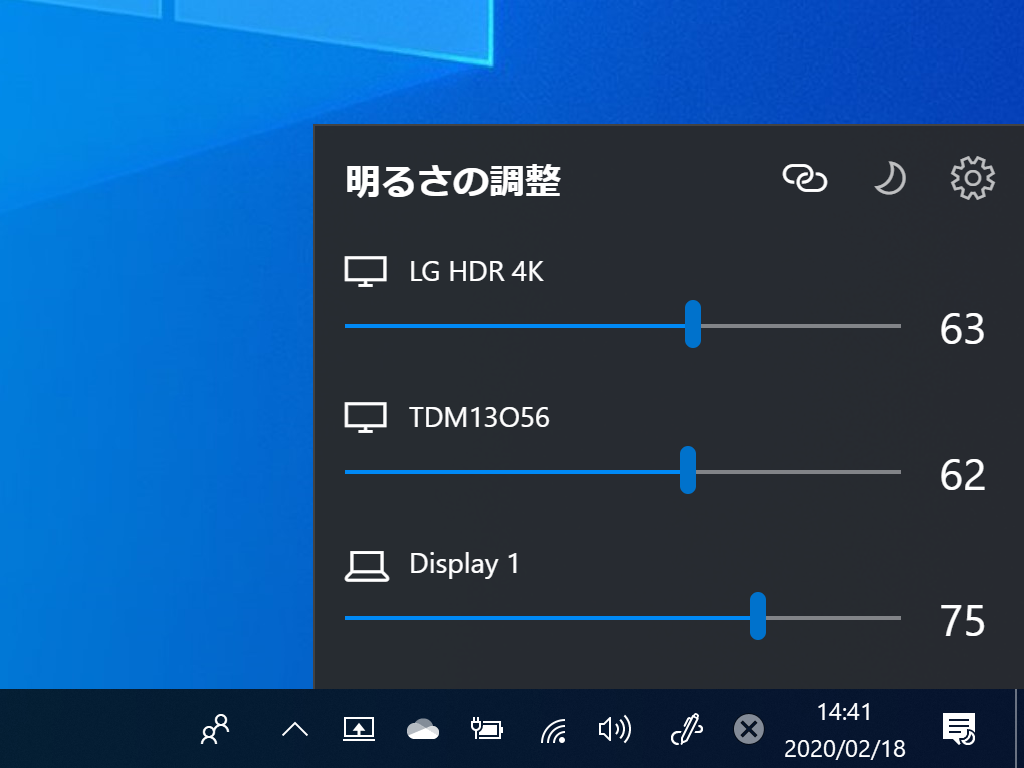
Change monitor brightness using hardware buttons
Some older monitors do not support DDC/CI protocol. In that case, you’ll need to use the monitor’s hardware buttons to adjust the brightness of your external monitor in Windows 11 and 10. Here’s how:
1. Find the hardware button below the monitor . It should be on the right, center, or left side of the monitor. Press the button to open the menu.
2. Now look for “Brightness” or “Image”. Now, please open it.
3. Next, go to the ” Brightness ” settings and adjust the values as desired.
4. You can also change other settings like contrast , sharpness , color mode , etc.
Once done, just stop pressing the button and the menu should disappear. Whenever you want to change the brightness of your monitor, just follow the steps above.


![How to set up a Raspberry Pi web server in 2021 [Guide]](https://i0.wp.com/pcmanabu.com/wp-content/uploads/2019/10/web-server-02-309x198.png?w=1200&resize=1200,0&ssl=1)


