The internet is a blessing to us, giving us access to almost all kinds of information. However, when this power is placed in the hands of a child, it can also get a little out of control. They don’t know how to stay safe on the internet, so it’s your job to make sure they’re safe.
Now, cutting off access to the internet is not a real solution and will close the door to so many learning opportunities. Therefore, the best thing you can do is to block access to inappropriate websites and ensure that you stay away from them.
Whatever your goal, here’s how to block access to websites in Chrome Browsing using various tools.
1. Manually block websites in Chrome
In fact, Chrome doesn’t have a built-in option to block websites. However, there are workarounds that allow you to block websites, but they require some configuration and only work for people under your supervision (for example, your children).
Chrome lets you create separate supervisor accounts for people you want to supervise. You can easily see all activity on that account, and you can also specify which websites the monitored account can access and which websites you want to block.
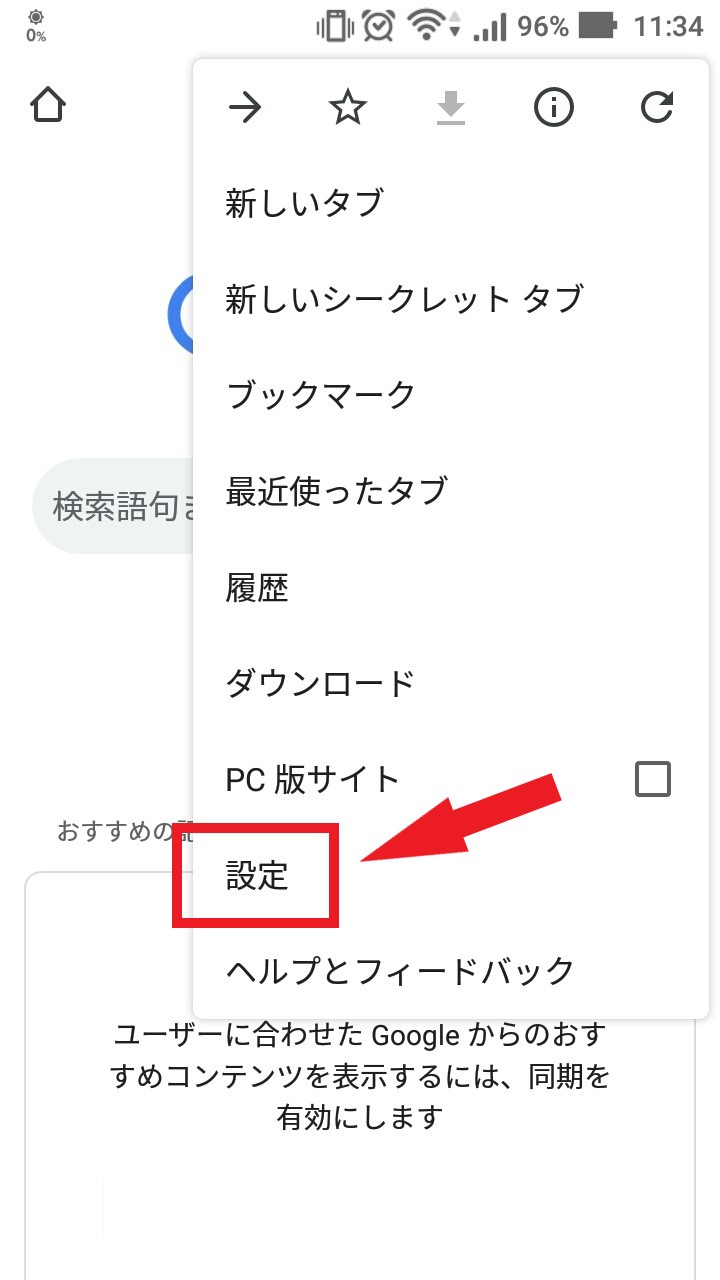
To create a supervised account, click on the main menu in the upper left corner of the window and select Settings. In Settings, click Add People under the People heading.
Next, you’ll need to give the new account you’re adding a photo and a name to identify who it is. After that, make sure the ” Control and view the websites this person visits ” option is checked and click “Add.”

Your account will be created and you can manage and control it through the Supervised Users Dashboard . Just log in to your dashboard with your Google account and all your supervised user accounts will appear here.
To block websites, click Manage in the Permissions panel. There are two options here: block all websites and allow specified websites, or allow all websites and block specified websites.
To allow all websites and block some, make sure All Web is selected in the drop-down menu above. Next, start adding the URLs of the websites you want to block, make sure the Behavior is set to Block entire domain , and block everything related to it.
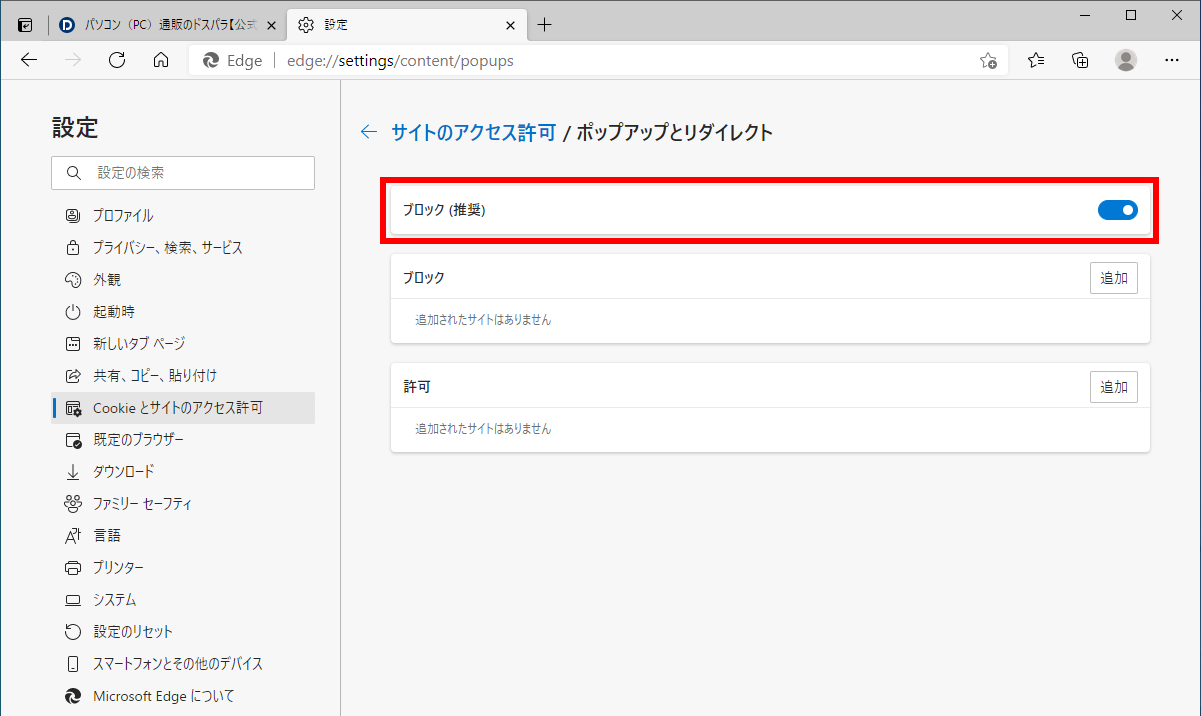
If you want to block all websites and allow some, make sure the drop-down menu option is set to Only approved sites . Add the URLs of all the websites you want to allow below and click OK to apply.

You can also allow ” Safe Search ” to automatically block all adult content without specifying the website (if that’s your intention). Simply click Lock Safe Search under the Permissions panel to enable Safe Search.

2. Block websites in Chrome using a dedicated Chrome extension
Although the above method does not involve any third party, it is very difficult to set up and maintain. Fortunately, there are a number of third-party extensions that add website blocking functionality to Chrome and provide some additional features as well.
For this purpose, we have created a list of extensions that block websites. They are all unique in their own way and can meet the needs of different people.
site block
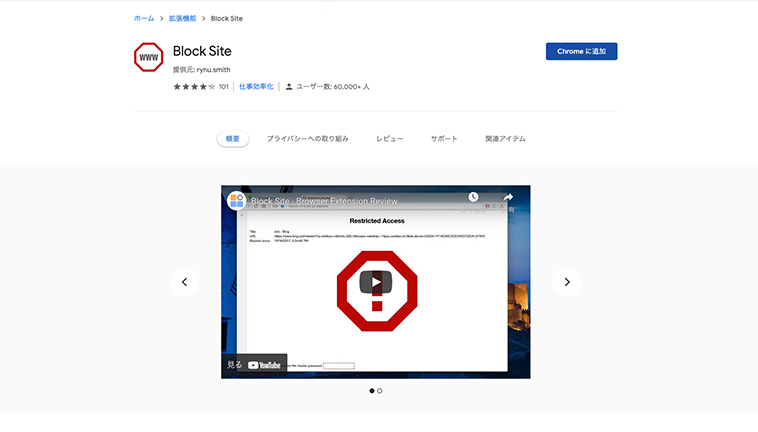
This extension is perfect for people who aren’t interested in fancy features and just want to block the websites they want. You can only blacklist websites and specify the times they are blocked. For example, you can blacklist time-killing social networking sites like Facebook, YouTube, and Twitter, and whitelist sites like Google and Wikipedia.
You can block all websites and allow some websites, or allow all websites and block some websites.
Google Chrome Nanny
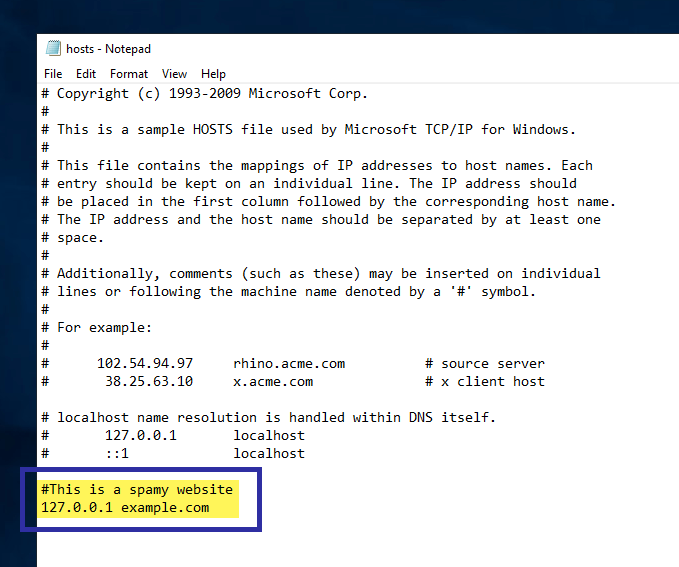
Nanny for Google Chrome is a feature-rich extension, but its interface is unappealing. However, the features offered are more than enough to make up for it. You can blacklist websites according to time of day or day of the week. You can specify different times of the day or different days of the week to block sites.
You can also block all websites and whitelist only some to allow. Get statistics of all blocked and whitelisted websites over time in a pie chart. This is useful if you want to block sites with adult content.
Website Blocker (Beta)
Website Blocker offers similar functionality to Google Chrome’s Nanny, but with a little more charm. You can blacklist or whitelist websites depending on the time and day of the week. You can also control what message someone sees when they try to visit a blocked website.
You can also add password protection to ensure all your changes are secure and no one can change them.
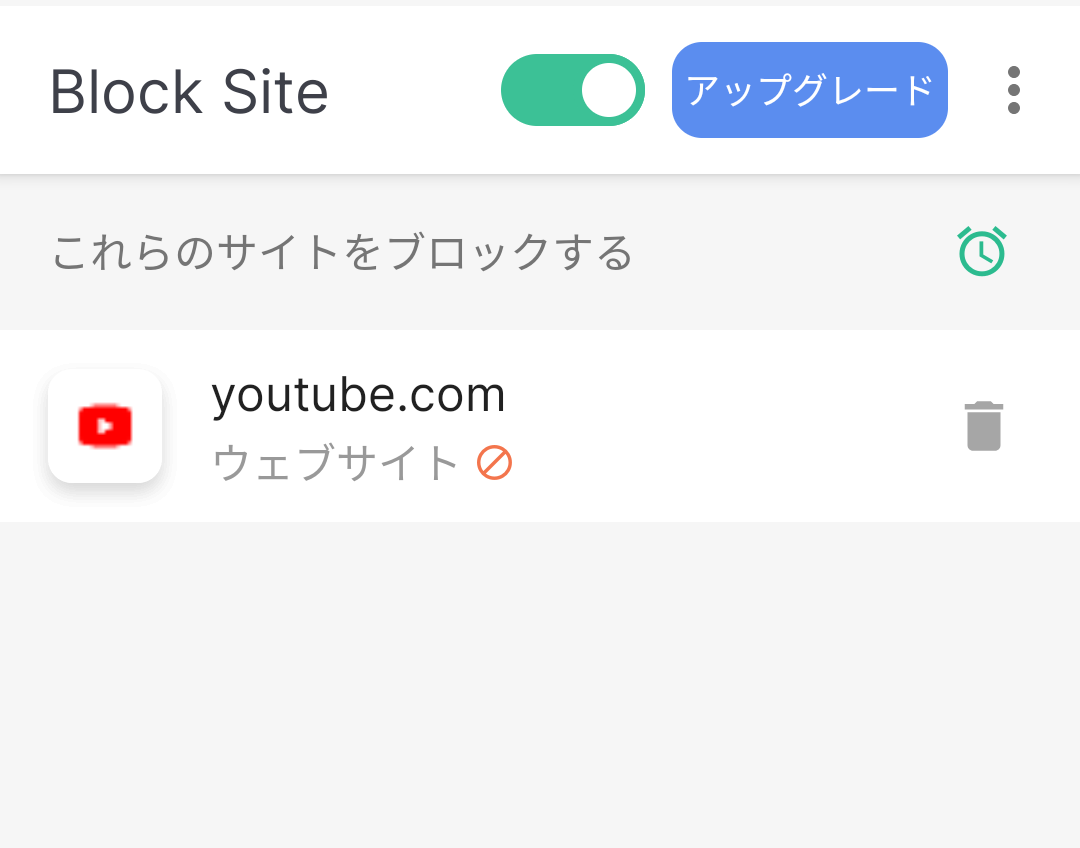
block the site
Block Site is a slightly more advanced extension compared to the above extensions. Block Site allows you to block not only websites, but also words in their URLs. This is very useful to prevent someone from searching for specific words.
Additionally, you can block websites depending on the day of the week, time of the day, and even in incognito mode. For example, you can allow Facebook to open at night when you’re not working, but block it during the day to avoid procrastination. You can also add password protection during uninstallation to prevent anyone from uninstalling your extension.
simple blocker
This extension was not created to help your child block certain websites, but rather to help your child stay focused on work. However, while it does have the ability to block basic websites based on time and day of the week, it is still focused on keeping you out and allowing you to focus on your work. While working, you can avoid sites like Twitter, Skype, Facebook, Buzzfeed, Reddit, and Quora.
You will no longer be able to disable the extension for a specific period of time. This eliminates easy ways to access blocked websites and allows you to stay focused on your work.
Personal blocklist (by Google)

Personal blocklists don’t have a lot of features, but they’re great for people who just want to block websites without the hassle of adding numbers and periods. To block a website, just search for the website on Google. A new button “Block (searched website name)” will appear. Clicking on it will add the website to your block list.
See also: 35 Best Google Chrome Extensions
You can block websites on Chrome using the method that suits your needs. If you have any questions, please let us know in the comments section.


![How to set up a Raspberry Pi web server in 2021 [Guide]](https://i0.wp.com/pcmanabu.com/wp-content/uploads/2019/10/web-server-02-309x198.png?w=1200&resize=1200,0&ssl=1)


