Chromecast works very well within the Android – Chrome ecosystem, but once you step out of Google’s sacred gardens, Windows users will find that there are few options. You can’t cast local media stored on your Windows 10 computer to Android TV. You also can’t cast programs other than Chrome. If you are looking for a solution to completely cast Windows 10 to Android TV, you are at the right place. Here’s how to set up screen mirroring from Windows 10 to Android TV or other smart TVs using Miracast. So let’s take a look at the guide.
Cast Windows 10 to Android TV or any smart TV
We have explained all the methods here so that you can follow the steps step by step. Please review the requirements and see if your device supports Miracast before proceeding. Click a link below to seamlessly jump to that section.
- requirements
- Find Miracast support on Windows 10
- Find Miracast support on Android TV
- Cast Windows 10 to Android TV
Project your Windows 10 screen to Android TV
requirements
- Miracast compatible TV
- Miracast-compliant Windows PC or laptop
- Both your Android TV and Windows 10 computer must be connected to a common WiFi network.
Find Miracast support on Windows 10
1. Press Win + R to open the Run window. Now type dxdiag and press Enter.
2. Now click Save All Information and save the file to your desktop. Saved in a text file.

3. Open the text file and search for ” Miracast “. If it says “Available”, you’re ready.
4. If you see ” Graphics driver not supported ,” download Intel Driver Assistant ( free ) and update all drivers. Even if your computer has the proper hardware, your device may not be able to take advantage of Miracast because it lacks the appropriate drivers. Now, give Intel Driver Assistant a try. Please note that Miracast requires both hardware and software support to work.
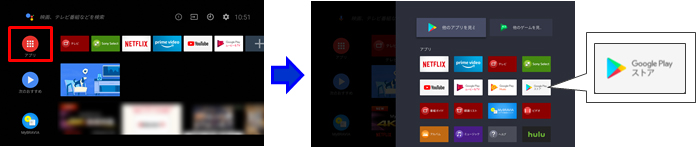
5. You can also try updating the Microsoft Wireless Display Adapter ( free ) from the Microsoft Store.
Find Miracast support on Android TV
Before I start, I would like to mention that I am using a Mi TV 4X with the latest Android 9 . Xiaomi recently added support for Miracast on Mi TV, so you can now use Miracast functionality. Xiaomi has added a separate Miracast app for connecting to wireless displays.
For Android TVs made by other vendors such as Sony, Samsung, and LG, you may need to dig deeper into the settings to find the “Miracast” menu. This applies to all smart TVs, not just Android TV. Make sure Miracast is enabled and discoverable. We also recommend going to Settings -> Apps -> Show all apps.
If necessary, go to All System Apps (located at the bottom) and find the Miracast menu. You can also go to the All Settings menu and find the Miracast option. This guide will show you how to find Miracast support on your Mi TV.
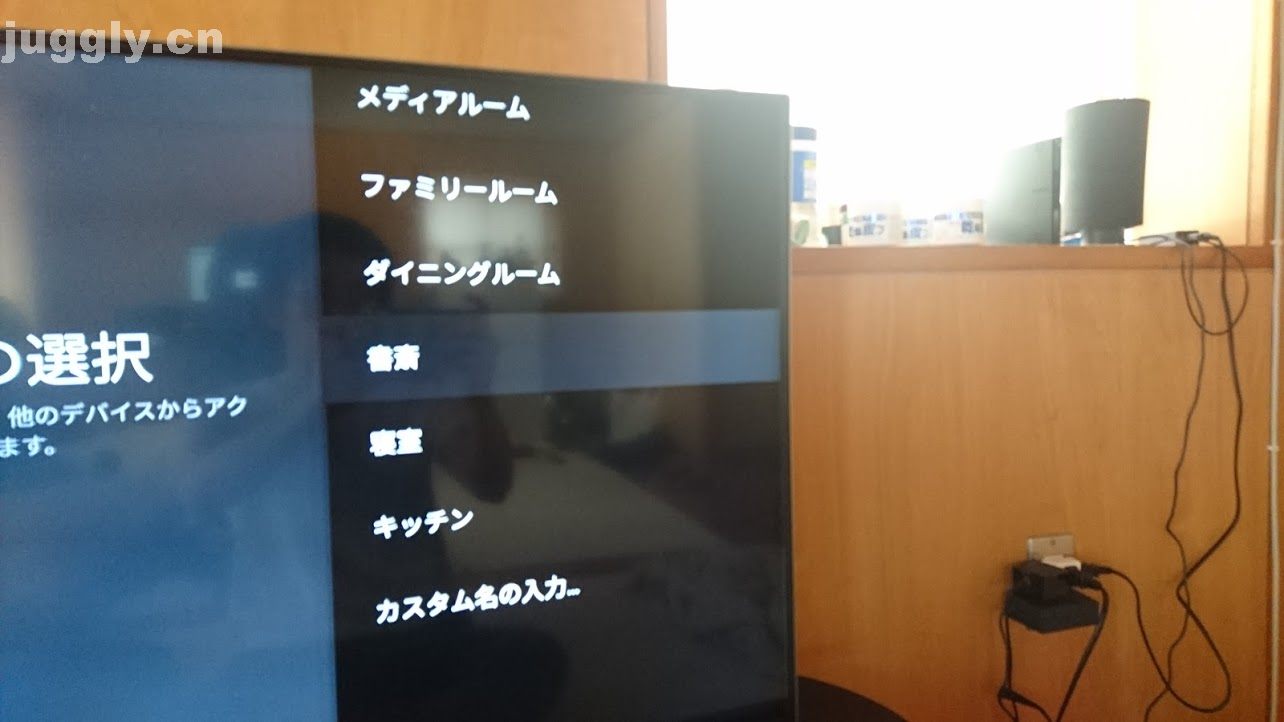
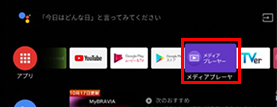
1. In the Android TV interface, go to the ” +” button located in the “Apps” section.

2. Here you will find the “Miracast” app. Just select it and the app will be added to your favorite apps section. If Miracast is not available here, search for it in Settings -> Apps -> See all apps.
3. Open the Miracast app and the wireless display feature will be enabled. You need to keep this screen when casting Windows 10 to Android TV.
Cast Windows 10 to Android TV
1. Open the Miracast app on your Android TV and keep it on the screen. FYI, definition priority means highest possible clarity , but real-time synchronization takes a backseat. Fluency Priority means a stable connection with real-time synchronization, but at a lower resolution quality (suitable for low-end devices). I prefer to leave the definition priority as default.
2. Next, return to your Windows 10 computer and press the “ Win + K” keyboard shortcut . A Connection window opens in the right pane.

3. If the Connections window does not appear, open Settings → System → Display . Now, scroll down and click Connect to Wireless Display.
4. The search will begin and your Android TV will appear within a few seconds. Make sure the Miracast app is open on your Android TV and both devices are connected to a common WiFi network. Then click on Android TV .
5. Finally, Windows 10 will cast your screen to Android TV. Like Chromecast, it can play music, and that music is delivered through your TV’s speakers . You can browse the internet, open any app (not just Chrome), play games, and more.
6. If you want to extend the display or set up only the second screen, press “ Win +P ” to change the projection mode.

Screen mirroring from Windows 10 to Android TV using Miracast
Here’s how to cast Windows 10 to Android TV to play media and games. If you have a powerful computer, router, and Android TV, you can use it as a second screen. Anyway, that’s all from us. For more Mi TV tips and tricks, check out the linked guide. If you run into any issues, please let us know by commenting below. We will definitely help you.


![How to set up a Raspberry Pi web server in 2021 [Guide]](https://i0.wp.com/pcmanabu.com/wp-content/uploads/2019/10/web-server-02-309x198.png?w=1200&resize=1200,0&ssl=1)


