If you want to build a serverless architecture, or at least part of it, on AWS, the AWS Lambda service is the most important part of it.
It is a serverless computing function (usually written in the Node.JS or Python programming language) that can be developed and run without starting a backend cluster or server. You can connect multiple AWS Lambda functions to form more complex processes.
However, an important characteristic of Lambda functions is their limited processing time. This ultimately defines when it is the correct purpose to use an AWS Lambda function.


What is the timeout interval?
The AWS Lambda function timeout feature is a setting that defines the maximum amount of time a function can run before terminating.
Lambda functions are designed to be short-lived and stateless, and should be used as such. How teams look to utilize Lambda functions for long-running processes is no exception. They’re doing this simply because they want to take advantage of the serverless nature of AWS Lambda. It’s always cheaper to run code without having to start a server with a specific CPU and memory configuration. So the intent is easy to understand.
However, if a function takes too long to run, it can cause resource utilization and performance issues. You’re more likely not to care too much about optimizing steps within your process, due to the risk of locking up resources and the benefits of long-running processes. All of a sudden, a 5 minute wait isn’t that big of a deal. It can remain present even if it is of no use to the process itself.
By default, the Lambda function timeout is set to just 3 seconds. In that case, you need to consider the fact that the code you run inside your Lambda function must complete within 3 seconds. This is ideal if you want to build an architecture with very fast communication and response times, potentially millions of transactions in a very short time. However, this severely limits the available use cases for your Lambda function, so you can increase this limit up to 900 seconds (15 minutes). When this timeout is reached, Lambda terminates the function and returns an error code.
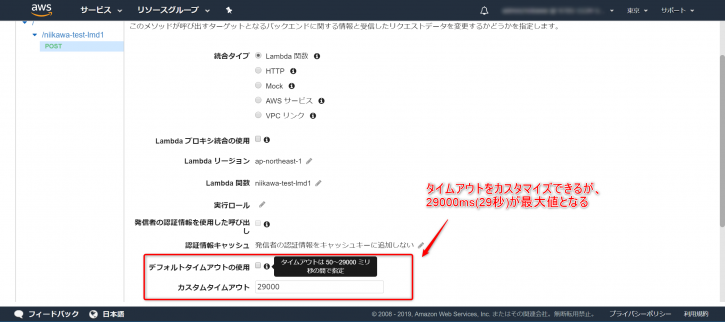
How do I configure the timeout feature?
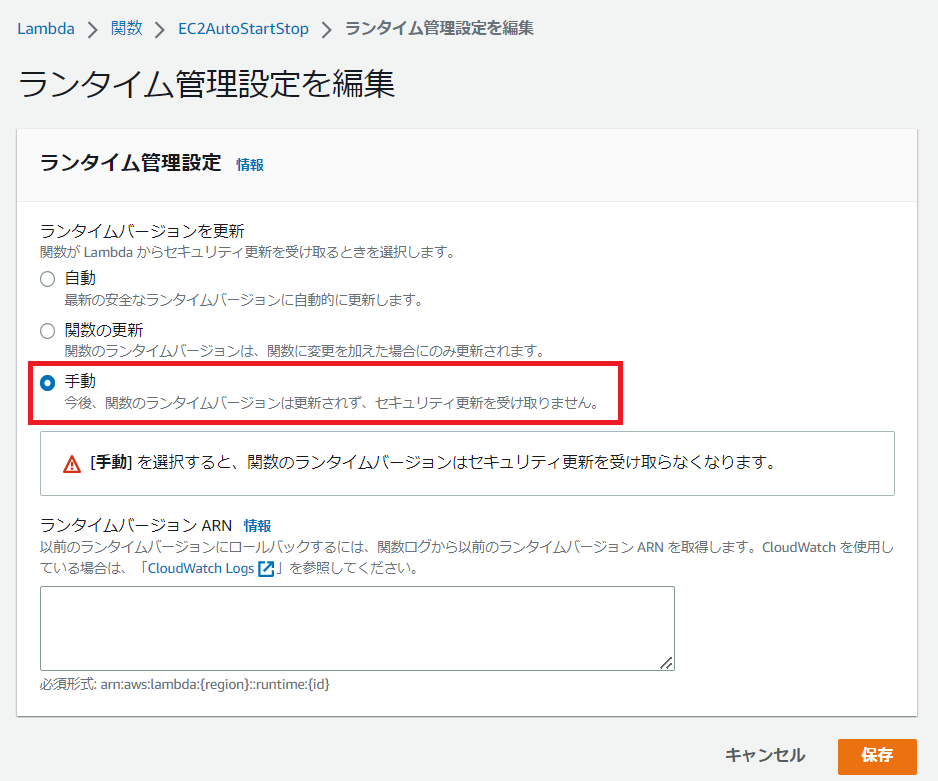
You can configure Lambda function timeouts using the AWS Management Console, AWS CLI, or AWS SDKs.
Here are the specific steps to achieve this:
- Open the AWS Management Console and navigate to your Lambda service.
- Select the Lambda function you want to modify.
- On the Configuration tab, scroll down to the General Configuration section and find the Timeout setting.
- Click the Edit button next to it.
- Enter the new timeout value in seconds (1-900) and click the Save button.
- Click the Save button at the top of the page to save your changes to your Lambda function.
You can also update the timeout for your Lambda function using the AWS CLI command line. Here is an example of the command:
<code>aws lambda update-function-configuration --function-name [My_Lambda_Function_Name] --timeout 900 This command sets the timeout for [My_Lambda_Function_Name ] to 15 minutes. Just enter the actual name of the function there and the desired timeout value in seconds.
Some considerations
Timeout settings apply to the entire function, not just individual code blocks or operations within the function. Therefore, if your function is performing a long-running operation, such as processing a large file or making a network request, make sure that the timeout is sufficient to complete the operation, even in the worst-case scenario. Need to check. .
Keep in mind that Lambda functions are short-lived and designed to be stateless. These are intended to perform small, discrete tasks. If you find that your Lambda function is taking a long time to complete, you may want to consider breaking it into several smaller functions. You can then call them one by one with a trigger. For example, if the output of a previous Lambda function is stored in a specific S3 bucket.
Additionally, if you need to run long-running processes that exceed the 15-minute limit, consider using AWS Step Functions to orchestrate a set of Lambda functions or other AWS services to achieve your desired results. can.
best practices
It seems like the working interval between timeouts itself is not long enough to make a large talk. In most cases, developers will set 15 minutes directly for all Lambda functions. Even if the function finishes sooner, there are no negative side effects.
However, there are still some best practices to be aware of.
#1. Define appropriate values
You should set the timeout value based on the expected execution time of the function. This basically means setting a value that is neither too short nor unnecessarily long.
For example, for architectural or overall performance reasons for your application, you may want to ensure that the overall time of a single Lambda function does not exceed 3 minutes.
Similarly, you might want to prevent your Lambda function from finishing sooner than, say, 3 minutes. One reason is that you need to enter the retry count within your Lambda code. For example, if some of the resources needed to complete your code are busy or locked.
Therefore, before setting the timeout to 15 minutes, give some thought to the optimal execution time value. Defining more precise values is just another tool to give boundaries to the entire development team.
#2. long-term monitoring
After setting the timeout limit, try to monitor the execution time of your Lambda function. This provides important insight into whether your initial decision was correct or if adjustments are needed.
You can track the execution time of your function using CloudWatch metrics and logs. Then identify what’s taking longer than expected and what’s completing much faster than expected.
#3. asynchronous call
If your Lambda function is triggered by an event that doesn’t require an immediate response, such as a file upload or a message from a queue, use asynchronous invocation to reduce the risk of timeouts. This will cause the function to run in the background without waiting for a response. Of course, this may reduce the amount of timeouts. This is simply because the latency your function requires for its resources doesn’t have to be included in Lambda’s overall execution time.
#4. Use step functions for complex processes
If you need to run a long-running process that exceeds the 15-minute limit, you can use AWS Step Functions to orchestrate a set of Lambda functions or other AWS services to achieve that result. Step Function divides a process into smaller, more manageable tasks that can be executed within timeout limits.
You can also run multiple lambda functions in parallel within a step function. Then the step function waits for all parallel lambda functions before proceeding. This is a type of horizontal scaling, where multiple lambda functions can split up a problem and partially solve it together.
In the end, all you need to do is collect partial results and build a final solution. Following a standalone lambda function is sufficient for this.
#5. Optimize your code
You can optimize your Lambda function code to reduce execution time and improve performance. This is useful when the timeout interval is not sufficient for occasional use. In that case, it may be worth considering optimizing your code to remove such failure cases.
How do timeouts affect my billing?
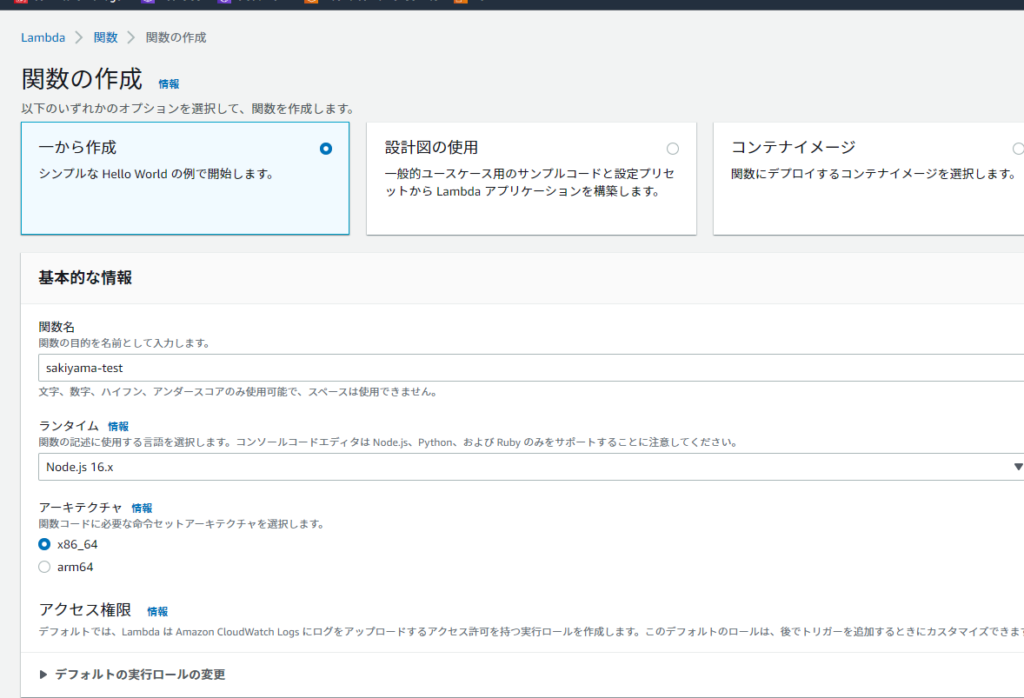
AWS Lambda function timeout settings do not directly affect billing for your function. AWS Lambda charges you based on the number of requests and the time your function runs.
Increasing the timeout settings for your Lambda function can increase execution time. But only if the function really requires additional time. If you combine this with high-frequency functions that take a long time to execute, expect the cost to be high.
However, if the function is called infrequently or the process completes before the timeout value is reached, the impact on your billing may be minimal.
Therefore, setting all Lambda functions to a default 15 minute timeout may not be the main reason for the increased overall processing cost.
However, it does indirectly lead to an increase in overall costs. Developers may feel they have more room to use and may not optimize their code as much as they would have if timeouts were more restrictive but practical.
Second, AWS Lambda offers a free tier that includes 1 million free requests and 400,000 GB seconds of compute time per month. If your Lambda function usage is within the free tier limits, you don’t have to pay for the time your function runs, regardless of your timeout settings.
last word
AWS Lambda functions are powerful tools for serverless processing, especially on the AWS Cloud. It has a purpose and limitations that we should be aware of. Avoid using it for use cases for which it was not designed.
This is perfect for simple, asynchronous, and ideally triggered actions that don’t require more than 15 minutes of execution time. For more complex processing, use AWS Step Functions to combine multiple Lambda functions into a single orchestrated process. Or, forego cheap serverless processing and use a server with the appropriate configuration and computing power to accomplish the task.
Next, check out our introduction to AWS Lambda for beginners.


![How to set up a Raspberry Pi web server in 2021 [Guide]](https://i0.wp.com/pcmanabu.com/wp-content/uploads/2019/10/web-server-02-309x198.png?w=1200&resize=1200,0&ssl=1)


