The Apple Pencil is a great accessory for your iPad, and you can use the stylus to perform a variety of actions.
Easily take handwritten notes, draw, sketch, and paint on-screen. You can control the entire device using the stylus.
Since the iPad was introduced in 2015, iPad users have found ways to work more efficiently on the device, and the fact that it’s wireless makes it even more convenient.

However, since it is an electronic product, it needs to be charged. The charging method varies depending on the version of Apple Pencil you have, so you need to charge it the right way.
This article details how to charge your Apple Pencil, whether it’s 1st or 2nd generation.
Let’s take a look.
How to charge Apple Pencil 1st generation
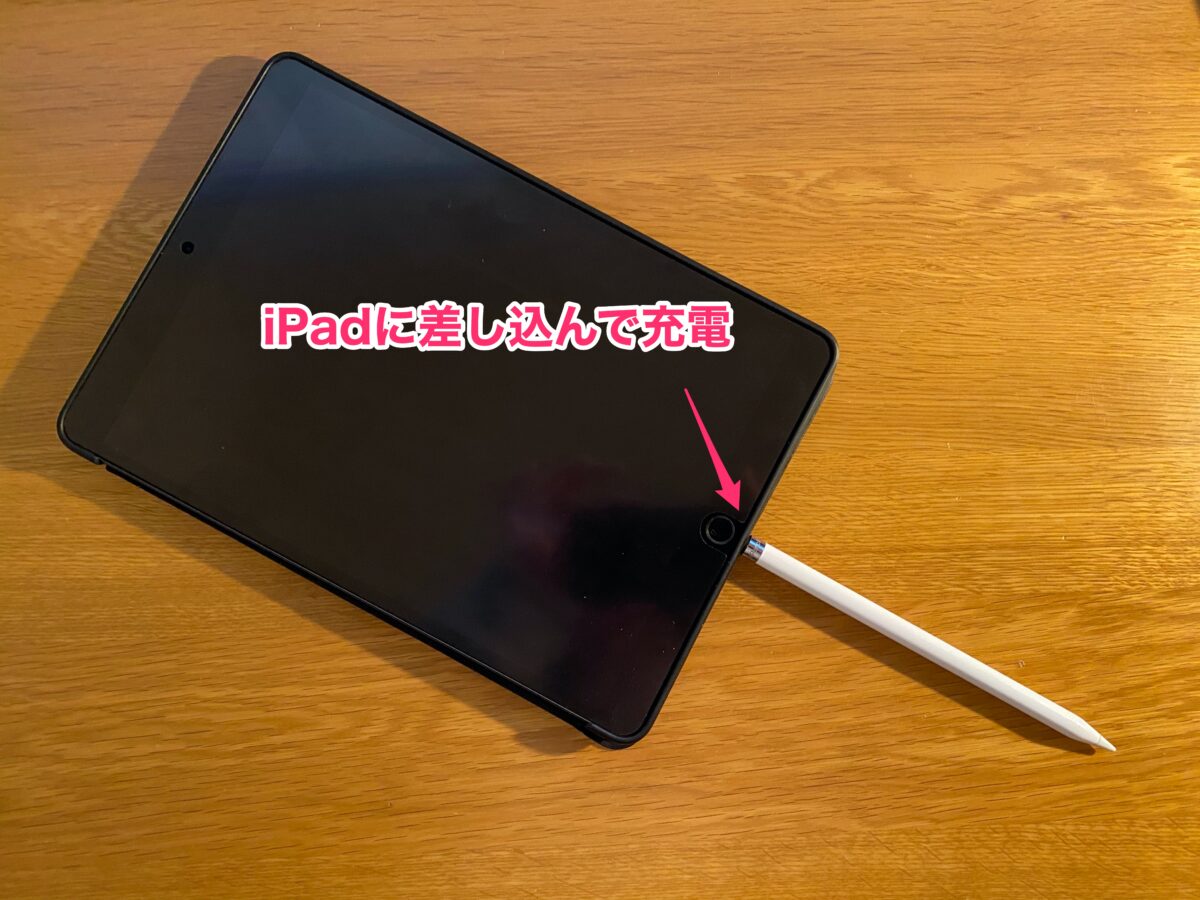
Charging the first generation of Apple Pencil, including the first original, is very easy. There are two different methods, so use the one that works best for you, depending on your comfort.
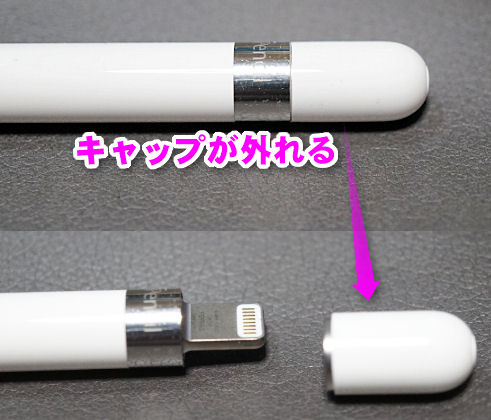
First, simply remove the cap on the Apple Pencil’s silver band to reveal the Lightning connector, which connects to your iPad the same way you connect it to a charger.
The second method is an alternative and allows you to use the small Lightning USB adapter that is included with the product.
This way, you can insert your Apple Pencil into one end of the adapter, insert the charging cable into the other end, and plug it into the socket to start charging.
How to charge Apple Pencil 2nd generation
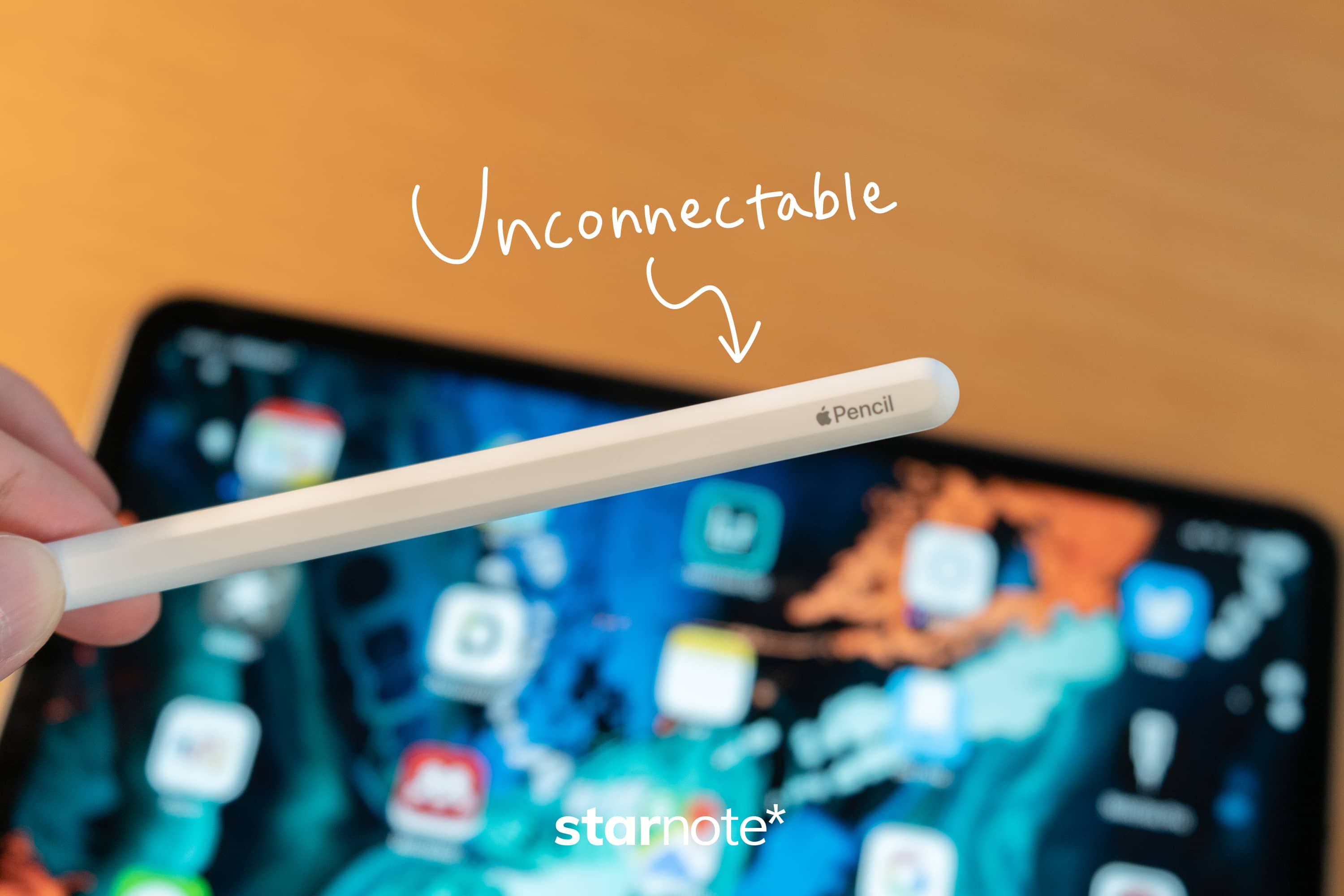
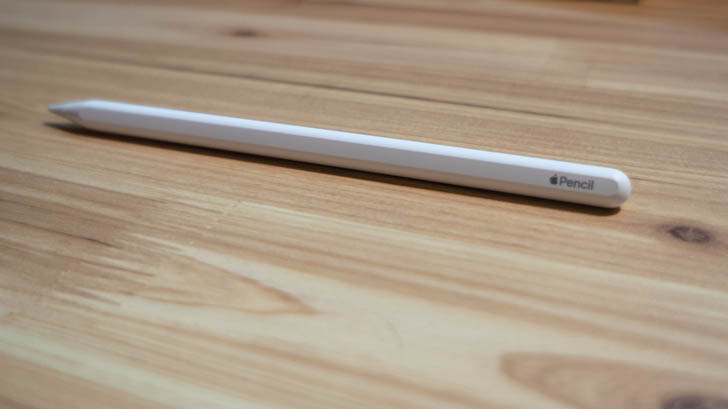
With the second generation of Apple Pencil, Apple has made the whole process even more convenient. Now that wireless charging is supported, you can simply place your Apple Pencil in the magnetic connector on the long side of your iPad (located on the right side).
You need to make sure your iPad’s Bluetooth is turned on. It will not work if it is not turned on.
What is the typical charging time for each of the two generations?
Like most electronic devices, you don’t have to wait until it’s 100% before using your Apple Pencil.
In fact, you can get enough power after just a few minutes of charging, but it usually takes about 15 to 30 minutes to fully charge.
To check the battery status of your Apple Pencil, install the “Battery” widget. You can then swipe from left to right from the home screen or lock screen to get information about the battery percentage.
The widget should install automatically when you connect your Apple Pencil to your iPad, but if it doesn’t, press and hold an empty area on the screen until the app starts shaking, then tap the “+” icon. You can install it. ” icon and select the “Battery” widget.
You can also customize the widget’s appearance and drag it to place it wherever you like.
What you need to check when your Apple Pencil cannot be charged
If for some reason your Apple Pencil isn’t charging, you’ll need to make sure your iPad is fully charged and Bluetooth is turned on. Also note that 2nd generation wireless charging supports the following iPad models:
- iPad Air (4th generation)
- iPad Pro 12.9 inch (3rd and 4th generation)
- iPad Pro 11 inch (1st and 2nd generation)
If your iPad doesn’t fit into the above categories, magnetic charging won’t work and you’ll need to charge it the traditional way.
Get an Apple Pencil if you don’t already have one

As this post amply expresses, Apple’s stylus is a great product, and whether you buy the Apple Pencil 1st generation or the Apple Pencil 2nd generation, it will make your work much easier. .
| preview | product | evaluation | price | |
|---|---|---|---|---|
 | Apple Pencil (1st generation) | $105.00 | Buy on Amazon |
| preview | product | evaluation | price | |
|---|---|---|---|---|
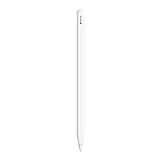 | Apple Pencil (2nd generation): Pixel-perfect precision and industry-leading low latency,… | $120.39 | Buy on Amazon |
Both are available for purchase on Amazon, so if you haven’t already, please buy one of them.
conclusion
We hope this post has cleared your doubts about charging the Apple Pencil and its battery life. Each generation has a different method, which can be confusing.
Check out some of these iPad stands as well.


![How to set up a Raspberry Pi web server in 2021 [Guide]](https://i0.wp.com/pcmanabu.com/wp-content/uploads/2019/10/web-server-02-309x198.png?w=1200&resize=1200,0&ssl=1)


