You may want to know how to compress files or folders so that you can save space on your computer, distribute many files at once, or use large files in your projects.
Understanding how to create zip files can help you save memory space, speed up upload times, and deliver faster. Also, by reading this article you can know about its importance and popularity all over the world.
What is a zip file?
A file with the ZIP file extension is a compressed file and is the most commonly used archive format. This format, like other formats, is essentially a collection of one or more files or folders compressed into a single file for easier transfer and compression.
It’s still the same file. The only difference here is that it is packed to take up less space. If the file is small, it’s easier to send it via email or online storage (such as Google Drive, iCloud, or Dropbox). Therefore, compressing everything into a .zip file is common and used in many situations.
Verifying the contents of a .zip file is similar to receiving a package. The shipment has arrived, but you have to open the box and take out the contents. Software developers frequently use .zip files to provide installer packages and updates to users through direct download.
How can I compress a folder?
Windows PC/Mac has a very simple structure for creating zip files. No third-party option is needed here to create the zip file. You can track zip file creation through built-in functionality on Windows and Mac. Just follow a few steps to create a zip file.
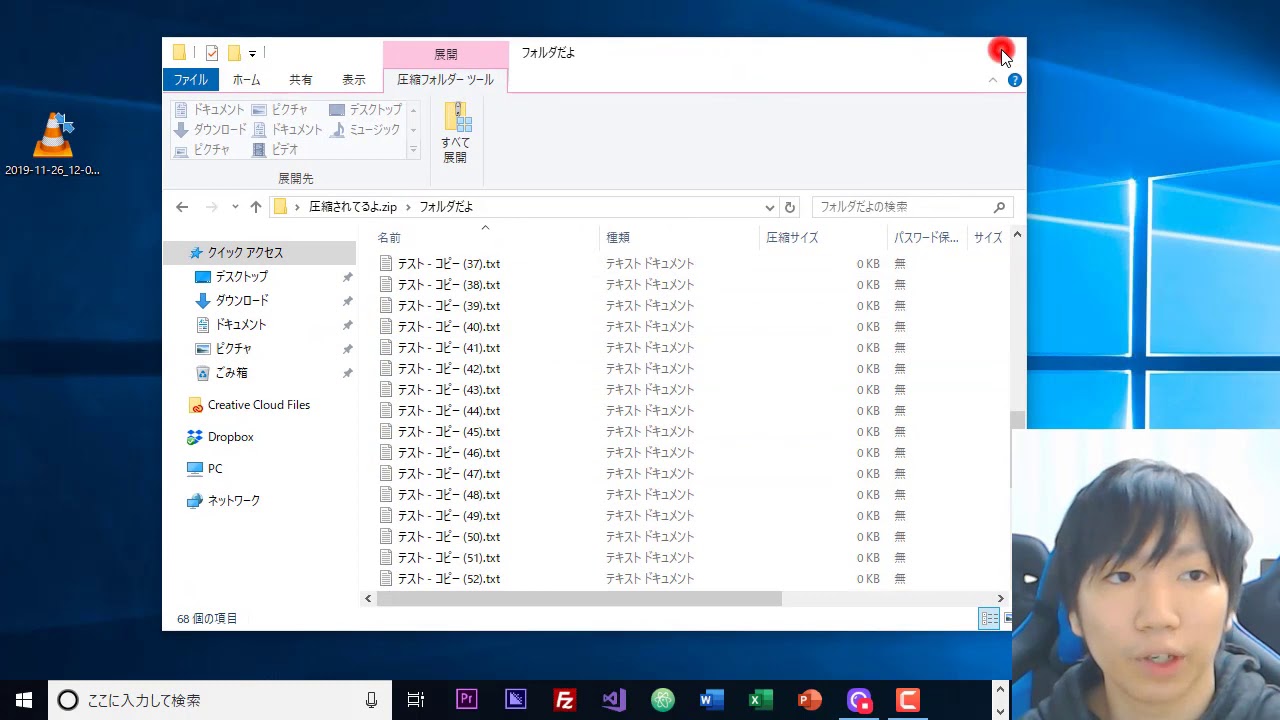
Creating zip files on your smartphone has become much easier. Just download the RAR application from Google Play Store. Now you can easily convert any file or folder using that application. This will definitely solve the problem of how to compress a folder.
Create a zip file on Windows
Are you thinking about the process of compressing files in Windows? Creating zip files for Windows systems is easy. You need to follow the steps below and perform some operations on the folder as follows:
- Select files from the folder to add to the zip file.
- Then right-click on the selected file. You’ll see a send option there, so hover over that option.
- Select the Compressed (Zipped) Folder option.
- Rewrite the name if necessary and press Enter.
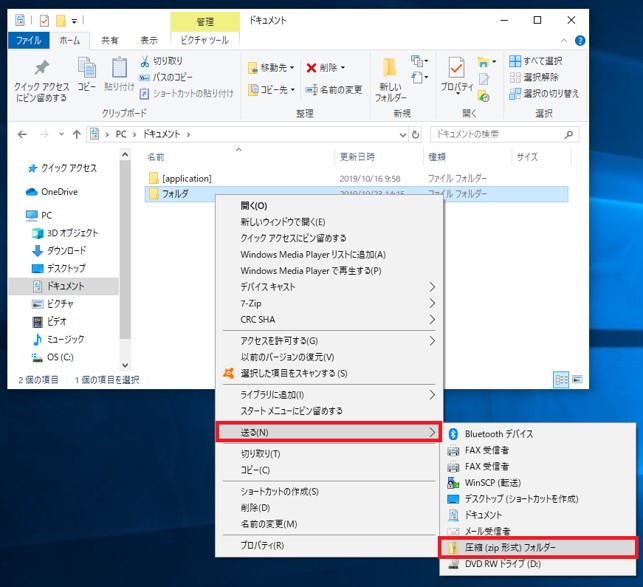
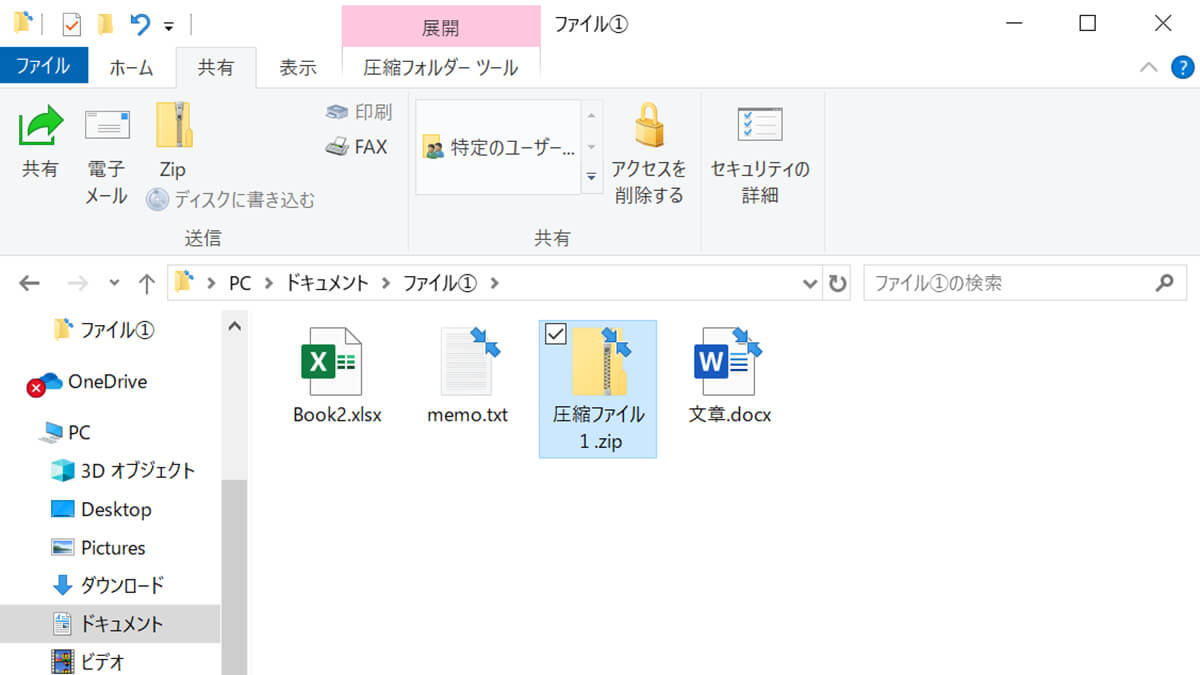
After this, the zip file was successfully created in Windows. If you want to add more files to that zip folder, you can easily do so using the drag-and-drop method.
Creating a zip file on macOS
Here are the steps to create a zip file on macOS:
1. Find the file or folder you want to zip. You can pre-add files to a specified folder, or use the Command key to select objects individually. Hold down the key and select the files you want to compress.

2. Control-click the file or folder you want to open. Control-clicking on Mac is the same as right-clicking on Windows.
3. Select Compress from the shortcut menu. If you’re compressing multiple things, you’ll see, for example, “Compress 3 items.” However, when you compress a single item, the new compressed folder has the same name as before, but with a .zip extension. If you compress it multiple times, it will automatically be named Archive.zip.
If you want to add more files on your Mac, you can’t drag and drop them here. There is only one choice. The next step is to create a new .zip file.
How do I compress a folder on Linux?
Most software companies use Linux. Therefore, there are multiple ways to compress folders on Linux. However, this article describes a graphical user interface (GUI) method for doing this. Please follow the steps below.
- Just navigate to the file or folder you want to compress
- Select them using your mouse and the “Ctrl” key.
- If you right-click on any of these files, you’ll easily see one option for compression.
- Click.
- You need to name that archive file and click Create.
- The compressed archive will be displayed immediately. The size of an archive is significantly smaller than the size of its entire content.
Apart from the .zip option, you can also choose other methods here: .tar, .xz, and .7z.
Create zip files on iPhone and iPad
Sometimes you need to share large files or multiple files from your iPhone. Therefore, you can compress files using your iPhone as well. From now on, less space and time will be required to transfer files. You can easily create a zip file on your iPhone or iPad device by following the steps below.
- Open file options. Choose a file location from your iPhone or iCloud driver.

- Tap the “See more” button. After this, tap on the “Select” option. You can select one or more files.
- Now, click on the “More” button again, go to the bottom right and select the “Compress” option.
If you select only one file to compress, the file will be automatically saved with that name. If you select multiple files to compress, they will be saved as archive.zip. Hold and touch the ZIP archive option to rename such files. You can find the rename option and give it any name you like.
Create zip file on Android
The majority of people on the planet use Android devices as their daily mobile gadgets. Therefore, you need to create a zip file. It can be done in multiple ways.
First, you can compress your files or folders using the built-in Files app, or you can use third-party apps like RAR, Zarchiver, etc. This section describes the process for the include file option.
- Go to your system’s file manager app
- Navigate to the folder you want to compress
- Tap on the “More” option
- Tap “Compress”
- Next, you need to select the desired output folder
- Name the file and click the check button
- The file will be saved in that folder.
You can easily rename that folder and share it with friends, family, and colleagues.
Third-party alternatives to compress files
If you are looking for advanced options for compressing and decompressing files, you should use third-party software. To do this, you will need to install one of the following software:
winzip
WinZip is a zip utility software that allows you to quickly compress and decompress files. It can compress huge files and decompress all major file formats like zip, gzip, tar, rar, cab, etc. You can link to Google Drive, OneDrive, Dropbox, email, and other services. You can also protect your files using a password. The encryption used by WinZip is one of the most secure encryptions compared to others.
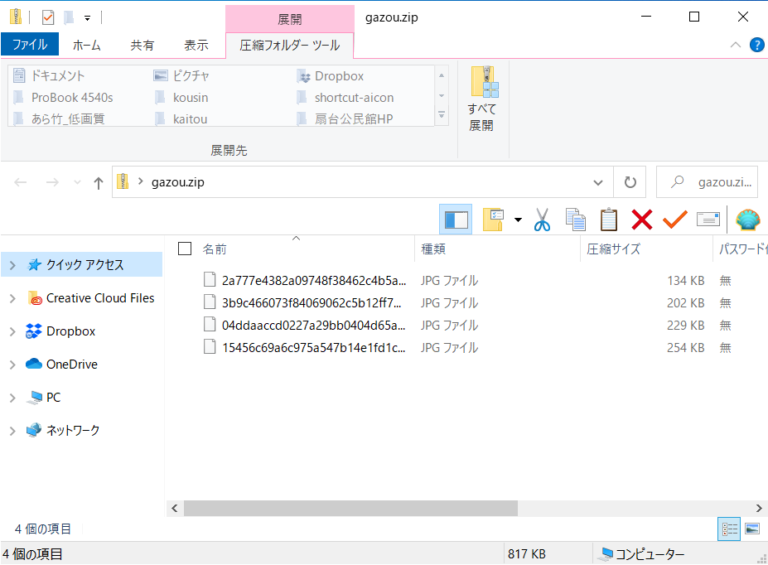
pizip
PeaZip is a file compression program that supports over 150 file types. This application has several security features, including an encrypted password manager and two-factor authentication.
- This is a simple utility that does not contain any malware.
- This program can search for duplicate files.
- The program can split archives into multiple files.
- You can control which sessions are archived by scheduling archives.
- You can compress files when resources are limited.
7 zip
7-zip is a well-known open source file compression software available on the Internet. For security, this program uses the most secure AES-256 encryption method. It is one of the best free alternatives to WinZip as it supports self-extracting 7z files. This app is suitable for use in corporate and commercial sectors. 7-zip supports 7z, GZIP, XZ, and BZIP2 file formats.
- Windows shell integration
- It comes with a file manager that helps you manage your files properly.
- This unzipping utility can be used from the command line.
- Provides a plugin for FAR Manager (software that manages archives and files).
- Can be localized into over 87 languages.
- 7-zip uses LZMA (Lempel Ziv Markov Chain Algorithm) and LZMA2 algorithms to compress files.
How do I add a password to a zip file?
Although you can generate zip files in Windows 10, you cannot create password-protected zip files without using third-party software. There are various free programs available for creating password-protected zip files. To create a password-protected zip file, you can use two standard tools: WinRAR and 7-Zip (both free).
- Download WinRAR from the website and install it by double-clicking the downloaded setup file.
- Once installed, right-click the file you want to password protect and select the “Add to Archive” option to open the “Archive Name and Parameters” window.
- Enter a name for your archive and select ZIP as the archive format.
- WinRAR defaults to .RAR format, so select ZIP as the archive format.
- Click the Set Password box and enter a password to protect the file. Please re-enter your password for confirmation before clicking the OK button. That’s it!
How do I add new files to an existing zip file?
Adding files to an existing ZIP file is as simple as dragging and dropping them into the compressed file. Hover your mouse over the zip file that contains the files you want to add, and a “+Copy” tooltip will appear. After you release the mouse and file, the file will be added to the zip file. The file is added to the root directory of the compressed file. It is not included in a separate folder within the compressed package.
How do I open and unzip a zip file?
If the ZIP file contains many files, you can also unzip them all at once. First, find the ZIP file and right-click it. Click Extract All on the context button that appears. You can also open it by double-clicking the ZIP file and clicking Extract All in the upper-right corner of Explorer.
Next, you will be asked to select a location for the extracted files. The current location of the ZIP file becomes the default location for extracted files. Click “Browse” to make changes. A file explorer window will appear. Navigate to the location where you want to extract the files and click Select Folder. Once selected, click the “Extract” button and you will see all the extracted files in the selected location.
Advantages of zip files
The first advantage is that it frees up storage space. Compress large files to save up to 80% or more space on your hard drive. Smaller file sizes significantly reduce email sending time. If your mailbox has limited space, it is advantageous to store e-mail messages with smaller file sizes. Encrypting personal data with zip compression is useful when transmitting sensitive data over the Internet.
conclusion
In other words, ZIP files are a more efficient way to store or transfer data. However, this is not the only option to compress data and save space. With the advent of Dropbox, the cloud has made storing and sharing files faster, easier, and more secure than file compression.


![How to set up a Raspberry Pi web server in 2021 [Guide]](https://i0.wp.com/pcmanabu.com/wp-content/uploads/2019/10/web-server-02-309x198.png?w=1200&resize=1200,0&ssl=1)


