↩enHow to create a Discord server and invite friends
How to create a Discord server and invite friends
If you play a lot of online multiplayer games, you’ve probably already used VoIP services. When it comes to gaming, TeamSpeak is the most popular VoIP service. But over the past few years, a new VoIP software called Discord has taken the global gaming community by storm and now has nearly 50 million users. Thanks to its state-of-the-art user interface and server customization features, the software was able to accomplish this feat in a very short period of time. If you’re looking to switch from TeamSpeak or another VoIP service to Discord, you might be looking forward to creating your own server and fully migrating your community to this new platform. So without further ado, let’s take a look at how to create a Discord server and invite your friends.
Creating a new Discord server
Discord is currently available for Windows , Mac , Linux , iOS , and Android . You can also access the service via a web browser if you don’t want to use a desktop or smartphone client. Once installed, sign up for Discord by filling out all the required information and follow the steps below to create a Discord server.
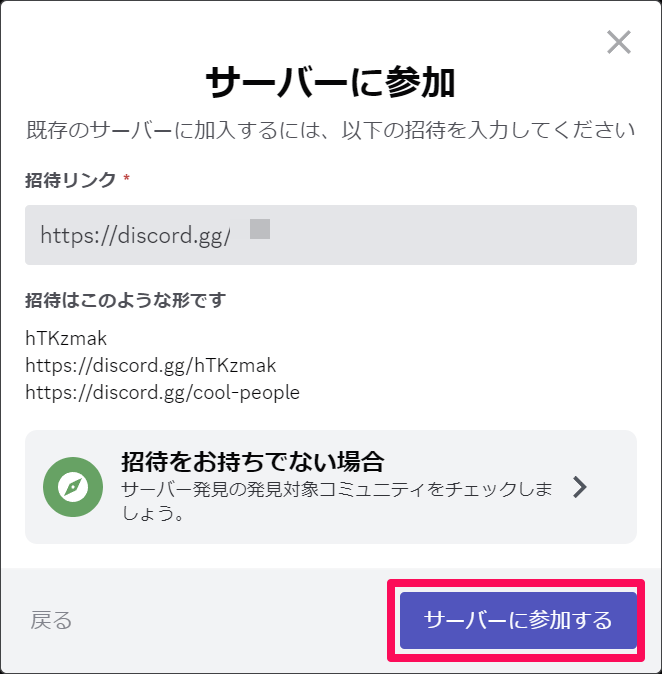
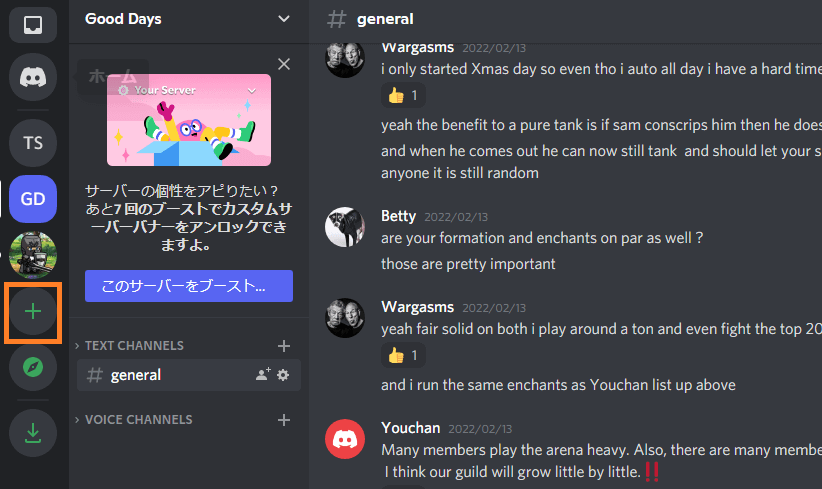
Once you’re in Discord, click the “+” icon in the left pane of your client. Now, this is where you’ll see all the Discord servers you’re a part of.
How to Create Discord Server and Invite Your Friends
When finished, click Create Server.
How to Create Discord Server and Invite Your Friends
Next, you’ll be asked to give your new Discord server a name and icon . In the same menu, you will be asked to select a server region for your Discord server. There are many popular regions to choose from, but choose the one closest to your location as this will determine the ping you experience while using voice communications. The lower the ping, the less delay you will face when communicating with other players over the audio channel. When everything is complete, click Create .
How to Create Discord Server and Invite Your Friends
That’s pretty much all you need to do to create a new Discord server. However, if you plan to create a public server, you must properly configure the server before you can start inviting members.
Discord server settings
One of the main reasons why Discord has quickly become so popular is due to the server customization options it offers. Server owners and administrators can change settings so they can easily manage their servers. If you want to make your Discord server public, it is absolutely necessary to set it up properly before inviting people.
Adding text and audio channels
If you are creating a public server, we highly recommend creating multiple audio and text channels. What’s more important here is that they need to be categorized properly so that members don’t get confused. Having said that, to add more text or audio channels, simply click on “Text Channel” or “Audio Channel” and give it an appropriate name based on your preference.
How to Create Discord Server and Invite Your Friends
Configuring validation levels
You can also adjust the authentication level on your Discord server to limit access to specific members and improve the security of your server. Depending on the verification level you set, members of your server must meet the criteria before they can send messages in the text channel or start a direct message conversation. However, you can avoid this by assigning a role to that specific member. To change the validations below, follow these steps:
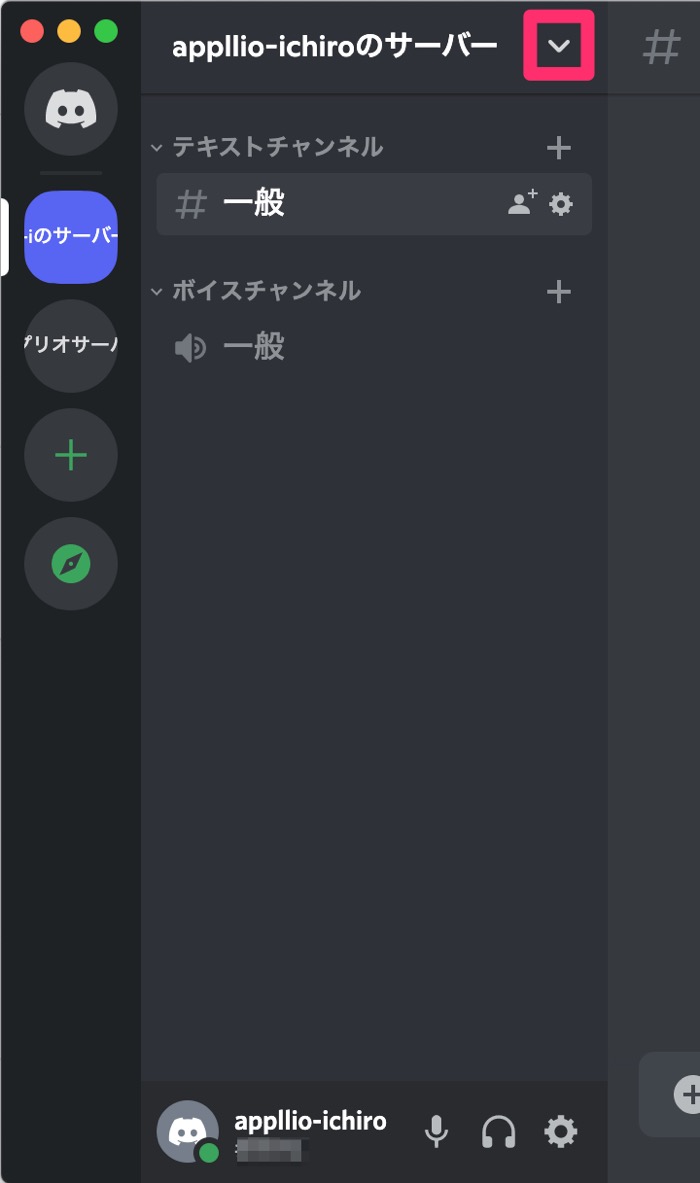
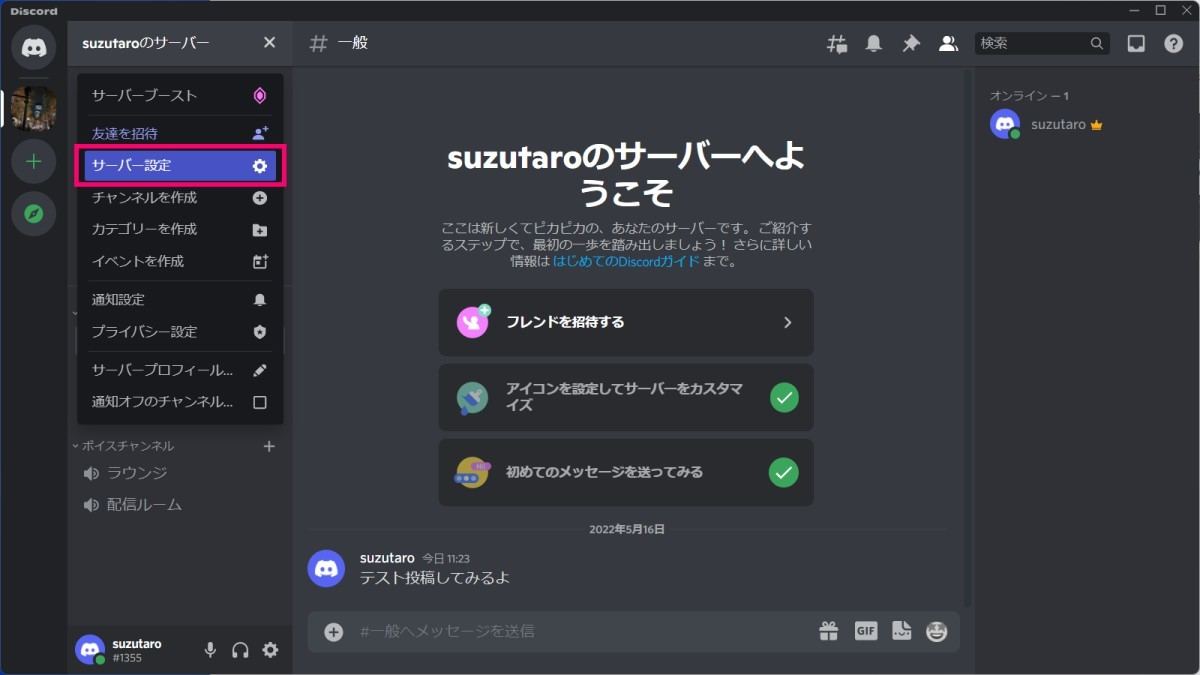
1. Once you access your Discord server, click on the server name and go to Server Settings .
How to Create Discord Server and Invite Your Friends
2. Next, go to the Moderationsection on the left side and adjust the server verification level based on your preferences.
How to Create Discord Server and Invite Your Friends
Managing roles
Discord also allows you to add and change permissions for specific roles that you assign to specific members in your server. Depending on the permissions you grant, users with special roles have elevated access and can kick or ban regular members from your Discord server. If you have certain friends you trust, you can give them more permissions and let them help you manage your server as well.
1. To set this up, click on your server name and go to Server Settings .
How to Create Discord Server and Invite Your Friends
2. Next, go to the Roles section in the left pane. Here you can add new roles, change colors, and adjust the permissions of these roles.
How to Create Discord Server and Invite Your Friends
Invite players to your Discord server
Now that you’ve easily created and set up a new Discord server, it’s time to brighten up your server by inviting new players. You should create your own Discord link that you can share with others and easily access your server with just one click. Just follow the steps below and you can generate your own Discord invite link within seconds.
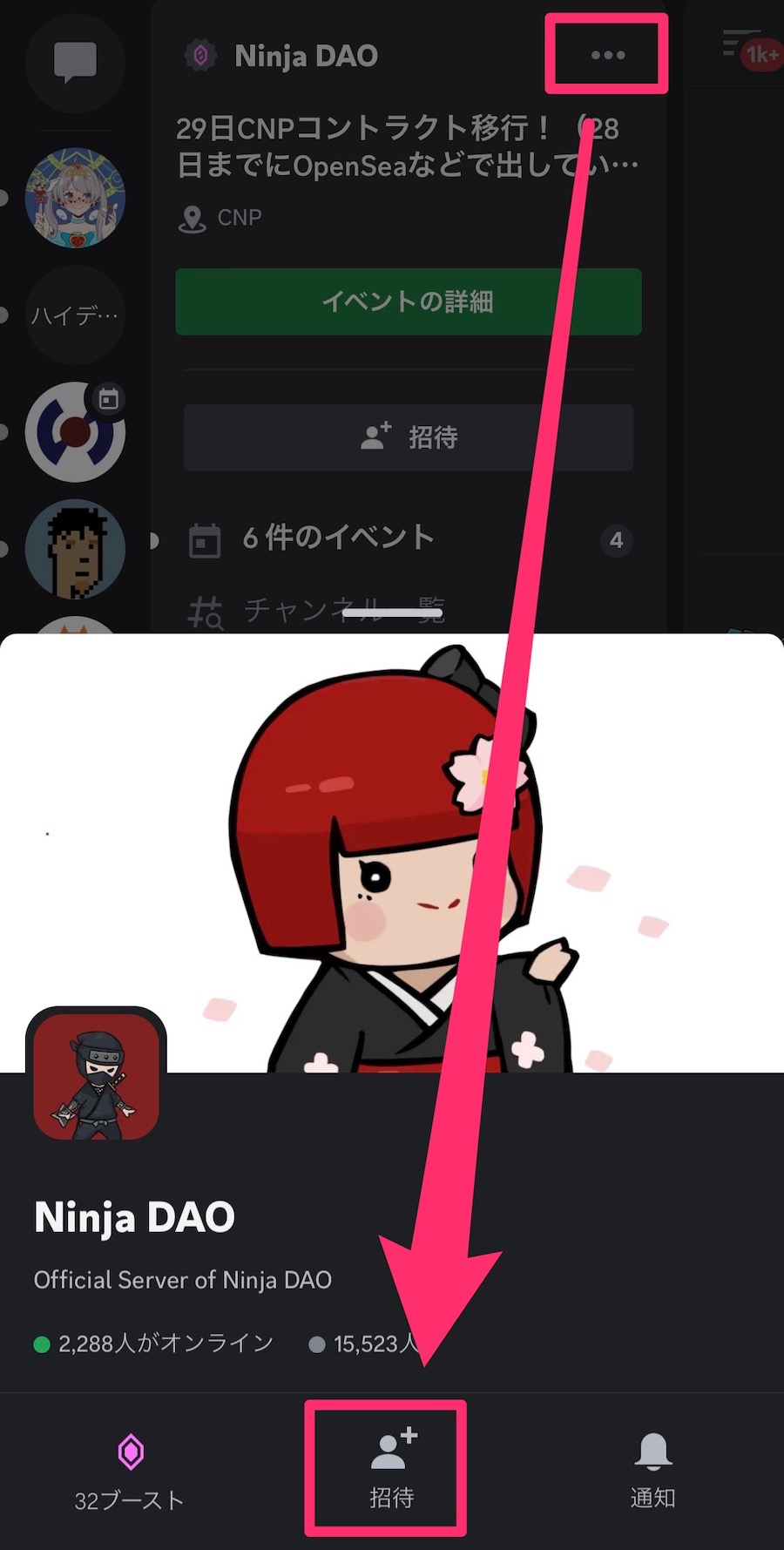
1. Once you’re on your Discord server, click on the server name . When the dropdown appears, click the Invite People option.
How to Create Discord Server and Invite Your Friends
2. You will now see a menu with an invitation link to your Discord server. By default, invitation links expire every day. You can also copy that link , set it to never expire , or customize it further by clicking the gearicon .
How to Create Discord Server and Invite Your Friends
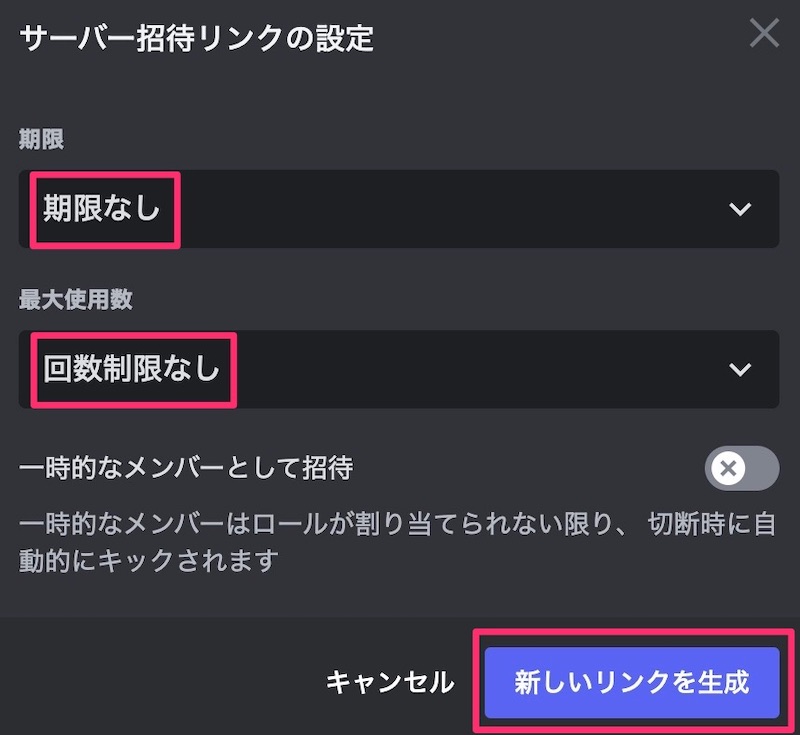
3. Here you have full control over the expiry date and maximum number of times a particular invitation code can be used. You can also use invitation links to grant temporary membership to specific users. Once customized, simply click Generate New Link to create a new invitation.
How to Create Discord Server and Invite Your Friends
See also: How to add a bot to your Discord server
Ready to switch to Discord for online gaming?
In most scenarios, Discord appears to be a better choice compared to some other VoIP services. Server customization options, a near-perfect user interface, and role management are some of the features that still rival it from its competitors. If you use TeamSpeak, Skype, or similar VoIP services, we’re sure you’ll fall in love with this service in no time. So what do you think about Discord? Are you ready to switch to Discord and create a new server on this platform? Let us know by leaving your valuable feedback in the comments section below.
Easy-to-understand explanation of “How to create a Discord server and invite friends”! Best 2 videos you must watch







![How to set up a Raspberry Pi web server in 2021 [Guide]](https://i0.wp.com/pcmanabu.com/wp-content/uploads/2019/10/web-server-02-309x198.png?w=1200&resize=1200,0&ssl=1)


