Discord has evolved from its roots as communication software to a communication hub that can bring communities together. One of the things users love most about Discord is the level of customization it offers. From offering the ability to create custom Discord emojis to tons of useful Discord bots, there’s something for everyone. One of the features recently added to the Discord mobile app is the ability to customize your Discord profile. This change comes after the same was introduced to Discord on PC. If you’re a Discord PC or mobile user and want to customize your profile, keep reading as we’ll tell you all about it.
Whether you want to change your Discord username or add a nice about yourself section, this guide has everything you need to customize your Discord profile. If you already know what you want to tinker with, use the table below to jump to the section you want. 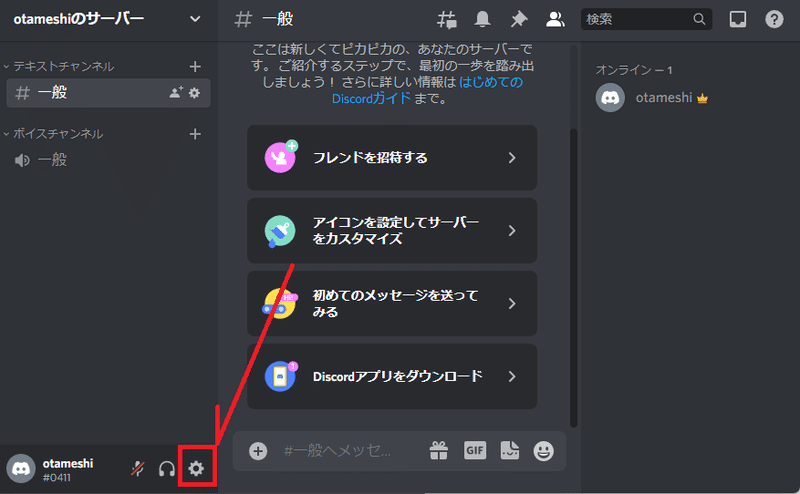
How to customize your Discord profile on PC
First, we’ll show you how to customize your Discord profile on your computer. We’ll use the Windows Discord client for this, but you can follow the same steps in the Discord web app. To customize your Discord profile, follow the steps below.
Change your Discord username
Note: You can only change your Discord username twice per hour. If it’s more than that, you’ll have to wait until you try again.
If you want to change your username, please follow the steps below.
1. Find and tap the gear icon (⚙︎) in the bottom left of Discord to go to User Settings.
2. Under User Settings, click My Account to view all details.
3. An Edit button will appear next to your username. Clicking on it will open a dialog box.
4. Enter your new username and current password in the boxes below and press Finish .
Once you enter the correct password and username, the dialog box will close and your Discord username will change. You can also see the changes take effect immediately.
Change disorder avatar
Your Discord profile avatar is basically your profile picture, and what your friends see when they click on your profile. Depending on whether you have Nitro or not, you can use a GIF or a still image as your Discord avatar. To make this process easier, I’ll use images. To change your Discord profile avatar, follow the steps below.
1. Find and tap the gear icon in the bottom left of Discord to go to User Settings.
2. Under User Settings, click User Profile to see all the customizable details.
3. Under Avatar, click the blue button titled Change Avatar .
4. Find and move the image you want to change and press Open .
5. Areas outside the white circle are not displayed . Keep this in mind and reposition and zoom the image as needed. When finished, press the “Apply” button.
6. Click the Save Changes button to confirm your changes and you’re done.
Your Discord profile avatar has changed. You can repeat this as many times as you like to get the perfect image and orientation.
Change your Discord profile banner (requires Discord Nitro)
Discord banners are landscape images that Nitro users can place over their profile photos. When set up correctly, banners can look really nice. If you don’t have Discord Nitro, skip this section and continue reading. If you’re a Nitro user, follow the steps below to change your Discord profile banner.
Note: Discord banners must be at least 600X240 in size and less than 10MB in size.
1. Find and tap the gear icon in the bottom left of Discord to go to User Settings.
2. Under User Settings, click User Profile to see all the customizable details.
3. Under Profile Banner, click the blue button titled Change Banner or click the banner image.
4. Find and move the image you want to change and press Open .
5. Anything outside the white rectangle will not be displayed. Keep this in mind and reposition and zoom the image as needed. When finished, press the “Apply” button.
6. Click the Save Changes button to confirm your changes and you’re done.
Your Discord profile banner has changed. I’m sure it will be great. To adjust other customizable settings, continue reading below.
Added about me section
One of our favorites, the About Me section, allows users to write a short and sweet description of themselves in 190 characters or less. You can also insert links using markdown if you wish. This allows users to better understand the person behind the computer. If you want to add an About section to your Discord profile, follow the steps below.
1. Find and tap the gear icon (⚙︎) in the bottom left of Discord to go to User Settings.
2. Under User Settings, click User Profile to see all the customizable details.
3. An empty text box will appear below “About Me” . Just click once to start typing. Discord will count down the remaining characters in the bottom right corner of the box.
4. When finished, press Save Changes to complete the setup.
As times change, so do you. Please come back to this section and keep updated with what’s going on in your life.
Change your Discord profile color
Discord users who don’t have Nitro can change their profile color. Your Discord profile color appears in the same place as your banner, but instead it’s a band of color. Depending on your level of customization, you can choose a custom color by specifying the correct color code. To do this, follow the steps below.
Note: If you don’t see this option yet, don’t worry. Profile color changes are gradually rolling out to all users.
1. Find and tap the gear icon (⚙︎) in the bottom left of Discord to go to User Settings.
2. Under User Settings, click User Profile to see all the customizable details.
3. Under Profile Colors, find the blank swatch titled Custom and click it to open the color wheel.
4. You can choose your own mix using the wheel or enter the color code to get the exact mix. You can always search for the exact color code you want on Google. Use Aqua with hex code #00FFFF . You can copy and paste this if you wish.
5. Once you have entered the code, press the Save Changes button and your changes will appear immediately.
Discord profile colors are a useful way to breathe life into your profile from time to time. Have fun changing the colors from time to time! 
How to customize your Discord profile on Android and iOS
If you want to avoid the hassle of starting up your PC, we’ve got you covered. For Android and iOS, the steps for all elements below are the same. Therefore, we ask both platforms to put aside their differences and come together to achieve great Discord profile customization.
Change your Discord username
Note: You can only change your Discord username twice per hour. If it’s more than that, you’ll have to wait until you try again.
1. With the app open, find and tap your profile thumbnail in the bottom right .
2. Under User Settings, tap My Account and another screen will appear.
3. Tap on your Username and a new screen will appear with editing options.
4. Enter your new username in the text box and press the blue floppy disk icon that appears.
5. Enter your password on the next screen. Tap the eye icon to display help. Once entered, tap the blue floppy disk icon that appears.
Your Discord username has changed. You can try more names within the time limit.
Change your Discord avatar
1. With the app open, find and tap your profile thumbnail in the bottom right .
2. Under User Settings, tap User Profile and another screen will appear.
3. Tap the circular profile picture or pencil icon to open a menu.
4. Tap [Change Avatar] to display a screen where you can select a new avatar. Once you find it, you can edit it with just a click.
5. Anything outside the blue square will not be displayed. Keep this in mind and reposition and scale the image as needed. When you’re done, press the check mark in the top right corner.
6. On the screen that appears, press the blue floppy disk icon to complete.
Discord Banner Change – (Requires Nitro)
1. With the app open, find and tap your profile thumbnail in the bottom right .
2. Under User Settings, tap User Profile and another screen will appear.
3. Tap on a filled or empty banner box and a menu will pop up.
4. Tap Change Profile Banner . Now you can browse your phone to find your new banner. You can browse various photos and choose your favorite one.
5. Anything outside the blue rectangle will not be displayed. Keep this in mind and reposition and scale the image as needed. When you’re done, press the check mark in the top right corner.
6. On the screen that appears, press the blue floppy disk icon to complete.
Change profile color
Note: If you don’t see this option yet, don’t worry. Profile color changes are gradually rolling out to all users.
1. With the app open, find and tap your profile thumbnail in the bottom right .
2. Under User Settings, tap User Profile and another screen will appear.
3. Tap on a filled or empty banner box and a menu will pop up.
4. Tap Profile Color to open a dedicated color wheel.
5. As before, you can choose a color from the wheel or enter the code yourself. When you’re done, tap Select .
6. Press the blue floppy disk icon on the screen that appears and you’re done.
Added about me section
1. With the app open, find and tap your profile thumbnail in the bottom right .
2. Under User Settings, tap User Profile and another screen will appear.
3. An empty About Me box will appear on the screen itself. Just tap to start writing. The remaining characters will be displayed in the bottom right corner, just like on PC.
4. When you’re done, tap the blue floppy disk icon in the bottom right corner. 
Fixed an issue where you could not change your Discord username
While learning how to change the username on your Discord profile, you may encounter several errors. Don’t worry, your profile will not be blocked. Read below for the two most common errors and what they mean.
Error 1: “Too many users have this username”
As the name suggests, this unfortunately means that your username is not unique enough. You should mix things up and try changing the case of your chosen name here and there. But if that doesn’t work, maybe it’s time to think of something more unique.
Error 2: ” Avatar/username/Discord tag changed too soon “
As mentioned earlier, Discord only allows you to change your username twice per hour. So if you get this error, wait for the time limit to pass and try again.
How do I change my Discord number?
So let’s say you want to change the four-digit number that appears next to your username. Unfortunately, the ability to change your Discord number is only available in Discord Nitro . So, if you want to get a custom Discord number, it’s time to get a credit card.
FAQ
Yes and no. You can change your username, avatar, and bio without using Discord Nitro. However, if you want to change other aspects of your Discord profile, like adding an animated avatar, profile banner, or custom tags, then yes, you need Discord Nitro. However, even if you don’t have Discord Nitro, make the changes you can. We guarantee your satisfaction.


![How to set up a Raspberry Pi web server in 2021 [Guide]](https://i0.wp.com/pcmanabu.com/wp-content/uploads/2019/10/web-server-02-309x198.png?w=1200&resize=1200,0&ssl=1)


