Social media addiction is real, and if we don’t keep it in check, we often find ourselves succumbing to it. Instagram has become one of the most addictive social media platforms, thanks (or not) to Reels and an endless supply of diverse content. So, if you feel that you are being unproductive and spending too much time on the platform, it’s time to take a break. To make your work easier and faster, we have outlined the steps to deactivate or delete your Instagram account. So, without further ado, let’s take a look. 
Disable or delete your Instagram account on Android and iOS
The process to deactivate or delete your Instagram account is the same whether you’re on Android or iOS. We outline the steps to do the same below using an Android device. However, the process for deleting or deactivating your Instagram account is slightly different in the web version. We have created separate sections to make it easier to understand. So let’s get down to business.
1. Open the Instagram app and go to the Instagram profile section .
2. Next, tap the hamburger menu in the top right corner of the screen.
3. Next, select the Settings & Privacy option and go to Account Center .
4. Now tap on the “Personal details” option and select “Account ownership and management”.
5. You will now see the option to deactivate or delete . Select this and select your Instagram account on the next page. If you want to delete or deactivate your Facebook account, you can also select your Facebook account from here.
6. You will then be given the option to deactivate your account or delete your account on the next page. Both of these options go through the same final steps. So choose the one you want to go ahead with.
7. You will then be asked to re-enter your Instagram password. Once done, tap the Continue button.
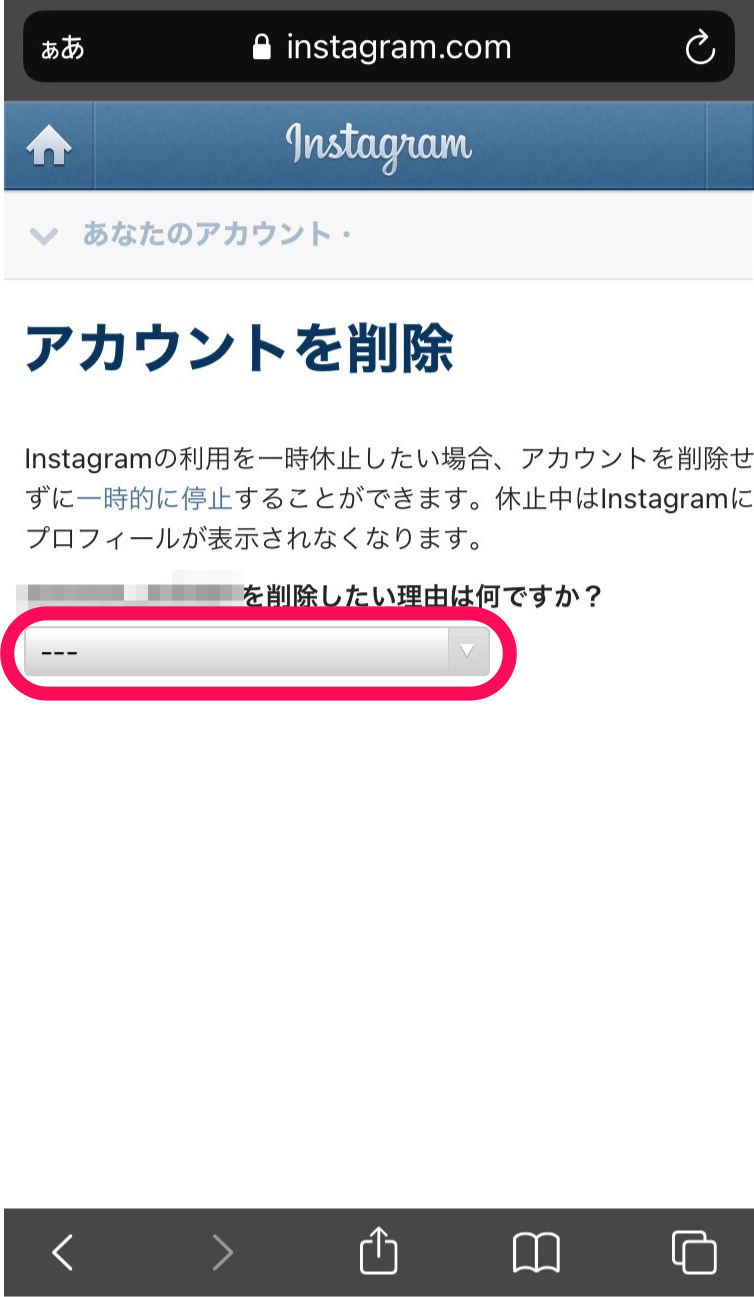
8. On the next page, select the reason for deactivating or deleting your Instagram account. Then scroll down to find the “Continue” button and press the “Continue” button again .
9. Finally, click Deactivate Account or Delete Account on the confirmation page and you’re done. 
Deactivate or delete your Instagram account on the web
1. Go to Instagram on your desktop and click the “More” hamburger icon in the bottom left corner of the screen.
2. Then select the Settings option in the pop-up menu.
3. You will now be taken to the Account Center and will be directed to the Personal Details section on the next page.
4. Once you get here, you will see the Account Ownership and Control panel, click on it.
5. A pop-up window will appear where you need to click on the Deactivate or Delete option.
6. Select your Instagram account here and you will see a dedicated button to deactivate or delete your Instagram account. Choose the most favorable option.
The rest of the steps are the same for the Instagram app on Android and iOS. By following these steps, you can deactivate or delete your Instagram account on the web version as well.
Here’s how to easily deactivate or delete your account. Did you know that if you deactivate or delete your Instagram account, your Threads account will be deactivated or deleted as well? So, keep that in mind if you want to keep your Threads account. On the other hand, if you want to delete or deactivate your Threads account, it will not affect your main Instagram account. That being said, let us know in the comments if you found our guide helpful.
FAQ
Q. How long can I deactivate my Instagram account?
Once deactivated, there is no time limit for reactivation. You can reactivate it at any time by simply logging in again. However, please note that you can only deactivate your account once per week.
Q. Why can’t I deactivate my Instagram account?
If you can’t deactivate your Instagram account, you may receive a “Weekly limit reached” message when you try to deactivate it. Because Instagram doesn’t allow you to deactivate your account more than once in a week. Therefore, you will have to wait 7 days before you can deactivate your account again. If you haven’t deactivated your account recently and you can’t deactivate it, there may be an issue with the Instagram app. Simply clearing the cache or reinstalling will fix it.
Q. What is the difference between deactivating and deleting an Instagram account?
Deactivating your Instagram account is an immediate and temporary process. If you want to take a break from Instagram, this is the way to go. When you deactivate your Instagram account, your likes, replies, followers, and other data will be temporarily hidden on the platform.
However, reactivating your Instagram account is very easy. Just log in again. The process of deleting an Instagram account is a bit complicated. Once you submit your account deletion request, a 30-day period begins. You can cancel the account deletion process at any time within these 30 days by simply logging in again. However, you will no longer be able to access your account after that.
Your Instagram account will then be permanently deleted after 90 days. If you want to use Instagram again, you will need to create a new account.


![How to set up a Raspberry Pi web server in 2021 [Guide]](https://i0.wp.com/pcmanabu.com/wp-content/uploads/2019/10/web-server-02-309x198.png?w=1200&resize=1200,0&ssl=1)


