Spotify is one of the most well-known music streaming platforms on the planet. Get instant access to millions of artists and songs. Despite the popularity of the streaming service, there can be multiple reasons why you might want to cancel your subscription and delete your Spotify account. Maybe you’re tired of Spotify draining your iPhone’s battery. Or maybe you simply want to try a Spotify alternative like Apple Music or Tidal. Either way, we understand that deleting a website or app account is often a hassle, not to mention ensuring all data is wiped from the server. . That’s why we bring you this guide on how to delete your Spotify account along with your data. Continue reading below for more information.
In this article, we have discussed various ways to permanently delete your Spotify account. For clarity, we have provided a table below to help you navigate this article. So let’s get started. 
What happens if you delete your Spotify account?
Permanently deleting your Spotify account will permanently erase all your data and make your Spotify data inaccessible. Below is a list of data that will no longer be accessible.
1. You will no longer have access to your playlists, saved music, likes, followers, and following.
2. You will also not be able to use your Spotify username again in the future.
3. Your account will no longer appear in searches and will no longer be visible to anyone.
4. You will also stop receiving updates and emails from your Spotify account. Therefore, you do not have any form of access to your Spotify account and data.
However, Spotify may continue to retain some of your information for tax, accounting, and regulatory purposes. The streaming giant may also use the data necessary to resolve any disputes related to your account or any situations requiring redress of fraud or complaints. 
Permanently delete your Spotify account on the web/desktop
You can permanently delete your Spotify account by following the steps outlined below. Before that, please note that you can only delete your Spotify account via the web . Therefore, if you have the Spotify app installed on your Windows PC, Mac, or smartphone, you will be redirected to Spotify’s support website. Here are the steps to delete your Spotify account using Chrome browser on your Windows PC.
1. First, log in to your Spotify account using your favorite browser. Then click on your username in the top right corner. A drop-down menu will open and you will need to click on “ Account ”.
3. You will then be redirected to the Account Overview page. This page includes details such as username, email, date of birth, region, premium plan, and more. Scroll down to the end of the screen and find the ” Close your account ” section. Now click on the “Click here” link to go to the instructions page.
4. When you visit the “ Close your account and delete your data “ support page, you will be presented with two different instructions. One for premium users and one for non-premium users. So let’s see how they differ in the sections below.
For premium users
If you are a paying customer, click the ” Close your account and delete your data ” link under ” Premium? ” ” section. Once you have done that, here are the steps to delete your Spotify account.
1. Clicking the link will take you to the premium user account deletion page. Here, click the ” Close account and delete data ” button.
2. Once you click the button, the Spotify customer support chat page will open and the message “Close your account” will be automatically populated. At this point, you will need to contact a customer support representative to permanently close your Spotify account.
3. A customer support representative will review your details and provide you with a list of options to choose from. Apart from the ability to close your account, you can change your email address or display name and cancel your subscription using the chat window. However, you want to delete your account, so select the “Close account and delete data” option.
4. The support representative will prompt you to confirm your email address and you must click Yes. After verification, Spotify will send an account deletion link to your registered email address.
5. Next, go to your email inbox and find the email from Spotify. Click the ” Close Account ” button to complete the process. Once completed, your Spotify account will be permanently deleted along with your data within 7 days. If you don’t delete your account, you have 7 days to get it back.
For free users
If you use Spotify for free and don’t want to give the streaming giant access to your data, here are the steps to permanently delete your Spotify account.
1. First, please access the account deletion support page from this link . Now, click the ” Close your account and delete your data ” link under “Not a Premium?” section.
2. Click on the link to start the 5-step Spotify account deletion process. In the first step you need to confirm your decision by clicking on the ” Close Account ” button.
3. In the next step, check the details of the account you want to delete and click Continue .
4. Next, Spotify will notify you about all the data that will no longer be accessible once you delete your account. Now select the “I understand” checkbox and click “Continue” to proceed.
5. As part of the process, Spotify will send an account closure link to your registered email address.
6. Check your mailbox and click the Close Account button in the email from Spotify. This link will automatically expire in 24 hours. You will also need to manually confirm your decision to close your account. Spotify will not close your account unless you agree.
7. Once done, the Spotify account deletion procedure will be completed. Your Spotify account will be permanently deleted along with your data after 7 days. 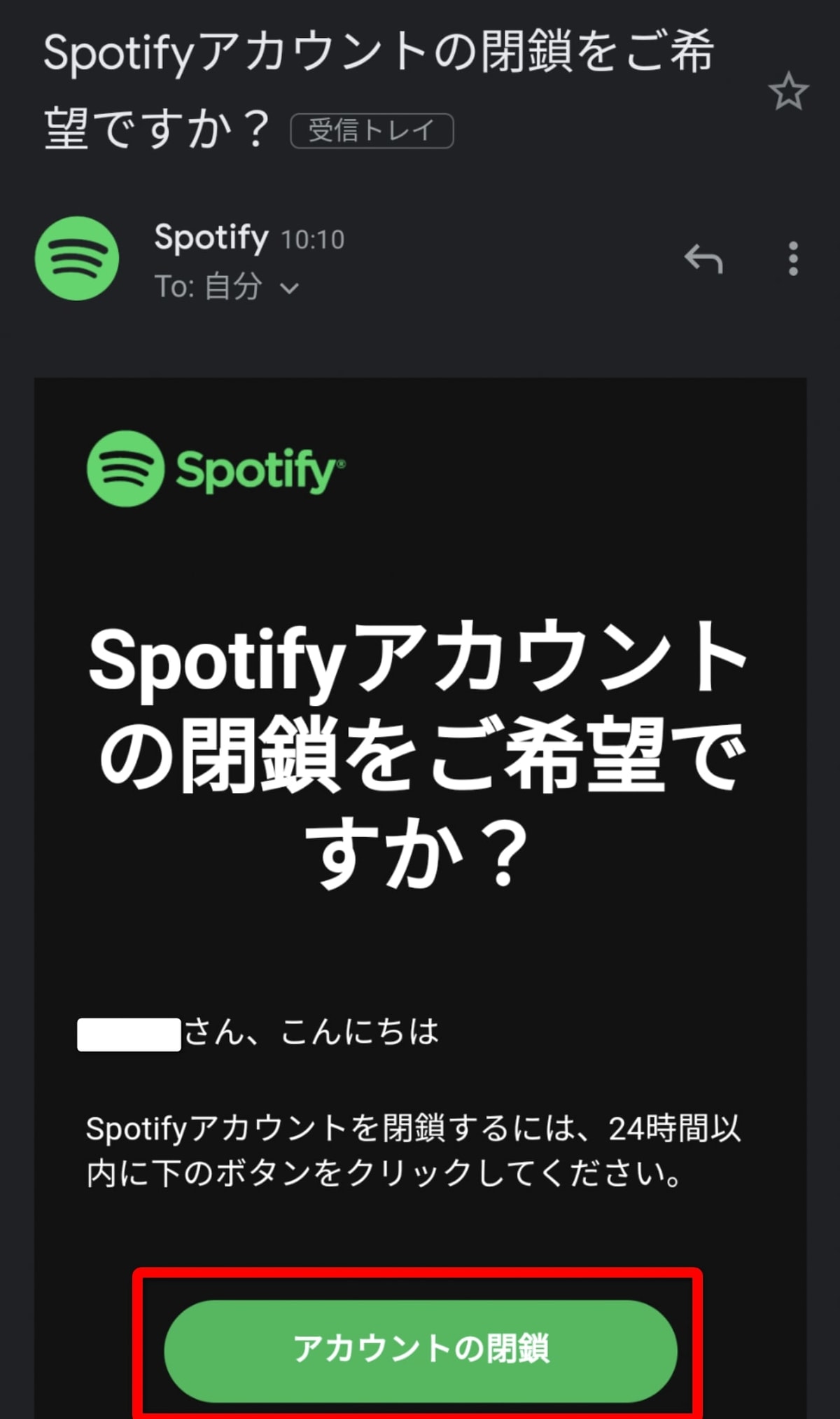
Delete your Spotify account on iPhone and Android
The process for deleting your Spotify account from your iPhone or Android smartphone is the same as the process described above for a web or desktop PC . You cannot delete your account using the Spotify app on your smartphone. It’s a shame. So, open your favorite mobile browser and let’s get started.
1. First, you need to access the “Spotify account deletion” page on your smartphone. Now, click the ” Close your account and delete your data ” link under either “Premium?” or “Don’t have Premium?” section depending on your subscription plan. This will redirect you to the Spotify login page.
2. Once you log in, you will see the “ Close your account and delete your data” page. All you have to do now is follow the account deletion steps outlined in the “Permanently delete your Spotify account on the web” section. 
How to cancel your Spotify subscription instead
Although deleting your account seems like the best way to get rid of Spotify, we recommend canceling your subscription while you try other apps. Once you have made an informed decision, you can choose whether to delete your Spotify account. In any case, it’s always important to know how to cancel your Spotify Premium subscription. So let’s talk about it in detail.
Note:
This tutorial uses the Spotify app installed on an Android smartphone running Android 12. This process is the same for iPhone.
1. Open the Spotify app on your phone and tap the “Settings” icon in the top right corner. Select the option called “Premium Plan” from the settings menu.
2. Next, scroll down and tap on the “ See more plans ” option . You’ll see a list of all plans offered by Spotify. Here, select the “ Change plan ” option .
3. This will redirect you to the Spotify subscription page . At the top you’ll see your currently active subscription plan, and all other plans are listed below. Scroll down to the end and find the “Spotify Free” section. Then tap the “Cancel Premium” button. Tap on that option to confirm your choice and your account will be moved to Spotify’s free tier.
If you don’t mind ads between songs, you can choose the option to cancel your premium subscription, giving you more flexibility in your decision. Therefore, we recommend you to choose this method before deleting your Spotify account permanently.
Once you understand the steps to delete your Spotify account and all the nuances involved in that decision, you can go ahead and delete your Spotify account permanently. It’s a simple process and doesn’t require you to jump through multiple hoops. We’ll also detail the steps to cancel your Spotify Premium subscription at any time, in case you don’t want to delete your account. So, if you choose a Spotify account, just say goodbye. If you have any questions, let us know in the comments section below.
Spotify collects a large amount of information about you. During sign up, you share your email address, phone number, and location with Spotify. Spotify then continues to collect data such as your playlists, search queries, followers and following. If you want to know more about the type of data that Spotify collects about you, read this article now. For more information about storage, please see the Spotify Privacy Policy page.
Even if you permanently delete your Spotify account, Spotify will continue to retain some of your data for tax, accounting, and regulatory purposes. We may use the data held to resolve disputes related to your account or any type of situation requiring redress of fraud or complaints.
In this case, you will need to contact Spotify customer support. Visit the “Spotify Support” page linked here and click on the “Send Message” option. If you are not logged in, you will be redirected to the Spotify login page. Log in to start chatting with a Spotify customer representative. You can outline your complaint to our support staff and they will guide you through removing your data from Spotify’s servers.
Yes and no. Once the account deletion process is complete, Spotify will allow you to restore your account within 7 days via a link you will receive at your registered email address. However, after 7 days, you won’t be able to recover your Spotify account.
Unfortunately, the answer is no. Spotify has not yet introduced the ability to temporarily disable your account. The only way is to delete your Spotify account completely.


![How to set up a Raspberry Pi web server in 2021 [Guide]](https://i0.wp.com/pcmanabu.com/wp-content/uploads/2019/10/web-server-02-309x198.png?w=1200&resize=1200,0&ssl=1)


