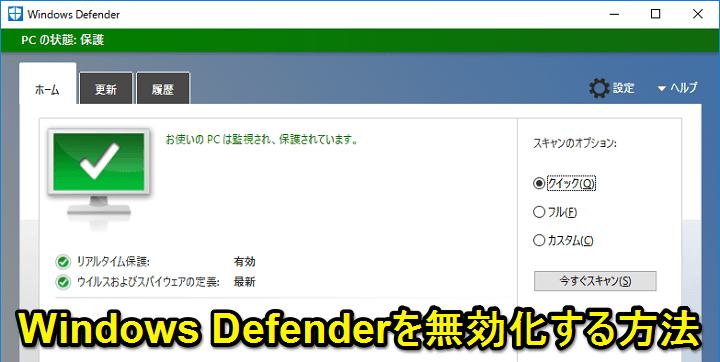
Contrary to popular misconception, Microsoft has been shipping barebone anti-spyware software since the days of Windows XP. However, after the release of Windows 7, 8, and 10, Microsoft launched Windows Defender (now called Windows Security), a full-fledged antivirus product that supports antimalware execution, real-time detection, and timely definition updates. ) has been introduced. That being said, some users find native antiviruses ineffective, and some find them too taxing on computer resources. I recently wrote about how Windows Defender can cause abnormal spikes in CPU usage through the msmpeng.exe process. So, if you are facing such issues or just want to install any antivirus software, follow our guide and learn how to disable Windows Defender Antivirus in Windows 10.
Disable Windows Defender Antivirus in Windows 10 using the registry
Now we will use Windows Registry tools to disable Windows Defender Antivirus. With this method, make sure you are using an administrator account before proceeding. Let’s get started.
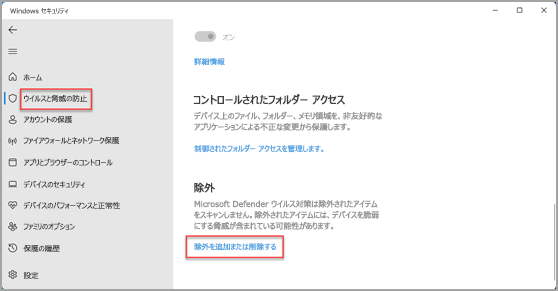
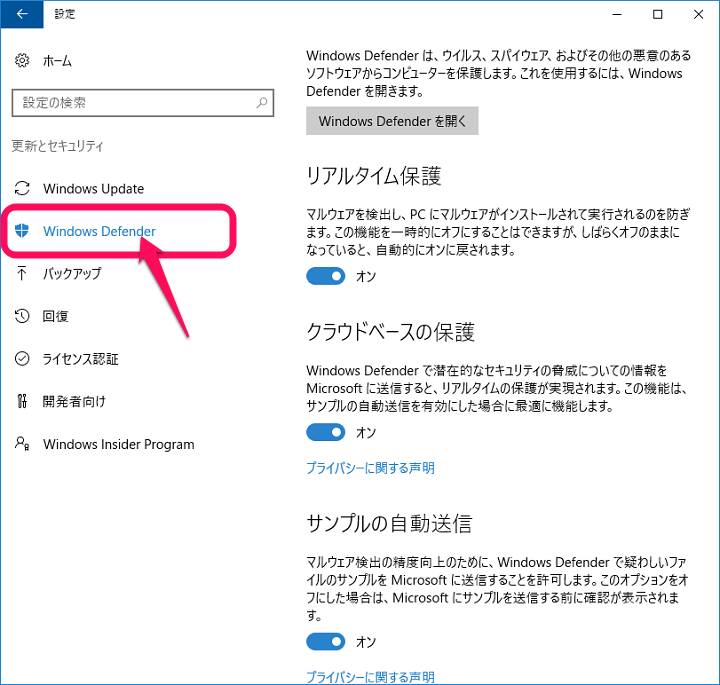
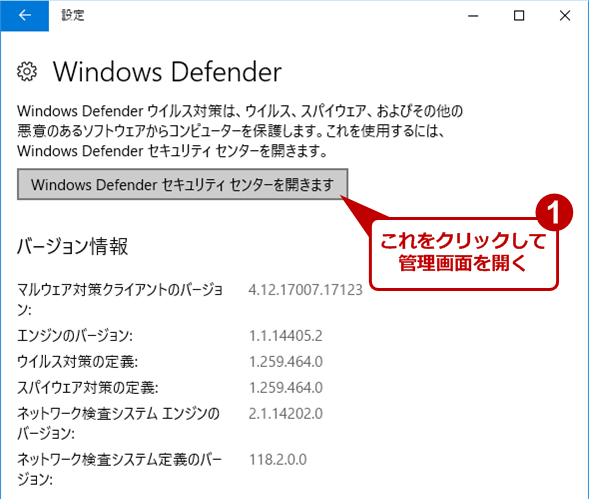
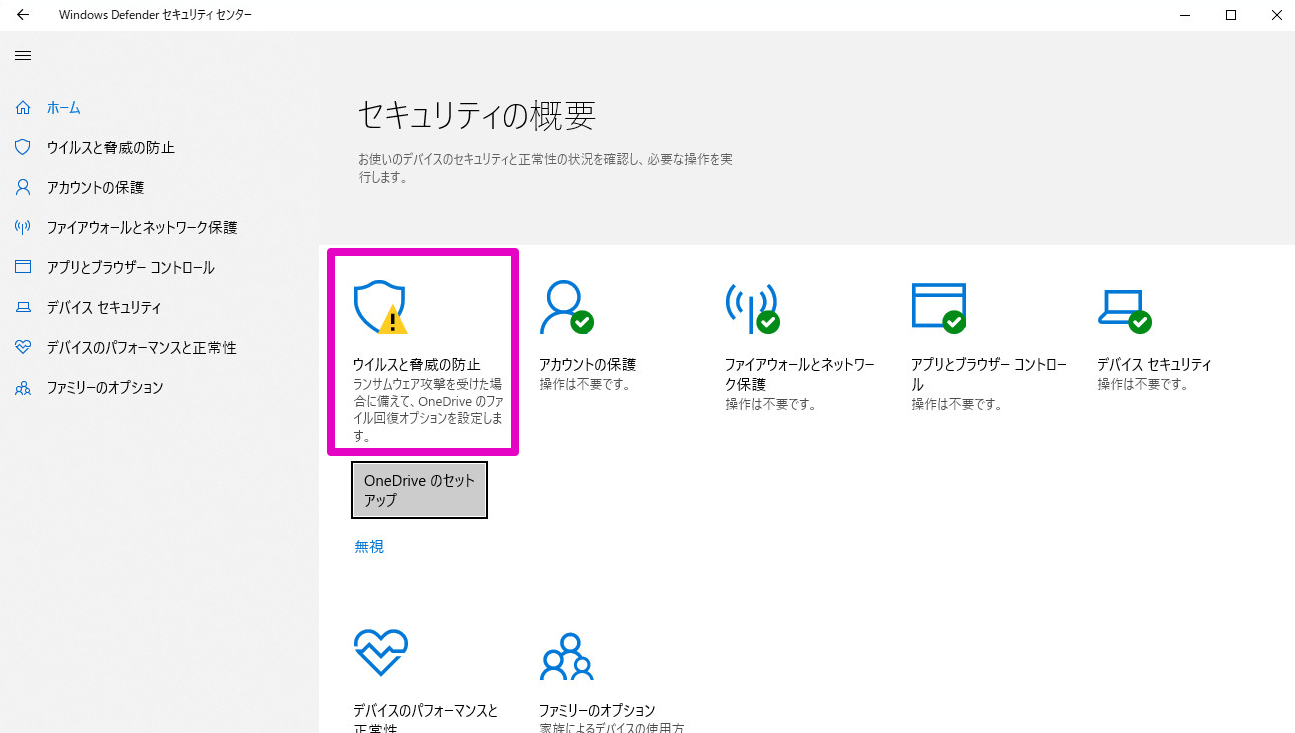
1. First, open Windows Defender or Windows Security and go to Virus & threat protection. Now click Manage Settings .
2. Then disable all toggles under Virus & threat protection settings.
3. Next, search for “Registry” in the Windows search box. Then click Run as administrator in the right pane.
4. Copy and paste the address below into the registry address bar and press Enter. Now go to the Windows Defender folder.
HKEY_LOCAL_MACHINE\SOFTWARE\Policies\Microsoft\Windows Defender 
7. Right-click Windows Defender and select New → DWORD (32-bit) Value. Name the file “DisableAntiSpyware” and click the “OK” button.

8. Double-click the file and change the value to 1 . Then click the “OK” button to restart your computer.
9. Finally, if you open Windows Defender or Windows Security, you will see that antivirus is completely disabled. You can now install third-party antivirus software on your Windows 10 PC.
Note: If it doesn’t work on the first try, try the second time and it will definitely work.
10. If you want to re-enable Windows Defender , delete the “DisableAntiSpyware” file from the registry and restart your computer. Native Windows antivirus functionality will start working again.
Disable Windows Defender Antivirus on Windows 10 using Group Policy
If the registry hack doesn’t work, you can permanently disable Windows Defender using the Group Policy Editor. However, keep in mind that Group Policy Editor is only available with administrator accounts and on PCs running Windows 10 Pro versions . Having said that, let’s get started.
1. Press the Windows key and the R key at the same time to open the Run dialog box. Then type gpedit.msc in the search box and press Enter to open the Group Policy Editor.
2. Now expand the Administrative Templates menu in the Computer Configuration section.
3. Next, expand the Windows Components menu and scroll down to Windows Defender Antivirus .

4. Now, double-click on “Turn off Windows Defender Antivirus” and select “Enabled” in the top left corner. Then click the Apply and OK buttons.
5. Finally, restart your computer . Now you will see that Windows Defender is disabled on your Windows 10 PC.
6.If you want to re-enable it , reopen the Group Policy Editor and select Not Configured. that’s it.
Remove Windows Defender Antivirus from Windows 10
These are the two ways to remove Windows Defender Antivirus from your Windows 10 PC. Registry hacks work most of the time, but Microsoft sometimes reverts changes after an update. So, if you are facing such issues, use the more powerful Group Policy Editor to control the behavior of all system applications on Windows 10 Pro. Apart from that, the old method of disabling Windows Defender using Windows Services no longer works, so I didn’t mention that method. Anyway, that’s all from us. If you found this article helpful, please let us know in the comments section below.


![How to set up a Raspberry Pi web server in 2021 [Guide]](https://i0.wp.com/pcmanabu.com/wp-content/uploads/2019/10/web-server-02-309x198.png?w=1200&resize=1200,0&ssl=1)


