GIFs are the most fun and popular way to interact on Twitter. For the uninitiated, GIFs are short animated video clips that can be used for visual interaction. Twitter boasts a dedicated GIF search engine that makes it easy to find and send the right GIFs. However, if you want to download your favorite GIFs from Twitter, there is no easy way. Given the popularity of GIFs on Twitter, one would expect the company to streamline the process of downloading GIFs. But that’s not the case. Don’t worry. Here is a simple guide on how to download GIFs from Twitter on different platforms.
To download your favorite GIFs from Twitter, you’ll need to use a third-party website or app. The process itself is not complicated. It may seem difficult at first, but all you have to do is visit the website and follow a few steps to get the job done. Keep reading to learn how to download your favorite GIFs from Twitter on Windows, macOS, iOS, and Android devices. Depending on your platform, you can navigate through the article using the table below.
Note: Previously, you had to download GIFs in the form of video files and convert the videos to GIFs using tools like ezGIF or Cloud Convert. But you don’t have to do that anymore because we’ve recommended websites and apps that let you download GIFs directly from Twitter.

How to save GIFs from Twitter to web/desktop
If you access Twitter via a Mac or Windows PC, you can download GIFs using third-party websites or browser extensions . Now, let’s take a look at the tools you can use to download Twitter GIFs via your web browser on your desktop. 
1. Use of Third Party Websites
Method #1: RedKetchup.io
RedKetchup is a feature-rich website that lets you save Twitter GIFs to your desktop. RedKetchup allows you to download not only GIFs but also images and videos from Twitter. There’s also an option to save GIFs from Twitter as MP4 files . You can also download multiple media attachments from social media platforms in zip file format. RedKetchup is not only a simple Twitter GIF downloader, but also offers numerous image, animation, and icon tools. However, to download GIFs from Twitter in your web browser, follow the steps below.
- Log in to your Twitter account on your Windows or macOS desktop using any web browser.
- Open the GIF you want to download and copy the tweet URL.
- Next, go to the RedKetchup.io website ( visit ). This website is free to use but contains some advertisements. Paste the copied link into the Tweet link text box on the web page and click the “Twitter logo” button.
- After a few seconds of processing, the selected media attachments will be displayed in the “Download Media” section. Select the ” GIF-Animated GIF ” option under the “Download GIF As” menu on this screen.
- Then click the “ Download” button on the bottom right as shown in the screenshot below.
- This will start the download process and display the final download window. In this window, you can see details such as the number of GIF frames, GIF length, size, file name, and file size. Click the Download button again in the top left corner to save the GIF locally on your PC.
- And voila! You’ve successfully downloaded a GIF from the Twitter website on your Mac or Windows PC. You can also add multiple GIF Tweet links to your website and download a zip folder containing all your favorite GIFs.
Method #2: Small SEO Tool Twitter GIF Downloader
Small SEO Tools is another great website that you can use to download GIFs from Twitter. This is a simple, free-to-use website that allows you to instantly download high-quality GIFs from Twitter and save them to your desktop. To proceed further, please follow the steps below.
- Simply copy the Tweet URL containing the GIF you want to download and usethis link to visit the Small SEO Tools website. Paste the copied link into the ” Enter video URL ” text box on your website. Then click the ” Download Twitter GIF ” button.
- The website processes the URL and generates a GIF download link in seconds. Finally, click the “Download” button next to the Image/GIF quality option as shown below.
2. Twitter Media Assist Chrome Extension
Google Chrome has several extensions that allow you to do various things in your browser, such as downloading videos and GIFs from Twitter. However, while testing the tools in this guide, a Chrome extension called ” Twitter Media Assist ” caught my attention. This greatly simplifies the process of downloading GIFs from Twitter. Follow the steps below to install this extension and learn how to use it to save GIFs from Twitter.
- First, go to the Chrome Web Store and search for Twitter Media Assist or click this link to get the extension. Now you need to install the extension by clicking on the “ Add to Chrome ” button.
Note:
Although this extension hasn’t been updated in nearly two years, it works as intended and has a lot of positive reviews.
- Once installed, this tool is easy to use. Just navigate to the Tweet containing the GIF you want to download. A new download icon will appear next to the share icon.
- Just click the “Download” icon and the GIF from Twitter will be downloaded to your desktop. In fact, this Chrome extension also supports videos and photos posted on Twitter.
- However, note that Twitter Media Assist downloads GIFs in both .gif and .mp4 formats by default. This setting can be easily changed. Click the extension icon next to the address bar, then click the three dots icon next to the extension to access the Options settings menu.
- You must deselect the MP4 option in the “Save Twitter GIF as” prompt in the extension’s settings. Now you can only save GIF files to your Mac or Windows PC.
How to download GIFs from Twitter on iPhone
We introduced two recommended apps that you can use to save GIFs from the Twitter mobile app on your iPhone. Let’s see how both these apps work.
Using the GIFWrap app
If you want to download GIFs from Twitter on your iOS device, GIFWrapped is the app you need. With this app, you can seamlessly and directly download and save your desired GIF. However, I personally feel that the app’s UI looks quite outdated and the developer needs to update it. However, follow the steps below to see how it works.
- Download the GIFWrapped app ( free ) from the iOS App Store.
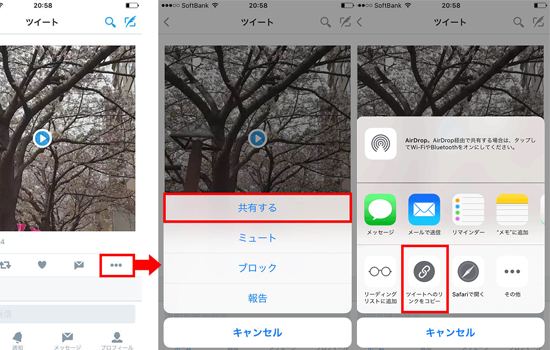
- Open the Tweet containing the GIF you want to download, then tap the Share icon Then tap on the ” Copy Link ” option to copy the link to your clipboard.
- Next, open the GIFWrapped app, paste the copied link into the search bar , and tap Search on the keyboard.
- The app instantly downloads GIFs from Twitter and saves them to your GIFWrapped library. Now you can easily share, copy, and save GIFs to your iPhone’s Photos app. To do this, long press on the GIF to open the options menu and tap the option you want.
And voila! Now you’re ready to download and save your favorite GIFs to your iOS device. You can reuse them anywhere you like, making commenting on posts even more fun.
Using the Gifitize app
Another great app you can try is Gifitize . Gifitize eliminates GIFWrapped’s two-step copy-and-paste step, allowing you to share your desired tweets with GIFs directly to the app. Personally, I like Gifitize UI because it’s more modern than GIFWrapped. Follow the steps below to download GIFs on Twitter using Gifitize.
- Install the Gifitize app ( free ) from the iOS App Store.
- Next, navigate to the Twitter GIF you want to download. Then click the ” Share icon ” to open the share menu.
- In the share menu, you must first tap on the “Share via” option and then select the Gifitize app. You can also find apps here by tapping the “More” button.
- That’s it. Your GIF is now successfully saved from Twitter to Gifitize. Note that the prompt refers to the GIF as an image. However, there is no need to worry as it will be saved in GIF format.
- Next, open the Gifitize app and go to the “Queues” section from the bottom navigation bar. You’ll see that the GIF you selected is in your queue. Now, tap the “Download” button to download and save the GIF to your iOS device.
How to download GIFs from Twitter on Android
Using the Tweet2gif app
You can download Twitter GIFs to your Android smartphone using the Tweet2gif app. Tweet2gif streamlines the process of saving your favorite GIFs to your device, allowing you to download them directly in .mp4 or .GIF format. The app works as intended, but the UI and processing time could be improved. That being said, let’s take a look at the steps to follow.
- Download the Tweet2gif app ( free ) from Google Play Store.
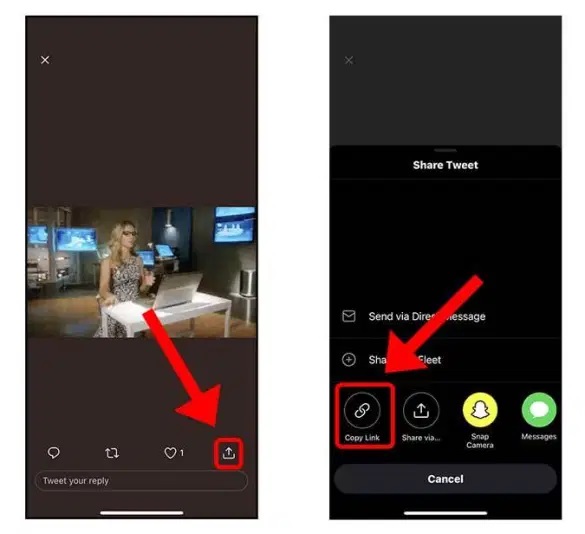
- Then, navigate to the Tweet containing the GIF you want to download and tap the share icon. Then copy the tweet link using the “Copy Link” button.
- Next, open the Tweet2gif app, paste the copied link into the URL text box, and press the ” Download GIF ” button.
- that’s it. The GIF will be saved to your Photos library instantly. YHowever, you can also view and share GIFs from within Tweet2gif.
Alternatively, you can use the “ Twitter Video Download – GIF ” app available on Google Play Store ( Download ). You can copy and paste the Tweet link within the app or use Twitter’s “Share” option to share the Tweet link directly to this app. You will then be presented with GIF and MP4 download options and can choose the one you prefer.
The “Download Twitter Videos – GIF” app has a clean UI and is clearly better than Tweet2gif, but there is one big caveat. The app is full of advertisements such as banner ads and video ad pop-ups. However, the great thing is that you can remove ads for just $2.99.
Using the open source TwittaSave app
If you’re looking for a free open source app to download Twitter GIFs, check out TwittaSave by Emmanuel Kehinde on Github. This simple app allows you to save GIFs from Twitter to your Android mobile. You can use this app to add custom names to your GIFs. I like that the app works seamlessly and there are no ads. To start using TwittaSave, follow these steps:
- First, visit Kehinde’s GitHub page using the attached link and download the apk for free. You need to scroll down until you see the APK download link for Android.
- Once downloaded, install the TwittaSave apk on your device.
- All you have to do is copy and paste the link of the tweet containing the GIF you want to save and press the “Download Video/GIF” button. The GIF will be downloaded to your device in seconds.
I hope you learned the best way to download GIFs from Twitter on all platforms including Windows, Mac, Android, and iOS. Once downloaded, you can share or upload these GIFs anywhere you like, directly from your photo gallery. So start saving your favorite images, videos, and GIFs from Twitter today. Alternatively, you can check out the 5 best ways to save Twitter threads. Also, check out our article on top tips and tricks for using Twitter and getting the most out of this social media platform. That being said, which method do you use to download Twitter GIFs? Comment below!


![How to set up a Raspberry Pi web server in 2021 [Guide]](https://i0.wp.com/pcmanabu.com/wp-content/uploads/2019/10/web-server-02-309x198.png?w=1200&resize=1200,0&ssl=1)


