The App Library is probably the biggest highlight of iOS 14, along with the home screen widgets and cool back-tap feature. The best part about this all-new feature is that it automatically organizes your apps into different categories such as social, entertainment, and creativity. For quick access. When you download a new app, it not only appears on your home screen, but also in your app library (recently added section). However, if you don’t want to clutter your home screen with tons of apps, you can also download new apps directly to your iOS 14 App Library. 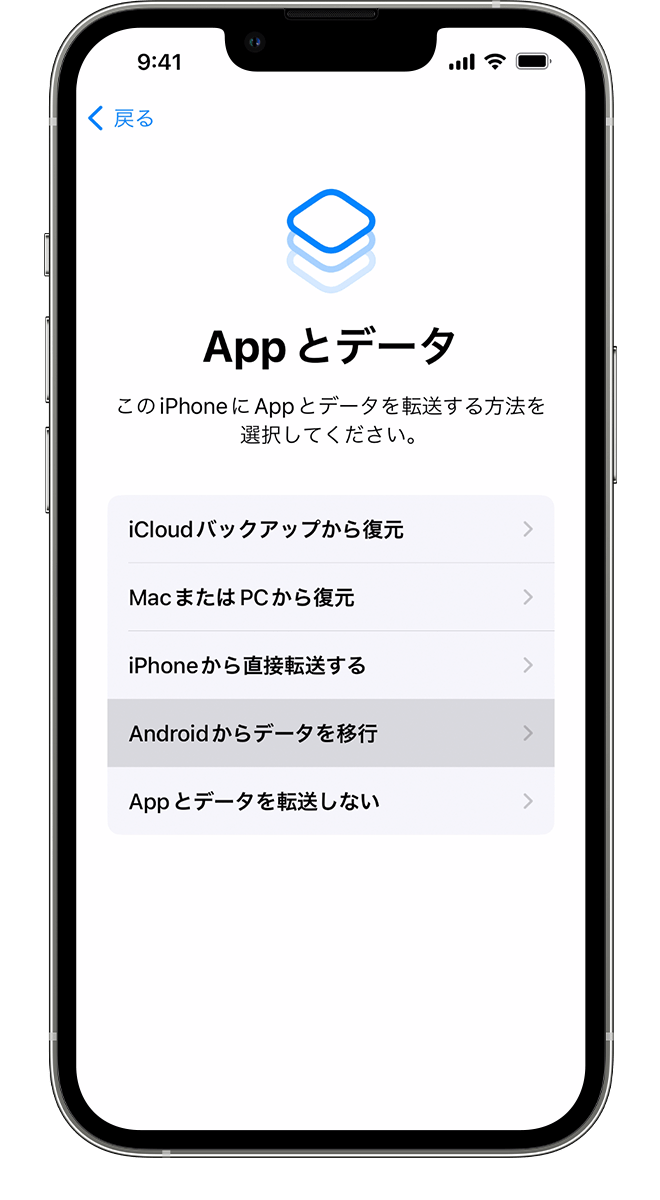
Download new apps directly to the App Library on iPhone running iOS 14
Personally, I prefer to hide apps or put them in separate folders to keep my home screen clean. iOS 14 provides a much easier way to organize your apps, so you no longer need to create app folders.
The App Library makes it easy to access your apps, so you don’t have to display them on your home screen. This is a very simple but effective way to prevent home screen clutter. Let’s take a look at how this nifty feature works.
1. Launch the Settings app on your iPhone.
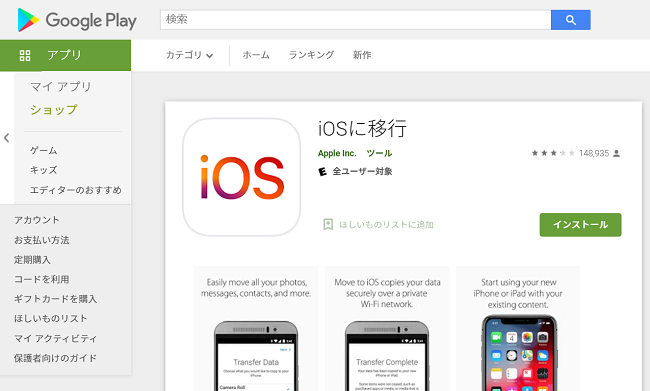
2. Then tap the home screen .
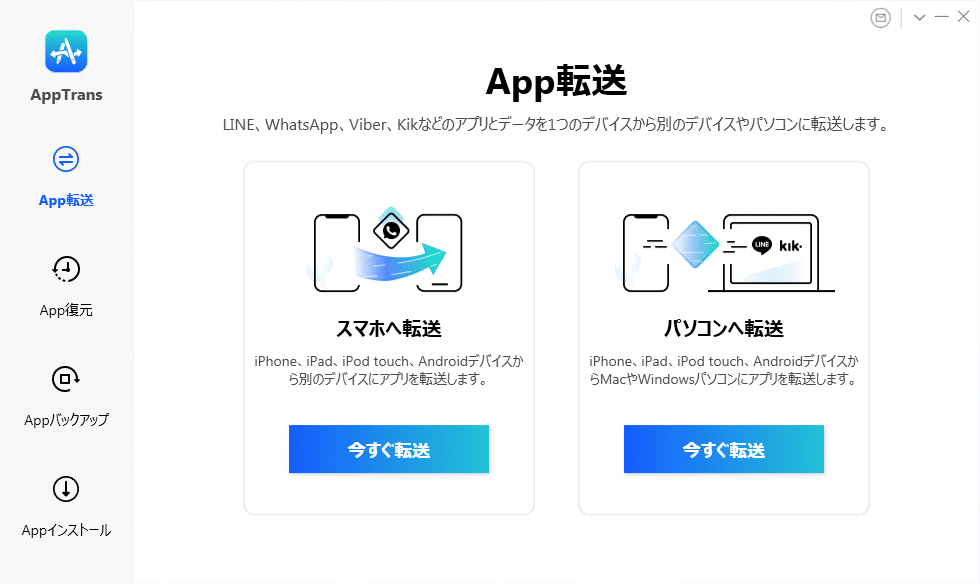
3. In the Download new apps section, select App Library Only .
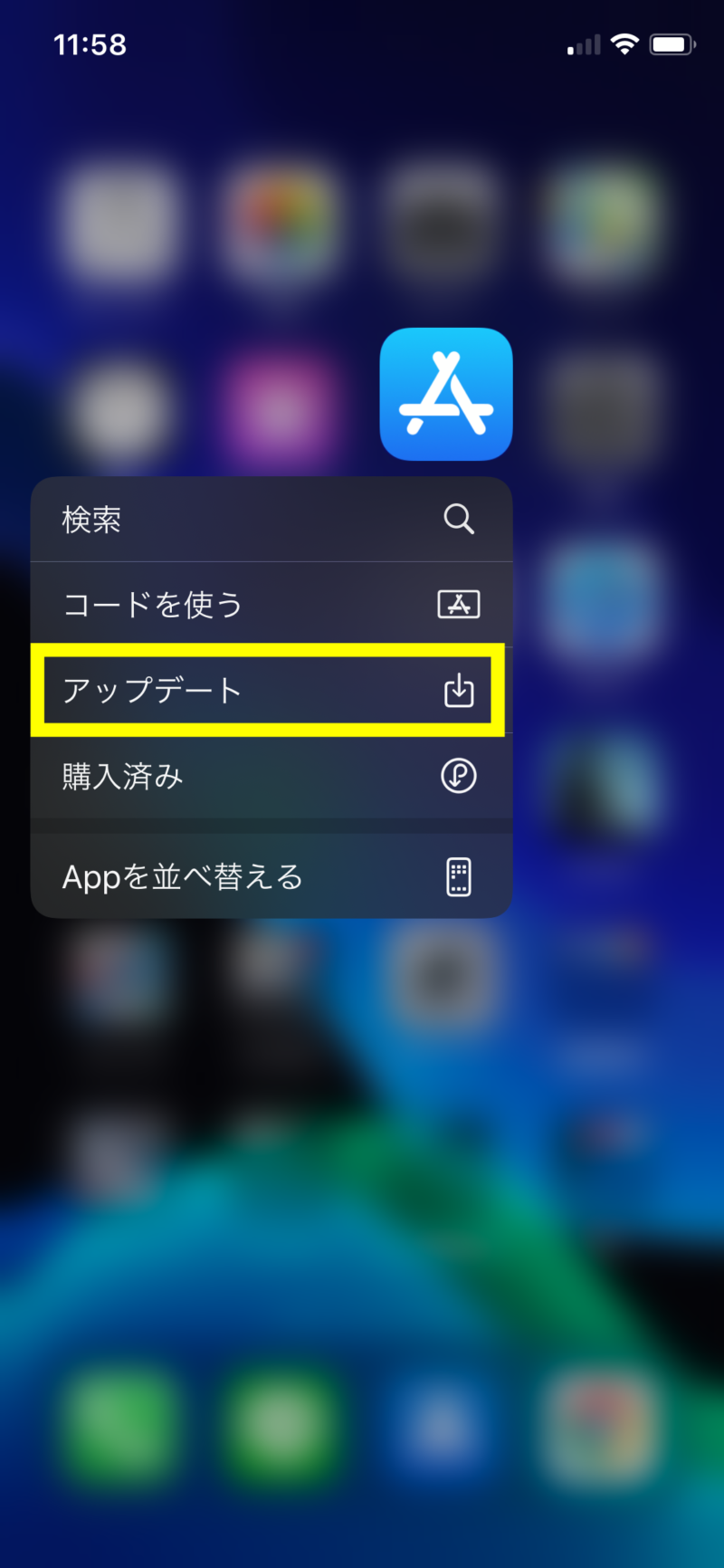
That’s it! From now on, new apps will be automatically downloaded to your iOS 14 device’s App Library. If you want to change this behavior, follow the same steps and select the Add to Home Screen option at the end.
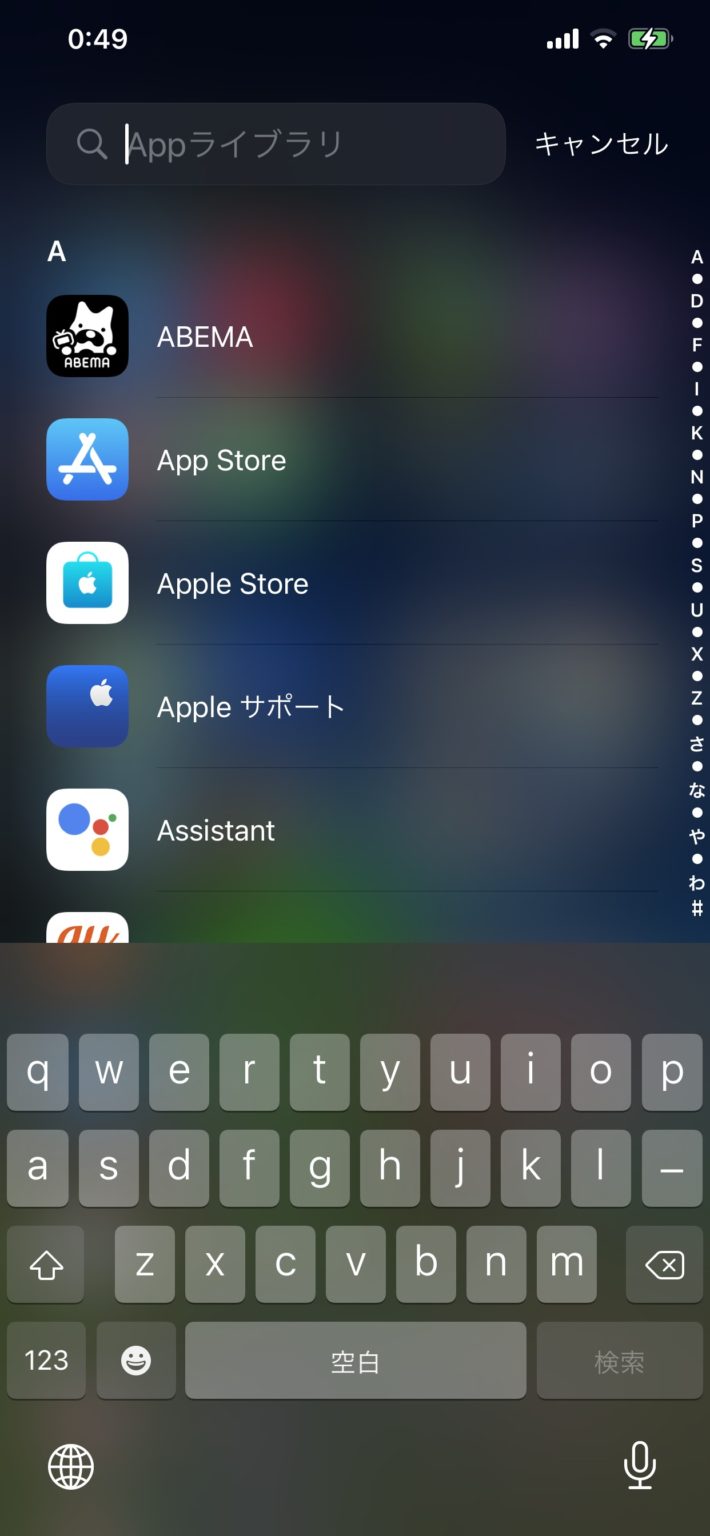
Keep your home screen clean with the app library
Here’s how to use Apple Library to keep your device’s home screen organized. It may seem like a small feature, but I find it extremely useful. You’ll also love it if you want a cleaner home screen.
After rigorous beta testing, iOS 14 is scheduled to be officially released next month. In addition to being feature-rich, the latest iOS offers a range of features, including the ability to disable tracking, restrict an app’s access to your local network, and even prevent apps from accessing your local network. Privacy has also been enhanced by introducing privacy-centric features. exact location.
If you’re running iOS 14 beta, let us know how it goes. If not, are you excited? Let us know in the comments section below.


![How to set up a Raspberry Pi web server in 2021 [Guide]](https://i0.wp.com/pcmanabu.com/wp-content/uploads/2019/10/web-server-02-309x198.png?w=1200&resize=1200,0&ssl=1)


