ChatGPT is one of the few AI chatbots that is extremely popular and useful at the same time. The new GPT-4 LLM further enhances the capabilities of chatbots. But what really changed the game was when we discovered that ChatGPT can access the Internet in the form of a plugin. However, there are some hurdles you need to overcome to enable and use these ChatGPT plugins. We’ve created a dedicated guide to help you install the ChatGPT plugin and expand your use of AI bots. Therefore, please follow the steps below. 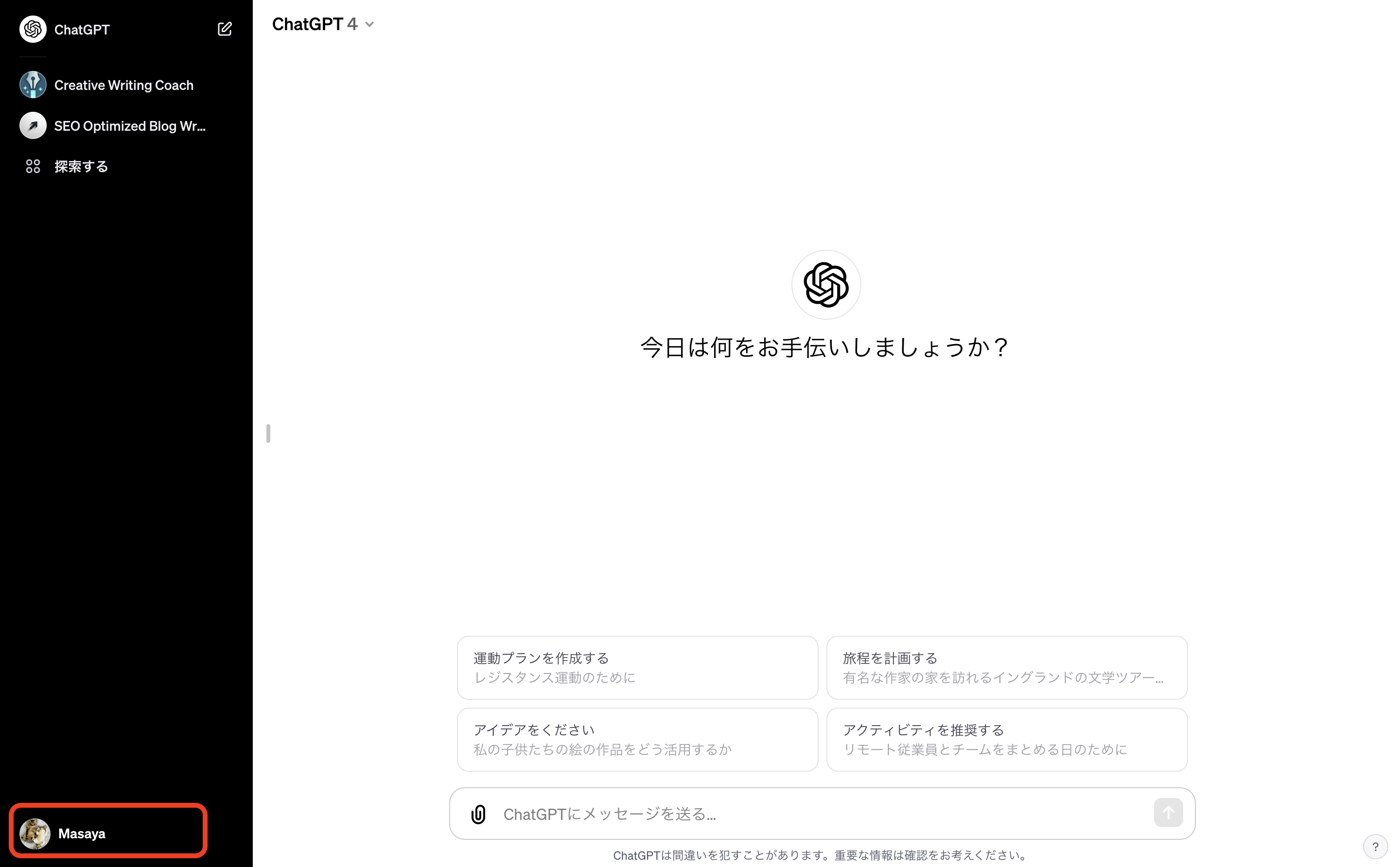
Step 1: Get a ChatGPT Plus subscription
- The only thing you need to know first is that the ChatGPT plugin is only available through a ChatGPT Plus subscription. The service costs $20 per month and is available worldwide.
- To get ChatGPT Plus, log in to your regular ChatGPT account and click Upgrade to Plus to get started.
- Once done, click ” Upgrade Plan ” and complete the payment to subscribe to ChatGPT Plus.

Step 2: Enable the plugin with beta features
- Once you have a ChatGPT Plus subscription, click the ellipsis icon (three dots) in the bottom left to open a pop-up menu. Then click Settings .
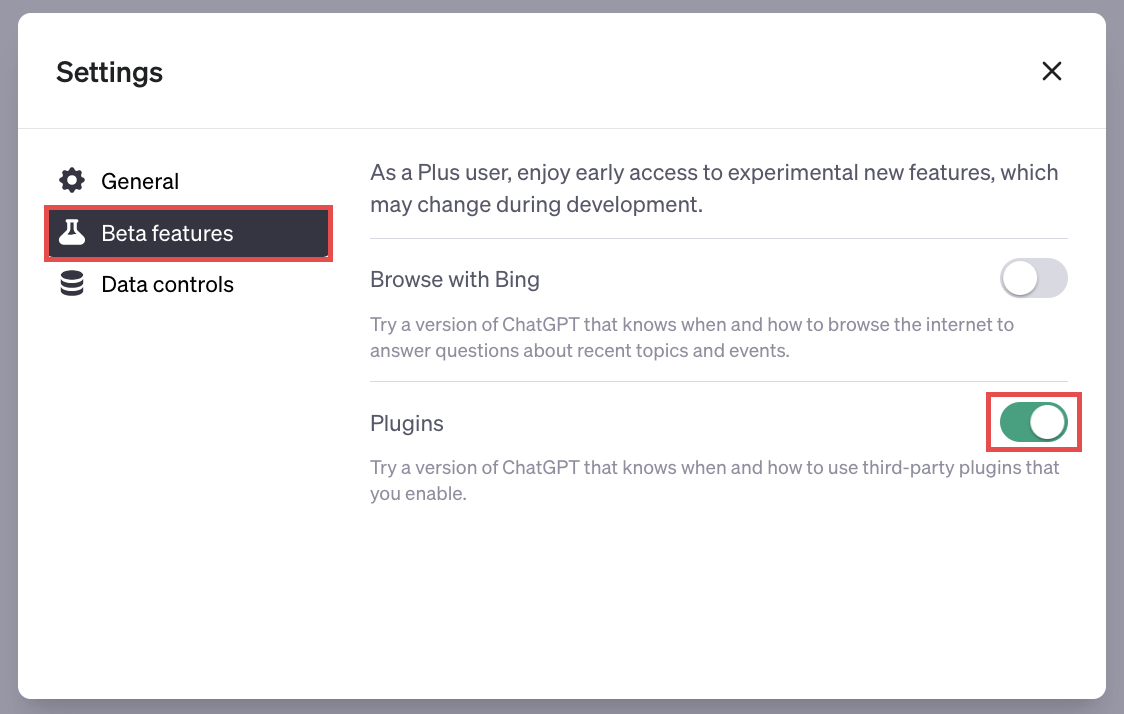
- In the settings menu, go to the Beta Features tab in the left sidebar.
- Finally, turn on the ” Plugins ” feature to enable it.
Step 3: Access the ChatGPT plugin using GPT-4
Now that the settings are enabled, let’s try using the plugin with our AI chatbot. To do this, follow the steps below.
- On the main chat screen, click or hover your mouse over the GPT-4 model option.
- Click Plugin from the list that appears to switch from the default settings.

Step 4: Install the ChatGPT plugin from the store
- Here you will see an option called ” Do not enable plugin “. Click to expand the menu. Then click Plugin Store to view the collection of plugins.
- OpenAI displays a disclaimer regarding the ChatGPT plugin. Click OK to proceed.
- The entire store will be displayed with different plugins to choose from. Once you’ve identified the ChatGPT plugin you need, click the Install button next to it.
- The plugin will be installed within just a few seconds and the same will appear in the drop-down menu mentioned above.

Step 5: How to use the ChatGPT plugin
- Once the above steps are completed, all you have to do is enter your request according to the ChatGPT plugin. In my case, I ask and speak language questions. After typing, press Enter.
- ChatGPT will start interfacing with the plugin and immediately render the response. As you can see, the seamless interaction allows both tools to provide accurate answers.
congratulations. You now have access to the ChatGPT plugin. You can use the steps above to install the various plugins available.
We’re still waiting for access to two of the most impressive plugins in OpenAI’s arsenal: the Web Browsing Plugin and the Code Interpreter Plugin. Do you have access to these plugins? How has your experience been so far? Let us know in the comments section below.


![How to set up a Raspberry Pi web server in 2021 [Guide]](https://i0.wp.com/pcmanabu.com/wp-content/uploads/2019/10/web-server-02-309x198.png?w=1200&resize=1200,0&ssl=1)


