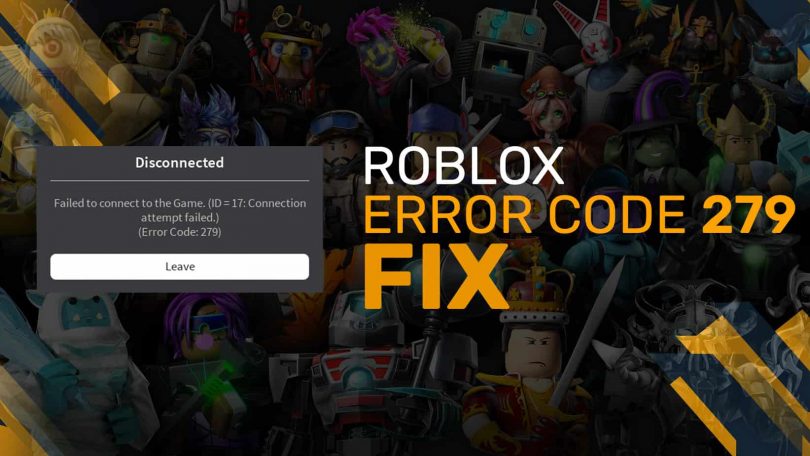
- Roblox players can encounter multiple errors in the game, and one of the most common errors is error code 279.
- Error code 279 is mostly caused by internet or developer issues and is easy to fix.
- To resolve error code 279, we recommend checking your ISP settings, Roblox server status, firewall settings, resetting internet settings, etc.
If you play Roblox on your phone or PC, error code 279 is a terrifying nightmare that can disrupt your gameplay experience. Unlike other errors, this one has no specific reason, which makes it difficult to resolve. Fortunately, this error has been tested and addressed so you don’t have to. So, here is the ultimate guide to fix Roblox error code 279 and play again. 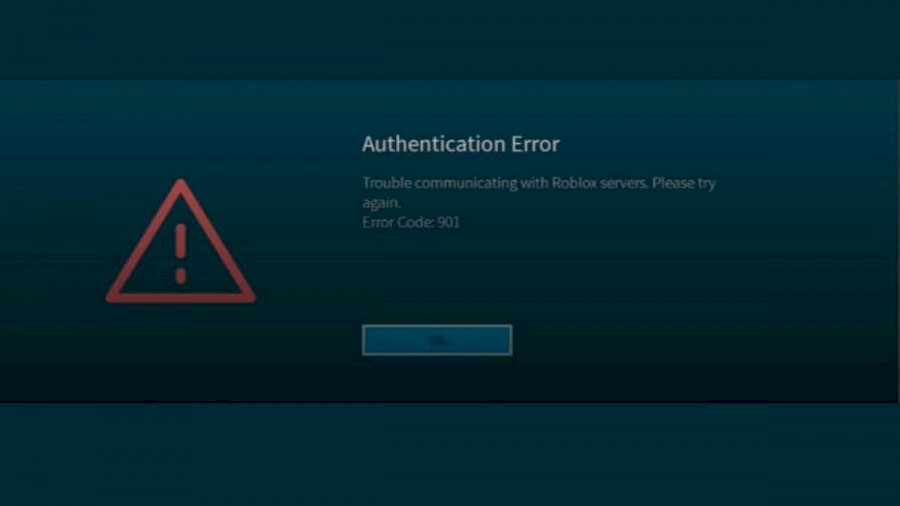
What is error code 279 in Roblox
Error code 279 is one of the most common Roblox errors players encounter. This reflects internet connectivity issues, blocks directly on the Roblox app, and in some cases errors on the Roblox servers. This error has no fixed cause, so there is no permanent solution to resolve this error. Every time an error occurs, you need to find a suitable solution that suits you. Roblox error code 279 usually occurs for the following reasons:
- Internet Connection: Unwanted restrictions on the Internet by your system or service provider
- Developer Issues: Errors or ongoing maintenance on Roblox’s official servers
- Firewall issues: Your system may restrict connections to Roblox’s servers.
- Corrupted cache data: The data temporarily stored to make Roblox run faster can become corrupted, preventing the game from launching properly.
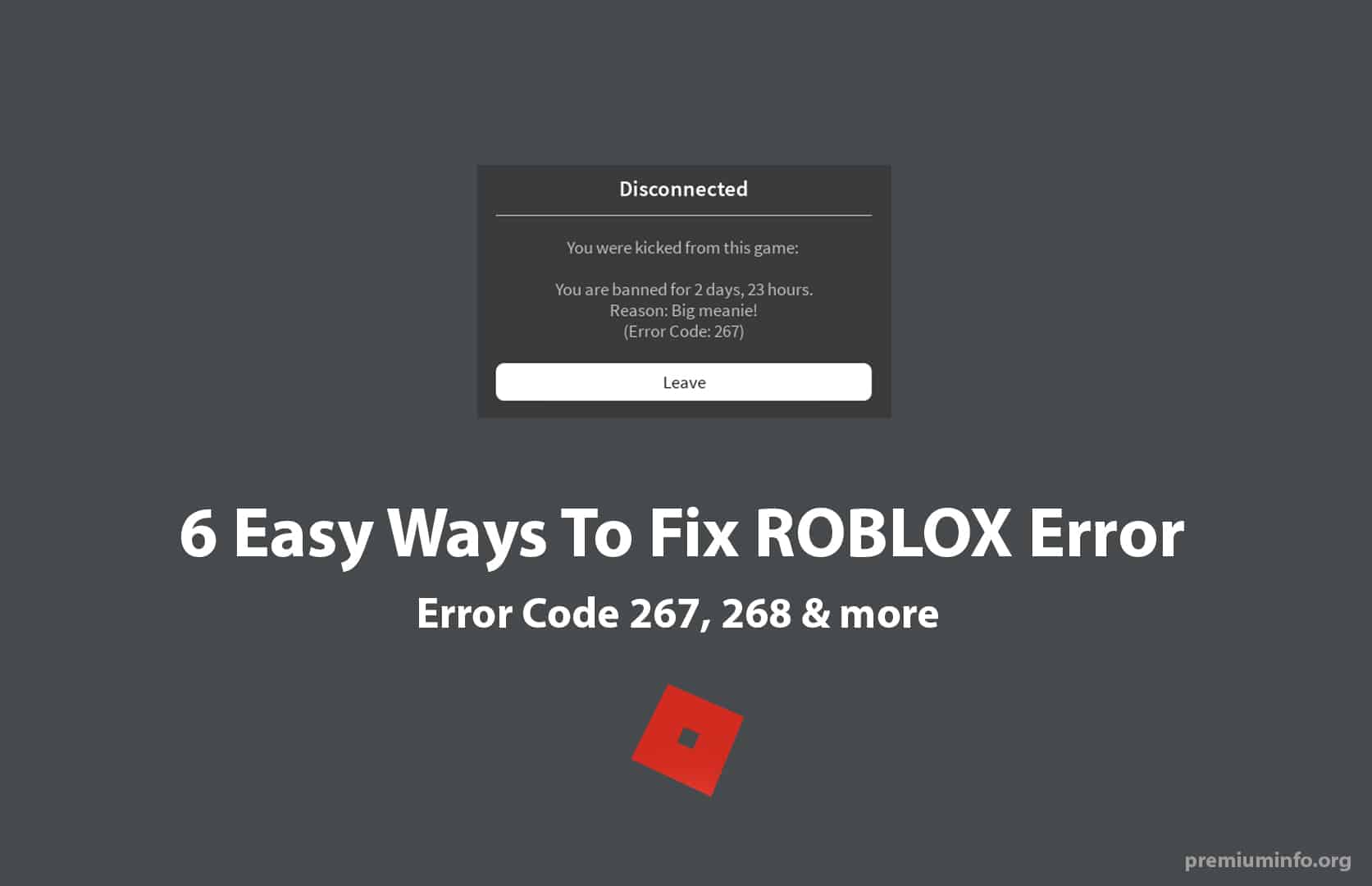
Best way to fix Roblox error code 279
Windows users tend to see error code 279 in the Roblox app player. Fortunately, Windows users also have the most diverse range of solutions to get their apps working. We recommend considering each solution in turn until you find a suitable solution.
Note: Try launching other experiences to see if there is an issue with the Roblox experience you are trying to launch. If other experiences are working, it may be a developer defect and will be fixed upon update. Also, before performing the fixes below, try turning off your antivirus software and then running the game.
1. Check your ISP and enable port forwarding
The first solution to this problem is to make sure your internet is fully functional. Most online games require an open NAT type of internet. Network address translation (also known as NAT) comes in three forms: open, strict, and moderate. Most online games like to be open and somewhat moderate, but dislike strict NAT types. In such cases, the game will refuse to connect to the online server. Therefore, check which NAT type your internet connection falls under.
If you have a NAT type that restricts connectivity to your Roblox server, call your ISP and ask them to port forward or open a port so your Roblox server can connect to the internet. If your ISP supports port forwarding, follow these steps to enable it.
- Go to your router’s control panel or home page.
- Once there, search for port forwarding in your Internet settings.
- Then enter the IP address and look for the port range option.
- Finally, set the port range to 49152 to 65535 and select the UDP protocol.
Once done, try restarting your router. Roblox should open normally. If not, check out the other fixes below. 
2. Check the Roblox server status
When the official Roblox servers go into maintenance, you may encounter the Roblox 279 error. In that case, your best option is to wait until the server is back online. Therefore, before moving on to other solutions, you should first check the status of your Roblox server on the official status tracker ( here ).
The server displays a green activity signal. If your server is working fine, keep reading to find other reliable solutions.
3. Add exceptions to your firewall
The firewall on your system is supposed to protect you from the unnatural aspects of the internet, but in some cases it can become an unintended barrier to Roblox. So, to prevent your firewall from blocking Roblox on Windows, follow these steps:
- First, press the Windows key on your keyboard to open the Start menu.
- Then, type ” Allow an app through Windows Firewall ” in the search bar and click Open.
- Then, click the ” Change settings” button at the top right of the app list.
- If you’re using Roblox Player to run your game, you’ll first need to add it to your apps list. To do this, click the ” Allow another app ” button in the bottom right corner.
- Then click the Browse button in the new pop-up window to locate the Roblox executable file.
- The Roblox app is located here: C:\Users\Username\AppData\Local\Roblox\Versions\ directory. Replace username with device name.
- Next, select the Roblox game client and click the ” Add ” button after selecting Roblox.
- Finally, check both checkboxes and click the “OK” button to save the changes.
That’s it. Your connection to Roblox servers will no longer be interrupted by Windows Firewall, making it easy to play the best Roblox games with your friends.
4. Reset internet settings
Windows users often customize default Internet settings for various purposes. This seemingly harmless customization can cause error code 279. So, follow these steps to restore your system to default internet settings.
- First, press the Windows key to open the Start menu, search for ” Control Panel ” and open the app.
- Next, go to the Network and Internet section within the Control Panel.
- Then, on the next page, click the ” Internet Options ” heading to launch a new pop-up window.
- Next, click the Advanced tab in the new Internet properties window.
- Finally, click the ” Restore advanced settings ” button and click the ” OK ” button to reset your internet settings.
5. Reset Winsock and DNS cache
Winsock is the default Windows API responsible for network protocol communication between various apps and networks. In addition to that, a catalog of information about various servers, their default requirements and providers of the same name is also stored. If this catalog receives an incorrect entry or becomes corrupted, you may be unable to connect to some servers, resulting in Roblox error code 279. A large DNS cache can also contribute to similar errors. Follow these steps to learn how to prevent this from happening:
- First, open the Start menu and type cmd in the search bar to access the command prompt.
- Then select the “ Run as administrator ” option in the right pane. You can also right-click Command Prompt and select the same option.
- After that, type the netshwinsockreset command in the command prompt and press the “ Enter ” key.
- Once the command finishes running, type ipconfig /flushdns in the same CMD and press the “ Enter ” key.
- Once the execution is complete, restart your device. After restarting, you should be able to play Roblox on your Windows PC without any issues.
6. Download another edition of Roblox
If restoring your Internet settings does not resolve the error, follow these steps: Similar to Minecraft Java and Bedrock, Windows PC gamers have the privilege of using two Roblox editions. If one stops working due to error code 279, you can easily switch to another one. The two official editions of Roblox are:
- Roblox Player: Available for download as an executable file from the official Roblox website ( see ). To obtain the executable file on the website, you must access the experience.
- Roblox app: Available as a UWP (Universal Windows Platform) app in the Microsoft Store ( free ).
You can uninstall and reinstall the Roblox app on devices like Mac and mobile. This error currently does not occur on PlayStation.
And that’s exactly how we solved one of the scariest errors in Roblox. However, this is often associated with Roblox error code 610. Both have a similar impact on the game, and once both of these errors are resolved, the game runs perfectly. If you see another strange error, please let us know in the comments section below. We will support you.
Error 273 is a very common problem and can happen to anyone on Roblox. You don’t need to worry too much about this. This error does not mean that your account has been stolen.


![How to set up a Raspberry Pi web server in 2021 [Guide]](https://i0.wp.com/pcmanabu.com/wp-content/uploads/2019/10/web-server-02-309x198.png?w=1200&resize=1200,0&ssl=1)


