Multiplayer gaming on consoles has never been easier. Consoles always seem to be on the bad side of things, whether it’s the inevitable subscription fees or the complex networking. A new type of problem is currently plaguing Roblox players. It’s error code 901 (authentication error). This error makes the game nearly unplayable on Xbox consoles, and many players are unable to even log into their Roblox accounts. Fortunately, we have found many reliable solutions that can easily fix Roblox error code 901 on Xbox. So let’s take a closer look!
Before we look into solutions for Xbox error code 910, we need to find out why this problem occurs on Xbox. So, before proceeding with the fix, let’s check all the common reasons for the error. 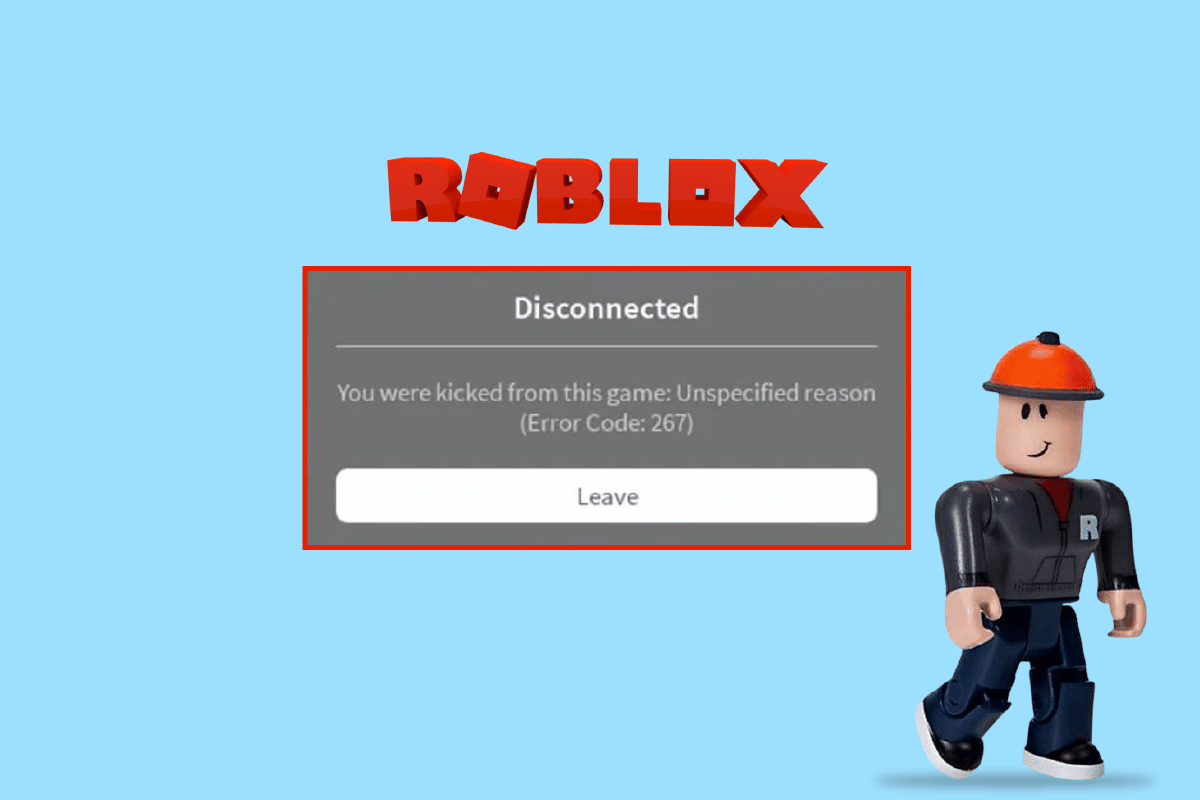
What causes Roblox error code 901 on Xbox?
According to player reports and the official error guide , error code 901 only appears for Roblox players on Xbox One, Xbox Series X, and Xbox Series S. This usually reflects an authentication issue between your Roblox and Xbox account. Most players encounter this error code in the following scenarios:
- Signing up for a Roblox account: Roblox prevents Xbox users from signing up for new accounts due to connectivity issues or player username issues.
- Linking your Gamertag to Roblox: Error 901 prevents users from connecting their Xbox Gamertag to their Roblox account due to network or moderation issues.
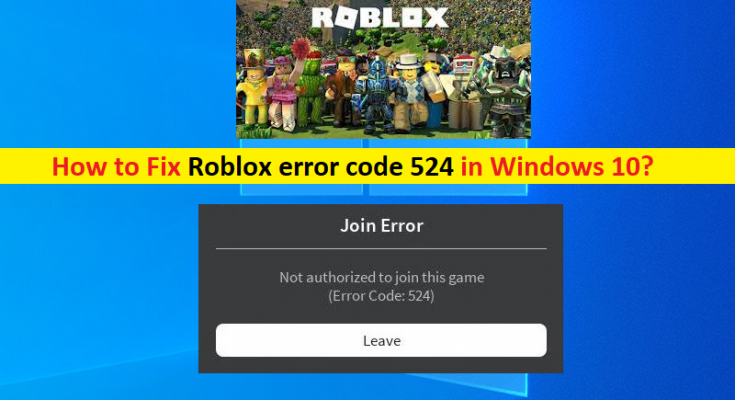
How to fix Roblox error code 901 on Xbox
There are various solutions available to resolve error code 901 and get Roblox working. We recommend considering each solution in turn until one of the solutions works. 
1.Roblox server status
If Roblox’s servers are under maintenance or facing unexpected downtime, you may encounter a number of errors, including error 901. You can use Roblox’s official status webpage ( see here ) to check if your server is fully functional. While the server is down, all you can do is wait for it to come back online. However, if it works perfectly, one of the other solutions might work.
2. Use an appropriate username
You can encounter this error 910 when creating a new Roblox account on Xbox if your username is not appropriate according to the official guidelines. Therefore, follow these guidelines to avoid errors:
- Don’t include inappropriate words or phrases in your username
- Your username must not include personal information such as your real name, phone number, street number, or address.
- All usernames must be at least 3 characters long and a maximum of 20 characters long
- Username characters must be alphanumeric ( A-Z, 0-9 ).
- Usernames can contain underscores (_). But it shouldn’t be the end or the beginning.
3. Account Moderation
Some actions or words can cause your gamertag (your Xbox account username) to be controlled by Roblox. Simply put, moderation is a temporary ban that Roblox can enforce if a user or their username violates its guidelines. This will prevent you from creating new Roblox accounts while using that Xbox Gamertag. Fortunately, this problem can be resolved by:
- New gamertag: You can create a new Xbox account without a moderated gamertag. With this solution, you can create a new Roblox account without any problems.
- Manage your appeal: If you believe your account has been unfairly banned, you can file a dispute on the Roblox support page here .
- Moderation Period: Most bans within the Roblox system are temporary. Here you can identify the moderation message and wait until the ban is lifted.
4. Update Roblox
If your game is not up to date, you may see a Roblox error code. In that case, you’ll need a reliable internet connection to update your game from the Xbox Store. Keeping your game up to date will ensure that it has few bugs and will prevent frequent errors.
5. Uninstall and reinstall Roblox
If updating the game doesn’t resolve the issue, the game’s main files may be corrupted. In that case, you will need to uninstall Roblox along with all its files and reinstall it to get rid of error code 901. Luckily, Roblox stores your account data in the cloud, so deleting the game won’t affect your progress in any way. So there you have it, here’s how to reinstall Roblox on Xbox.
1. First, go to the My Games and Apps section on Xbox.
2. Next, select Roblox and press the menu button on your controller, a pop-up menu will appear on your screen. Then select the “ Manage games and add-ons ” option.
3. Finally, when prompted to completely remove Roblox from your device, use the ” Uninstall All ” button.
4. Now that Roblox has been removed, you will need to reinstall it from the Xbox Store. Alternatively, you can find it within the ” Ready to Install ” section of the library. You can also install remotely using your Microsoft account here .
6. Restart your Xbox
Almost all other fixes focused on Roblox as the main cause of the 901 error. But what if your gaming console is the culprit? So, quickly restart Roblox to make sure Xbox and its processes aren’t restricting Roblox. Here’s how:
1. First, press and hold the Xbox (logo) button on your controller or Xbox console.
2. Next, select the Restart Console option on the screen. This will restart your console and resolve Roblox error 910 in case of any issues with your console.
7. Additional modifications
If none of the other fixes work, here are some quick solutions to help you resolve error 901.
- Internet Connection: In rare cases, your Internet connection may limit your ability to connect to Roblox’s servers. Therefore, try switching the internet your console is using and starting Roblox again.
- Restart Roblox: If you’re experiencing a temporary issue with the Roblox servers, restarting the game a few times may help you avoid error code 901.
Now you are ready to play Roblox without facing the 901 error code again. Unlike the infamous Roblox error 279 and error 610, this is not a recurring problem for most players. Once you get past the error and the game is fully functional, we recommend inviting your friends to play the best multiplayer Roblox experience. However, you may want to learn how to install and use Discord on Xbox to avoid communication issues. Having said that, have you faced any other errors while playing Roblox? Let us know in the comments section below.


![How to set up a Raspberry Pi web server in 2021 [Guide]](https://i0.wp.com/pcmanabu.com/wp-content/uploads/2019/10/web-server-02-309x198.png?w=1200&resize=1200,0&ssl=1)


