As with most computers and electronic devices, there may be times when you need to force close a game on your Steam deck, such as when the game becomes unresponsive or when you’re in a hurry. It can be a frustrating situation, but luckily Steam Deck provides a convenient solution to exit the game in such situations and get your portable console back to work. So, in this article, we have explained how to force close games on Steam Deck so that you can use it when you need it.
In this article, you will learn how to force close a game on Steam Deck. Depending on the scenario, the game may behave unexpectedly. If this happens, you can force quit the game on Steam Deck using one of the two methods below. So let’s dive in. 
How to force quit a game on Steam Deck
In some cases, the game may crash or become unresponsive, requiring you to force a shutdown. If this happens, please follow the steps below to force quit the game on Steam Deck. 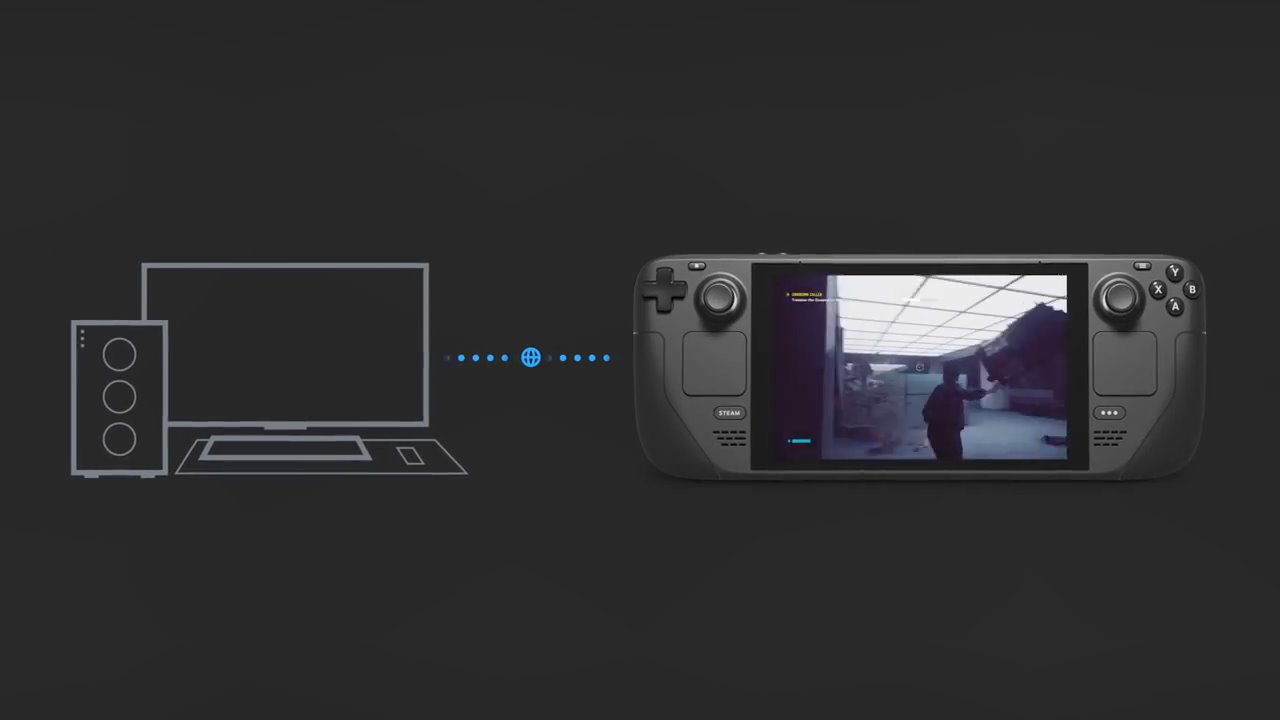
Force quit the game using Steam button shortcuts
The easiest way to force quit the game is to use the Steam Deck shortcut. You need to hold down the Steam button and the B button for about 5 seconds . This will automatically close any open games in your Steam deck and return you to the home page. 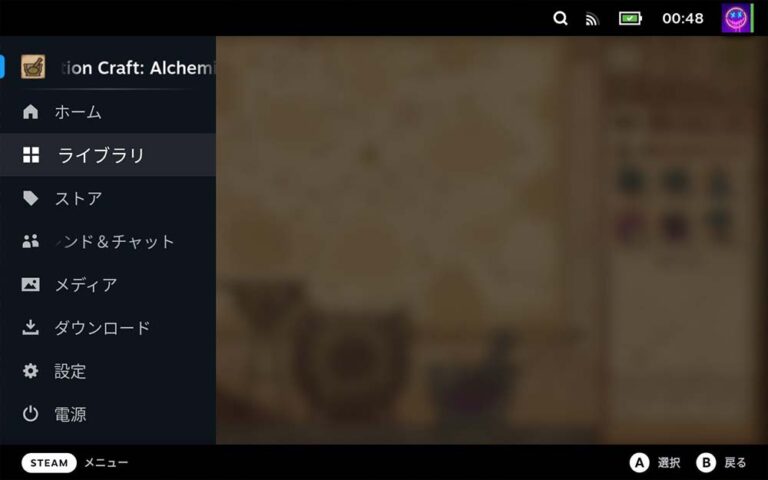
Force restart if Steam Deck is unresponsive
Steam Deck may freeze, causing the game to crash or not respond at all. After that, the console becomes unresponsive and SteamOS becomes inaccessible. Luckily, Valve also has a solution for your scenario, and all it takes is the push of a button.
If the game on your Steam deck becomes unresponsive and the force quit option doesn’t work, you may need to force restart your mobile gaming console. To do this, press and hold the power button for 10-12 seconds . This will force the system to shut down and allow users to restart Steam Deck to resolve game freezing issues. 
How to exit the game using the Steam menu
Although we have detailed how to force quit a game on Steam Deck, this is not the correct way to quit a game on a regular basis. Otherwise, it’s best to use the “Quit Game” option in your Steam deck. Additionally, this method is suitable for scenarios where SteamOS is running even if the game freezes in certain situations. Here’s how it works:
- First, press the Steam button above the left speaker to open the menu.
- Once the menu opens, right-press the D-Pad to switch to the in-game menu and select the ” Quit Game ” option. Once you confirm your selection, the game on the deck ends.
Yes, you’ve learned how to force quit a game on your console if the game you’re playing on your Steam deck freezes and becomes unresponsive. We would like to thank Valve for simplifying the process by taking into consideration the various issues that players may experience while using the device. Similarly, you can also install Google Chrome on your handheld gaming console using Steam Deck desktop mode. Please see the linked guide for more information. That said, we hope this guide helps you resolve your game freezing issue. Let us know what you think in the comments section below.
Force-quitting a game on a Steam deck increases the likelihood of two issues, so force-quitting the game should only be used in emergency situations. The first is game file corruption, which requires users to re-download the game and consume data. The second is corruption of saved data, resulting in users losing progress.


![How to set up a Raspberry Pi web server in 2021 [Guide]](https://i0.wp.com/pcmanabu.com/wp-content/uploads/2019/10/web-server-02-309x198.png?w=1200&resize=1200,0&ssl=1)


