Chrome OS flex is a free OS that brings your grandma’s laptop/PC back to life. Let’s install it to see if it actually works.
A toned down version of Chrome OS. The primary target is older computers running Windows and Mac. Chrome OS Flex promises faster load times, better battery life, and improved performance. This cloud-based OS can be used on a USB stick or just your main operating system.

background
The idea of turning your old PC into a nifty Chromebook was originally the idea of New York-based Neverware . They were developing CloudReady, an operating system based on the open source Chromium OS. This was pretty much the same as using a Chromebook, with some limitations.
The motivation behind CloudReady was to revive older Windows and Macs and easily migrate them to a Chrome OS-like environment. CloudReady had a free version for personal use and a paid enterprise version.
This was an interesting proposition for Google to bring Chrome OS to the masses without purchasing any hardware. And clearly, Google had some plans in place with its 2017 investment in Neverware .
Finally, in December 2020, Google took action and acquired Neverware. And CloudReady is now Chrome OS Flex.
As of this writing, Chrome OS Flex is in beta. Even with certified models, some issues can occur.
installation requirements
Here are some of the recommended requirements:
- Intel or AMD x86-64 bit
- 4GB RAM
- 16GB internal storage
- Full administrator access to BIOS
- Pre-2010 processor/graphics card.
- 8 GB or larger USB stick
- List of certified models
These are the requirements mentioned above, but they are not set in stone.
For example, I installed Chrome OS Flex on one of the older models, an HP Pavilion dv6-3130tx with 3GB RAM, which was not on the list of certified models. I had to use ethernet because it worked fine, with some minor issues like the WiFi not working.
Remarkably, I was also able to successfully run Chrome OS Flex on the assembled desktop. Additionally, it ran smoothly even on my other lowest-powered laptop, which has a dual-core Intel Pentium B950 and just 2GB of RAM. We didn’t even have any WiFi issues this time.

All in all, if you have an 8 GB pen drive and 40 minutes to spare, you can’t go wrong with Chrome OS Flex.

Installing Chrome OS Flex
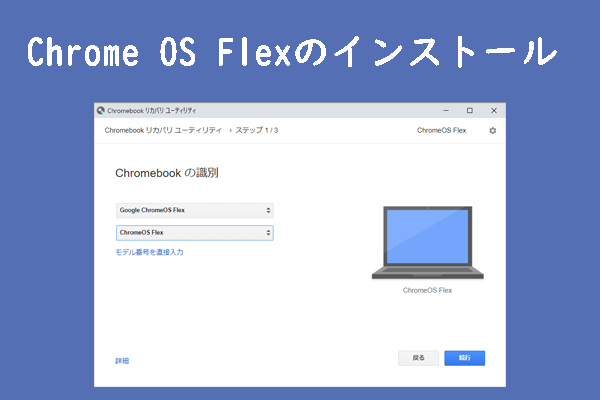
Installation is very easy with the Chromebook Recovery Utility . This is a browser extension available on the Chrome Web Store.
Preparing a bootable USB
Once downloaded, click on the icon, insert the USB stick and follow the on-screen instructions.
Please forgive the incomplete tracing of the mouse pointer by the screen recorder. Anyway, you can move on to the next step.
- Click Get Started .
- Tap Select model from list .
- Under Select Manufacturer , select Google Chrome OS Flex .
- Select Chrome OS Flex (Developer-Unstable) and click Continue .
- Allocate USB media for installation. (Use USB 3.0 if available)
- Finally, click Create Now .
The process for Chrome Flex OS to download and verify the recovery image takes some time.
Once you have created the live disk, place it on the desired device you want to try out and boot into the BIOS section.
Each manufacturer has a specific key for this purpose. For example, on HP, press ESC to launch the startup menu and press F9 to enter the boot device option. Similarly, the PC I built has an ASUS motherboard that allows you to enter the BIOS utility by pressing F2 or DEL.
If that’s a problem for you, search for “how to boot from USB” under “maker_name” to find related tutorials on YouTube.
Chrome OS Flex setup
When you boot from a USB stick, the first thing you see is the Chrome logo, followed by “Welcome to CloudReady 2.0,” which is exactly what Chrome OS Flex is.
You can then wipe the hard disk and install CloudReady 2.0 if you want to use it as the main OS on the target machine. Alternatively, you can use this on the USB itself by clicking Try it first .
For optimal performance, we recommend installing it on your hard disk. However, if you don’t have a spare device, you can try the second option and use it on your main workstation. This places Chrome OS Flex on the USB and takes up the space left after installation.
Next, add your network.
The best way to detect Ethernet is to insert the cable before starting the installation process.
Next comes the terms and conditions and optional data sharing. You can then personalize the device or set it up for your child.
At this stage you will need to sign in with your Google account. Then, optionally sync your Google Account settings with your Google Assistant settings.
The final sign-up screen asks you to share your hardware data.
Finally, you will see the Chrome OS Flex desktop.
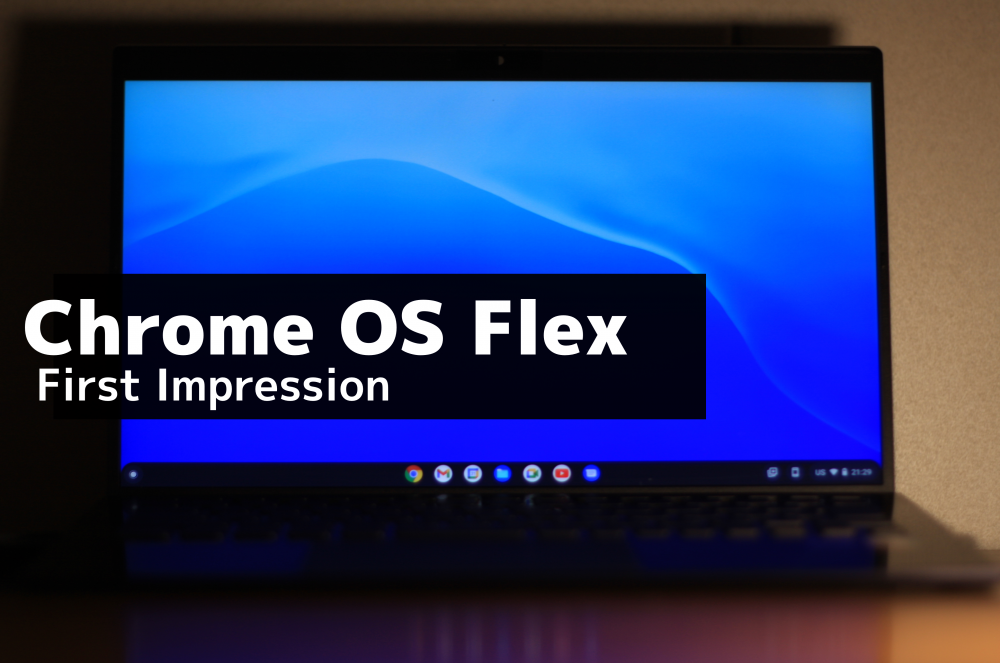
Chrome OS Flex is inherently a cloud-intensive operating system. But how is this different from full-fledged Chrome OS?
Chrome OS and Chrome OS Flex
We have a detailed comparison of Chrome OS and its Flex counterpart , but you’ll soon miss the Play Store.
At this time, Chrome OS Flex does not support Android applications or Google Play. Additionally, you can use Parallel Desktop to run Windows apps, and only Chrome OS supports running Linux.
Additionally, it is the device administrator’s responsibility to manage updates to Chrome OS automatic updates.
Now you may be thinking…
Who should use Chrome OS Flex?
If you can make a living using Google’s suite of apps, you should definitely give Flex a try.
As of this writing, the list of native applications includes:
| Google Calendar | file |
| Google Meet | google keep |
| chromium | playbook |
| G-mail | YouTube |
| Google chat | YouTube Music |
| camera | play movie |
| document | google map |
| drive | calculator |
| sheet | web store |
| slide | chrome canvas |
However, you can install anything from the Chrome Web Store, including password managers and ad blockers.
Flex is primarily intended for enterprise users or educational institutions. At the heart of this is the web browser “Chrome.” In case you’re wondering, no, you can’t dual-boot with Chrome OS Flex.
Pro tip: If you plan to use Flex with a USB stick, use one device for better stability.
conclusion
Flex is an ambitious project. It has the power to turn any Mac or Windows into a Chromebook. And it’s obviously stupid to judge when it’s clearly marked as Developer-Unstable .
Still, it’s worth it. Personally, I’m going to jump over the fence once Flex starts supporting Google Play.
It gives you something to explore beyond Windows, Mac, and the hopelessly complicated Linux.
On a side note, if you’re a Windows fan, we’ll also tell you why Windows 11 is better than the previous generation.


![How to set up a Raspberry Pi web server in 2021 [Guide]](https://i0.wp.com/pcmanabu.com/wp-content/uploads/2019/10/web-server-02-309x198.png?w=1200&resize=1200,0&ssl=1)


