Are you thinking of upgrading your PS5’s internal SSD? If you answered yes, you’ve come to the right place. The PlayStation 5 came out with support for installing PS4 games on external storage, but support for adding another high-speed SSD inside to download more PS5 games came later. Many users are now expanding their system storage by upgrading their consoles with M.2 internal SSDs, suitable for next-gen PS5 games. While you can hire a professional, we’ll provide you with step-by-step instructions to easily install a new internal SSD into your PS5 console. With that said, let’s take a look at how to upgrade your PS5’s storage. 
Prerequisites for upgrading PS5 internal storage
1. Purchase an SSD compatible with PS5
Most PCIe Gen 4 M.2 SSDs available on the market are compatible with PS5. Sony published the following details in a support article listing the M.2 SSD requirements for PS5. Sony recommends sequential read speeds of 5500 MB/s or higher, as shown below . Based on the experience of many users, a slightly slower SSD (less than the recommended speed, but about the same speed) works fine as well. You can read other users’ testimonials to see what their experience was like.
This guide uses the Western Digital Black SN770 ($39.99 on Amazon). This is an affordable 4th generation M.2 SSD supported by the PS5, albeit slightly below recommended speeds.
2. Make sure your PS5 is updated
PlayStation didn’t have storage expansion support out of the box. Sony released an update in September 2021 that allows gamers to install an M.2 internal SSD on their PS5 console. It’s been a long time since an update was released, but make sure to update your PS5 to the latest firmware update .
3. Heat sink and other essential tools
Finally, the PS5 also requires a heatsink on the SSD that fits comfortably within the size requirements below. We recommend purchasing a suitable SSD that fits within these margins and also has a heatsink. However, if you already have an SSD, purchase a heatsink that matches the size of your SSD and install it according to the included instructions.
Additionally, a standard Phillips screwdriver (crosshead) is required to perform SSD upgrades. Also, be sure to perform this step on a clean surface that will not scratch the body. You can also place a cloth or desk pad over your work area. 
How to install or upgrade an SSD on PS5
Once all basic preparations are complete, power off and unplug your PS5. Make sure you are grounded before starting this process, then follow the steps below.
1. First, you need to remove the side panel of your PS5 . To do this, place the console horizontally with the PS logo facing down. Next, you need to stand towards the bottom of the console. Then, hold the side edge of the power button with your left hand, and the diagonal corner of it with your right hand.
2. Then, carefully lift the cover with your right hand and pull the cover towards (or towards) the Blu-ray disc. It should start sliding now. Store the cover in a safe place until you need to put it back on.
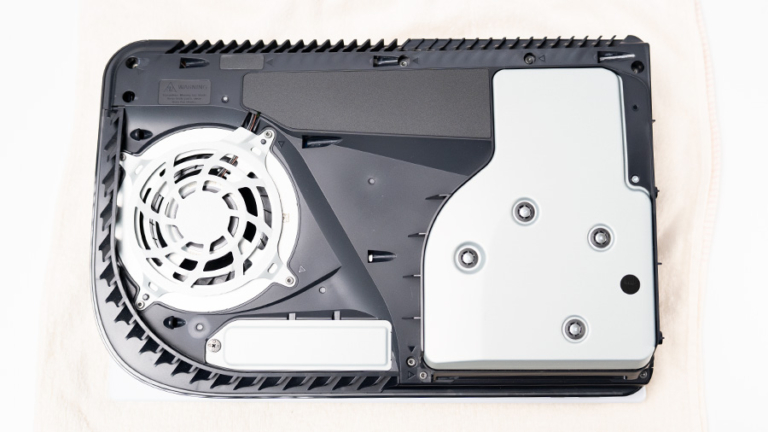
3. Next, find the SSD expansion slot on your PS5. It is located next to the cooling fan and is covered with a metal plate. Remove the cover using a Phillips screwdriver as shown below. This will remove the SSD slot cover. Keep the screws and SSD cover safe.
4. Remove the cover and you will see an M.2 SSD slot marked with different sizes. Now you need to remove the screw from the hole marked 110 at the end of the slot. You’ll also need to remove the ring-shaped “spacer” underneath that screw. Move the spacer and screw to the correct position depending on the length of your SSD. As for the role of the spacer, it ensures that the SSD you install in your PS5 is placed in the perfect position.
5. Next, place/hold the SSD in the cavity and analyze the M.2 port based on the size of the SSD. Next, place the spacer (that you removed in the step above) in the correct hole . For example, the WD SN770 is an M.2 2280 SSD, so I placed the spacer in the hole marked “80”.
6. Now align the SSD with the M.2 port at approximately a 45 degree angle, making sure the notch on the PS5 lines up with the M.2 port on the SSD . Then, install the SSD into the slot on your PS5.
7. Once fully inserted, place one finger on the tail side of the SSD so that it lies flat over the hole and the spacer you previously placed in the hole. Then screw in the SSD using the screws you removed in the third step.
8. If you purchased a heatsink for your SSD, install it now. Make sure the SSD cover is installed and fully secured. If you are unsure whether your heatsink is thin enough, please refer to the compatibility section first. You can also attach a heatsink to your SSD before installing it in your PlayStation 5.
Note: Installing the SSD cover is also required. SSDs with larger heatsinks cannot be used. These are not supported. Leaving the SSD cover removed can compromise the airflow design and cause the drive to overheat.
9. Next, place the expansion slot cover over the newly installed PS5 SSD and screw it back into place using a screwdriver.
10. You will then need to reattach the side panel of your PS5, aligning it with the bottom hook as highlighted below. Slide it toward the right and return it to its original position. This will ensure that the hook is in the specified position. You will hear a “click” sound, indicating that the panel is securely attached.
11. That’s it. PS5 SSD installation is now complete. The storage has been successfully upgraded, but there is still work to be done. Finally, connect the power cord and HDMI cable to the console, and turn on the PS5 from the power button on the front. Next, you will see the screen below. This means your SSD has been detected by your PS5 . Now, after powering on the controller, select the “ Format M.2 SSD ” option and your PS5 will immediately display the SSD read speed.
Upgrading the PS5’s storage wasn’t that difficult. After following the steps above, your PS5 will have a new internal SSD installed. Now you can easily save more PlayStation 5 games to your console. Now that you’ve upgraded your storage, check out the 20 best PlayStation 5 games to play right now. And if you want to play FPS multiplayer games with friends, learn how to set up and use Discord on your PS5 console. Last but not least, if you have any questions, please let us know in the comments section below. I will be happy to help you.
On your PS5, go to Settings -> Storage -> Install Location and selectively set the game to install on the new drive and the internal 825GB SSD if needed. To move games from internal storage to SSD, go to the game and press the “Options” button. Then select the “Move games and apps” option. Easily transfer games between M.2 SSD storage and 825GB SSD.
No, I’m upgrading my PS5 storage to the new M2. SSDs are not covered by the console’s warranty. As long as there is no physical damage to your PS5 while installing the M.2 SSD, the warranty will still apply.
yes. Sony asks that you remove the internal M.2 SSD before filing a warranty claim and repair on your PlayStation 5 console.
no. Depending on the storage drive you purchase, your PS5 console’s native storage may be faster than the SSD you installed. However, the difference in game loading times is not that noticeable.


![How to set up a Raspberry Pi web server in 2021 [Guide]](https://i0.wp.com/pcmanabu.com/wp-content/uploads/2019/10/web-server-02-309x198.png?w=1200&resize=1200,0&ssl=1)


