Managing paper invoices and receipts is extremely inconvenient as there is always a chance that they will get lost or destroyed. Thankfully, life has become much easier thanks to modern apps available for smartphones. Android smartphones have some really great document scanner apps that make it easy to organize your bills and receipts. If you’re wondering how to manage your bills and receipts digitally on your Android smartphone, here’s how you can do it.
1. Organize your bills with CamScanner
CamScanner is probably the best document scanner app available for Android, and you should definitely use it for scanning bills and receipts. This app has the ability to scan documents, receipts, business cards, whiteboard notes, contracts and documents, certificates, ID cards, and more.
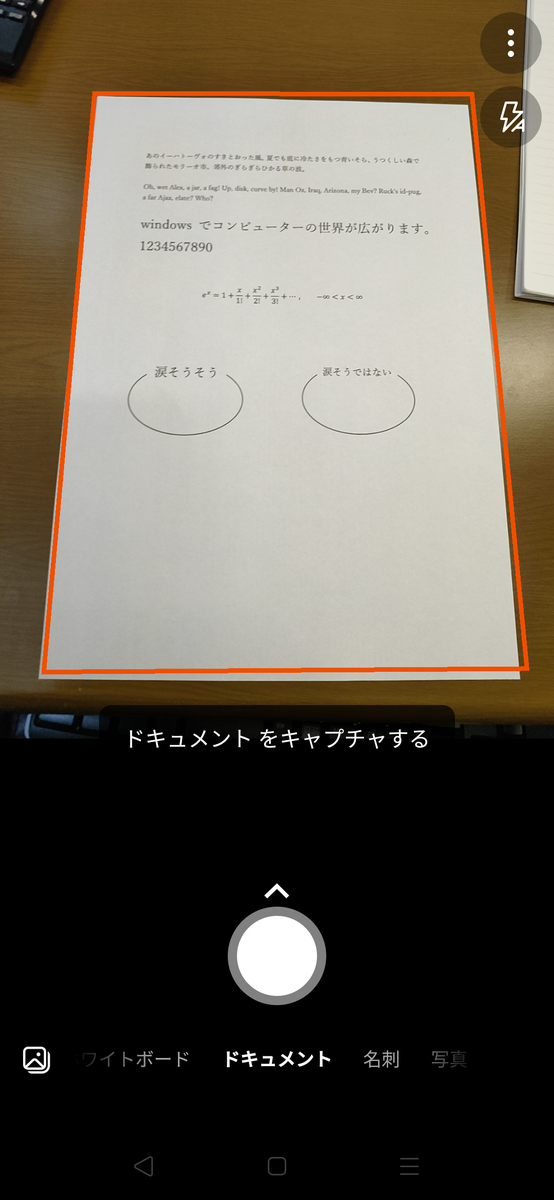
To start scanning, simply open the app and press the floating camera button to open the camera’s viewfinder. Check out options like flash and orientation to ensure you get the best photo possible. Then press the capture button and CamScanner will automatically cut out the paper from the background.
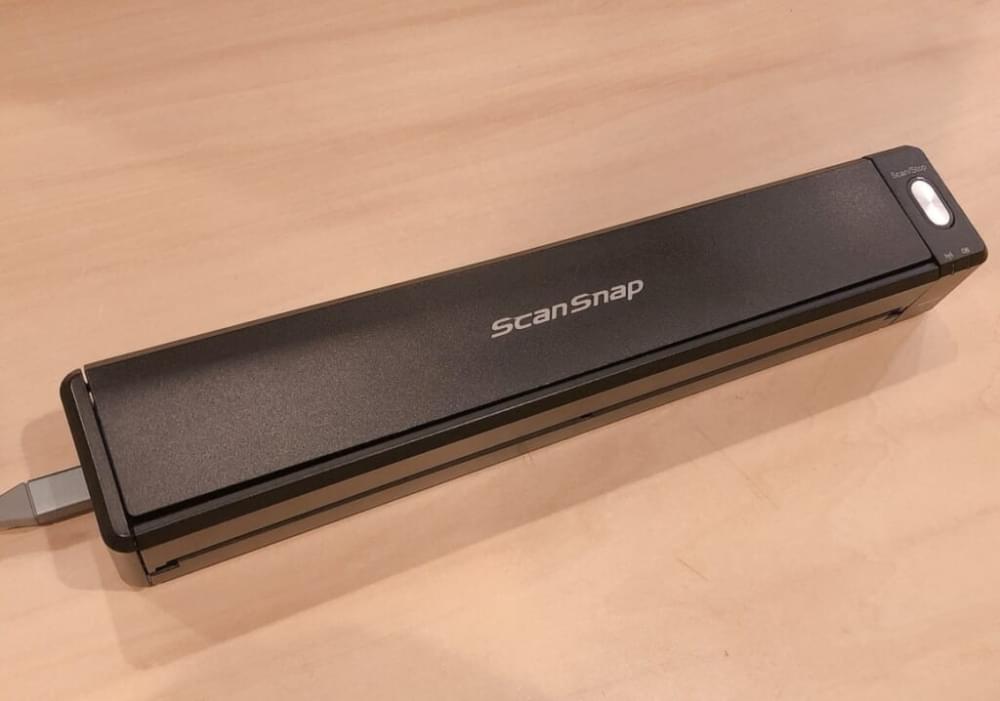
Once you have adjusted the crop, press the check button and the app will optimize the scan in automatic mode. There are options to brighten your scan, add color, or change it to black and white. Once the scan is complete, you can add annotations, watermarks, and notes to the image . Thus, you can add and save invoice details through notes and annotations.
2. Extract text using Text Fairy
You may need certain information from your invoice or receipt as text. Most document scanner apps also include the ability to extract text from images . The free version of CamScanner includes text extraction functionality, but does not include the ability to save or edit text as a .txt file. To take advantage of this feature, upgrade to CamScanner’s premium account subscription ($4.99 per month). However, if you are looking for a free solution, you can use Text Fairy .
Text Fairy is a simple app that allows you to extract text from images and save the text to .txt files. Once the app is installed, open Text Fairy and press the camera button on the top right . Take a photo of your receipt or invoice and crop it to include all the text you want . Next, the app will ask you to select whether the image has one or more columns and the language for the text in the image . Select the options that match your image and tap Start .
If you select the “Multiple Columns” option, the app will ask you to select the columns in the image where you want to insert the text. Select a column and tap Start Text Recognition . The app will start reading the text and once completed, the document will be saved with the extracted text. However, please note that the extracted text is not as good as the image.
You can easily copy and share text, and the app also includes the ability to read text aloud and create PDF files from it. The bottom line is that Text Fairy allows you to easily extract important text from your invoices and receipts.
3. Export digital invoices and receipts to cloud storage.
Once you have created digital copies of your invoices and receipts, you need to move them to cloud storage for easy access from anywhere. CamScanner supports most popular cloud storage services, including Box, Google Drive, Dropbox, Evernote, and OneDrive . However, if you don’t want to rely on third-party apps, CamScanner also offers its own cloud storage service. Easily get up to 1 GB of free cloud space from CamScanner by registering on the app, writing and sharing a review, and following us on social media.
To export your invoice/receipt files to cloud storage, go to CamScanner Settings -> Export Documents , tap Manage Account , and select your preferred cloud storage service.
See also: 9 tips for surviving Android’s limited internal storage
Easily organize your invoices and receipts digitally on Android
Very easy, right? Organizing your bills and receipts is easy thanks to the cool Android document scanner apps mentioned above. So start converting your paper invoices into digital invoices. If you have any questions, please let us know. We will be happy to help!


![How to set up a Raspberry Pi web server in 2021 [Guide]](https://i0.wp.com/pcmanabu.com/wp-content/uploads/2019/10/web-server-02-309x198.png?w=1200&resize=1200,0&ssl=1)


