File handling is an important aspect of any programming language. Python also supports manipulating files in various modes, including reading and writing files.
After completing this tutorial, you will be able to:
- Open and read a file with Python,
- Read lines from a text file,
- write and append to the file, and
- Manipulate files in Python using a context manager.
How to read files in Python
To open a file in Python, you can use the general syntax open('file_name','mode') .
- where
file_nameis the name of the file.
Note: If the file you want to open is in the current working directory, you can only specify the name of the file. You must include the path to the file if it is in a different folder within your working environment.
- Parameter
modeSpecifies the mode to open the file.
The default mode for opening files is read , indicated by the letter
'r'. However, it is recommended that you specify the mode explicitly.
Before we begin, let’s take a look at the file lib.txt used in this example.
📁 Download the text files and code used in this tutorial from this GitHub repository .
The code snippet below shows how to open a text file 'lib.txt' in Python and read its contents using the open() function.
 file = open('lib.txt','r')
contents = file.read()
print(contents)
file.close()


# Output
Hello, there!
Here are a few helpful Python libraries:
1) NumPy
2) pandas
3) matplotlib
4) seaborn
5) scikit-learn
6) BeautifulSoup
7) Scrapy
8) nltk
9) Bokeh
10) statsmodels
In the above example,
- The
open()function returns a file object, so let’s call itfile. - Next, call the
read()method onfile. - The variable
contentscontains the contents of the file. and print it out. - Finally, close the file.
However, forgetting to close files can waste resources. If you are working with a large number of such files, a large amount of memory can be used. This is caused by opening multiple files but not closing any of them.
Now, let’s learn a better way to open files using: Context manager . The code snippets below demonstrate how to use them.
 with open('lib.txt','r') as f:
  contents = f.read()
  print(contents)
When working with files using Contacts Manager, there is no need to use the close() method. Files are automatically closed when the I/O operation is complete.
How to read lines from a file in Python
The sample text file had only a few lines. So reading the contents of the file all at once was fine.
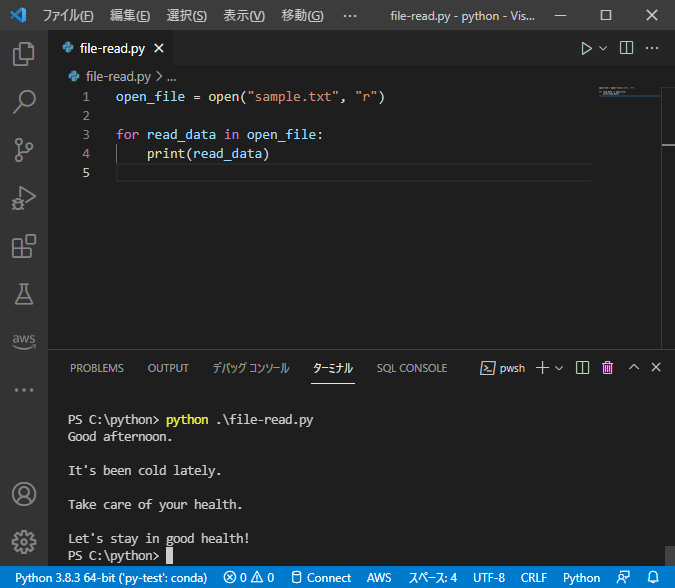
However, if you need to read a large file, using read() method as shown above may not be very efficient.
In fact, if your text files are very large, you can quickly run out of memory. Therefore, you may need to read read-only lines from a text file. In this section, you’ll learn how.
Read lines from a file using Python’s readline() method
readline() method reads one line at a time from a file.
Run the following code snippet.
 with open('lib.txt','r') as f:
  line = f.readline()
  print(line)
  line = f.readline()
  print(line)


# Output
Hello, there!

Here are a few helpful Python libraries:
You can see that after the first readline() method call, the first line of the file is printed. The second call to readline() method then returns the second line of the file.
This is because the file pointer is at the beginning of the second line after the first method call.
In Python, you can use the
tell()method to get the current position of a file pointer. To move the file pointer to a specific location, useseek()method.
The code snippet below uses f.seek(0) after the first method call. This moves the file pointer to the beginning of the text file. So in both cases, the first line of the file is printed.
 with open('lib.txt','r') as f:
  line = f.readline()
  print(line)
  f.seek(0)
  line = f.readline()
  print(line)


# Output
Hello, there!

Hello, there!
Read lines from a file using Python’s readlines() method
There is another closely related method called readlines() .
If you run the following code snippet, you will see that readlines() method returns a list of all lines in the file.
 with open('lib.txt','r') as f:
  lines = f.readlines()
  print(lines)


# Output
['Hello, there!\n', 'Here are a few helpful Python libraries:\n',
'1) NumPy\n', '2) pandas\n', '3) matplotlib\n',
'4) seaborn\n', '5) scikit-learn\n', '6) BeautifulSoup\n',
'7) Scrapy\n', '8) nltk\n', '9) Bokeh\n', '10) statsmodels\n', '\n']
Read lines from a file using Python’s for loop
You can also use for loop to read lines from a text file.
Once you have the file object, you can use a for loop to iterate through the contents of the file one line at a time, as shown below. Notice that we are only accessing one line at a time and not reading the entire contents of the file.
 with open('lib.txt','r') as f:
  for line in f:
    print(line, end='')
Note : When using Python’s
print()function, the default delimiter is the newline character'\n'character). But the original file doesn’t have these new lines. Therefore, to output the contents of the file as is, set the delimiter argument to an empty string:end = ''.
How to read chunks of content from a file in Python
Python also allows you to choose to read the contents of a file in small chunks.
Please read the code below.
- Here we set
chunk_sizeto50. This means that the first 50 characters of the file are read and printed.
- Now call the
tell()method on the file objectf. You can see that the file pointer is at position 51. This is as expected.
 chunk_size = 50
with open('lib.txt','r') as f:
  chunk = f.read(chunk_size)
  print(chunk)
  current = f.tell()
  print(f"Current position of file pointer: {current}")

# Output
Hello, there!
Here are a few helpful Python librar
Current position of file pointer: 51
You can also use this technique to read entire files in small chunks.
The following code snippet shows how to do this.
 chunk_size = 50
with open('lib.txt','r') as f:
  chunk = f.read(chunk_size)
  print(chunk,end='')

  while(len(chunk)>0):
    chunk = f.read(chunk_size)
    print(chunk,end='')

# Output
Hello, there!
Here are a few helpful Python libraries:
1) NumPy
2) pandas
3) matplotlib
4) seaborn
5) scikit-learn
6) BeautifulSoup
7) Scrapy
8) nltk
9) Bokeh
10) statsmodels
Here we use a while loop to read the contents of the file. Read the contents of the file in chunks of size 50 until the end of the file is reached. ✅
How to write to a file with Python
To write to a text file in Python, you need to open the file in write mode with 'w' .

The code snippet below shows how to do it.
 with open('new_file.txt','w') as f:
  f.write('Hello, Python!')
You can see 'new_file.txt' created in your working directory.
Now run the above code cell again.
Run the following command in your terminal:
 cat new_file.txt

# Output: Hello, Python!
Ideally, you’ll have written to the file twice. Hello, Python! Should have printed it twice, right?
However, you can see that it has only been printed once. This is because opening a file in write ( w ) mode essentially overwrites the contents of the file with new content.
If you want to append to the end of a file without overwriting existing content, you need to open the file in append mode. We’ll explain how to do this in the next section.
How to append to a file in Python
If you want to append content to a file without overwriting it, open the file in append mode.
To do this, use ` 'a' ( extra a) to specify the mode explicitly.
Then run the following code cell twice.
 with open('new_file.txt','a') as f:
  f.write('Hello, Python!')
Notice that the text is printed twice because we added it to the file.
 cat new_file.txt

# Output: Hello, Python!Hello, Python!
conclusion
Let’s briefly summarize what we covered in this tutorial.
- You learned common file I/O operations such as reading, writing, and appending files.
- Additionally, you learned how to use the seek() method to move a file pointer to a specific location.
- How to get the current position of a file pointer using the Tell() method.
I hope this tutorial was helpful. Now that you’ve learned how to work with text files in Python, it’s time to learn how to work with JSON files in Python.
Related:
Check the length of a list in Python in three steps.


![How to set up a Raspberry Pi web server in 2021 [Guide]](https://i0.wp.com/pcmanabu.com/wp-content/uploads/2019/10/web-server-02-309x198.png?w=1200&resize=1200,0&ssl=1)


