Since Windows 10 is a modern operating system, it is very robust and fault-tolerant, especially when it comes to overall stability. However, there’s always the possibility of random restarts, crashes, etc. ruining the overall user experience. These errors are usually minor, but in some cases you may need to use the good old method of reinstalling the OS to resolve the issue. And that in itself is a messy experience. This means losing all your files (unless you backed them up beforehand), having to reconfigure your OS, and other time-consuming tasks. Isn’t it annoying?
Not exactly. Just refresh (or reset) your Windows 10 PC to avoid all the trouble. Already intrigued? Let’s see how to update and reset Windows 10 .
Refresh vs. Reset: What’s the difference? When should you use each?
Essentially, refresh and reset are both advanced system recovery and troubleshooting options that are meant to fix minor PC issues like random restarts, crashes, and general system slowdowns. I’m here. Originally introduced in Windows 8, these features have been further improved in the latest version of Windows 10. However, although they are mostly similar (the word “refresh” is not explicitly mentioned anywhere), refresh and reset are both quite different things, and therefore should be used. Depending on different usage scenarios. read:
Refresh: what and when?
Update, the “lighter” option of the two options, automatically uninstalls all user-installed apps and programs and returns system settings to defaults. As part of the process, the update will also reinstall Windows 10. However, all your personal files (documents, music, etc.) will be retained. Also note that the update only affects the disk partition where the OS (Windows 10) is installed.
Refresh should be used when you want to address minor system slowdowns or performance issues. You should also use it if you don’t want to lose your personal files or want to set everything up from scratch.
Reset: what and when?
Obviously the more drastic of the two, a reset not only uninstalls all apps and programs the user has installed, but also removes all personal files, added/configured user accounts, and changes that have not been made. Restore all settings to their default values. Basically, a reset returns your computer to an Out-of-Box Experience (OOBE) state. Windows 10 will also be reinstalled in this case. It is important to note that resetting may delete everything not only from the system partition but also from all other disk partitions. You can also securely erase partitions for added security.
Reset should be used to fix major system issues such as frequent crashes and restarts, as well as slow performance that prevents performance degradation. You can also use it if you want to start with a clean slate (which means configuring everything from adding accounts to reinstalling programs) or if you plan to get rid of your computer.
How to refresh Windows 10
Step 1: Launch the Settings app and go to Update & Security > Recovery . In the Reset this PC subsection, click the Get started button.
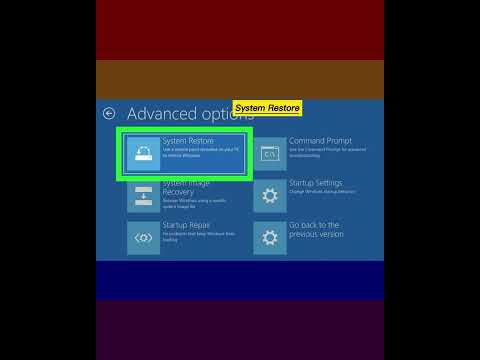
Step 2: In the dialog box that appears, select the Keep files option. The OS will notify you about the changes that the refresh will make to your computer. Confirm all changes and click Reset on the final step.
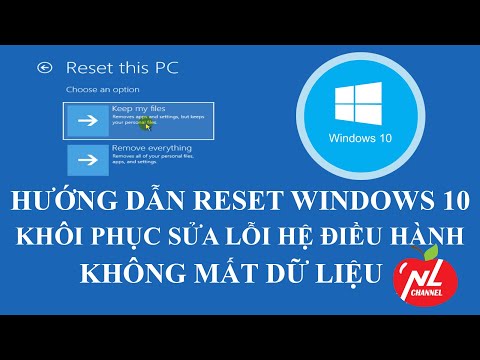
that’s it. Windows 10 will update and automatically reinstall your OS within minutes. Once the reinstallation procedure begins, your PC will restart.
How to reset Windows 10
Step 1: Open Settings and go to Update & Security > Recovery . In the Reset this PC subsection, click Get started .

Step 2: Next, select the Remove All option. In the next step, you can choose to delete all files on the system partition only or all partitions. Check everything again and click the “Reset” button that appears in the last step.

Windows 10 will not only be reinstalled, it will be completely reset. This process will take a little longer than the update, but you can track the progress on the same screen you see during the update. Once that’s done, you can configure all system settings, add user accounts, and do other necessary tasks. It’s easy!
See also: How to uninstall programs and software in Windows 10
Ready to make your Windows 10 PC run faster and better?
During daily use, even the fastest PCs can run into a few hiccups and start showing errors and performance issues. Thankfully, Windows 10’s update and reset options make it easy to prevent this from happening. Want to just make basic performance fixes without losing all your files? Use Refresh. Do you want to start over because you don’t want to leave your settings behind? Reset is your friend. Please try both and mention which one works best for you in the comments below.


![How to set up a Raspberry Pi web server in 2021 [Guide]](https://i0.wp.com/pcmanabu.com/wp-content/uploads/2019/10/web-server-02-309x198.png?w=1200&resize=1200,0&ssl=1)


