When playing Steam Deck games like Elden Ring or Hi-Fi Rush, you’ll often want to take screenshots on your handheld console. I mean, who wouldn’t want to record and enjoy their gaming successes and brag about it to their friends? Thankfully, Steam Deck makes it super easy to take screenshots, so you can save your favorite in-game moments and adrenaline-pumping action with just the click of a button combo. This guide will show you how to take screenshots on Steam Deck and easily share them with your friends. That said, turn on your Steam deck and read on.
This article explains how to take screenshots both in-game and in desktop mode of the Steam deck. Next, we’ll walk you through the steps to upload and share these screenshots with your friends and other Steam Deck users. 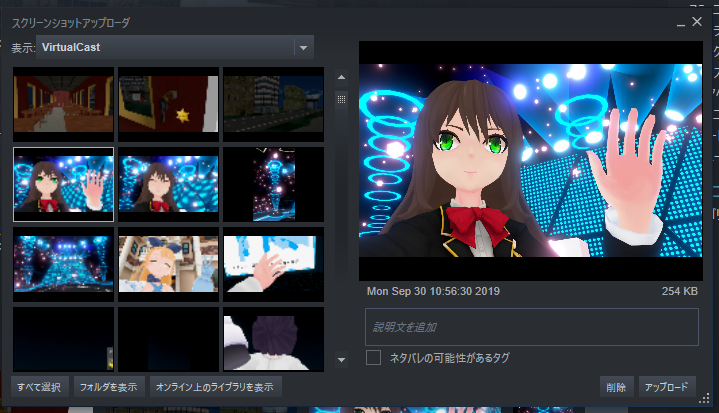
How to take a screenshot with Steam Deck
Take a screenshot in-game
If you want to capture your favorite gaming moments, Steam Deck makes it super easy. To take a screenshot while playing a game, follow these steps:
1. First, press the Steam button on the left side of the screen. Next, find and press the R1 button on the Steam Deck. Pressing both of these buttons at the same time will instantly take a photo of your game and save it to your screenshot library as a private image.
2. The Steam Deck will confirm that a screenshot has been captured with a pop-up notification in the bottom right corner of the screen that says “Screenshot taken.”
The same method applies if you want to take a screenshot anywhere in SteamOS. Press the Steam button together with R1 and the system will immediately capture a screenshot. Later in this article, we will show you how to upload a screenshot and share it with your friends.
Take a screenshot in desktop mode
While it’s easy to take screenshots on SteamOS or in-game, the same isn’t true in desktop mode. You will need to use a third-party app called “Spectacle” that comes pre-installed on Steam Deck. Please follow the steps below for usage.
- First, launch desktop mode on Steam Deck using the guide linked here. Next, click the “Application Launcher” (Steam Deck) button on the taskbar to display the menu.
- Now, use the right trackpad to hover over the Utilities category. The right pane features “ Spectacle ,” an open-source screenshot app that comes pre-installed with Steam Deck and allows users to take screenshots in desktop mode. Click to open the app. If you don’t know how to left-click or right-click on the Steam Deck, follow this guide.
- Like other screenshot apps, Spectacle lets you capture the entire screen, the active window, a specific area, and more. You can also assign button shortcuts from the Settings option here to make it easier to take screenshots with Steam Deck.
Capture high-resolution screenshots with Steam Deck
By default, Steam does not capture high-resolution screenshots and they are slightly compressed. This is probably done to save space since handheld storage is limited. To ensure you get lossless screenshots with your Steam deck, follow these steps:
- Go to desktop mode and open the Steam app using the icon on your desktop.
- Once opened, click on the “Steam” option in the top left corner and select “Settings” from the drop-down menu. This will bring up the settings window.
- Go to In-Game Settings from the left sidebar. Here, enable the ” Save uncompressed copies ” checkmark for the screenshots you take.
- Steam now takes high-resolution screenshots on your console. Spectacle, on the other hand, allows you to adjust the quality of your screenshots in the “Settings” option. Adjust the slider to your desired compression ratio.
Where can I find screenshots in my Steam deck?
Users may want to find screenshots taken within SteamOS or in games without making them public. There are two ways to find all the screenshots you’ve captured in your Steam deck, and we’ll explain both of them here.
The easiest way to find and share screenshots from your Steam deck is of course SteamOS. Go to the media section and follow the instructions.
- First, press the “Steam” button to access the menu. Now go to the “Media” library .
- Here are all the screenshots taken with my handheld. Here you can choose to view public, private, or all screenshots.
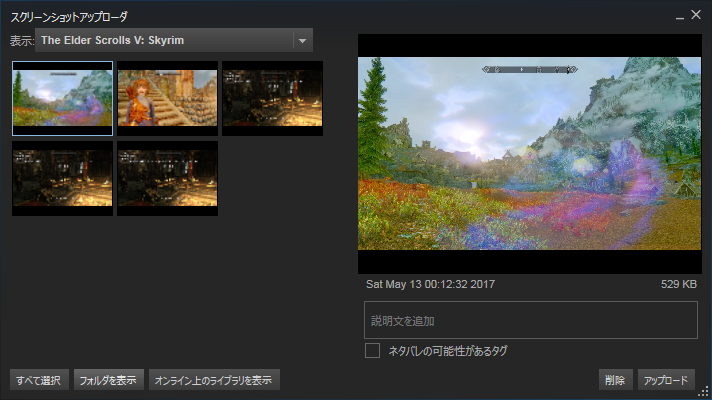
- Screenshots captured with Steam Deck are private by default, but you can adjust your privacy settings and share the images on Steam. Just select the image with the A button and press the “option” button on the Steam deck.
- From the “Upload Screenshot” pop-up menu that appears, select the appropriate privacy settings, then click ” Confirm ” to upload the image to Steam and access it from your desktop (described below).
Alternatively, you can find all the screenshots by going to Steam Deck’s desktop mode. We’ll show you how to access it not only from the Steam app, but also from File Explorer. Follow the steps below:
- Open Steam and click the “View” option in the top menu bar. Now select the “ Screenshot ” option.
- The Screenshots window allows you to view all existing screenshots captured in your Steam deck. Also, classify them accordingly. If you want to know where the screenshots are located on your system, select your game from the drop-down menu and click the “Show on disk” option at the bottom.
- This will open the Dolphin File Explorer and show you the actual location where Steam saves your screenshots locally . From here, you can easily share your screenshots. The Steam Deck screenshots folder path was also discussed here.
Home > .local > Share > Steam > User Data > [Your Steam ID] > 760 > Remote > [Game ID] > Screenshot
For Spectacle, the software saves screenshots in the Pictures folder by default. So go to “Pictures” in Dolphin File Explorer and find the desktop mode screenshot. 
How to share Steam Deck screenshots to PC
At this time, Steam Deck does not offer a built-in option for users to transfer files from console to PC. Local game transfer was recently introduced and is currently in beta, but requires additional work on your part to share screenshots. There are two easy ways to share screenshots via Steam Deck:
Method #1: Share using email
Almost all screenshots included in this article were shared via email. This process may sound tedious, but it’s practical because Steam Deck is a Linux PC. To share your screenshot, follow these steps:
- Open any browser on Steam Deck and log in to your email service using your email ID and password. This tutorial uses Gmail.
- Next, compose an email and attach all the required screenshots from your Steam deck’s Dolphin File Explorer. Once completed, press the “Send” button. Then, access your PC and download the image you received.
Method #2: Share using Warpinator
The second method of sending images from Steam Deck to OC is the most practical. Warpinator is local file transfer software that allows users to transfer files over a local network. This method involves the following steps:
- First, download Warpinator to your Steam deck. To do this, open Discover (app store) from your taskbar and search for Warpinator. Click the “Install” button from the search results.
- Next, go to your desktop PC and download Warpinator. If you are a Windows user, click this link to download the software. Once installed, open the software.
Note:
To successfully transfer these screenshots, make sure your Steam deck and desktop PC are connected to the same network. Warpinator is a local file transfer software, so this method will not work if both systems are not on the same network.
- If both devices are on the same network, the app will display both devices and allow you to establish a connection. Connect your PC to your Steam deck.
- Once connected, click on the “ Send File ” option to browse the screenshot on the Steam deck and send it to the target PC. Accept the incoming file on your desktop PC.
- Your screenshots have now been successfully transferred from Steam Deck to your system. To view the screenshot, go to Documents and open the Warpinator folder.
That’s all you need to know about how to take screenshots with Steam Deck. Capturing screenshots with Steam Deck is simple and easy. However, in desktop mode, you have to overcome some difficulties. We also listed where screenshots are saved to your Steam deck and two different ways to share them with yourself, your friends, and other Steam users. So, what games are you currently playing and are you planning to screenshot some cool in-game moments? Let us know in the comments below.


![How to set up a Raspberry Pi web server in 2021 [Guide]](https://i0.wp.com/pcmanabu.com/wp-content/uploads/2019/10/web-server-02-309x198.png?w=1200&resize=1200,0&ssl=1)


