We often see people switching from Android smartphones to iPhone to experience Apple’s premium hardware and smooth software experience. But one criticism we regularly hear from users making the switch, especially in places like India, is that there’s no easy way to transfer old WhatsApp chats from an Android phone to an iPhone. Well, WhatsApp has finally listened to our constant requests and published an easy way to move your chats from Android to iPhone. If you are someone who was looking for a solution to this problem or was relying on paid tools to move your valuable chats, you don’t need to do that anymore. This article will show you how to easily transfer WhatsApp messages and media from Android to iPhone. 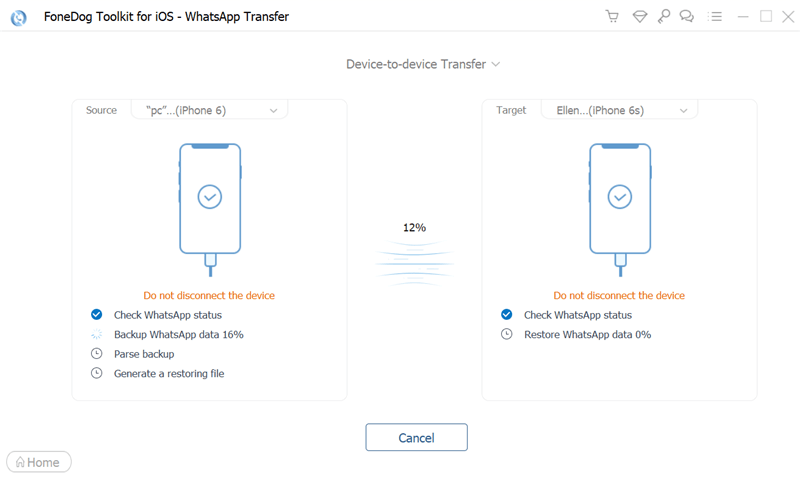
Requirements for moving WhatsApp messages from Android to iOS
There are a few things you need to keep in mind before transferring WhatsApp chats from your Android smartphone to iPhone. It is important to read these points carefully and thoroughly. Otherwise, the transfer process may be ruined.
To transfer WhatsApp chats from Android to iPhone, you need to meet the following requirements:
- An Android smartphone running Android 5 Lollipop or later .
- An iPhone running iOS 15.5 or later. That is, iPhone 13 series, iPhone 12 series, iPhone 11 series, iPhone XS/XS Max, iPhone SE, SE2, SE3, and iPhoneXR.
- Compatible WhatsApp versions i.e. iOS version 2.22.10.70 and above and Android version 2.22.7.74 and above.
- Download the “Move to iOS” app ( free ) from the Play Store on your Android smartphone. Apart from WhatsApp data, this app allows you to move messages, contacts, files, etc. to your iPhone.
- This is the most important step for this method to work. You’ll need to reset your iPhone and set it up from scratch . Otherwise, you won’t be able to move your WhatsApp messages. The steps to reset your iPhone are explained below.
- Log in to WhatsApp on your iPhone using the same phone number you use on Android. You cannot change your phone number during data transfer.
- The transfer process may take some time, especially if your WhatsApp backup is large, so keep both your Android phone and iPhone connected to power.
- Additionally, both devices must be connected to the same wireless network. Otherwise, your Android phone will connect to your iPhone’s hotspot for data transfer.
What WhatsApp data can and cannot be transferred to iPhone?
WhatsApp’s official support page details the data that can be moved from Android to iPhone. I have tabulated the same here: WhatsApp data transferred WhatsApp data not transferred Account information Profile display name profile photo peer-to-peer payment messages Individual chat and group chat call history Chat history (with media) WhatsApp settings 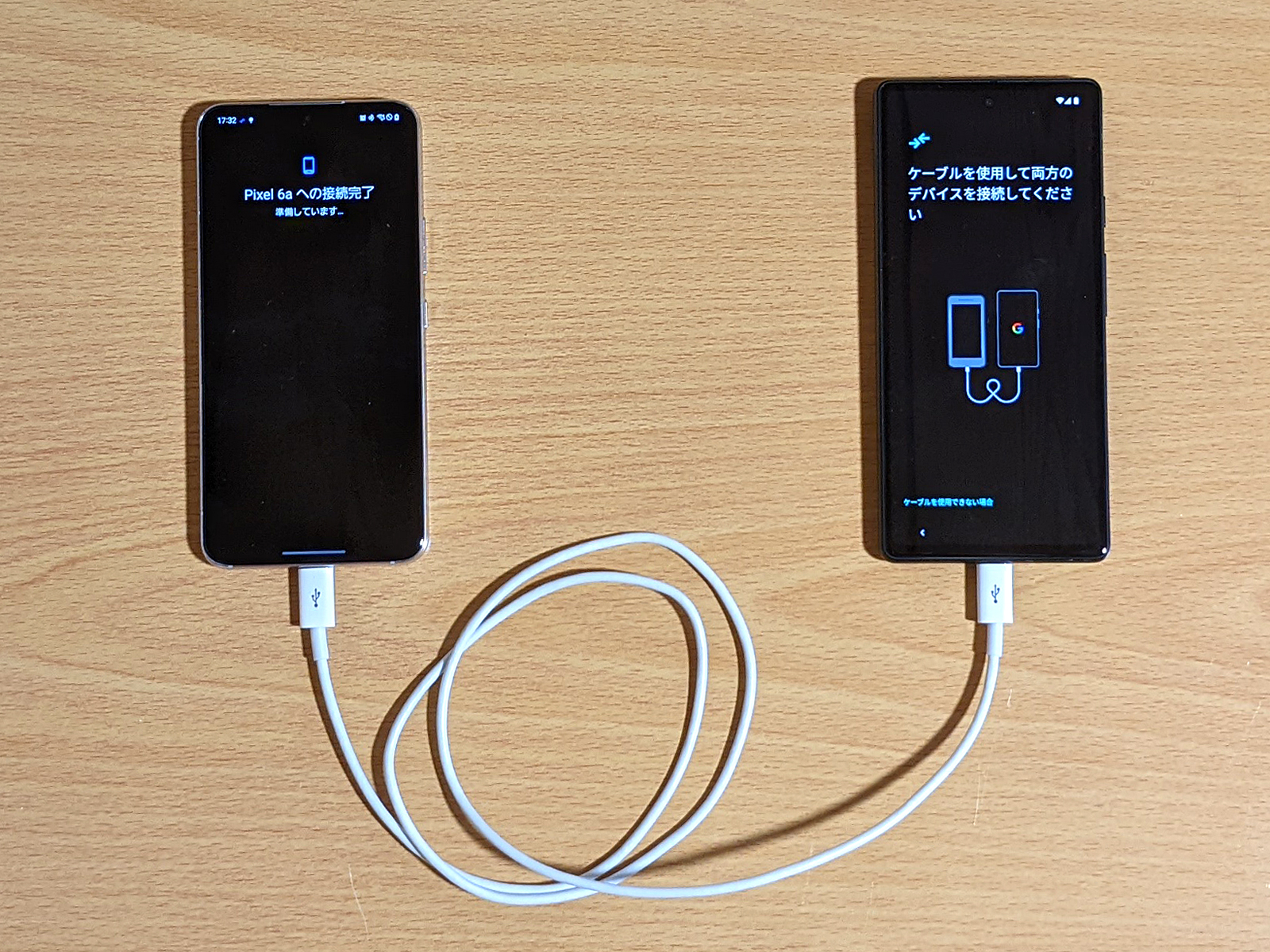
How to reset iPhone
If you’re moving from an Android smartphone to a new iPhone, you can migrate your WhatsApp chats when you first set up your Apple device. However, if you’re already using an iPhone and want to bring over your old chats from Android, you’ll need to reset your iPhone first, as mentioned above.
Although the process of factory resetting your iPhone is simple, we recommend backing up your data before proceeding. When you’re ready to reset your Apple device, here’s how to do it.
- Open the Settings app on your iPhone and go to General -> Transfer or Reset iPhone .
- Then select the “ Erase all content and settings ” option. The “Erase this iPhone” screen will appear. You must click Continue to proceed.
- Then, enter your passcode for confirmation, back up your data to iCloud, and then select the Erase option. That’s it. Your iPhone has been successfully reset.
Steps to transfer WhatsApp chats from Android to iPhone
Note : In this tutorial, we used a OnePlus Nord running OxygenOS 12 based on Android 12 and an iPhone SE 2 running iOS 15.5 to test the WhatsApp data transfer feature.
Now that the basics are out of the way, let’s take a look at how to transfer WhatsApp data from Android smartphone to iPhone for free. oh yeah! You no longer need to get paid third-party tools to move WhatsApp chats to iPhone. Here’s the free and official way to move chats from Android to iPhone.
- After you reset your iPhone, follow the onscreen instructions to begin the setup process. Log in to your Apple account, etc., but it will stop when the ” Apps & Data ” screen appears during setup.
- On this screen, select the Move data from Android option (second from the bottom).
- On the next screen titled “Migrate from Android,” tap ” Continue ” and you’ll be presented with a one-time code that you’ll need to enter into the “Migrate to iOS” app on your Android phone.
- Next, go to your Android smartphone and open the “Move to iOS” app ( free ).
- Tap the Continue button in the app to accept Apple’s terms of service and give the app all necessary permissions (location permission is required).
- Afterwards, the Continue button will reappear on the Find Codes screen. Tap the Continue button and enter the one-time code displayed on your iPhone (Step #3).
- After you enter the code, your Android phone will connect to your iPhone wirelessly. You may be asked to select and connect to your iPhone’s local wireless network to complete the pairing process.
- Once you pair the two devices, you’ll see a Data Transfer option in the Move to iOS app on your iPhone. Here, select the “WhatsApp” option from the list. You will see a check mark and the size of the WhatsApp data backup you want to move from Android to iPhone. Press the “Continue” button to proceed.
Note : During this time, your iPhone will display a message that says “Waiting for <device model number>.” Please see the screenshot of the standby screen from this link.
- At this point, WhatsApp’s Move Chats to iOS option will appear on your screen, meaning you’re one step closer to moving messages from Android to iPhone. Now, tap the ” Start ” button and tap the “Next” button when WhatsApp is ready to transfer files.
- Then WhatsApp will work its magic and start transferring WhatsApp messages and media from Android to iPhone.
Note : The WhatsApp data transfer process may take some time, so please be patient. The app usually says 4-5 minutes, but it may take longer if your backup is fairly large. I moved a 1.7 GB WhatsApp backup from Android to iPhone, and it took about 30 minutes.
- Finally, once your WhatsApp messages are successfully moved to your Apple device, you will see a “Transfer Complete” message on both your Android phone and iPhone.
Set up WhatsApp to complete data transfer on iPhone
Now, set your Android phone aside and tap on the Continue iPhone Setup button on your Apple device, as shown in the image above. Then follow the steps below to set up WhatsApp on your iPhone.
- Once you see the home screen, go to the App Store and install WhatsApp ( free ).
- Then, when you open WhatsApp Messenger on your iPhone, you’ll immediately see a prompt to ” Move chats from Android .” Tap the “Start” button to give WhatsApp the necessary permissions to move messages from Android to iPhone.
- Once you do this, you will see that WhatsApp is importing your chats from your Android phone to your iPhone. Depending on the size of your backup, this may take approximately 10-15 minutes or more. You will then see a prompt that says ” Transfer completed ” and you will be able to set up your profile.
- That’s it! Your messages and media have been successfully transferred from Android to iOS.
Enable iCloud backup for WhatsApp on iPhone
Once you’re done, there are final steps you need to follow for storage. It is important to mention here that the data was moved to the iPhone using local backup, so you need to manually enable iCloud backup for WhatsApp.
To do this, go to ” Settings -> Chats -> Chat Backup ” and select the ” Back up now ” option to save your chat history and media to iCloud. Now, every time you switch to a different iPhone, you can easily restore all your previous messages using iCloud backup. For more WhatsApp tips and tricks, check out the linked article.
If you want to upgrade your iPhone and haven’t backed up your WhatsApp chats, don’t worry. Fortunately, WhatsApp now allows you to transfer chats from iPhone to iPhone without backup.
WhatsApp chats not working after moving to iOS? How to fix it!
If you’re having trouble transferring chats from your Android phone to your iPhone, try the following solutions.
1. First, make sure that both your Android smartphone and iPhone meet the basic requirements listed at the beginning of this article. Also, make sure you’re running a compatible version of WhatsApp on your device.
2. Then, before moving old WhatsApp chats from Android to iPhone, make sure to reset your iPhone. WhatsApp’s support page states that you can’t move WhatsApp data to an already activated iPhone because “new history cannot be merged with old history.” So, before proceeding, please follow the steps above to reset your iPhone. If you’re setting up a brand new iPhone, you don’t need to worry about this.
3. Please note that both your Android phone and iPhone must be connected to the same Wi-Fi network for chat transfer to work.
4. If you have these two in place, we recommend logging into WhatsApp on your iPhone using the same phone number you used on your Android phone. You cannot change your phone number during the transfer process.
4. Finally, the “Move to iOS” app may not work properly or may crash on your Android smartphone. In that case, WhatsApp suggests on its official support page that you contact Apple Support to help resolve the issue.
Frequently asked questions (FAQ)
How to transfer WhatsApp chat history from Android to iPhone?
Way back in June 2022, WhatsApp officially added support for chat transfer from Android to iPhone. To move messages from your Android smartphone to WhatsApp, you need a compatible Android smartphone and iPhone (new or reset) with the “Move to iOS” app. We’ve added detailed steps to transfer chats from Android to iPhone in our guide, so read on to learn more.
How do I restore WhatsApp chats from a Google Drive backup on iPhone?
You cannot restore WhatsApp chats on iPhone using Google Drive backup from Android smartphone. Instead, you can now easily transfer your chat history from your Android phone to your iPhone using the Move to iOS app.
Is it possible to transfer WhatsApp backup from Google Drive to iCloud?
Yes, you can now backup your WhatsApp data from Google Drive to iCloud. The process is tedious and requires you to use the official process supported by WhatsApp to transfer chats from Android to iPhone. You’ll need a factory-reset iPhone and an Android smartphone with the Move app installed on iOS. After successfully moving your chats from Android to iPhone, you can turn on iCloud backup on your iPhone. We explained how it works in our guide.
Can WhatsApp read chats transferred from Android to iPhone?
No, WhatsApp cannot see the data you transfer from Android to iPhone. Additionally, messages aren’t sent to cloud storage servers unless you enable iCloud backup after you move your data.
Will my WhatsApp messages be deleted from Android if I move to iPhone?
The answer is no. “Unless you remove WhatsApp or erase your phone, your data will remain on your Android phone,” the messaging giant says on its support page.
Yes, if you strictly follow the step-by-step instructions mentioned above, you will be able to easily transfer your WhatsApp chats to your new iPhone. Additionally, for those switching from iPhone to Android, the messaging giant’s app also allows you to move messages in the opposite direction. We’re excited to see WhatsApp finally take the lead and simplify moving between mobile platforms. Also, if you are planning to upgrade your old iPhone to the latest iPhone 15, you can transfer your WhatsApp chats without backup. This method also works when transferring chats between two Android smartphones.
If you face any issue while transferring WhatsApp chats, feel free to let us know in the comments section below.


![How to set up a Raspberry Pi web server in 2021 [Guide]](https://i0.wp.com/pcmanabu.com/wp-content/uploads/2019/10/web-server-02-309x198.png?w=1200&resize=1200,0&ssl=1)


