WhatsApp is one of the most widely used messaging applications around the world, with millions of users relying on it for personal and professional communication. Also, if you are a heavy WhatsApp user, you probably know the pain of transferring large amounts of WhatsApp data from one phone to another. Previously, WhatsApp data transfer was only possible via cloud backup, i.e. iCloud or Google Drive. But for added security, WhatsApp now allows you to transfer all your data, including chats and media files, without backup. Keep reading to learn how to transfer WhatsApp chats without backup on Android and iOS.
Things to remember
- This method only works between devices running the same operating system, i.e. Android and iOS.
- You must allow WhatsApp to access Wi-Fi and location services.
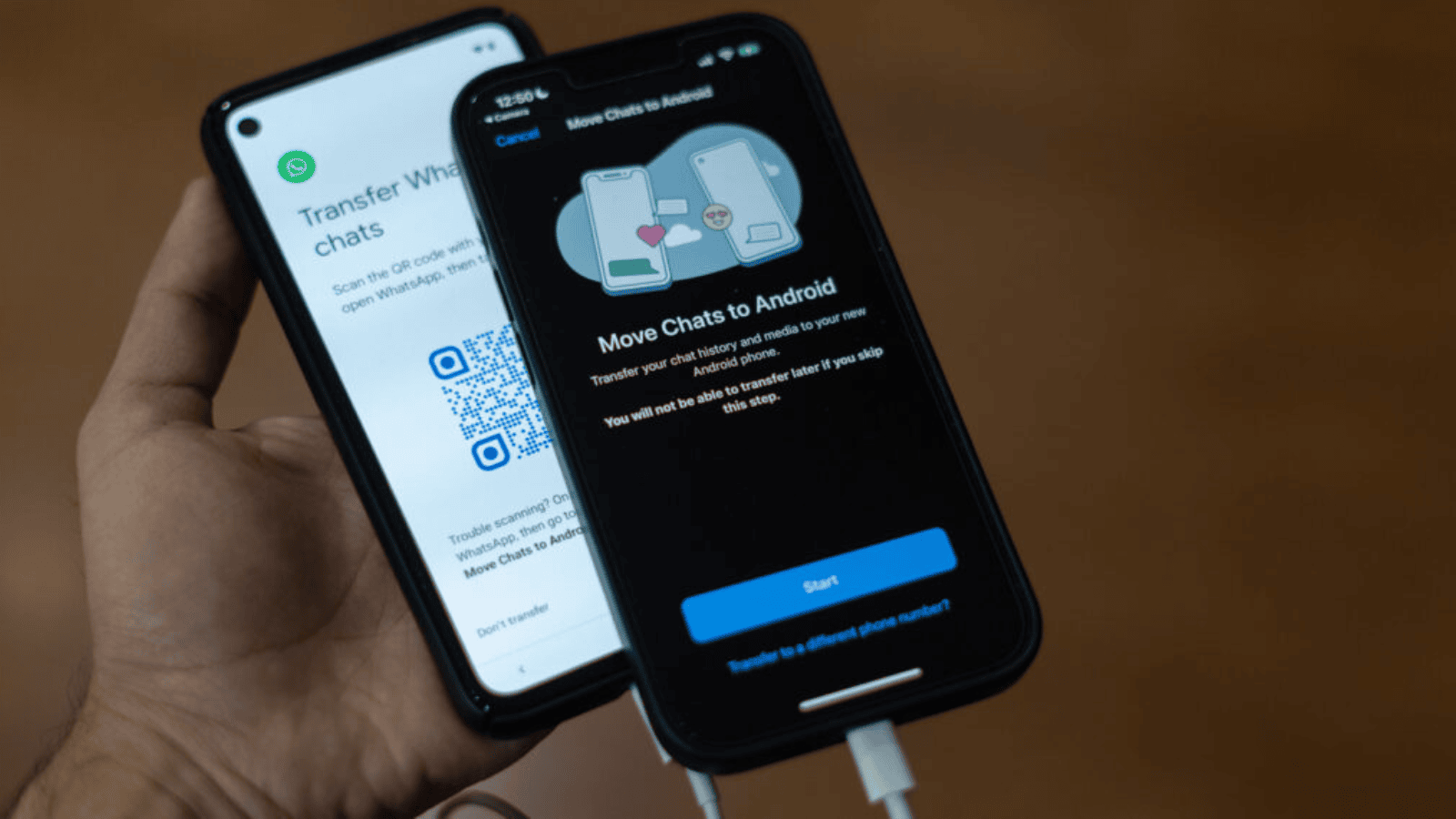
Step 1: Open WhatsApp QR code scanner on your old phone
This method allows you to transfer WhatsApp between devices running on the same operating system via a QR code using a local Wi-Fi connection. This feature provides users with a user-friendly and seamless experience for migrating chat history and other data between devices.
The steps are the same for both platforms, and this tutorial uses an Android smartphone. So here’s how it works:
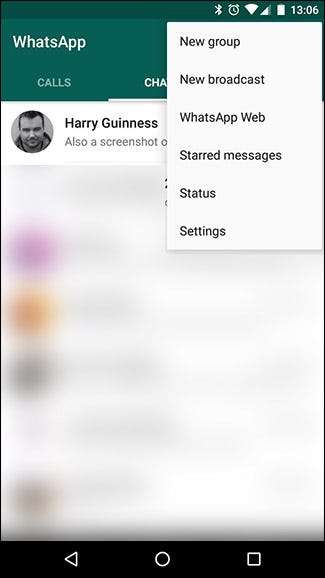
1. Open WhatsApp and tap the three-dot button in the top right corner.
2. Find and tap the Settings option in the drop-down menu, followed by the Chat option.
3. Then tap on the “Transfer Chat” option. A welcome screen will appear and you will need to tap on the Start button.
4. Next, agree to both nearby Wi-Fi and location permissions if requested by your mobile.
5. A QR code scanner screen will appear asking you to start the setup process on your new phone. 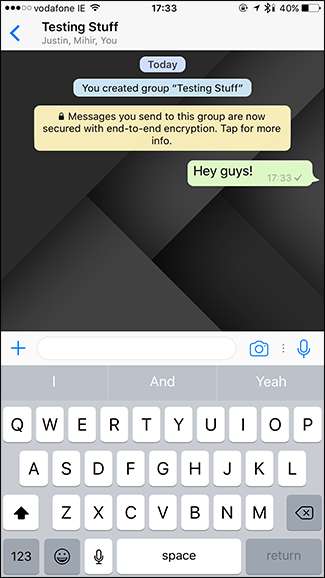
Step 2: Transfer WhatsApp chats from old phone to new phone
Once you reach the QR code scanner screen on your old phone, set up WhatsApp on your new device. Note that for this method to work, you must first open the “Chat Transfer” QR code scanner on your old phone. Below, we have explained how to transfer WhatsApp chats using QR code.
1. Download WhatsApp (free, Android and iOS ) on your new phone and register it with the same phone number as your old phone.
2. Next, verify your phone number using the 6-digit code you received on your old phone or phone number.
3. The ” Transfer chat history from old phone ” screen will appear, tap the “Continue” button.
4. Now you need to allow Wi-Fi and location access to WhatsApp on your new phone.
5. WhatsApp will generate a QR code that you need to scan using your old phone.
6. Then use your old phone to scan the QR code and accept the invitation to connect your old phone to your new phone.
7. That’s it. WhatsApp data transfer will begin. Please remain on the transfer screen until the transfer process is complete.
8. Once the transfer process is complete, tap the Next button to start using WhatsApp on your new phone.
That’s it. Here’s how to transfer WhatsApp chats without backup using the new QR code-based method. This method works very well, but keep in mind that backing up your chats is always a good idea and will come in handy in case your phone is lost or stolen. Also, check out how to transfer WhatsApp chats from Android to iPhone.


![How to set up a Raspberry Pi web server in 2021 [Guide]](https://i0.wp.com/pcmanabu.com/wp-content/uploads/2019/10/web-server-02-309x198.png?w=1200&resize=1200,0&ssl=1)


