Of all the major sandbox games available on the market, Roblox takes the update cycle the most seriously. In some cases, you won’t even be able to launch the gaming experience without installing the latest version. While it may be easy to update your game on other platforms, this may not be the case for users running Windows or macOS.
Not all platforms have app stores. Updating Roblox is just a click away. Fortunately, we can guide you through this. In this guide, you’ll learn how to update Roblox on your Windows PC or Mac without any hassle. 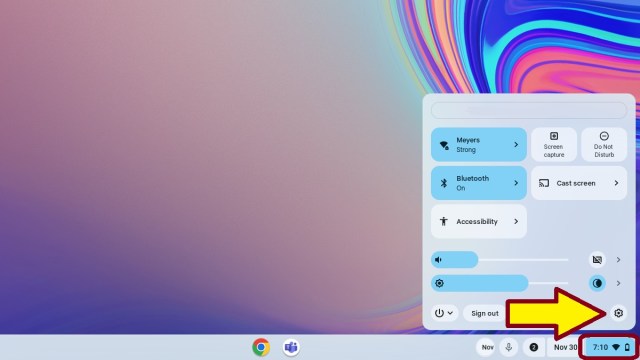
Why do I need to update Roblox?
For most Roblox experiences, you have no choice but to keep the platform updated to open them. However, there are other benefits to keeping Roblox up to date, including:
- New Features: Roblox regularly releases updates with new gameplay, characters, and performance features. For players with special needs, the update improves accessibility features and makes the game playable for most people.
- Bug fixes: Keeping your game up to date will reduce the frequency of developer-side bugs and ensure you enjoy an error-free experience.
- Security: Updates typically come with important security patches to protect you and your data on Roblox servers.
Update Roblox on Mac and MacBook
If you want to play Roblox using a macOS device, follow the steps below.
1. First, launch your browser and visit the official Roblox website ( see here ). Next, log into your Roblox profile. The website will automatically redirect you to a login/signup page unless you are already logged in.
2. After logging in, open any Roblox experience page from your home page.
3. Next, click the Play button to launch your Roblox experience.
4. Your browser will ask for permission to launch Roblox on your system. Click the “Allow” button to continue.
5. Finally, Roblox will open and update automatically before launching your chosen experience . This usually takes a few minutes. While you wait for the latest version to be installed, check out our list of the best Roblox shooters. 
Fix errors when updating Roblox on Mac
Unfortunately, trying to update Roblox often also means dealing with some of its various infamous errors. If you’re having trouble updating Roblox on your Mac, there are some easy fixes.
- Check the status of your Roblox servers : If your Roblox servers are down, you won’t be able to update or even play games.
- Uninstall and reinstall Roblox: The surest way to update Roblox is to download the app from scratch. However, before doing so, be sure to delete all files related to the existing version.
- Disable your VPN: A VPN can interfere with the connection between your Roblox server and your system. Disabling it usually solves the problem.
In case none of these hotfixes work, we also have a dedicated guide to fix Roblox not updating on Mac. The linked guide will get you up and running with the game in no time. 
Update Roblox on Windows
Two editions of Roblox are available on Windows. Please update your preferred version using the dedicated section for either version.
Update your Roblox player
Roblox Player is an edition of Roblox that you download as an executable (.exe) file and use as standalone classic software. To update on Windows, follow these steps:
1. First, launch your Windows browser and visit the official Roblox website ( see here ). Next, log into your account .
2. Next, click to open any page in your experience from the home page.
3. Then use the Play button to open that experience.
4. The browser will try to launch Roblox. Then, click the “Open Roblox” button when prompted.
5. Finally, Roblox will automatically start and update . Now all you have to do is wait for the update to complete.
Update Roblox from Microsoft Store
Follow these steps to update the app edition of Roblox in the Microsoft Store within Windows.
1. First, press the Windows key and search for “ Microsoft Store ”. Then open the app.
2. Next, search for “Roblox” using the search bar at the top.
3. Finally, click the “Update” button on the Roblox store page. The update may take several seconds to several minutes to complete.
Fix errors when updating Roblox on Windows
If you’re having trouble updating Roblox on Windows, you can use the following quick fixes to resolve the issue.
- Reset Internet Settings: You can remove your Internet customizations and allow Roblox direct unrestricted access to your servers.
- Clear the store and Roblox cache: Similar to your smartphone, clearing the cache on the MS Store edition of Roblox will fix most update issues.
- Firewall exceptions: Common causes behind update errors in Roblox often have to do with your firewall or antivirus creating unnecessary blocks. Adding the same exception should resolve the issue.
We also have a dedicated guide that covers how to fix Roblox not updating on Windows. You can find a detailed tutorial to utilize the above fix and other solutions in the linked guide.
Now you’re ready to update and be able to play Roblox on Windows and Mac without any issues. And once the update is complete, we recommend you to try out the best Roblox games with your friends. However, some people may encounter Roblox error 267 right after updating. Fortunately, you need to use the linked guide to fix this. With that said, which is your favorite platform to play Roblox? Let us know in the comments section below.


![How to set up a Raspberry Pi web server in 2021 [Guide]](https://i0.wp.com/pcmanabu.com/wp-content/uploads/2019/10/web-server-02-309x198.png?w=1200&resize=1200,0&ssl=1)


