With over 65 million daily users worldwide, it’s no surprise that Roblox continues to be a popular gaming platform around the world. Roblox is a game building platform that houses games of various genres and roles. Many of these games are action-packed, but some are very simple and calm. However, one thing that is common across the board is Roblox’s 60 FPS limit, which bothers some users. So, today we will show you how to unlock and boost Roblox FPS using a simple unlock tool.
All Roblox games and experiences are locked to 60 FPS, and the app doesn’t have an option to change it. To unlock FPS in Roblox, you need a tool like Roblox FPS Unlocker (also known as rbxfpsunlocker). Simple tools are easy to download as they are not expensive or large in size. Just download Roblox FPS Unlocker ( free ) from the Github directory and extract it to a folder. 
Increase FPS in Roblox using the Unlocker tool
Now that you have downloaded the tool, follow the steps below to learn how to install and use the Roblox FPS Unlocker tool.
- Double-click the downloaded rbxfpsunlocker.exe and grant it the necessary permissions to run it. The FPS unlocker will display a console pop-up and then move to the system tray.
- Next, run Roblox and open your favorite Roblox game. Finally, press the play button to run it. The game will now run at a higher FPS.
Note : Do not close the FPS Unlock app from the system tray. Leave it on until you run a Roblox game for maximum FPS. 
Change FPS cap with Roblox FPS Unlocker Tool
In addition to unlocking FPS in Roblox, you can also limit the unlocked FPS to a specific value or a custom value that you set yourself. There are two ways to limit FPS in the unlocker. Be sure to follow both steps to understand how.
1. Using the system tray
To change the FPS cap from the system tray, you need to follow the steps below.
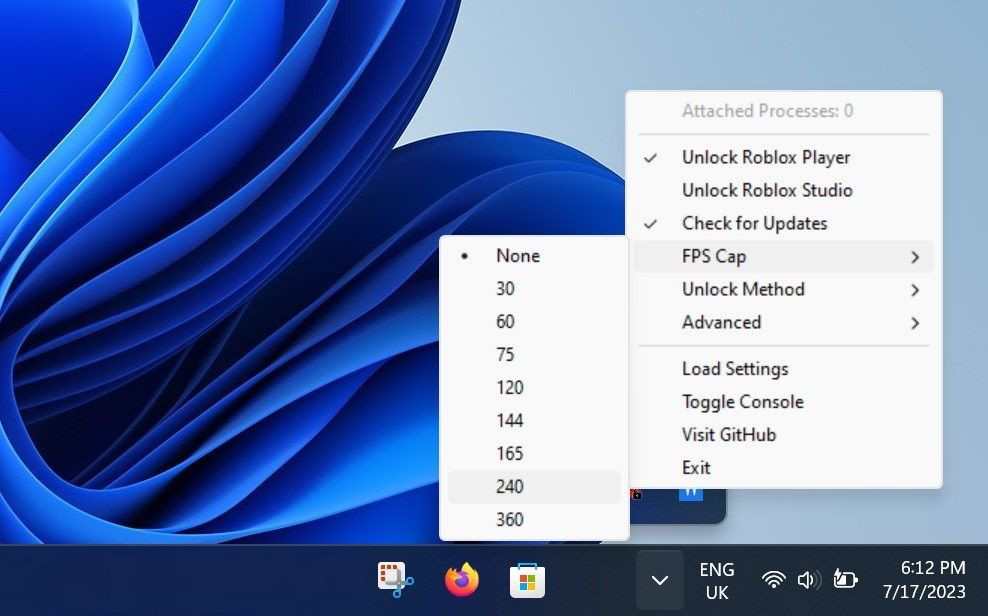
- First, open your system tray and right-click on the unlock tool icon.
- Click it and a menu will pop up. Hover your mouse over the FPS cap and select the desired FPS value.
The game will now run at the FPS you set. Not satisfied with the values provided? Check below for custom FPS settings. 
2. Using configuration files
If you are not satisfied with the FPS values provided in the Unlocker’s FPS Cap menu, you can always use the custom cap settings. Follow the steps below for more information.
- Move to the folder where you unzipped the unlock tool and you will see the configuration file .
- Now, right-click on the file and open it in Notepad .
- Then look for the FPSCapValues option.
- Finally, change the required values and save the file. Do not change the value zero.
- The custom value will now appear in the FPS Cap section of the unlocker’s system tray.
That’s everything you need to know about using the Roblox unlocker. Now you can enjoy the game at maximum graphics settings and FPS. If you have already used this tool or a similar one, please share your experience in the comments below. Now that the FPS has improved, which game will you try first? Blox Fruit or King Legacy? Both are anime-based games on Roblox, so give them a try.
Frequently asked questions (FAQ)
My antivirus shows the unlock tool as malware. Is my PC safe?
According to the official tool developer, it is common for this tool to appear as false positive malware. This means that although the tool is not dangerous, it will be flagged as such by your antivirus and Chrome. However, you don’t have to worry about the dangers, as the developers claim that it is safe and have even gone as far as giving away the code for free for people to inspect.
Can I get banned for using this tool?
While I can’t give you a definitive yes or no answer, I can say that the tool itself is fairly safe to use. Additionally, we have been using this tool for a while and have never had our account banned from Roblox.
Will this tool also increase FPS?
It is important to know that this Roblox unlocker does exactly what its name suggests. Unlock FPS. If your game’s FPS is below 60, it won’t magically improve . To enjoy Roblox’s full potential, you’ll also need a PC that can actually handle it.
I want to watch FPS on Roblox. How can I do that?
Just press Shift + F5 to see your Roblox FPS stats. If you are using a Roblox client, do this by going to View -> Statistics -> Overview.


![How to set up a Raspberry Pi web server in 2021 [Guide]](https://i0.wp.com/pcmanabu.com/wp-content/uploads/2019/10/web-server-02-309x198.png?w=1200&resize=1200,0&ssl=1)


