Google Maps is considered by many to be the most capable mapping and navigation platform due to its myriad features and commuting options. It is also the first choice among users who are looking for a healthy navigation experience and new features on a regular basis. Google Maps regularly offers new features to its users, and the latest addition comes in the form of an on-screen virtual speedometer.
Yes, Google Maps has finally added a speedometer feature so you can keep track of how fast you’re traveling. So let’s take a quick look at how this feature works in practice. 
Enable speedometer in Google Maps
Note : We tested this feature on Google Maps build #10.18.0 on Pixel 3 XL and Nokia 7 Plus and found it to work perfectly fine.
1. Open Google Maps and go to Settings from the hamburger menu.
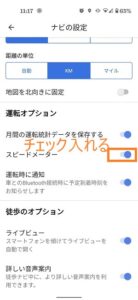
2. Now you need to jump to the “Navigation Settings” option. There you will find the newly added “Speedometer” option at the bottom. Just toggle it to take effect.
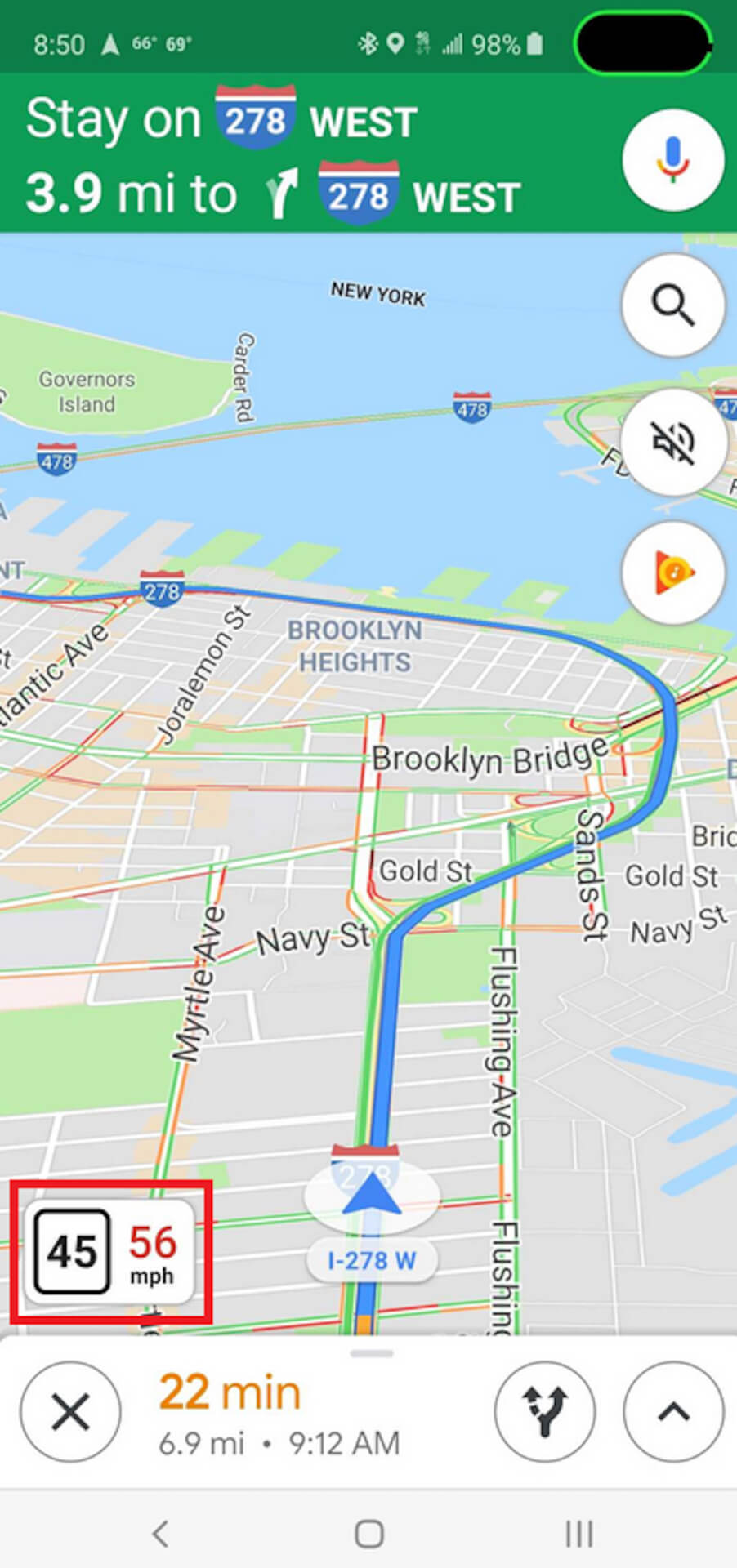
Once you’ve enabled this feature, you’ll notice that Google Maps will start showing a speedometer in the bottom left corner of your display when you choose to travel between two locations.
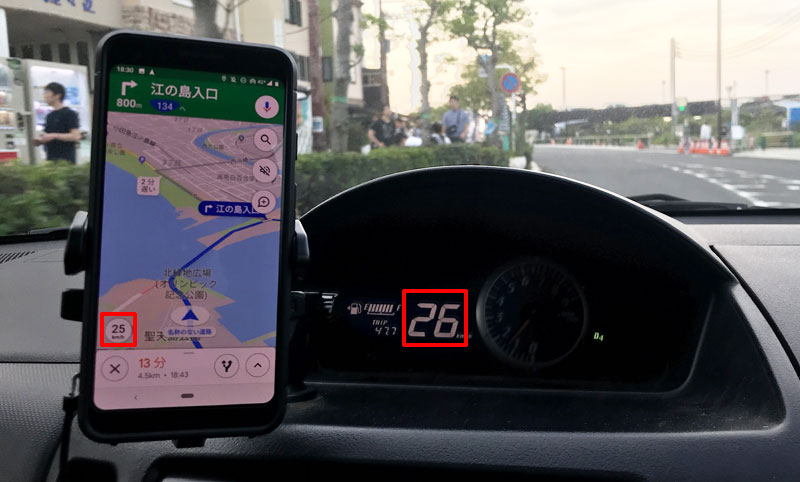
As we did not want to venture into the scorching heat of Delhi to test the new speedometer feature, we cannot vouch for its accuracy compared to our vehicle at this time. However, I took a quick lap around my office to confirm that the feature was working. It’s actually working. You can see that it reaches a speed of 5 km/h.
Once Google Maps rolls out the speed limit feature more widely, the speedometer will be very useful. The app recognizes the speed limit in your location and sends you a warning when you exceed speed. If you exceed the speed limit, you’ll see your speedometer painted yellow and red, which is a very nifty addition.
Related article: Google Maps will soon show public toilets and real-time bus transit information in India 
Control your speed with Google Maps
Well, the addition of a speedometer only further enhances the suite of features already packed into Google Maps. Users have been asking for this feature for years, and now it’s finally here, allowing them to let go of the third-party apps they previously installed to monitor their speed while driving. It has become.
The speedometer feature is currently being rolled out to users around the world in stages and is expected to appear within the next few days if you haven’t already seen it. So, is the speedometer already showing up in Google Maps? Let us know in the comments section below.


![How to set up a Raspberry Pi web server in 2021 [Guide]](https://i0.wp.com/pcmanabu.com/wp-content/uploads/2019/10/web-server-02-309x198.png?w=1200&resize=1200,0&ssl=1)


