Steam Deck has been out for nearly a year and brings PC gaming to the palm of your hand. Steam Deck is a great machine for accessing your game library on the go, but it also has additional features. One of the unique features of Steam Deck is the ability to switch between game mode and desktop mode. Desktop mode provides users with a traditional PC-like experience, allowing them to install new apps, view game files, and more. In this guide, we will explain how to enable and use Desktop Mode in Steam Deck.
This article describes the desktop mode that ships with Steam Deck. The handheld console boots with Valve’s own SteamOS, but also comes with a standalone Linux-based desktop OS. Switching to desktop mode may sound daunting, but the process is very simple. So, let’s get into it right away. 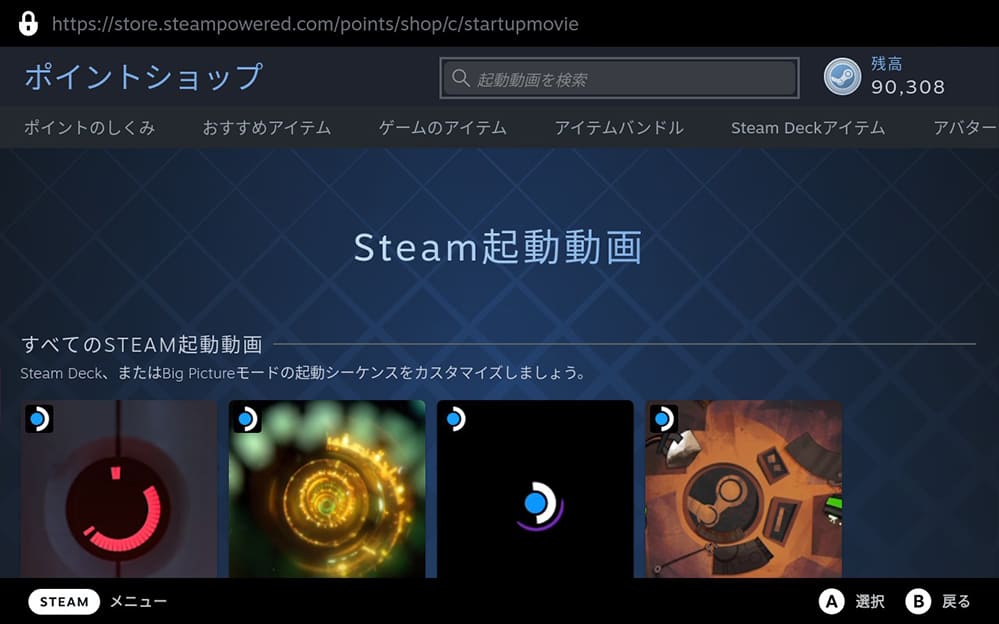
What is Steam Deck’s desktop mode?
Back in August 2021, video game developer, publisher, and digital game distributor Valve officially announced Steam Deck, a handheld gaming PC that can run virtually any Steam game in the palm of a user’s hand. Packed with useful features, gamers quickly learned that Steam Deck can also function as a PC desktop.
Running a fork of Arch-Linux built from the ground up, Steam Deck lets you do almost anything you can do on a typical PC. Although not as intuitive as Windows, Steam Deck’s desktop mode allows you to do everything you expect and more. It allows users to perform office tasks, take quick notes, watch movies, listen to music, browse the Internet, and several other things.
How to enable desktop mode on Steam Deck
Luckily, Valve says you can use Steam Deck as a full-fledged desktop from day one. This ensured that users could access Steam Deck’s desktop mode without any issues. So, here are the steps you need to follow to enable desktop mode:
- Needless to say, you’ll first need to power on Steam Deck. By default, this handheld console boots into SteamOS and Big Picture UI.
- Once started , press the “Steam” button . It’s the button marked “Steam” in the bottom left, just above the speaker. Alternatively, you can use your touchscreen and click on the “Steam” option in the bottom left corner to bring up the menu.
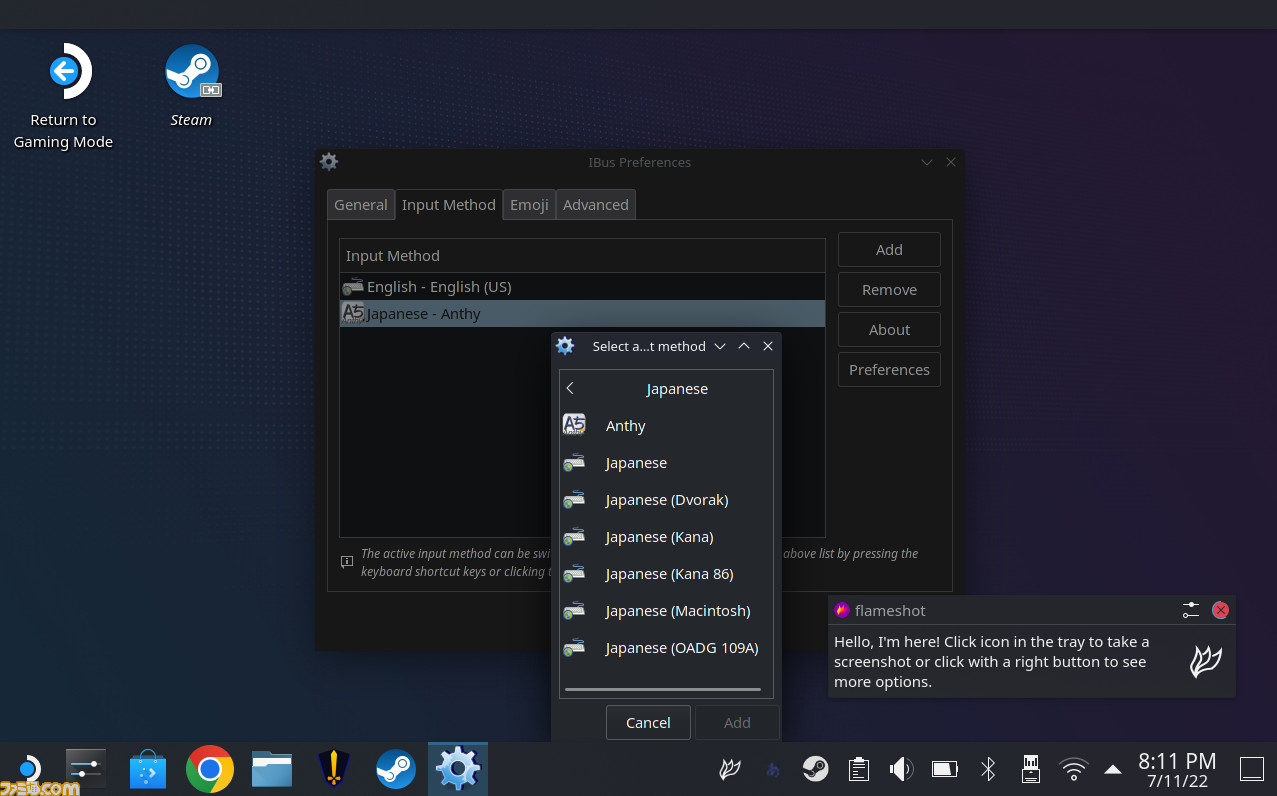
- After pressing the Steam button, go to the “ Power ” option and tap the “A” button. This will open a new pop-up menu.
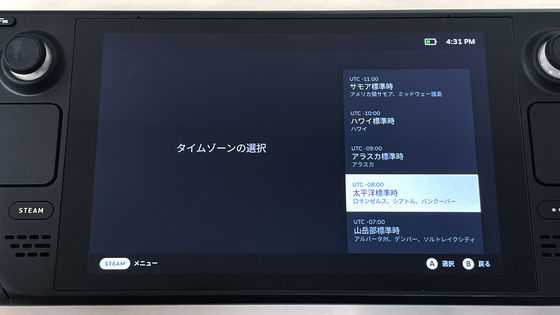
- Under Power Options, select the ” Switch to Desktop ” option. This will turn off SteamOS and switch your Steam deck to desktop mode.
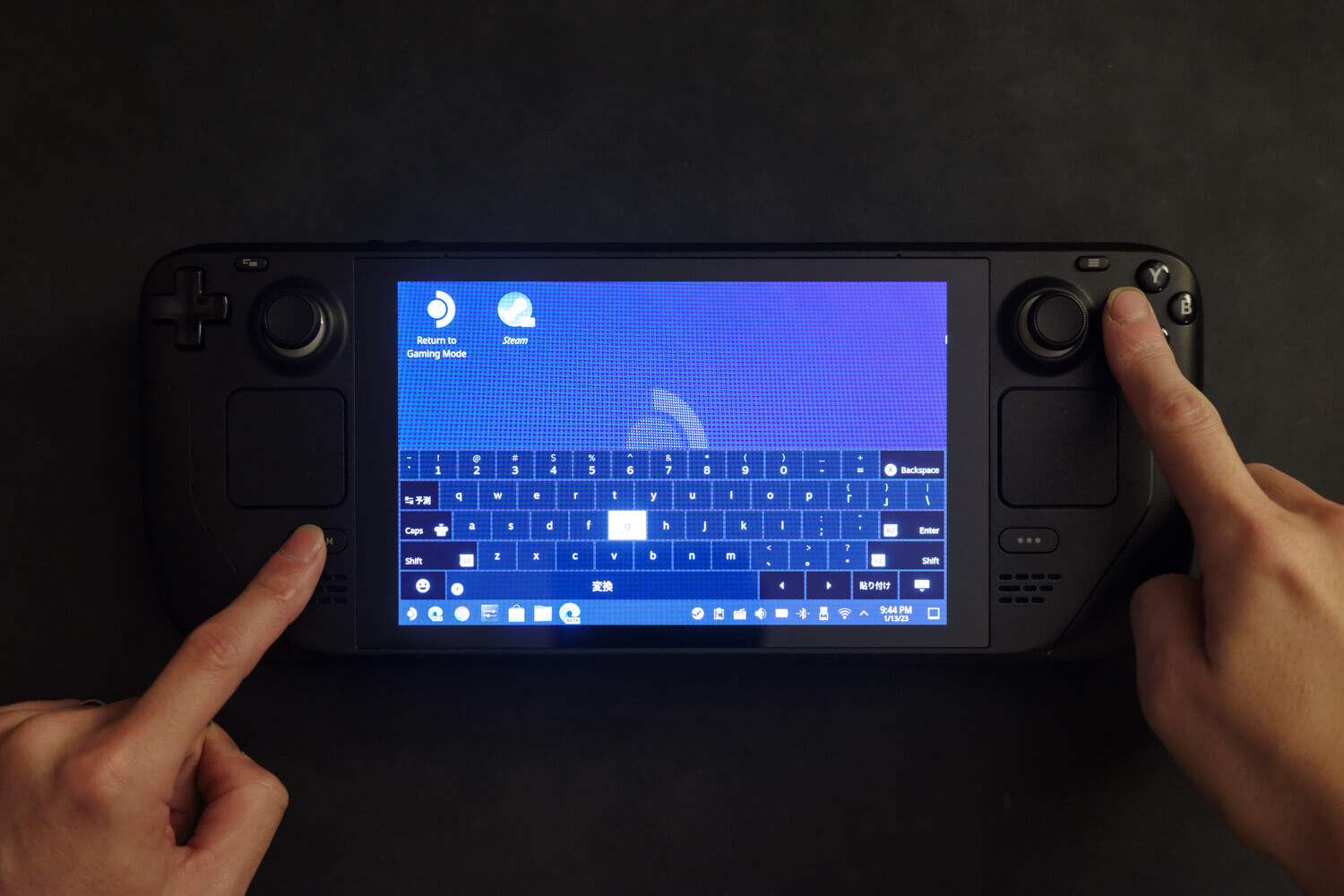
- Desktop mode allows users to use their handheld gaming console like a portable computer. You can use the right trackpad to control the mouse and the left trackpad to scroll. You can also left-click and right-click the trigger button on the Steam deck. Additionally, it launches a virtual keyboard on Steam Deck in desktop mode. Follow the linked guide to learn more about these features.
How to exit desktop mode on Steam Deck
Interestingly, Valve has ensured that switching between game mode and desktop mode is a hassle-free process for users. You don’t have to go through many settings or menus. Luckily, there’s a handy shortcut on your desktop called ” Return to Gaming Mode .” Click this shortcut and wait a few seconds. This will restart your system and return your Steam deck to game mode.
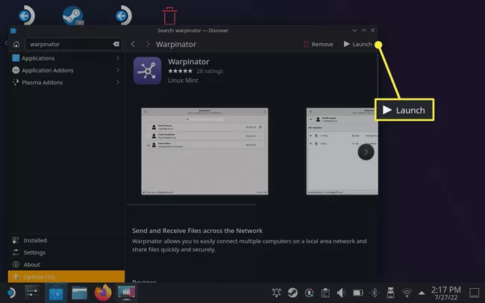
To move the desktop and click the “Return to Game Mode” option, use the right trackpad to hover over the icon and press the R2 bumper twice. This will switch the system to game mode. Alternatively, you can use your touchscreen to double-tap the icon to return to the Steam Deck Big Picture UI.
As you can see, accessing Steam Deck’s desktop mode is a relatively simple process. Follow the above steps exactly to unlock the power of a full-fledged Linux-based desktop OS and run the software on your handheld device. The Steam Deck’s superior hardware specs and unique form factor allow you to easily switch between game and desktop modes. That being said, what do you use Steam Deck’s desktop mode for? What apps have you installed on your handheld device? Let us know in the comments below.
Steam Deck ships with and is optimized for use with Linux, but the system allows you to install Windows for desktop mode. After all, Valve said Steam Deck is a PC and made sure to release all the necessary Windows drivers. However, note that Steam Deck is optimized for Linux, so battery life will be reduced if your system is running only Windows. Fortunately, users can unofficially dual-boot Windows and Linux operating systems with Steam Deck.
As with Windows, files that are accidentally deleted are not permanently deleted. Linux doesn’t have a dedicated Recycle Bin on the desktop, but restoring icons is easy. First, open Dolphin File Explorer from your taskbar. Then click on the “ Trash ” option on the left sidebar. Then press the L2 trigger, right-click the file or icon, and select “Restore”. This will return the icon to its original location.


![How to set up a Raspberry Pi web server in 2021 [Guide]](https://i0.wp.com/pcmanabu.com/wp-content/uploads/2019/10/web-server-02-309x198.png?w=1200&resize=1200,0&ssl=1)


