Google Workspace (formerly G Suite), powered by Google Cloud, is ideal for small to enterprise-level businesses that want to communicate, store, collaborate, and manage their solutions.
If you manage your website with shared cPanel hosting, you don’t have to worry about your email because it’s taken care of for you.
However, if you’re hosting in the cloud or VPS, you’ll need to manage your email yourself. Setting up an email server is not a trivial task , so we recommend offloading this to an email solution provider like Google Workspace, Zoho Mail, Rackspace, or Outlook.
A few months ago, I migrated to Google Cloud Platform and started using Google Workspace to send and receive email.
Google Workspace pricing is based on a fraction of users, so if you have one owner and only need one email, the monthly fee will be around $6.
I later learned that the nice thing about Google Workspace is that if you own multiple domains and need similar emails, you can use domain aliases without paying any extra fees .
For example: If you have abc.com, xyz.com, example.com and want emails for all domains like hello@abc.com, hello@xyz.com, hello@example.com.
Domain aliases save you the cost and time of logging into individual email consoles to read/write email.
All emails for each domain are available in a single email login console . For a single user with multiple domains, a domain alias solution seems perfect.
I have 3 domains and thought it would cost me $18 a month (about $6 per domain/user), but thanks to Domain Aliases it doesn’t anymore.
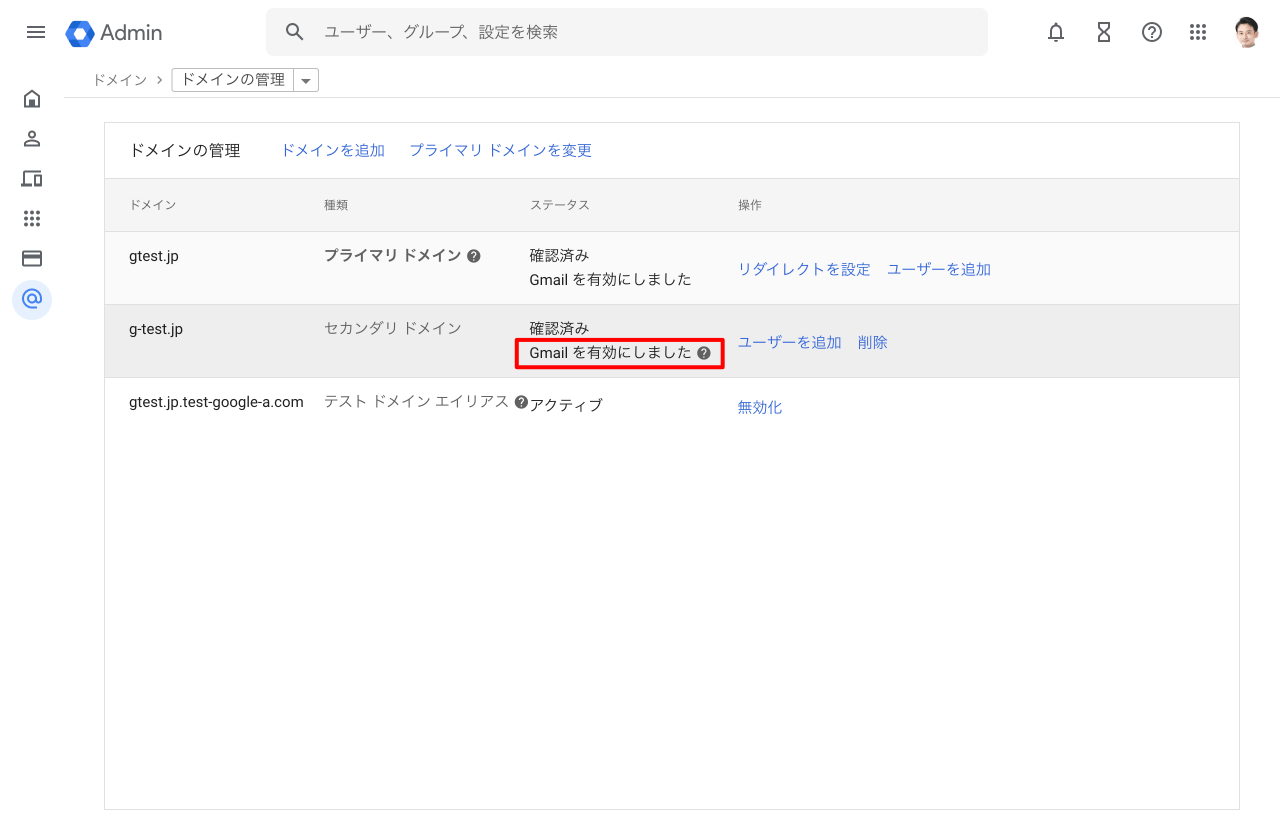
How do I add a domain alias to Google Workspace?
- Log in to the Google Workspace admin console
- Go to Domains >> Manage Domains >> Add Domain Alias.

- A pop-up window will appear allowing you to add domain aliases and verify domain ownership.
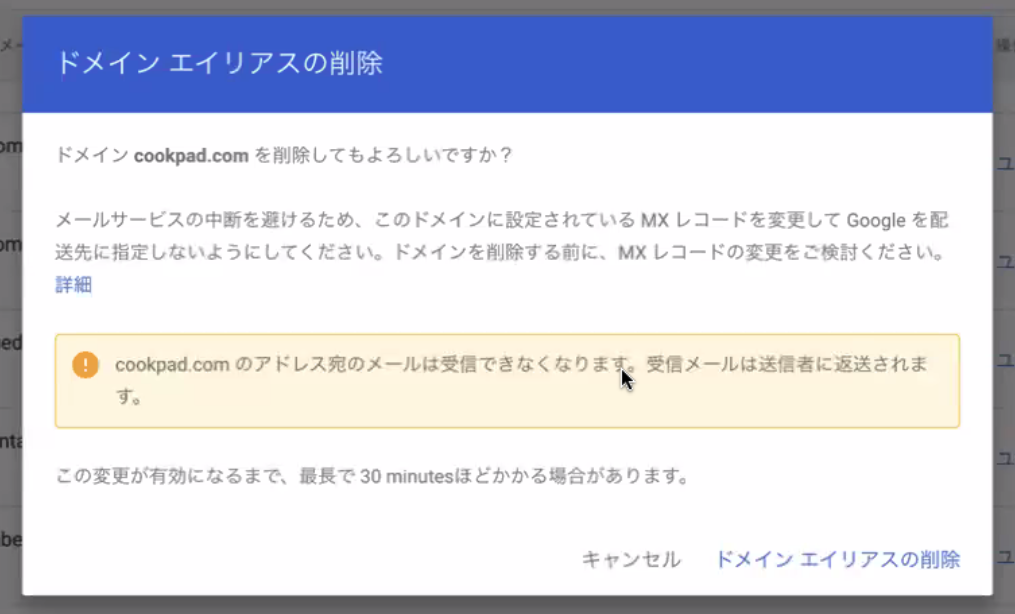
It will take a few seconds. You’ll be asked to verify domain ownership using one of the following methods:
- Add TXT record
- HTML tag
- Upload HTML file
- google analytics
It’s easy to choose one or the other. I prefer adding TXT records because it’s easy.
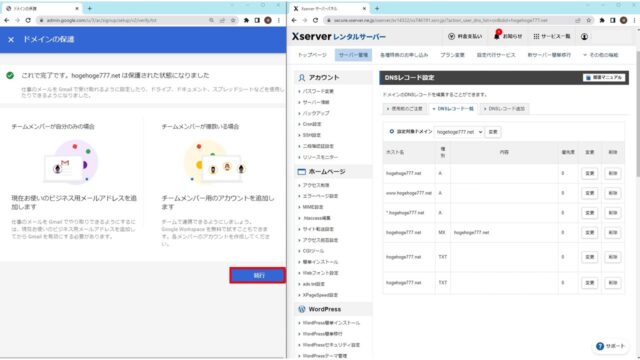
Once verified, you will receive a congratulatory message regarding your success. Click Continue
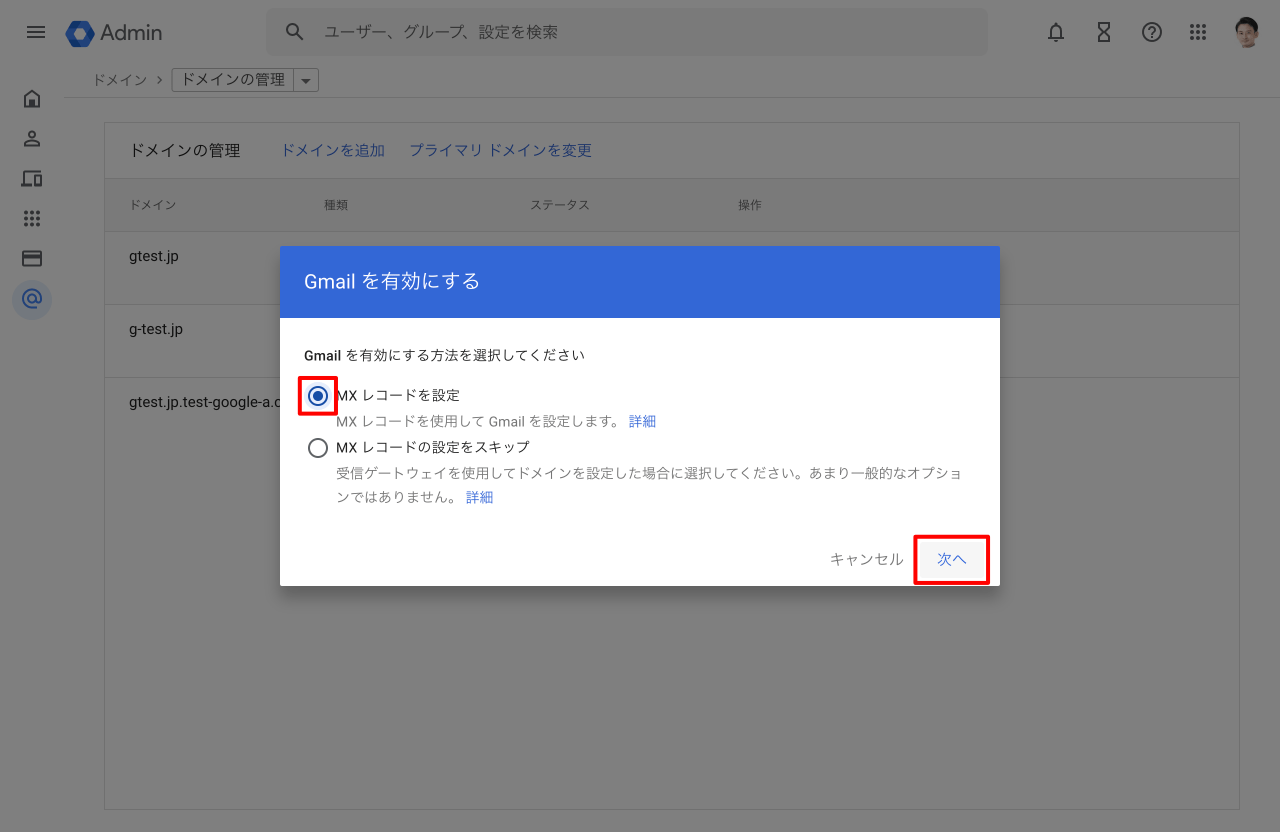
If you go to Domains again from the main menu, you’ll see that your newly added site is verified, but Google recommends adding an MX record.
Click Set up Google MX records and follow the onscreen instructions to add an MX record to your domain registrar.
| MX server address | priority |
|---|---|
| ASPMX.L.GOOGLE.COM. | 1 |
| ALT1.ASPMX.L.GOOGLE.COM. | 5 |
| ALT2.ASPMX.L.GOOGLE.COM. | 5 |
| ASPMX2.GOOGLEMAIL.COM. | 10 |
| ASPMX3.GOOGLEMAIL.COM. | 10 |
Note: Depending on your domain registrar, it may take some time for your MX records to propagate globally.
Well done! Additional domains have been added to Google Workspace as aliases for sending and receiving email.
If you test by sending an email to the newly added domain, you will see that the email is available in the original domain’s email.
How can I send email from an alias domain?
By default, when you add an alias domain, that domain receives email, but if you need to send email from the alias domain, you must configure the following:
- Log in to your original domain email address.
- Click the gear icon in the top right corner and go to settings.
- Go to the Account tab.
- Click Add another email address under Send email to.
Note : When I tried the above, I got the following error, so I’m not sure if it’s just me. Anyway, please correct what I did below in case you understand.
  Functionality not enabled.
You must send through SMTP servers when you send as However, this functionality is not available for your account. Please contact your domain administrator for more information.
How do I fix the “feature not enabled” error?
Assuming you are still logged in to the Google Workspace admin console
- Go to Apps >> Google Workspace >> Gmail >> Advanced settings ( direct link ).
- Scroll down and look for “Allow per-user outbound gateways”.
- Check the checkbox to save the settings
That should work. Try adding your email address again. It should work fine.
That’s it! You can now send and receive email from your alias domain.
I think this is a great feature for people who own multiple domains and are managed by one person . This saves costs and handles all emails in one login/console.
If you haven’t already, try Google Workspace and see how it works. amazing!
Now let’s take a look at how you can turn Gmail into a powerful help desk.


![How to set up a Raspberry Pi web server in 2021 [Guide]](https://i0.wp.com/pcmanabu.com/wp-content/uploads/2019/10/web-server-02-309x198.png?w=1200&resize=1200,0&ssl=1)


