There’s no denying that Google is always focused on improving the photography experience on Pixel smartphones. With the launch of Pixel 8 and 8 Pro, the tech giant takes a groundbreaking step in redefining the way photos are taken using AI. The Pixel 8 series is packed with features, but the Best Take feature is certainly revolutionary, to say the least.
There’s more to this feature than meets the eye, and it will dramatically change the way you capture everyday moments with your phone. At least, that was the case in the three days I spent with the Pixel 8 Pro. Let’s take a look at how to use Best Take on Pixel 8 and 8 Pro and what we think of this feature. 
What is the “Best Take” feature on Pixel 8/8 Pro?
How many times have you taken too many photos with your friends only to end up with a photo you’re happy with? Even if you do settle on a photo, not everyone may be satisfied with the desired result. . However, with Google Photos’ new Best Takes feature, this is no longer the case. Unfortunately, it’s only available for Pixel 8 and Pixel 8 Pro at the moment.
Using AI, the Best Take feature essentially analyzes similar shots and provides you with expressions from each of these photos together. For example, let’s say you’re trying to take a group photo or selfie with one of your friends. The moment you press the shutter button, someone is either looking away or blinking. The photo will be ruined, please try again.
However, with the Google Photos app’s Best Take feature, you can take multiple shots and use the feature later to choose the best possible expression for every person in the shot. This allows you to instantly get the best shot from multiple shots without having to get it right every time.
The best thing? This feature doesn’t just work for group selfies or group photos (do they still call it that, or did Gen Z coin a new word?). You can also use it to take selfies. However, group selfies are usually the hardest to pull off, so you’ll find yourself using this feature a lot for those shots. 
How to use the Best Takes feature on Pixel 8 Pro
What I particularly liked about the Best Take feature was how easy it was to use. You don’t need to be skilled at photo editing to use this. With just a few taps, the AI does it all for you. That being said, here’s how to use the Best Takes feature on the Pixel 8 and 8 Pro.
1. First, take a group selfie or a selfie of yourself .
Note : If you have Google Photos backup turned on, the photos you capture will be automatically uploaded to your Google Photos account. If it’s not turned on, you can go to your Google Photos settings and manually toggle the backup feature.
2. Next, go to the Google Photos app on any Pixel 8 series phone.
3. Next, tap any one of the multiple photos you took.
4. Then tap Edit and swipe the bottom panel of Google Photos.
5. Now go to the Tools tab and find the Best Takes feature. Tap on it and the AI will start looking for similar shots.
6. Once the analysis is complete, you will see different facial expressions that you can choose from in the panel.
7. Tap on these faces to see all the expressions from different edited shots. Select the one you like and it will instantly replace the current facial expression or angle in your photo.
8. That’s it. Changes have been made to the photo. However, you can also “save a copy” of the edited image.
Here are some quick before and after photos created using Google Photos’ Best Takes feature on Pixel 8 and 8 Pro.
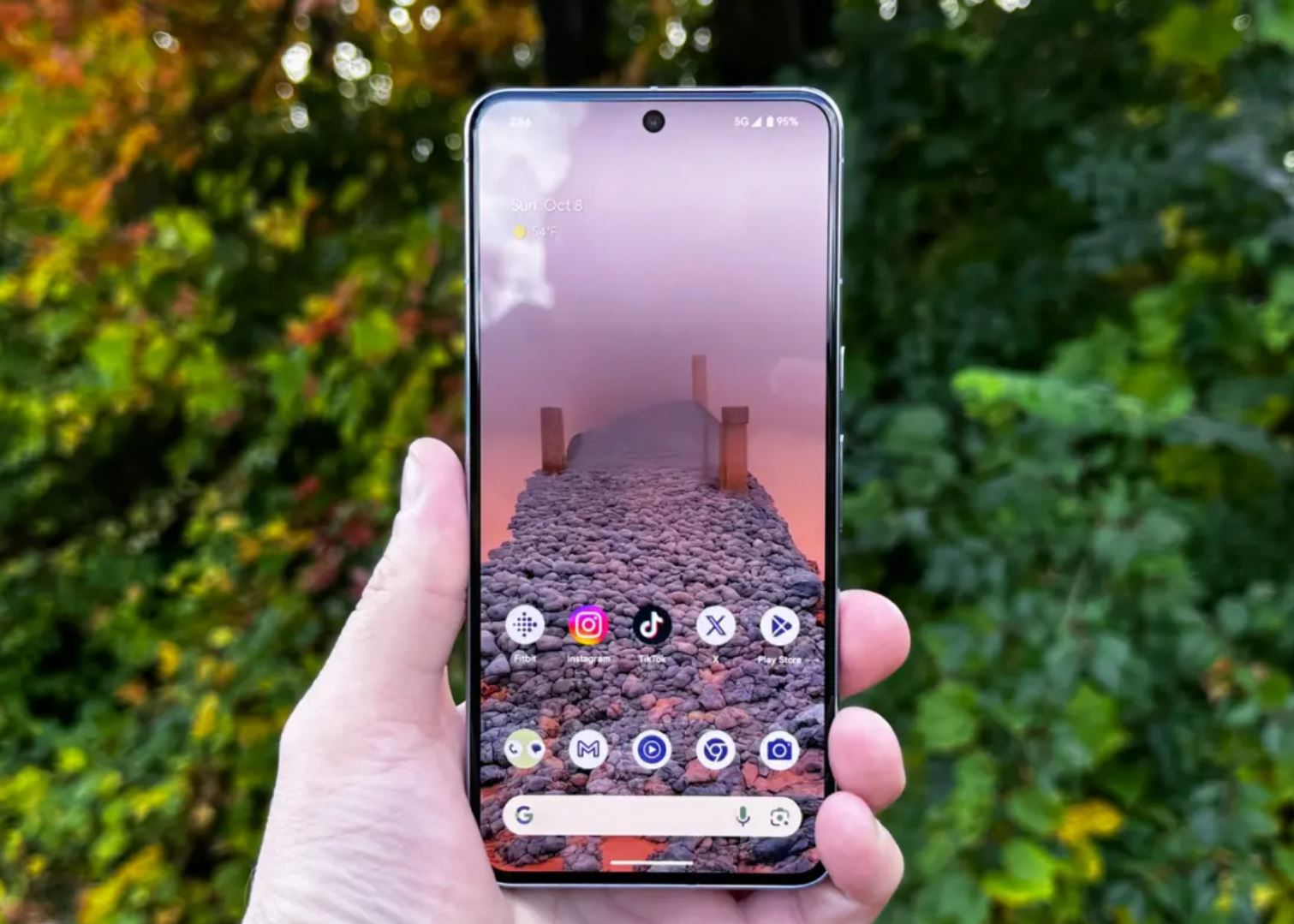
Note: The Best Take feature does not work at the system level. Available only if the shots you’re capturing are backed up and stored in Google Photos. 
Are the best takes on Google Pixel 8 worth the hype?
I’m not going to lie. Best Take is one of the coolest photo editing features added to smartphones in recent years. But it’s actually nothing new. Yes, that’s right. Remember when Nokia Lumias pretty much cornered the entire smartphone market with their flagship cameras? Lumia phones were great (apart from the Windows Store) and way ahead of their time if you ask me.
Almost 10 years ago, with the Nokia Lumia 925 and 1020, Google released something very similar to what the Pixel 8 series is doing now. Plus, it worked. When popular tech enthusiast @sondesix revealed this information on X (formerly Twitter), I instantly had a flashback.
The idea behind Google Pixel 8’s Best Takes feature isn’t new. BlackBerry had a similar idea for changing facial expressions after taking a photo. That was about 11 years ago, and BlackBerry 10 came out. Nokia also had a more advanced version of it… pic.twitter.com/0L7SerzAeS — Alvin (@sondesix) October 7, 2023
I remember how popular these camera features were. At that time, Nokia Lumia was taking the technology world by storm and everyone wanted to own a Nokia Lumia at that time. now? Your Lumia is probably dead and gathering dust in a drawer somewhere. The point is, Google is known for killing products. I mean, there’s a website ( Visit ) dedicated to all the things Google has destroyed. That’s exactly why I couldn’t help but raise my eyebrows when I heard that the Google Pixel 8 and 8 Pro would receive a whopping seven years of software support. Will Google be able to keep its promise?
The Best Take feature is definitely a very nice camera feature that saves you the trouble of finding the right photo. Why would you do that when you can literally create one in seconds? My experience with the Best Take feature in Google Photos was great and I was really surprised. Seeing how accurate this feature is makes me question everything. Will Skynet become a reality soon? It’s such a great feature that you won’t be able to tell that the expression on your photo has been swapped with another photo. Who needs Adobe Photoshop anymore?
But at the end of the day, it comes down to whether and to what extent you plan to use these AI capabilities. After all, Pixel phones aren’t about performance. Instead, we’ve always strived for the best Android experience and unbeatable camera. If that’s what you want, there’s nothing comparable in the current smartphone market. With these phones, you just have to take the plunge. That said, if the latest Google Pixel 8 series and its AI photo editing features appeal to you, let us know in the comments section.


![How to set up a Raspberry Pi web server in 2021 [Guide]](https://i0.wp.com/pcmanabu.com/wp-content/uploads/2019/10/web-server-02-309x198.png?w=1200&resize=1200,0&ssl=1)


