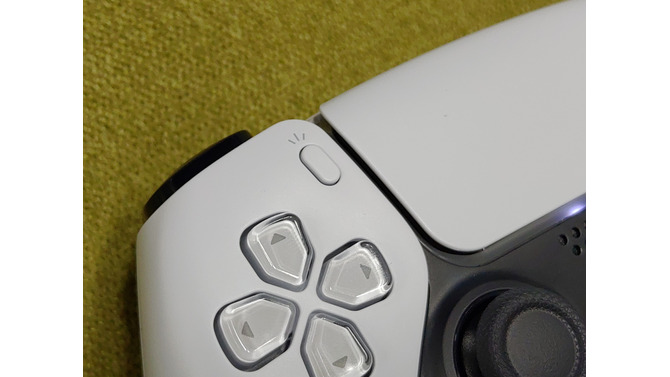
PlayStation 5 features an all-new controller called DualSense. This is an upgrade to the previous generation DualShock 4 controller that shipped with PS4 and PS4 Pro, with a few changes. One thing you’ll notice is that the Share button is now called Create. This button allows you to take screenshots, record clips, and broadcast content. So, if you’re wondering how to start creating gaming media, we’ll show you how to do it using the “Create” button on your PS5 DualSense controller.
How to use the Create DualSense Controller button
There are several things you can do using the Create button on your PS5 controller. Unless you’re a streamer, if you’ve done something cool in a game and want to show off to people, you’ll most likely be using this button to take a screenshot or record a video clip.
No matter your use case, understanding the Create button is an important part of getting used to your new DualSense controller.
This article explains how to use the Create button, how to remap it, and more. As always, you can skip to any section of this article using the table of contents below.
Take a screenshot and record a clip using the Create button
As mentioned above, you’ll most commonly use the “Create” button to take a screenshot or record a clip. Here’s how:
take a screenshot
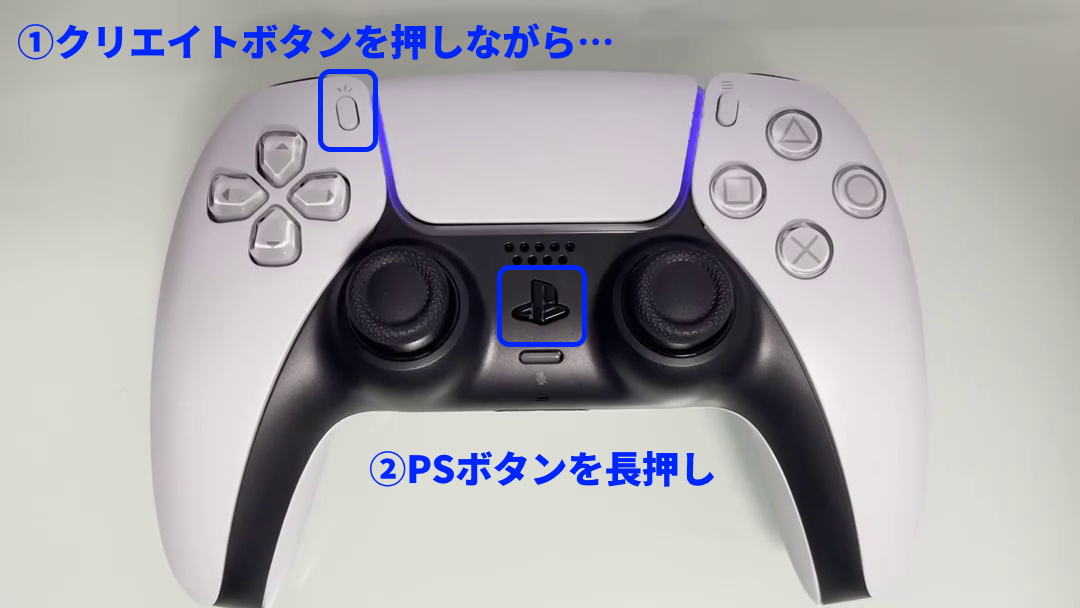
To take a screenshot with your DualSense controller, simply press and hold the “Create” button on your controller. Immediately, you will see a screenshot icon with a checkmark in the top right corner of your screen.
Alternatively, you can press the “Create” button, then select the “Take Screenshot” option and click the screenshot.
Record a clip
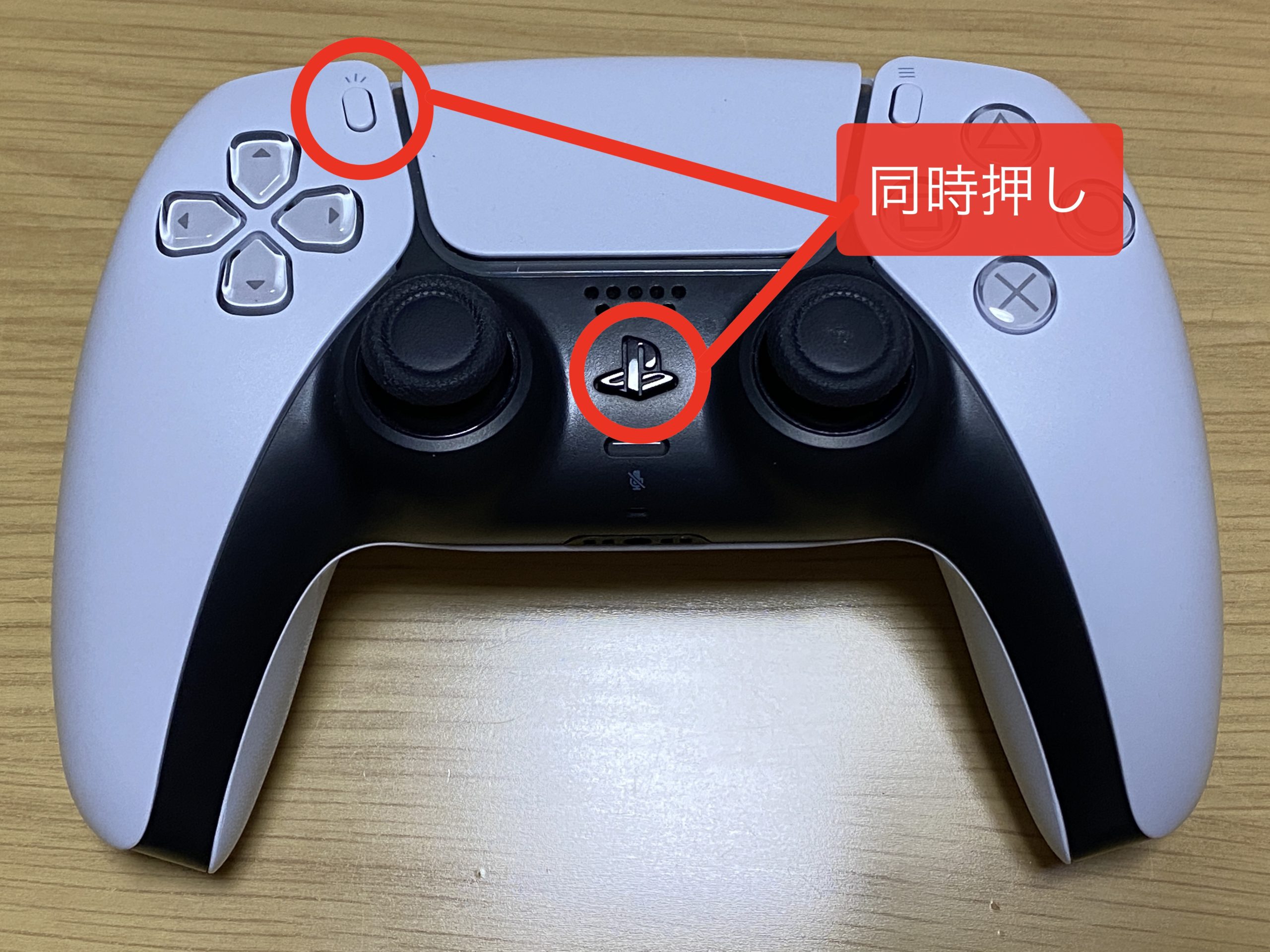
To record a clip of your recent gameplay, simply press the “Create” button twice on your DualSense controller.
Alternatively, you can press the Create button and then select Save Recent Gameplay. By the way, there are also two options for this. You can choose to save short clips ranging from 15 seconds to 30 minutes. Or you can save the entire video (up to 60 minutes).
Change the default clip recording time
If you’re like me, you probably record a video clip by pressing the “Create” button twice on your DualSense controller. In that case, you can adjust the recording time so that the gameplay you want to record is actually saved. Here’s how:
- Go to Settings -> Capture & Broadcast.
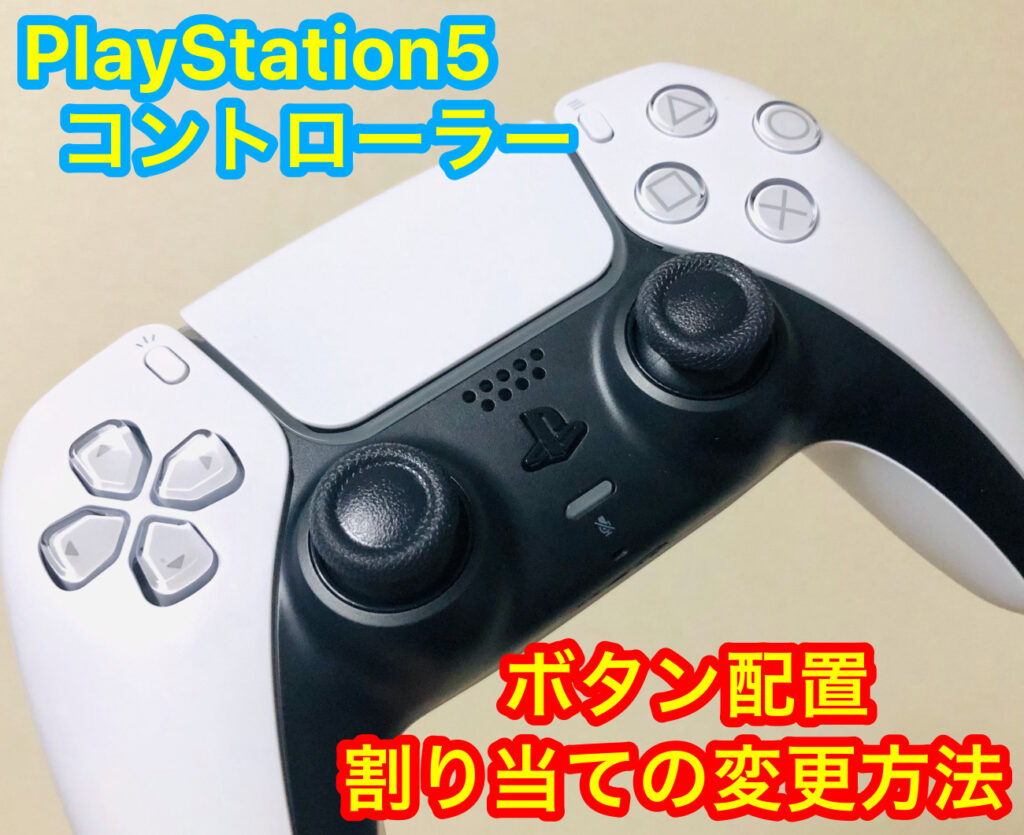
- Here, go to “Create Button Shortcut” in the “Capture” category.

- Select “Recent Gameplay Video Clip Length” and change it to your desired value. You can choose between 15 seconds and 1 hour.

Change the screenshot format
By default, PlayStation 5 captures screenshots in JPEG format. However, you can change the format of your PS5 screenshots very easily if you wish. Please follow the steps below.
- Go to Settings -> Capture & Broadcast.

- Here, select “Screenshot Format” and choose your desired format. You can choose between JPG and PNG.
Broadcast your game using the create button
PS5 also lets you stream your games for everyone to watch. This is perfect if you’re looking to get started with PS5 streaming. Note that PS5 natively supports streaming to Twitch and YouTube.
Just press the “Create” button and the creation menu will appear. Click the Broadcast icon (the one that looks like a broadcast tower on the far right side of the menu).
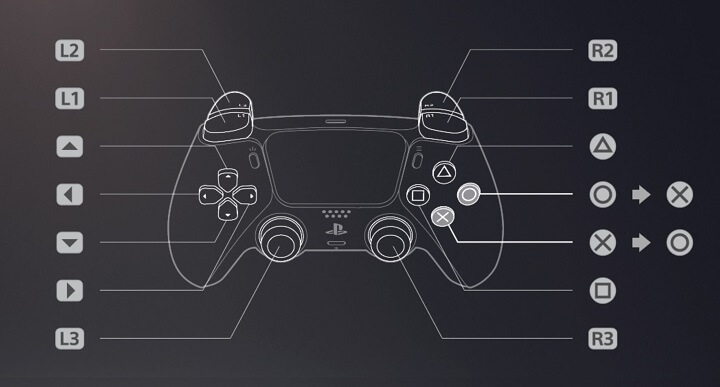
You can then choose between Twitch and YouTube to stream your PS5 games. If you’re doing this for the first time, you’ll need to log in with your Twitch or YouTube account to start streaming on these platforms.
Customize the create button key mapping
In most cases, the default button mapping for the “Create” button works perfectly fine for me. However, if you don’t feel like that and want to change the behavior of the “Create” button on your DualSense controller, you can do that as well.
- Go to Settings -> Capture & Broadcast.
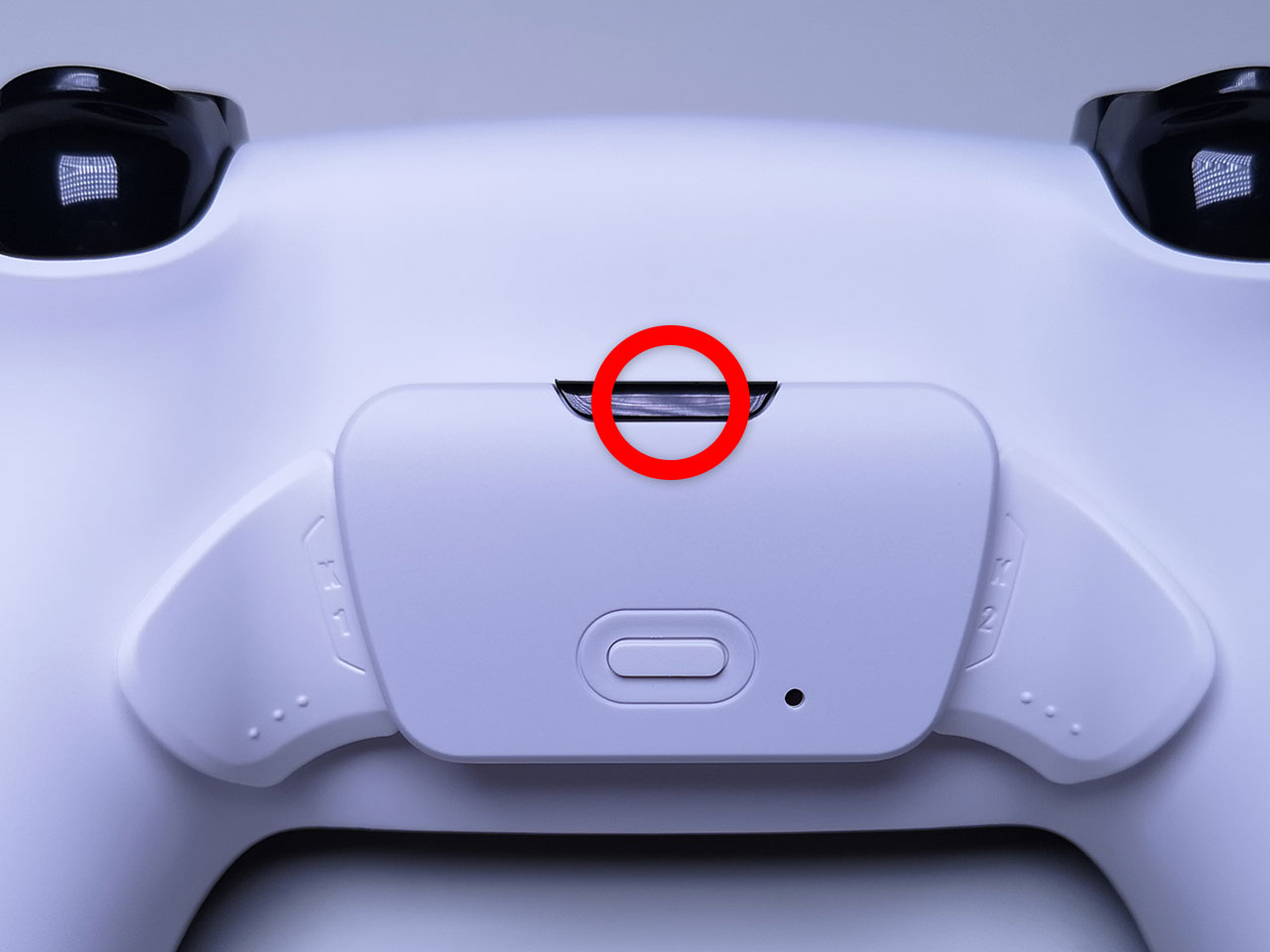
- Here, select “Create Button Shortcut”.
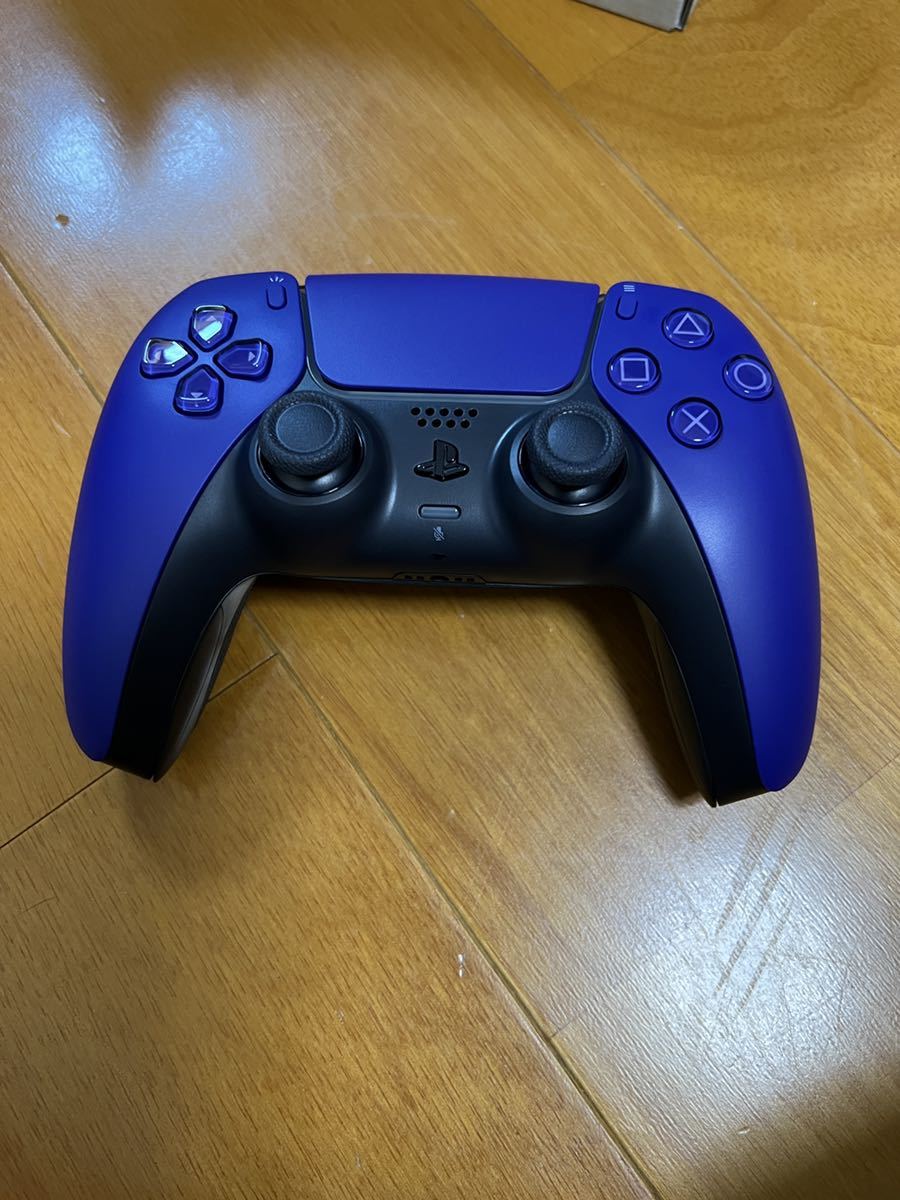
- Select “Button Mapping” and choose between “Standard”, “Simple Screenshot”, or “Simple Video Clip” depending on your preference.
Record video clips and stream PS5 games using the Create button
This is how to use the Create button on the PlayStation 5’s DualSense controller. I personally don’t stream games to viewers, but it’s nice to know this feature is built into the PS5. That said, especially when I do something cool remotely in Call of Duty: Black Ops Cold War, I take a lot of screenshots and video clips of the game to share with my friends.
As you can see from this article, using the “Create” button on the PS5 DualSense controller is very easy. However, if you run into any issues, please let us know in the comments.


![How to set up a Raspberry Pi web server in 2021 [Guide]](https://i0.wp.com/pcmanabu.com/wp-content/uploads/2019/10/web-server-02-309x198.png?w=1200&resize=1200,0&ssl=1)


