Looking for an open source and free SQL manipulation tool for remote and onsite work? You can try MySQL Workbench, the most popular tool on the market.
SQL is the most widely used language for creating and managing databases. There are many tools available for database programming in SQL. Programmers can easily use the command line interface, but you don’t have to be a programmer to create a SQL database using graphical user interface (GUI) tools.
MySQL Workbench is one of the tools used by most SQL administrators, developers, and users. Continue reading for a detailed review of this database tool and its know-how.
What is MySQL Workbench?
MySQL Workbench is a visual database modeling and design tool that allows you to access MySQL databases on remote or on-site servers. Bring ease of use and functionality to your SQL and MySQL development projects. Additionally, this tool provides a graphical interface for working with onsite or remote databases.
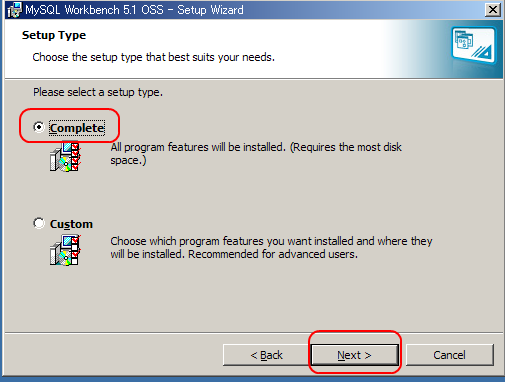
The features you get are comprehensive. However, a common one is designing, writing, developing, maintaining, and managing SQL. Another important feature of this tool is the ability to modify existing supported databases using forward and reverse engineering.
Oracle developed this tool to provide the SQL community with a free, open-source option for database operations. Additionally, anyone can become a database administrator or developer without having detailed programming knowledge. Even non-coders can create and manipulate databases using simple SQL code.
Additionally, when you create a script, the tool automatically displays available SQL commands. Therefore, it also works as a code completion tool. Additionally, MySQL Workbench supports multiple storage engines such as InnoDB, MyISAM, and Blackhole for speed and efficiency.
What are the benefits of MySQL Workbench?
Relational database management systems (RDBMS) are abundant on the market. However, both those who write SQL code and those who don’t write SQL code choose MySQL Workbench over other tools for many reasons, including:
excellent performance
Oracle’s clean programming code and simple user interface (UI) make this DBMS tool much faster than competitors such as Microsoft SQL Server and Microsoft Access.
Multiple storage engines
This tool supports multiple storage engines as well as MySQL databases. Therefore, you can configure your project to use multiple storage engines depending on your tables and data types. The end result is faster database maintenance and operations.
Cross-platform support
Another great thing is that you can use this tool on almost any computer device, including Windows, Linux, and macOS. The tool also automatically configures network connectivity on the backend. Therefore, there is no need to perform any network configuration.
cost efficient
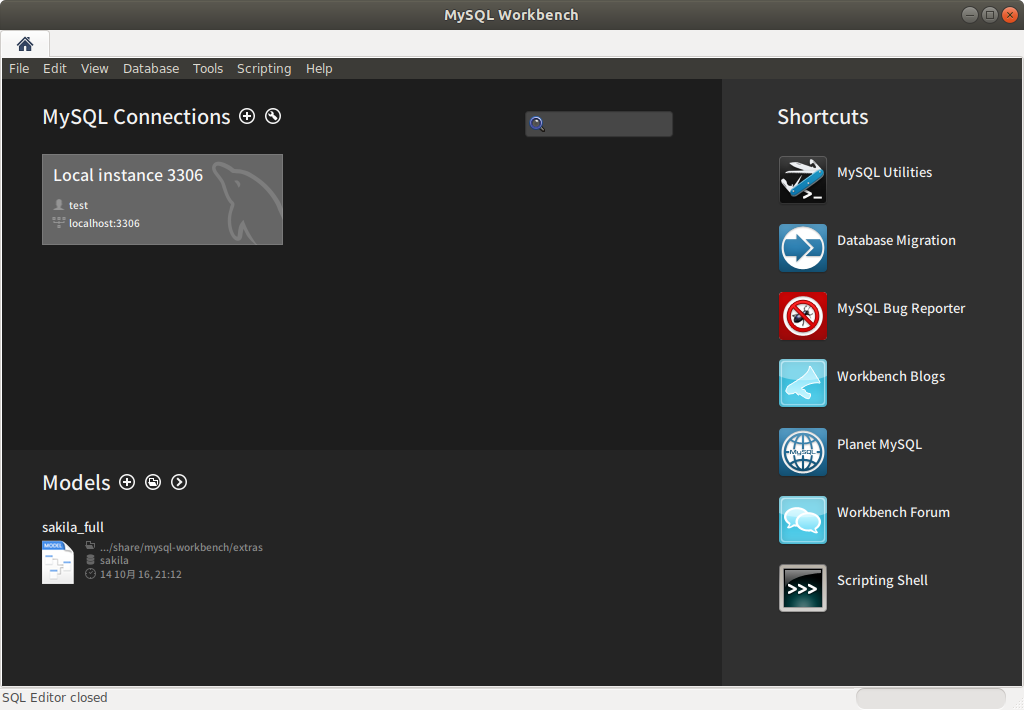
You are free to use the Community Edition for training and educational purposes. On the other hand, the commercial version is available at an affordable price even for competitors.
Graphical User Interface (GUI)
Finally, the biggest draw is the complete visual interface. The SQL editing and coding interface also includes automated syntax suggestions. Therefore, you can learn and use MySQL databases quickly, even if you are not a programmer.
How to get MySQL Workbench for PC
The developer of this tool is Oracle, a well-known technology, cloud, and business software giant. Oracle has made this software readily available on various operating systems to promote the MySQL RDBMS. Find the OS requirements and respective download links below.
For Windows
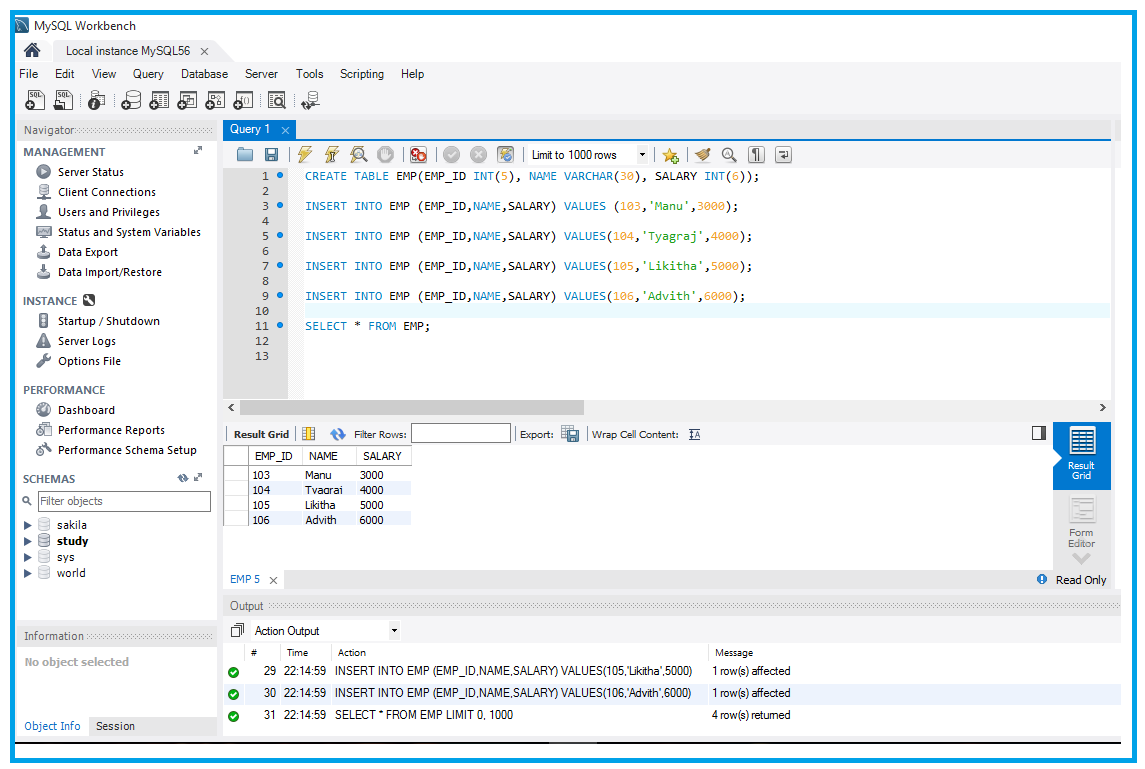
This app is compatible with Windows XP SP3, Windows Vista, Windows 7, 8, 10, and 11 versions. Go to the Oracle download page and select Microsoft Windows to get the standalone installation package.
For macOS
Apple computers require Mac OS X 10.6.1 or a later operating system to run the software. After accessing the download link above, select the macOS option to locate the DMG archive for further installation process.
For Linux
MySQL Workbench is compatible with multiple Linux distributions, including Ubuntu, Fedora, and Red Hat Enterprise Linux. You can visit the download portal above and select the appropriate OS to download the RPM or DEB package.
Community vs. retail version
MySQL Workbench is available in three different versions.
- Community version with GPL license
- Standard version with commercial license
- Enterprise version with commercial license
All editions share the following important modules:
- Visual SQL development
- visual database management
- Performance adjustment
- User and session management
- connection management
- object management
- data management
- visual data modeling
- reverse engineering
- forward engineering
- Schema synchronization
- Scripts and plugins
- Database migration
Certain commercial features, such as Enterprise Firewall, Enterprise Backup, Enterprise Audit, and Database Documentation, are not available in the Community edition of MySQL Workbench.
MySQL Workbench features
SQL development tools
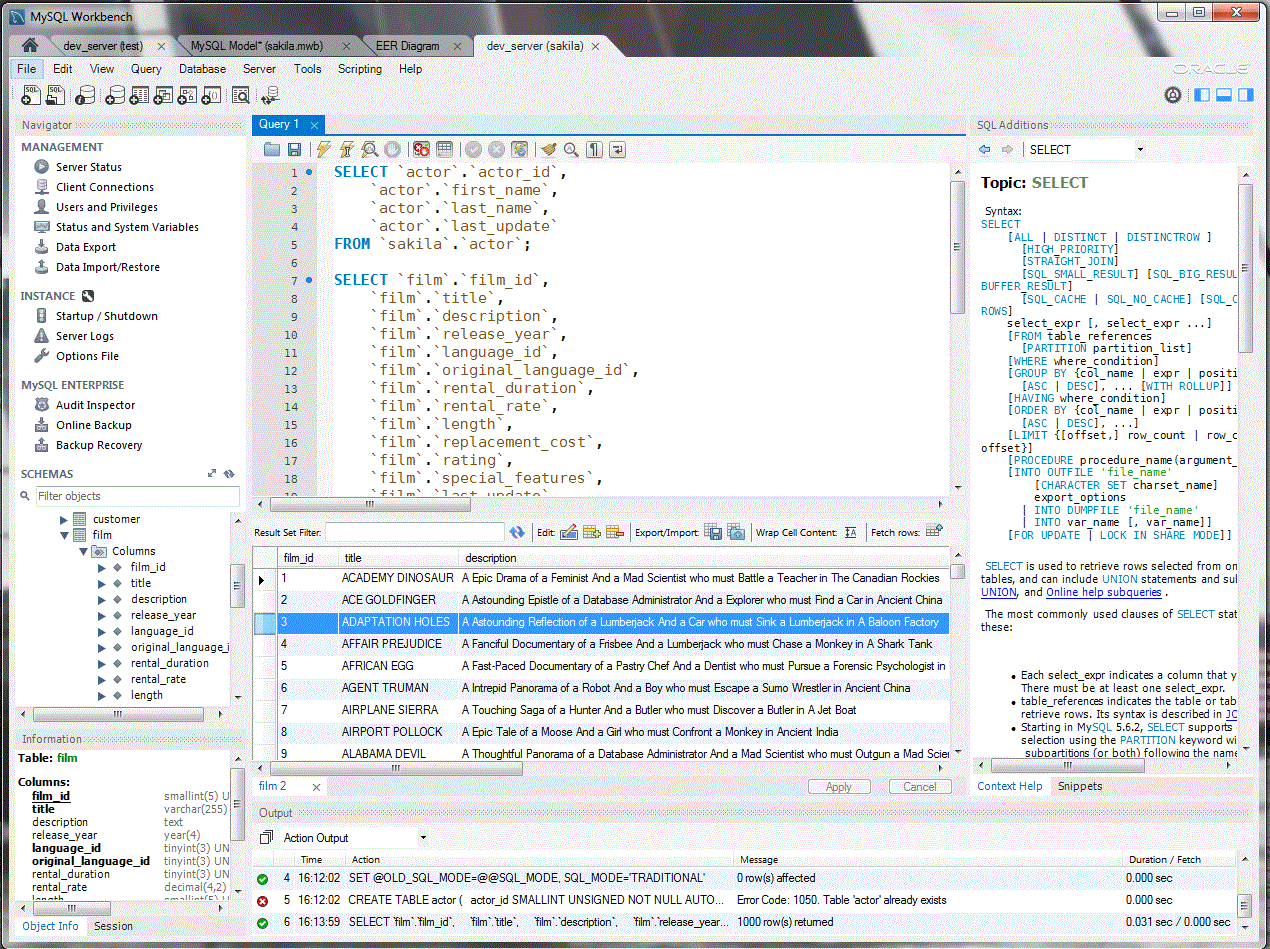
This tool allows you to manage, create, and configure connections. It also makes it easier to manage connection parameters to the database server. Additionally, MySQL Workbench allows you to run SQL queries on your database connections using a built-in SQL editor.
Developer tools also provide:
- Syntax color highlighting
- Reusing SQL snippets
- SQL execution history
Additionally, you can edit, create, and run queries using this DBMS application’s Visual SQL editor. Additionally, there are modern features such as code autocompletion for SQL scripts, effortless SQL code creation, and SQL debugging statements.
Managing database connections
Managing databases with a visual interface is very convenient for both SQL programmers and non-SQL programmers. Key database management features include:
- Create new database connections from remote and onsite SQL databases
- Organize all database connections for your SQL project
- Manage DB connections, update them, delete old connections, and more.
As part of the object management module, we provide an object browser that helps you visually select columns, rows, and tables.
Additionally, managing your data schemas is easy because you can select custom fields, create new schemas, move between schemas, or delete schemas you don’t need.
SQL management tools
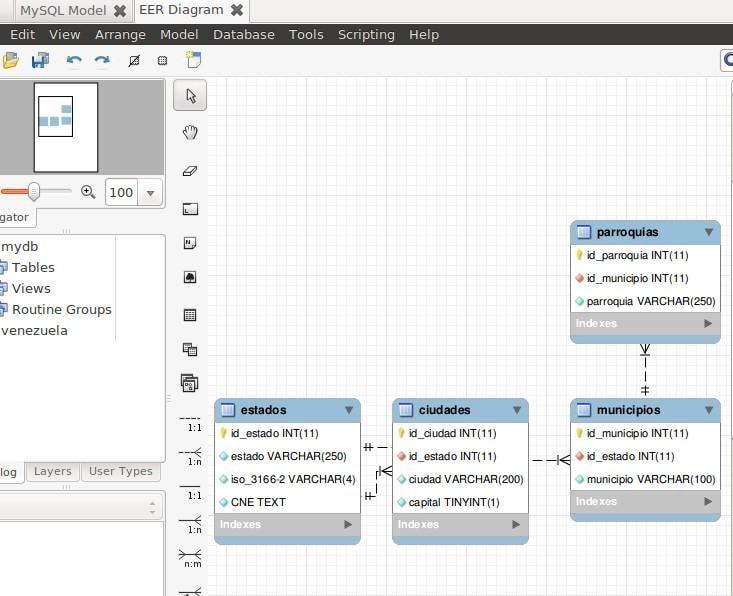
SQL DB management is a high-stakes process for ensuring data compliance and security of your business data. In most cases, this functionality is required in a business environment. The notable features of this module are:
- Audit and review account information for all users on your DB server.
- Create or delete users
- Restrict or unrestrict database access
- Immediate changes to database and global privileges
- Reset DB password
- Examine the history of DB operations
modeling and design tools
Data requirements for research and business purposes are constantly changing. Creating a database that covers all concepts and aspects requires good database design and modeling tools. MySQL Workbench is the application of choice.
Helps predict database requirements. Therefore, you can create a high-performance DB that requires less intervention over time.
Other important modeling features include:
- Manipulating and creating data models
- Reverse engineer the DB to that model
- Forward engineering the data model to the DB
- Create, manage, and edit data tables
- Insert new data into the table
- Create a DB model from imported SQL files
Additionally, the modeling module allows you to convert entity-relationship (ER) diagrams into SQL code and send these codes to SQL server.
visual dashboard tool

This application also helps improve MySQL DB and related projects by providing a visual dashboard of performance. DB administrators and developers can use the following features:
- Hover your mouse over interactive visuals and graphs to see additional details.
- The performance dashboard constantly displays InnoDB metrics, network, and MySQL performance on key servers.
- Get the SYS view of the performance schema.
- Get reports on high-cost SQL statements, InnoDB engine metrics, IO hotspots, wait statistics, and more.
- The Visualize Explain plan graphically shows how your app executes SQL statements within MySQL.
- The query statistics feature helps you discover metrics such as network latency, client timings, index usage, server execution timings, joins, and rows scanned.
Importing and exporting databases
A DBMS allows you to easily import and export data with just a few clicks. Simply go to the object browser and select custom tables for exporting and importing data. Alternatively, you can choose a database schema to achieve the same goal.
Database migration tool
MySQL Workbench has a built-in DB migration tool. Therefore, users can easily migrate from other DBMS environments such as MS Access, MS SQL Server, and SQLite. The modules of the migration tool are:
- Managing migration projects
- Database migration
- Object migration
- Select source and target
- Version upgrade
Additionally, you can configure, schedule, and edit migration plans to run the entire migration process from this one app.
Configuring the database server
Database administrators, developers, and users can use this DBMS application to fine-tune MySQL servers. This tool allows you to edit or view advanced server parameters. This is also useful if you need to troubleshoot your database. For example, you can review server logs, instantly identify problems, and know what changes to make to resolve them.
How to use MySQL Workbench
Installing the application
#1.Go to the download portal and download the latest copy of MySQL Workbench for Windows.
#2. Once the software installation package has finished downloading, move it to the download folder on your Windows PC.
#3. You should find the MySQL Workbench MSI installer. Double-click the installer to start the setup process.
#4. Click Next and select the installation location on your Windows computer.
#5.Select Finish on the next screen, then select Next.
#6.The setup wizard will now show you the final selection list. Click the Install button to start the setup process.
#7. When the installation is complete, click Finish to close the installer. MySQL Workbench will run automatically for the first time.
become familiar with the tools
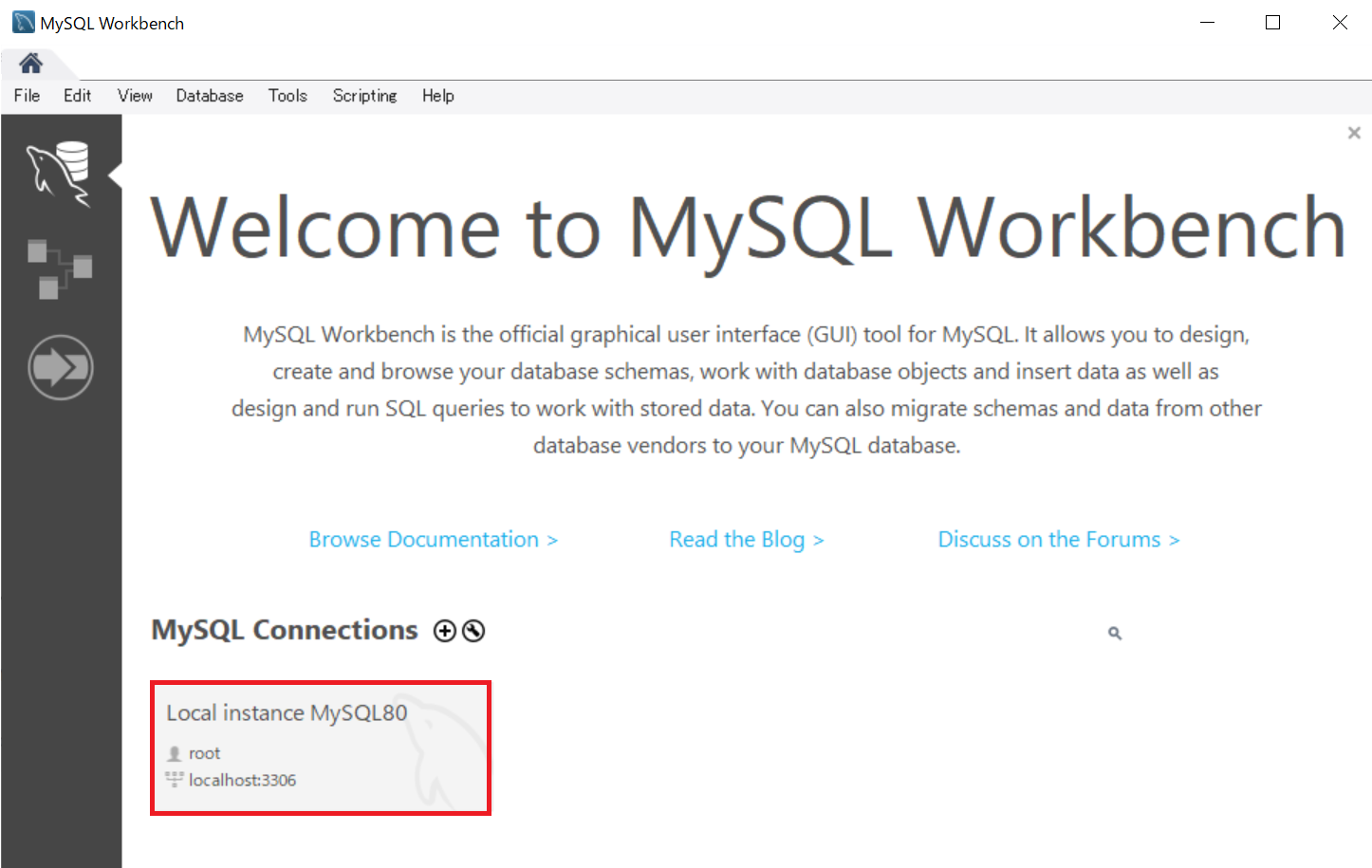
The Community edition includes three simple sections: MySQL Connections, Models, and Migration.
#1. MySQL connection
This section displays two icons: a plus sign inside a circle (set up a new connection) and a wrench (manage server connections).
You can add a new SQL server connection using the (+) sign. Conversely, you can click the wrench icon to access a list of DB server connections and their default server communication settings. Interestingly, you can also add new connections from the Manage Server Connections screen.
#2.Model
The Model section displays three icons and their typical functions:
- The (+) icon opens the MySQL Model Editor.
- The small folder inside the circular icon allows you to import .mwb files from your local computer.
- The forward-facing arrow inside a circle allows you to reverse engineer a database or script.
#3.Immigration

Selecting this option opens the migration task list. This screen shows all the steps to migrate your database to MySQL Workbench.
Step-by-step process to connect to a database
An important feature of this DBMS tool is that you can connect a remote MySQL or SQL DB to the tool and perform DB queries, modifications, maintenance, etc.
Prerequisites
Before you connect your database to Workbench, you need information about your DB. You can connect to any MySQL DB, but importing a DB from your website’s CPanel is the most common task.
Once you are logged in to your website’s CPanel, go to the “Remote MySQL” section and add your computer’s IP address in the “Add Access Host” field.
From CPanel itself, you can also see the DB server address, port number, DB username, and password. These are the data you need to feed into the MySQL Workbench tool.
You can now try the following steps to connect your own MySQL DB to Workbench.
#1. Click the (+) icon to open the new connection setup wizard.
#2. Enter a connection name so you can organize your DB connections.
#3. Select Standard (TCP/IP) in the Connection Method field.
#4. On the Parameters tab, enter the hostname of your DB server. In this case, the IP address of the CPanel MySQL DB.
#5. In the Port field, enter the port number obtained from CPanel.
#6. Enter your DB username in the Username field.
#7. Now click on “Store in Vault” and enter your DB password.
#8. Click Test Connection to establish the MySQL DB connection.
conclusion
So far, we’ve detailed the MySQL Workbench tools for managing, creating, and working with SQL databases.
You can now install the application on compatible devices, learn tools, and perform database training. Additionally, you can get MySQL Workbench SE or EE for business purposes.
You might want to know some great resources for learning SQL and NoSQL.


![How to set up a Raspberry Pi web server in 2021 [Guide]](https://i0.wp.com/pcmanabu.com/wp-content/uploads/2019/10/web-server-02-309x198.png?w=1200&resize=1200,0&ssl=1)


