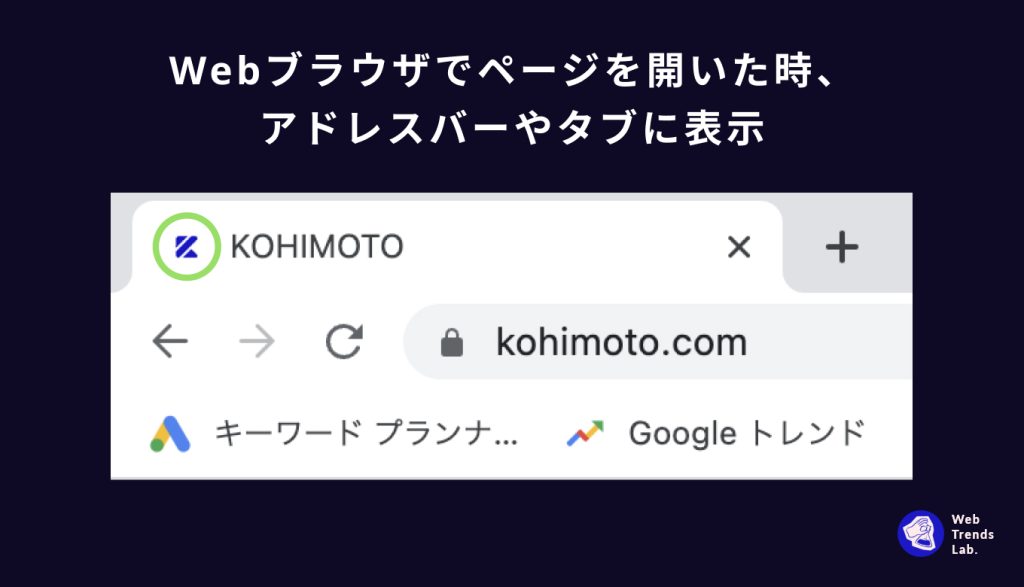
A favicon is a small icon that appears alongside your website’s title on your browser. Learn how to create a favicon for your website.
Often the little things make a big difference, not only in business but in general.
Just like branding, I believe it’s the little things that make a great impression in front of potential customers. One such element is the favicon.
What is a favicon?
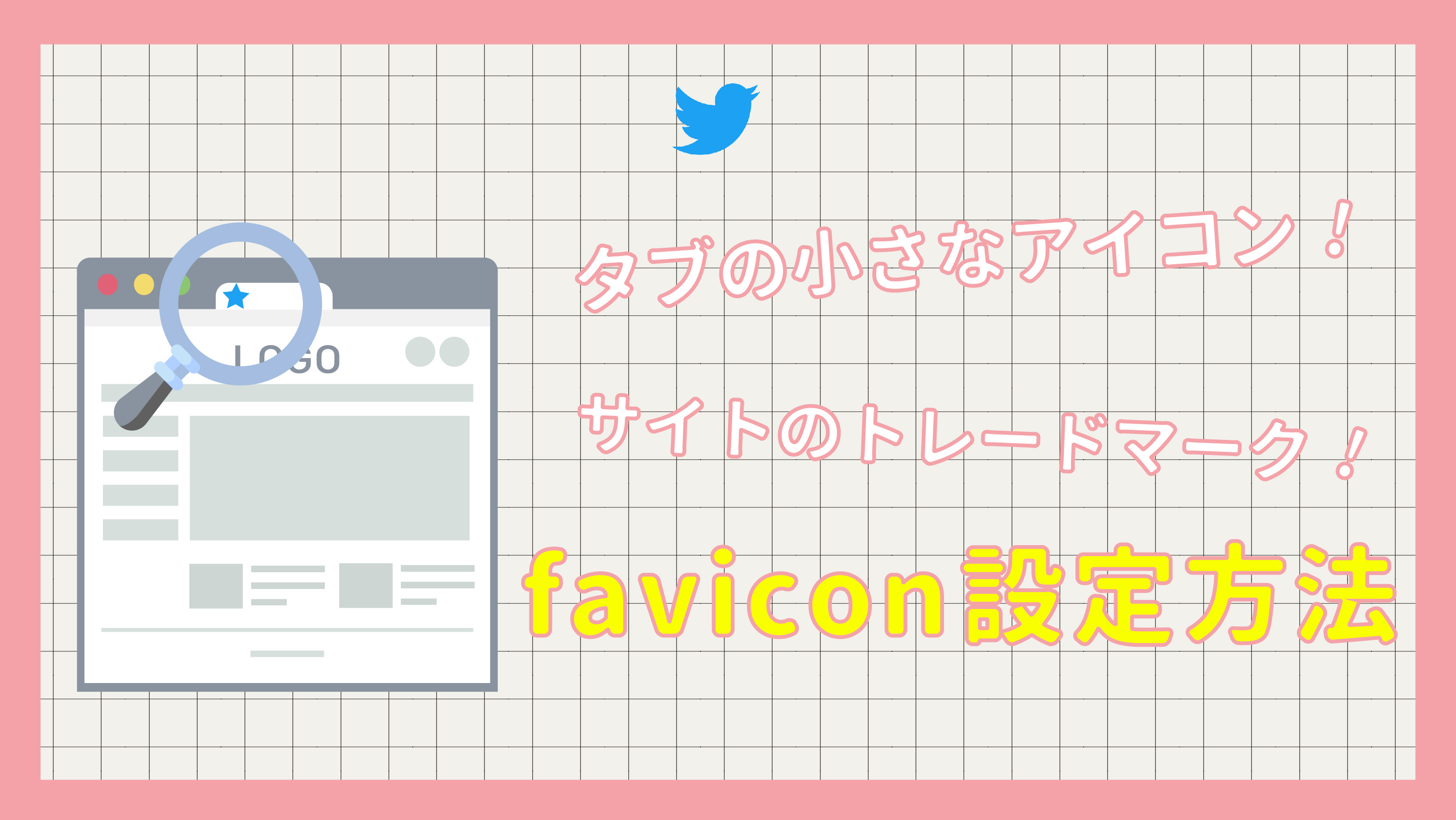
A favicon is a small 16 x 16 pixel icon that is pasted next to a website’s title on a browser tab.
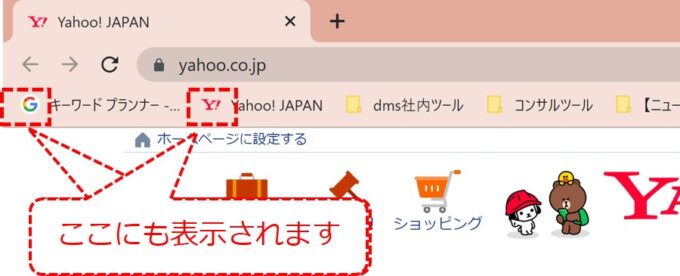
This helps users identify your website from all the tabs they have open. It’s important to note that a favicon is different from a logo, but you’re free to keep the same design for both.
Before you say, “These little things don’t matter,” let me tell you, they most definitely do. It adds legitimacy to your website and helps your brand stand out. Additionally, by letting visitors see that you put effort into your design and branding, you instantly build trust.
If you want to leave a great and lasting impression in front of your users, we recommend setting a favicon on every site.
Now, the real question is “how to create a favicon”. Well, it’s not the most difficult task. At least not with the resources below. These allow you to quickly and easily create your own favicons.
Does favicon affect SEO?
No, these do not directly affect your website’s SEO ranking. Nevertheless, favicons can impact a website’s branding, trust, positive user experience, and engagement. All these factors indirectly contribute to improving SEO.
What are the most common image file formats used for favicons?
- PNG: PNG is often the preferred format for favicons with complex gradients due to its transparency and high quality.
- ICO: This is the most widely supported format for favicons. It also allows the browser to choose the appropriate size and color depth depending on the scenario.
- SVG: SVG is used for favicons to provide scalability without sacrificing quality. Unfortunately, this format is not compatible with all browsers.
How do I create a good favicon?
- Due to its small size, try to use a simple and clear design. Focus on minimalism to avoid clutter.
- The favicon can be 16×16 pixels or 32×32 pixels. Design a favicon that looks good even when scaled down.
- Use a limited color palette with contrasting colors for visual recognition.
- To create a favicon with an accurate design, use powerful apps like Adobe Illustrator or Photoshop.
- Instead of choosing a trendy design, choose a favicon that will last forever.
Test with different background colors to see visibility and impact on all backgrounds.
How do I add a favicon to my website?
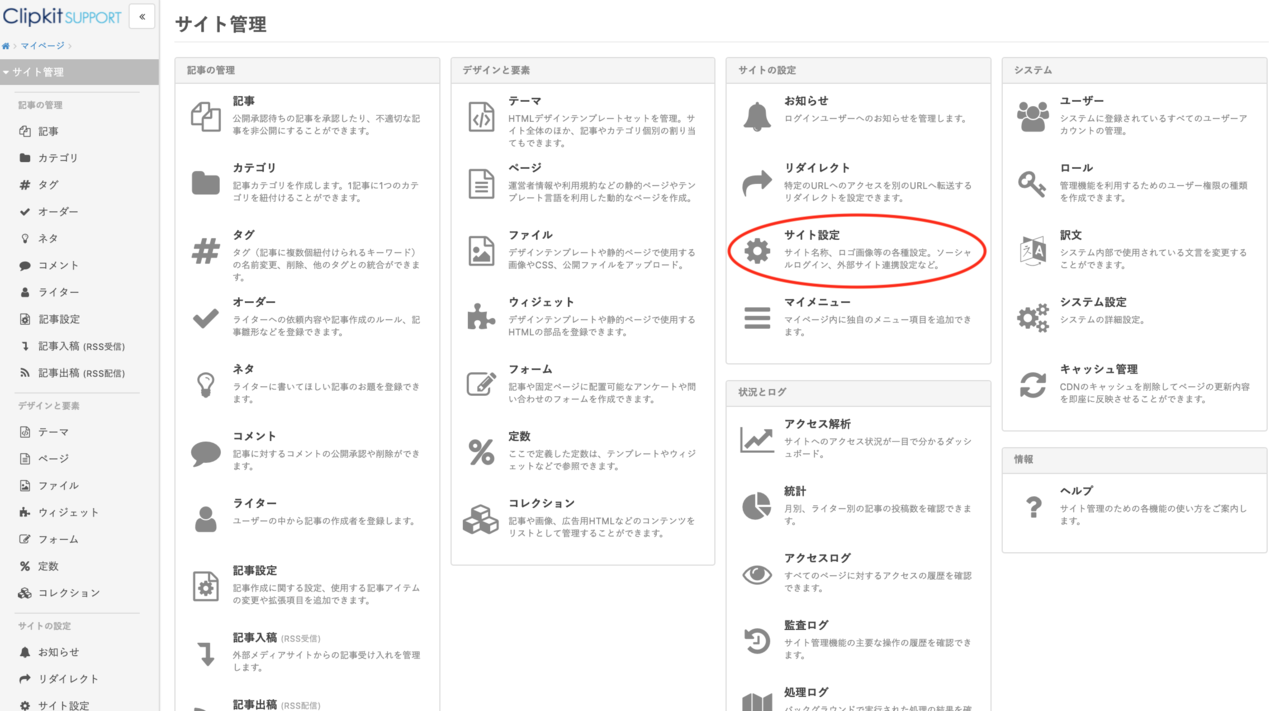
First, you need to create a square website favicon with a size of 16×16 pixels or 32×32 pixels.
- Upload image files to your website server via FTP or cPanel.
- Adjust the href attribute or include the necessary code in your website’s HTML file.
- Clear your browser’s cache and make sure the favicon is properly positioned.
Then test in a different web browser and troubleshoot if your favicon isn’t displaying correctly.
favic-o-matic
Favic-o-Matic allows you to choose from two different sizes right away. The first one is regular 16×16 + 32×32 pixels and the second one is universal and generates favicon for all devices and platforms.
There are also some advanced settings where you can choose background color, size presets, and other features. As usual, you can download favicons in PNG and ICO formats.
You can instantly upload your images and watch the magic happen. It’s completely free to use, but a small donation is always appreciated by them. So please don’t forget to contribute if you find it useful. 🙂
RealFaviconGenerator
RealFaviconGenerator lets you create the right favicon for each browser and platform, so it looks great everywhere. All you have to do is upload your images and it will be fully optimized for you, no manual effort required.
If you don’t like how your favicon looks on a particular platform, you can quickly check and improve it using our tools. The entire process takes less than 5 minutes to complete.
On top of that, it’s completely free to use.
favicon.io
Probably the easiest way ever, Favicon.io allows you to create or convert any given image into a favicon. Using this tool is completely free and you can place the generated favicon wherever you like. Can be exported in PNG and ICO formats.
There are several ways to generate a favicon with this tool. The first one is from plain text. If you don’t have an image or logo to convert to a favicon, you can use this option to instantly generate a regular text-based favicon.
The second is from an image or logo. Just upload the image/logo you want and this tool will convert it to the appropriate size and format.
The last option is emoji. There are a wide variety of pre-made emojis that you can choose from to create your favicon. This option is only recommended if you have a small or “less serious” website.
fiber
You can literally think of any service and it should be available on Fiverr.
There is a huge market for hiring freelancers for tasks ranging from simple to complex, and favicon design is one of them.
It must also be said that the services purchased through this platform do not necessarily have to be satisfactory, but the design category is always memorable. When we are talking about favicons, you are sure to find a good one.
Most gigs start at just $5 and usually include unlimited revisions until you’re completely satisfied. Reviews are important for freelancers, so we make sure they meet your requirements. All you have to do is buy the right gig and provide your exact requirements. Depending on delivery time, it usually takes 1-2 days.
I recommend going live as they also provide the favicon source file so you can tweak things here and there as needed.
fabiconer
Faviconer allows you to draw your own favicon or upload a ready-made image and convert it to the appropriate format. You can choose between 16×16 and 32×32 sizes, or both.
An interesting feature of this tool is that you can upload an image and continue drawing on it. This is useful if you want to add a little something to an image you’ve already created. You can export your favicon in ICO format as it is known to be the best for favicons.
In general, this tool is very easy to use, but if you still need help, check out the video tutorials at the bottom of the page. All available for free.
favicon generator
Last but not least, favicon generator is another easy and free tool to create a favicon for your website. There is no option to upload an image, but create one from scratch with customizable options. Completely text-based, but with color.
You can play with:
- text type
- background color
- text color
- border color
We have also included simple instructions below the options to help you achieve the best possible results. You don’t need to do much other than add text and choose colors, and you can export your favicon in ICO format immediately after generation.
If you’re wondering what a favicon looks like, check out the example at the top of the page to see for yourself.
conclusion
The above resources for creating a favicon for your website are sure to come in handy in your branding efforts. Most of them are free, but that doesn’t take away from the fact that they’re great.
If you want a specific type of favicon design, we recommend using Fiverr. Alternatively, it is best to rely on the other options mentioned above.


![How to set up a Raspberry Pi web server in 2021 [Guide]](https://i0.wp.com/pcmanabu.com/wp-content/uploads/2019/10/web-server-02-309x198.png?w=1200&resize=1200,0&ssl=1)


